

QR Post Code
Last updated:
Automatically generate a QR code for your published posts, giving visitors quick access. When scanned, the QR code will link directly to your post.
Get Your QR Post Code
- Open an existing published post on your site or create and publish a new post.
- Click on the Jetpack icon in the post editor, then locate the QR Code section in the sidebar.
- Click on Get QR Code.
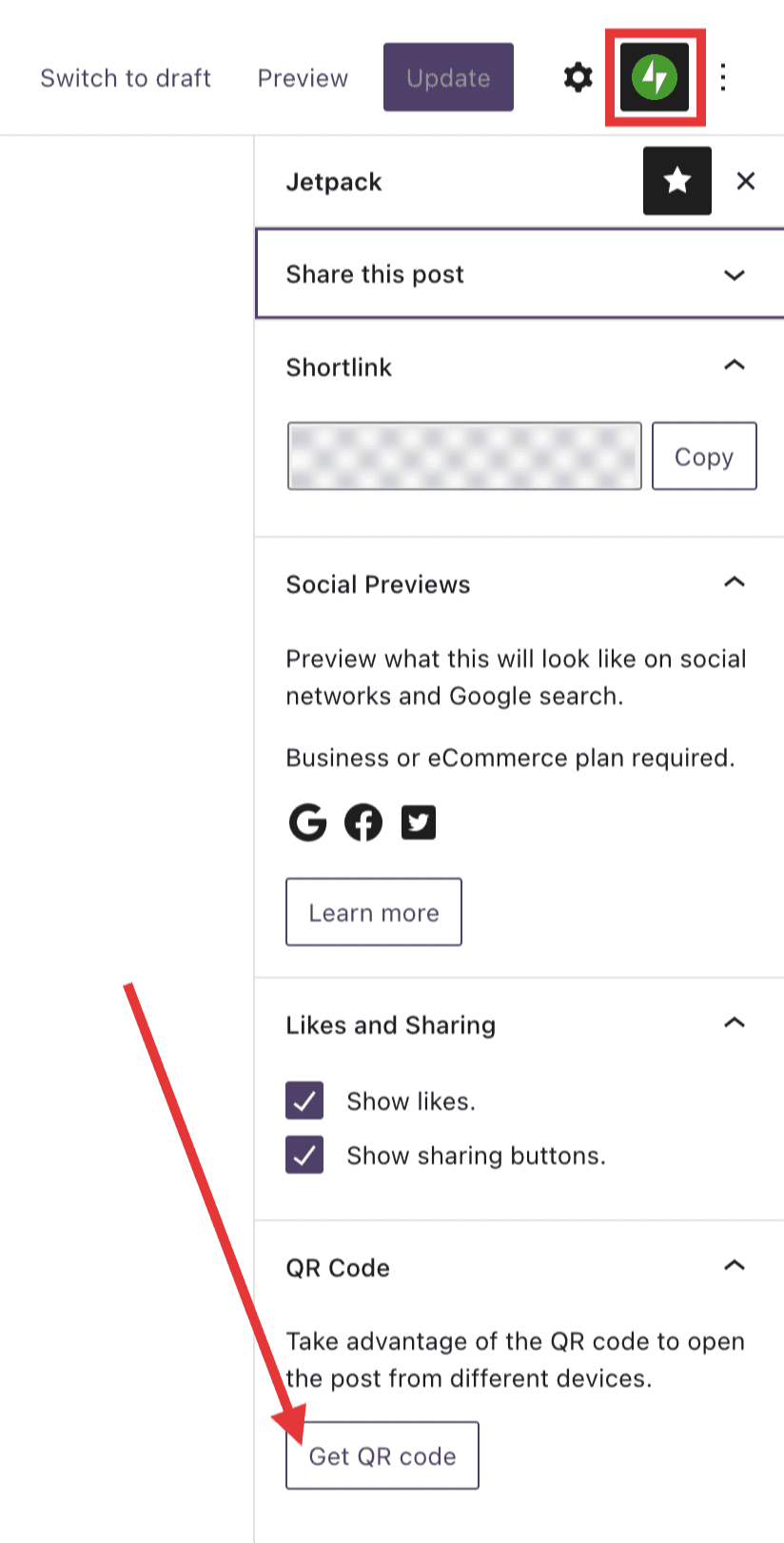
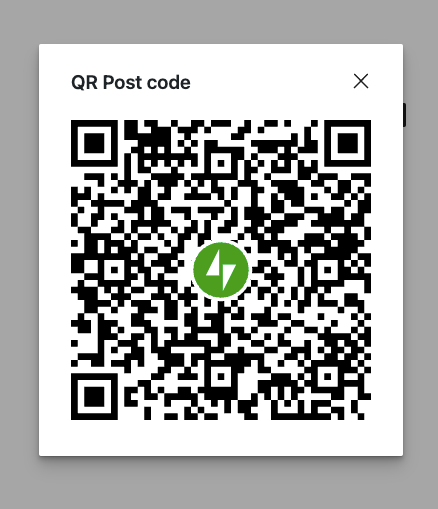
- After clicking Get QR Code, a QR code will appear with your site icon (favicon) in the center. Right-click to save it, then dismiss it with the (X). This QR code image can be shared anywhere, allowing anyone to scan it and access your published post.
Troubleshooting
How do I make sure the QR Code is working?
You can always test the QR Code before distributing or sharing the code. Just scan the code with your smartphone to ensure the post is visible.
My QR code shows my site icon instead of my logo.
QR Post Code uses your site icon (favicon) for the center of the QR code. If your site has no site icon, Jetpack uses your site logo instead. If your site has neither, Jetpack uses the Jetpack logo.
To change the image in your QR code, change your site icon.
If you recently changed your site icon, it may take a few seconds for the QR code to update. If the new icon still doesn’t appear, clear your browser cache.
Still need help?
Please contact support. We’re happy to advise.
Privacy Information
This QR Post Code is activated by default. The QR Post Code shows up in the Post Publish panel when publishing a new post.
| Data Used | |
|---|---|
| Site Owners / Users None. | Site Visitors None. |
| Activity Tracked | |
| Site Owners / Users None. | Site Visitors None. |
| Data Synced (Read More) | |
| Site Owners / Users None. | Site Visitors None. |

