

Likes
Última actualización:
Visitors can use the Like button to show their appreciation for your posts. Feel the love!
Activate and configure the Jetpack Like button
If your site uses a block theme, you do not need to activate Likes. You can head to Appearance > Site Editor and add Jetpack’s Like block to your templates instead.
On a classic theme, activate the Like button by following these steps:
- In WP Admin dashboard, go to Jetpack → Settings, then open the Sharing tab.
- Scroll to the Like buttons section near the bottom of the page.
- Turn on “Add Like buttons to your posts and pages“.
On a block theme, the Like buttons card points you to the Like block instead of showing this toggle. The Like block works with Likes turned off.
- If Likes are on, click the “Switch to the Like block” button. This turns off the legacy Like buttons, and the card then shows the “Open Site Editor” button.
- If Likes are off, click the “Open Site Editor” button. It opens your theme’s Single template, where you can add the Like block.
Where Likes appear
Likes appear on your posts, your pages, and any public custom post type that supports comments. A custom post type registered without comment support does not show Like buttons.
To choose where Like buttons appear:
- Go to Settings → Sharing in WP Admin.
- Scroll to the placement section at the bottom of the page, and clear each place where Like buttons should not show.
- Click the “Save Changes” button.
Sharing buttons use the same placement settings, so the section heading names each feature it covers, such as Where sharing and Like buttons appear. A change here applies to both.
These settings apply to your whole site. Saving them replaces the defaults described above, so a custom post type you register later will not show Likes until you check it here.
The placement settings in Settings → Sharing also control where Comment Likes appear. To manage Comment Likes, visit the Comment Likes section on the same screen.
On a block theme, Settings → Sharing keeps the Like settings and adds a notice recommending the Like block, with a “Switch to the Like block” button.
Change the default post types with a filter
Developers can change which post types show Likes by default with the jetpack_likes_default_post_types filter.
You can read the developer documentation for more information.
Enabling or disabling email notifications when you receive Likes
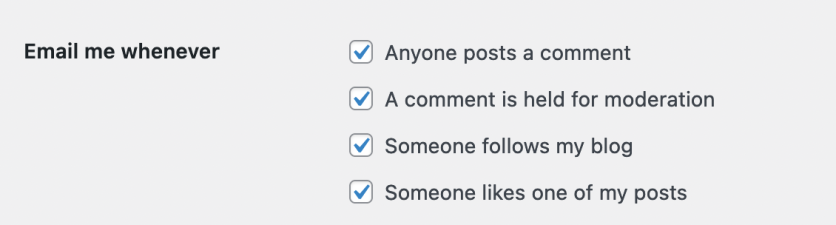
When you enable the Like button, Jetpack sends you an email notification by default when one of your readers clicks it. However, you can deactivate these notifications:
- Navigate to Settings in your WP Admin
- Click Discussion
- De-select the box that says Email me whenever someone likes one of my posts
- If you do not see this option, it means that you have not turned on Likes for your site.
View your Likes
On content where you’ve received many Likes, only one row of Likes will be displayed. To see all users who have Liked your content, click on the total count, and all Likes will display in a scrollable pop-up.
Disable Likes for specific posts
You can turn off the Like button for specific posts.
- When editing a post, click on the Jetpack logo in the Block Editor.
- Find the Likes and Shares section by clicking on the Jetpack logo in the Block Editor.
- Uncheck the box to disable Show likes option for that post only.
- Publish or update your post to save the change.
How to Like content on a site
Click the Like button, and the button changes to show that you’ve liked the post. Your Gravatar appears as a visual indicator of your appreciation.
You must be logged into WordPress.com in order to use the Like button. An alternative for non-WordPress.com visitors is to use the Ratings system.
Your Gravatar is clickable and linked to your Gravatar Profile. If you haven’t configured or updated your Gravatar Profile, you can do that by visiting Me → My Profile in your WordPress.com account.
How to remove your Like from content
If you need to remove the Like from a post (i.e. “unlike” the post), click the Like button again.
Review posts you Like
To review all the posts you’ve liked, visit your Reader on WordPress.com and visit the My Likes section.
Troubleshooting
My likes disappeared.
Likes are tied to specific URLs and cannot be migrated between sites.
The Like button is not showing.
Double-check the Like button settings to make sure it’s activated to show in all the places that you want.
Likes are not loading.
There is a known issue between Cloudflare’s Rocket Loader and Jetpack Likes. You’ll need to disable this feature in your Cloudflare settings.
If you have a cache or other optimization plugin that minifies JavaScript, the minification could cause the Likes button to say “Loading…” indefinitely. Please try to deactivate the minification to solve the issue.
I’m not able to like any more posts.
Our Like features are designed to help you keep up with your favorite blogs, give easy feedback to their authors, and nurture direct conversations. This feature is limited in order to avoid spamming blog authors with notifications of Likes. We recommend you to pause hitting the Like button for a while whenever you experience Likes not going through.
Still need help?
Please contact support. We’re happy to advise.
Privacy Information
The “Likes” feature is deactivated by default. You can activate it at any time from your WP Admin. To do so:
- Go to Jetpack → Settings.
- Click the Sharing tab.
- Toggle the Add Like buttons to your posts and pages setting in the Like buttons section.
| Data Used | |
|---|---|
| Site Owners / Users
IP address, WordPress.com user ID, WordPress.com username, WordPress.com-connected site ID (on which the post was liked), post ID (of the post that was liked), user agent, timestamp of event, browser language, country code. | Site Visitors
IP address, WordPress.com user ID, WordPress.com username, WordPress.com-connected site ID (on which the post was liked), post ID (of the post that was liked), user agent, timestamp of event, browser language, country code. |
| Activity Tracked | |
| Site Owners / Users
We track when, and which user, likes (or receives a like on) a specific post. | Site Visitors
We track when, and which user, likes a specific post. |
| Data Synced (Read More) | |
| Site Owners / Users
We sync options that identify whether or not the feature is activated and how its available settings are configured. | Site Visitors
None. |

