Jetpack 16.3: Conditional logic in Forms, new playlist blocks, and more

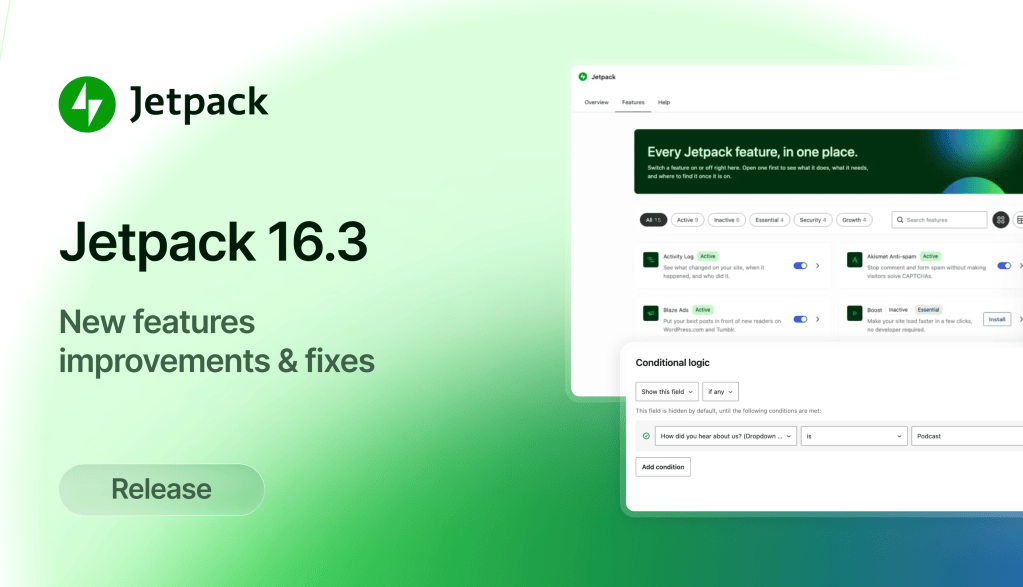
The Jetpack logo and the headline "Jetpack 16.3, out now" next to a VideoPress playlist and a contact form using conditional logic.

Jetpack 16.3 is out now and it’s a big release, with 380 pull requests from 52 contributors. Here’s what’s new, starting with the features I’m most excited about.

Conditional logic in Forms

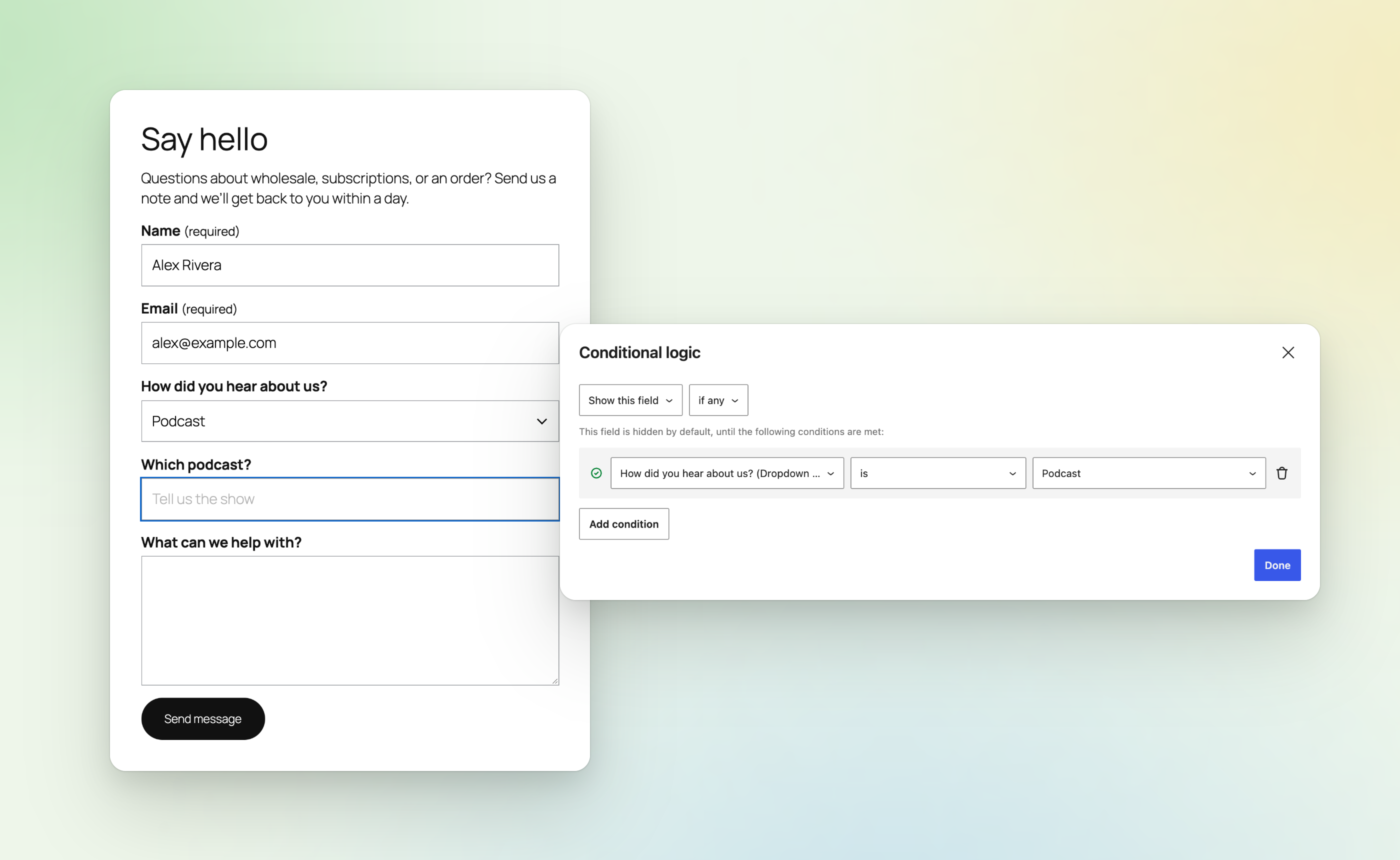
You can now show or hide a form field based on how someone answered another field. Ask “How did you hear about us?” and only show a “Which podcast?” field when someone picks “Podcast.” People only see the questions that apply to them.

To set it up, select a field in the Form block and open its conditional logic settings from the block toolbar or the sidebar. It’s available on every Jetpack plan, including free.

A contact form where picking Podcast for How did you hear about us? reveals a Which podcast? field, next to the Conditional logic rule that controls it

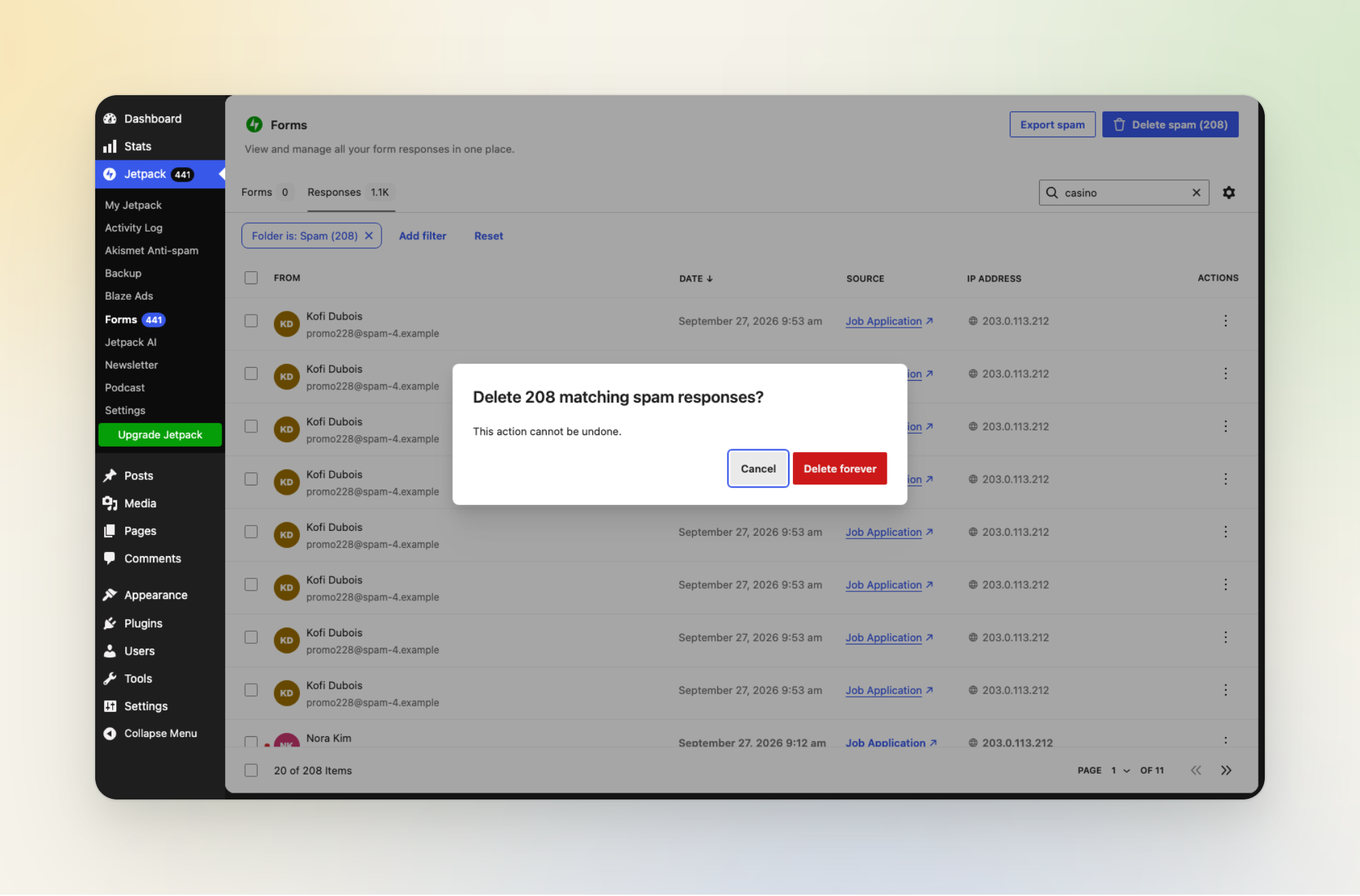
Managing responses got easier too. The “Delete spam” button now acts on the responses you’ve selected or filtered, and tells you how many it’s about to delete. Large spam and trash folders empty in batches with a progress indicator. Delete confirmations also default to “Cancel” now, so pressing Enter won’t permanently delete a whole folder by accident.

The Forms dashboard asking to confirm deleting 208 matching spam responses, with Cancel selected by default

Two new VideoPress playlist blocks

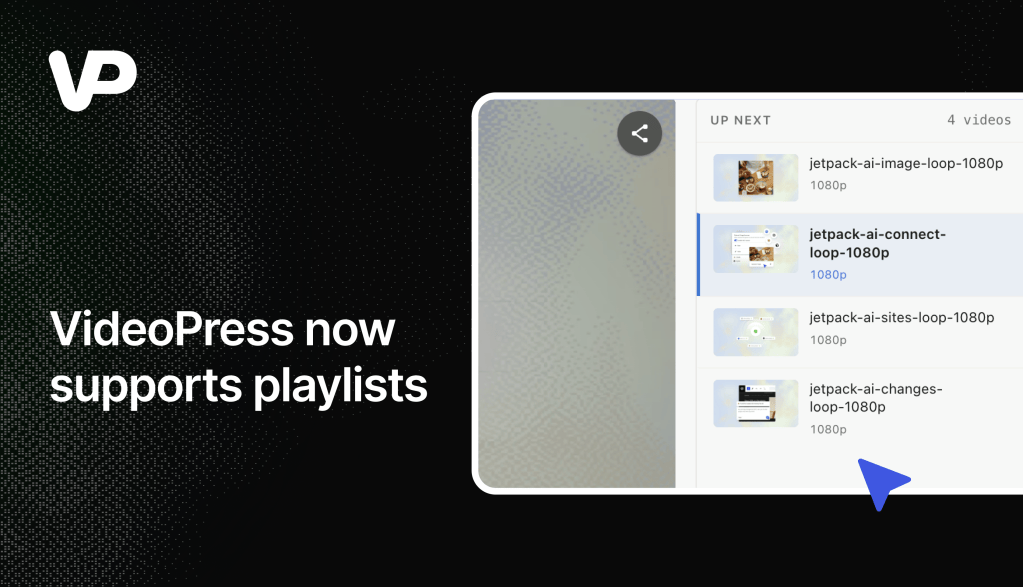
Last month we shipped the Video Playlist block. Jetpack 16.3 adds two more blocks built on it:

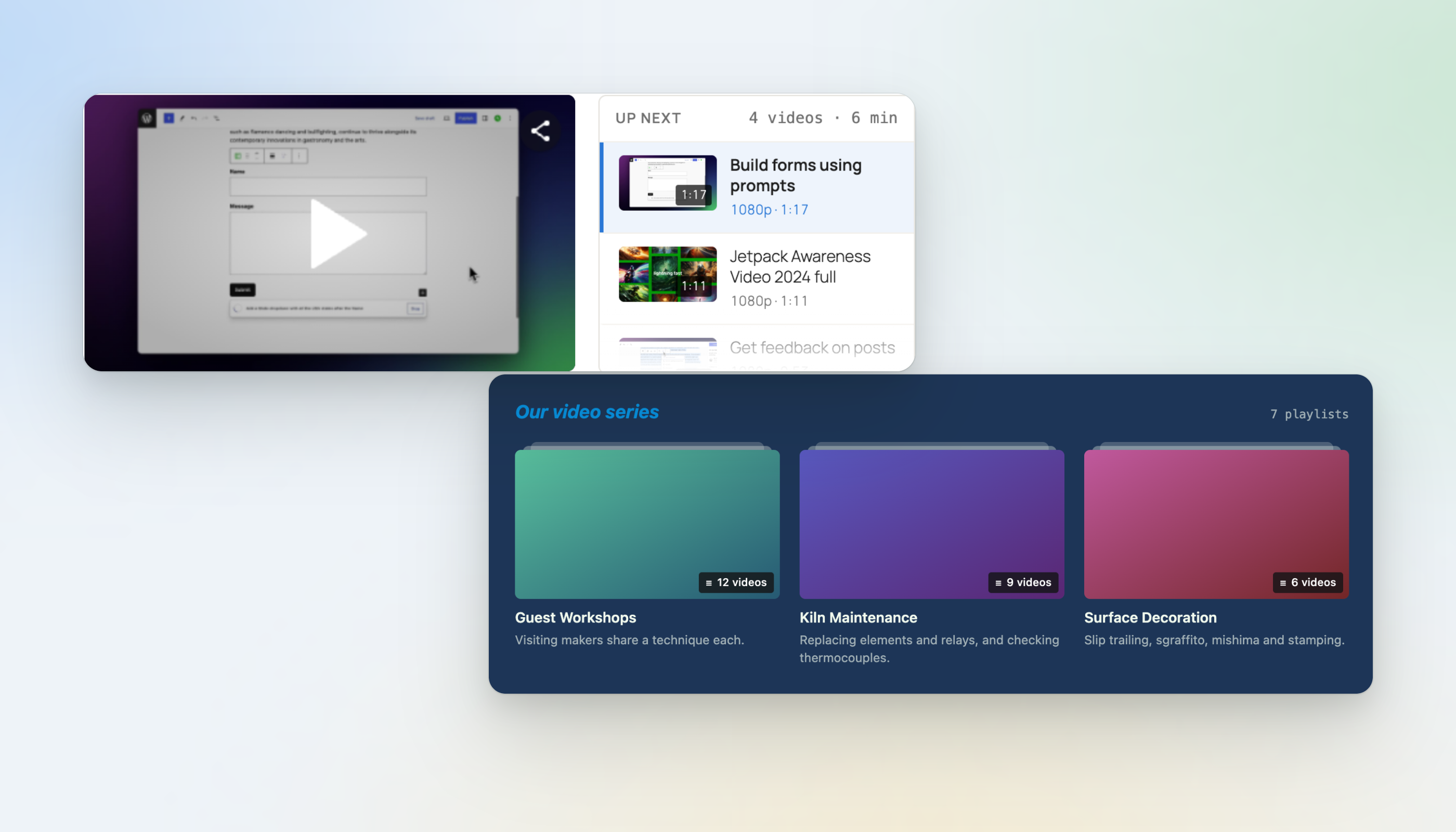
  • “Latest Videos Playlist” plays your site’s newest VideoPress videos. Upload a new video and it shows up at the top on its own, with no post editing needed. You choose how many videos to show, up to 20.
  • “All Playlists” lists every Video Playlist on your site as a grid or a list, with page numbers or a “Load more” button.
The Latest Videos Playlist block playing a site's newest videos, above the All Playlists block showing a gallery of video playlists

Playlists also get an editable title and description, plus a “Show player” setting. Turn the player off to show a playlist as a simple list of videos.

A few more VideoPress updates in this release:

  • A new “Allow sharing” setting turns off the share menu on every video at once.
  • You can edit a video’s details while it’s still uploading.
  • A new setting loads the VideoPress player once per page instead of once per video. On a test post with four videos, that meant one player download instead of four.

Here’s how to set up a playlist if you haven’t tried one yet.

The “Products” tab is now “Features”

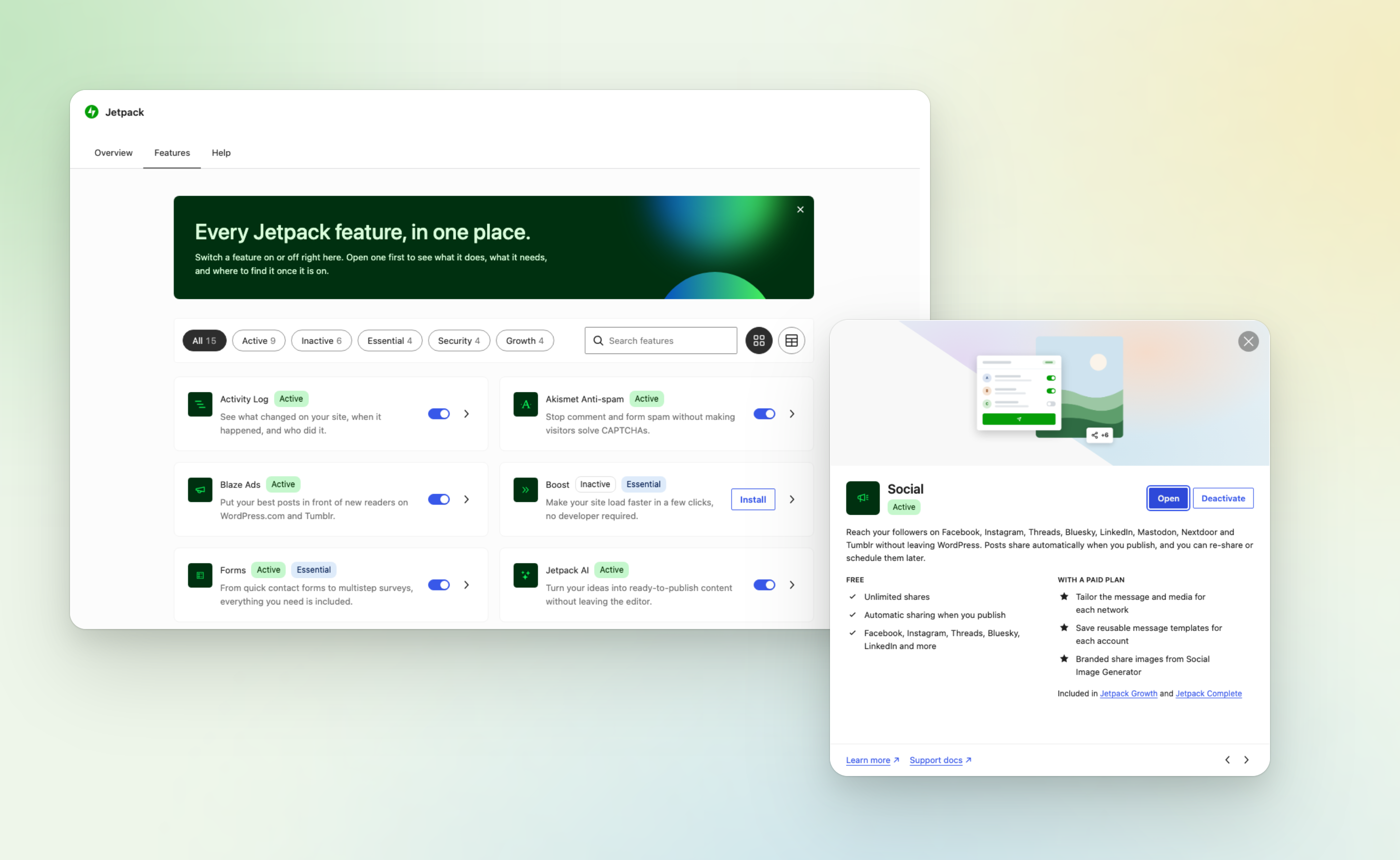
The first thing you’ll notice in My Jetpack is the new “Features” tab. It replaces the “Products” tab and puts every Jetpack feature in one place.

Each feature has its own switch, so you can turn it on or off right from the grid. Filter by what’s active, inactive, or “Included in plan,” or search for a feature by name. Open any feature to see what it does, what’s free, and what a paid plan adds.

The new Features tab in My Jetpack, with filters, a search box, and an on/off switch for each feature, next to the details window for Social showing what's free and what a paid plan adds

A “List view” lets you switch several features on or off at once, and a “More Features” section collects the rest of Jetpack’s modules. Activity Log has a switch here too.

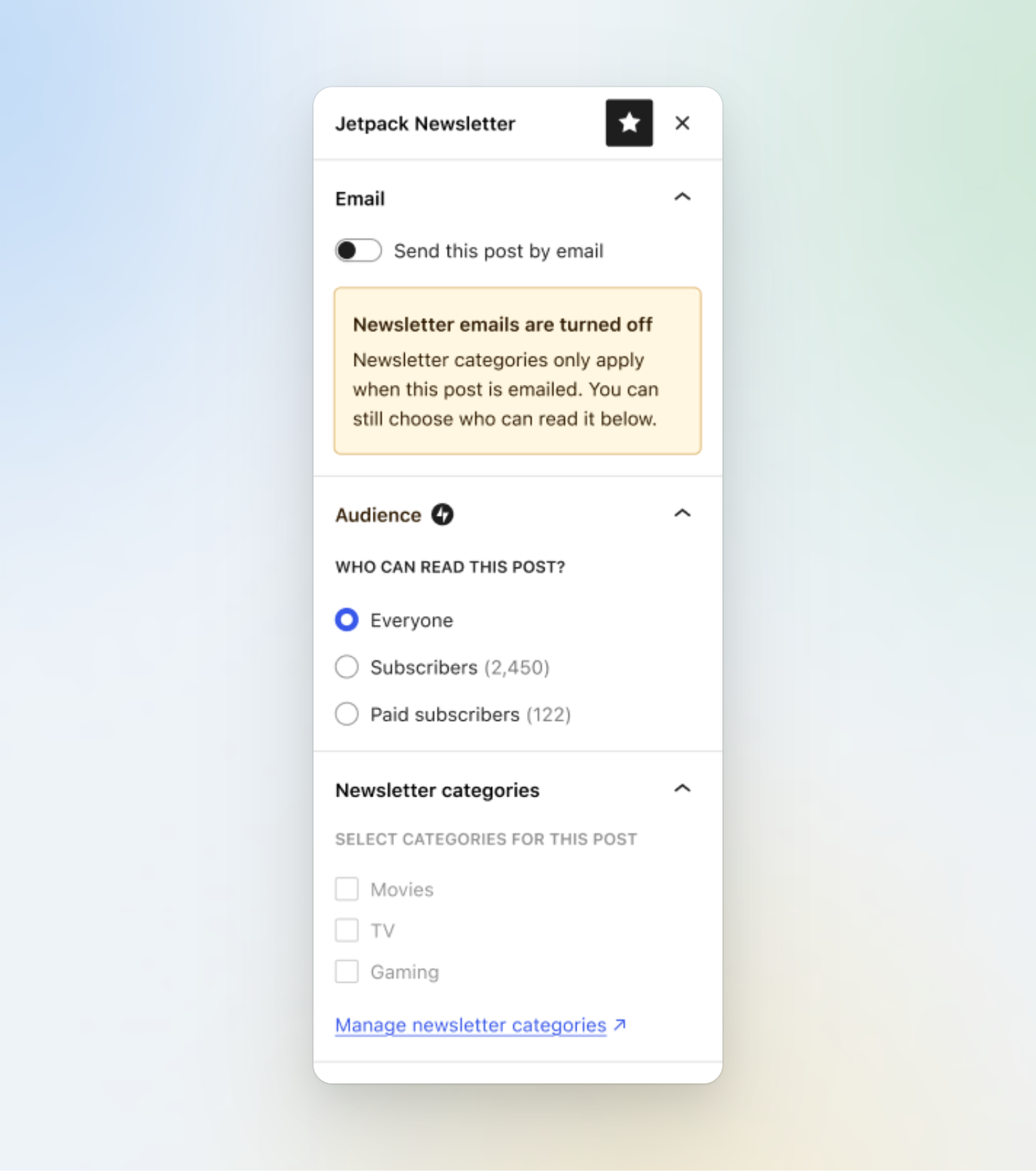
A clearer Newsletter sidebar

The Jetpack Newsletter sidebar in the editor now has three sections: “Email,” “Audience,” and “Newsletter categories.” Sending a post by email is a single on/off switch, and you can pick which newsletter categories get the post without digging through the general “Categories” panel.

The Jetpack Newsletter sidebar in the editor, with Email, Audience, and Newsletter categories sections

Connect ChatGPT and Codex to your site

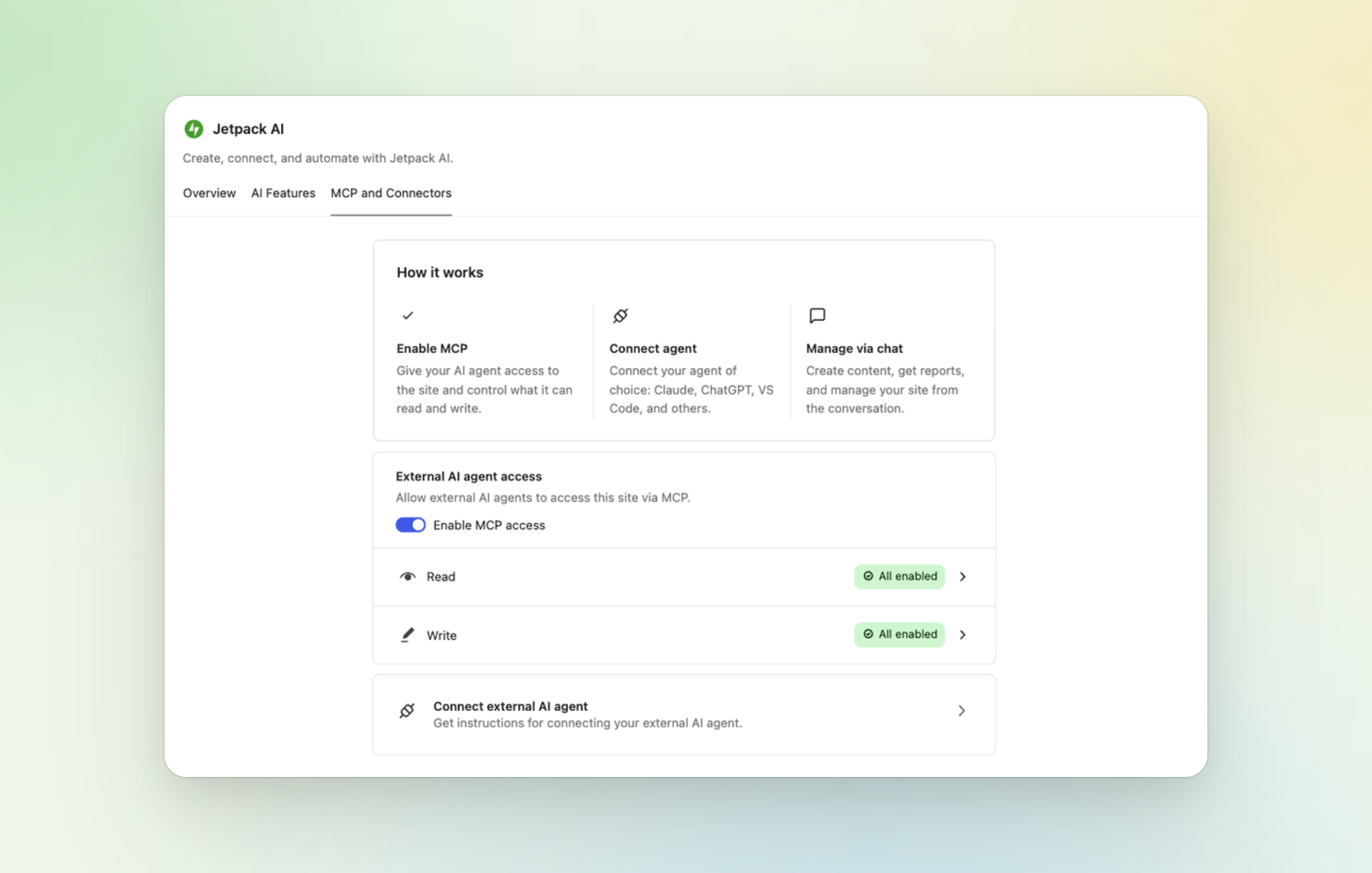
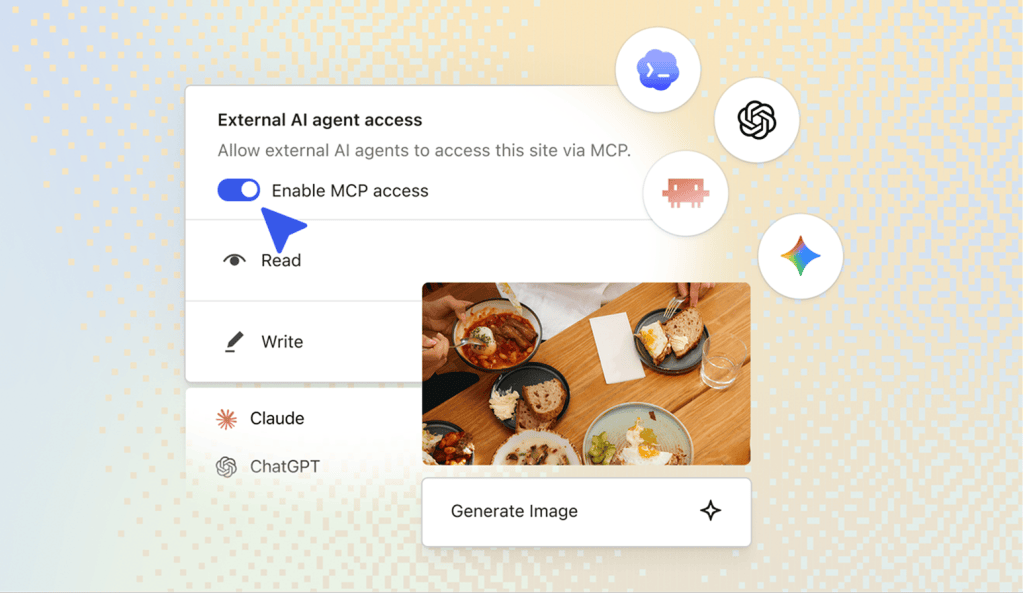
The MCP setup page in Jetpack AI now includes ChatGPT and Codex, alongside Claude, Cursor, VS Code, and more. Connecting Claude or ChatGPT takes two steps, and a new “How it works” guide at the top of the “MCP and Connectors” tab walks you through it.

The MCP and Connectors tab in Jetpack AI, with the new How it works guide above the external AI agent access settings

Zoom Scheduler block

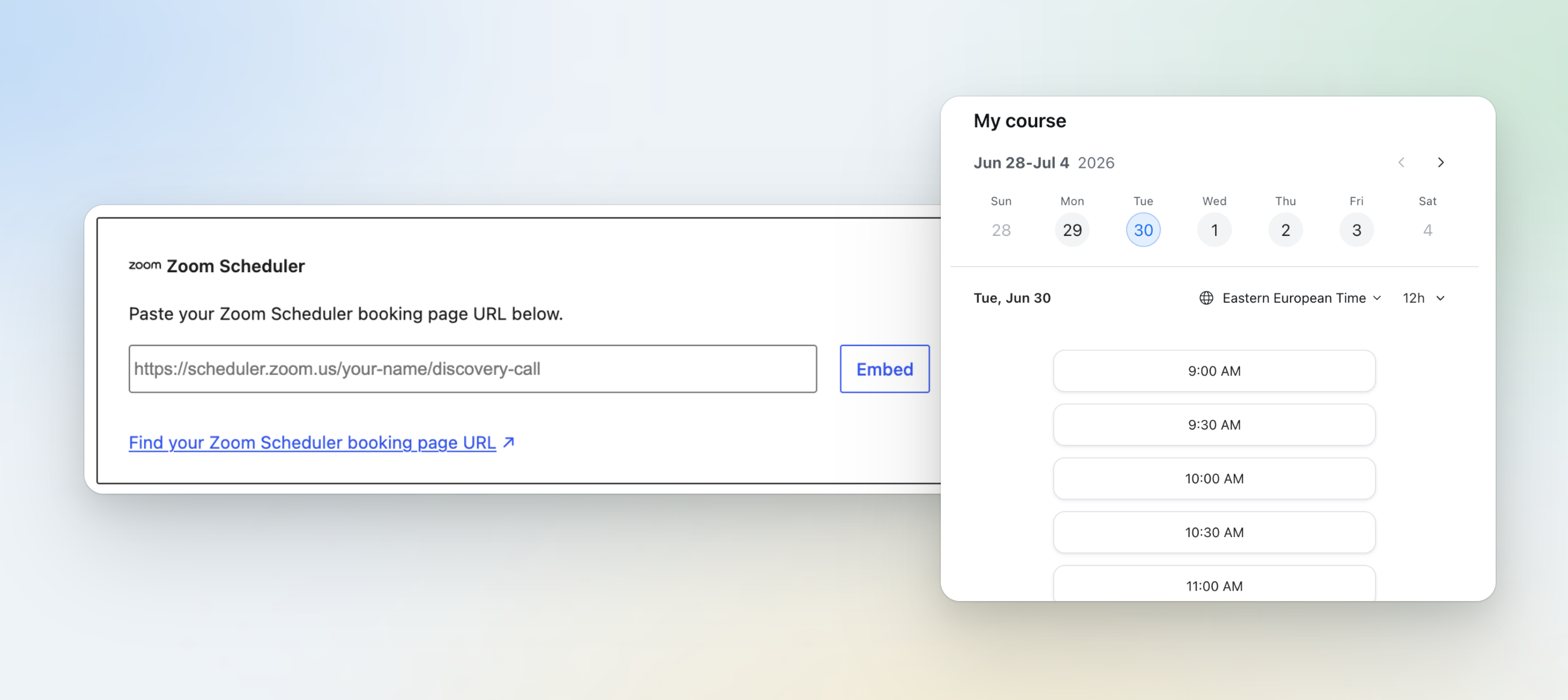
There’s a new “Zoom Scheduler” block. Paste in your Zoom Scheduler booking page URL, and visitors can book time with you right from your post or page. It’s available on every plan, including free.

The Zoom Scheduler block asking for a booking page URL, next to the booking calendar it embeds on the page

Fewer false connection errors

We fixed several cases where Jetpack reported a connection problem on a healthy site, including stale error notices and false failures in Site Health. When there is a real problem, every error now shows up in one notice that names the affected account. Reconnecting also repairs just the owner’s account now, instead of disconnecting every user.

And more

  • Stats settings now live in a “Settings” tab in the Stats dashboard.
  • Tooltips and charts also work better with a keyboard and screen readers!
  • The Daily Writing Prompt widget in WP Admin has a new “Freshly Pressed” tab with posts WordPress.com is featuring.
  • And finally, we made security improvements across Forms, Memberships, VideoPress, and more.

For everything else, check the full changelog.

Thanks to everyone who contributed to this release. You can find the full list of Jetpack contributors on GitHub.

Update to Jetpack 16.3 from your “Plugins” page, and let us know what you think in the support forums.

Jetpack のメリットを見る

Jetpack が WordPress サイトの保護、速度向上、成長にどう役立つかをご覧ください。

プランを見る

ご質問がありますか?

この記事へのコメントは締め切られていますが、引き続きサポートいたします。サポートフォーラムにアクセスしていただければ、ご質問にお答えします。

サポートフォーラムを見る