

Carrousel
Dernière mise à jour :
Lancez une superbe expérience de navigation photo en plein écran, avec commentaires et métadonnées EXIF, grâce au carrousel Jetpack.
Activer le carrousel
Pour commencer à utiliser le carrousel, suivez ces étapes :
- Accédez à la section Médias dans Jetpack → Réglages → Écriture de votre tableau de bord.
- Basculez
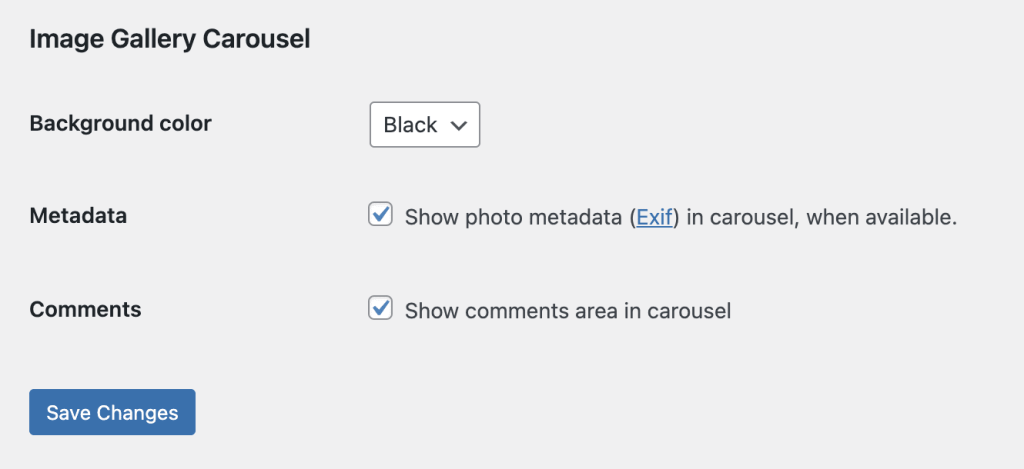
Display images in a full-screen carousel gallerysur « Activé ». - Choisissez d’afficher ou de masquer les métadonnées Exif des photos et la zone de commentaires dans la visionneuse d’images, et modifiez également la palette de couleurs du carrousel.
Le carrousel sera désactivé s’il détecte que le thème utilisé remplace le code court de galerie, afin de ne pas entrer en conflit avec le thème. Si le carrousel ne fonctionne pas, il est possible qu’une fonctionnalité de galerie personnalisée du thème soit en conflit.
Cliquez sur une image ci-dessous pour voir le résultat !


Le carrousel fonctionne uniquement avec les images, pas avec les vidéos.
Titres, légendes et descriptions dans le carrousel
Par défaut, vous pouvez ajouter des titres, des légendes et des descriptions à vos photos dans la bibliothèque de médias.
Une légende s’affichera sous une image dans le carrousel si une légende lui a été ajoutée.
Le titre, la description et la légende s’afficheront dans les métadonnées Exif d’une image si ces champs ont été renseignés pour cette image.
Réglages d’administration de WordPress
Une fois la fonctionnalité Carrousel activée, vous trouverez les réglages dans votre tableau de bord sous Réglages → Médias.
Ouvrir une image dans une visionneuse
Pour ouvrir une seule image dans sa propre visionneuse :
- Accédez à la page ou à l’article où vous souhaitez ajouter l’image unique dans une visionneuse.
- Ajoutez un bloc d’image.
- Ajoutez votre image en la téléversant directement dans le bloc, en sélectionnant une image ou en l’insérant depuis une URL.
- Une fois l’image sélectionnée, cliquez sur l’icône de lien dans la barre d’outils de l’éditeur de blocs.
- Définissez le lien vers Page de pièce jointe.
Désormais, lorsqu’une personne cliquera sur l’image individuelle dans la galerie, celle-ci s’affichera dans la visionneuse superposée.
Informations relatives à la confidentialité
Le carrousel est désactivé par défaut. Si vous devez l’activer, vous pouvez activer le paramètre Afficher les images et les galeries dans une superbe expérience de navigation en plein écran dans la section Médias à Jetpack → Réglages → Écriture.
| Données utilisées | |
|---|---|
| Propriétaires du site / Utilisateurs L’utilisation de cette fonctionnalité peut exposer des informations liées aux photos, telles que les données EXIF, les données GEO et les informations sur l’appareil photo. De plus, pour le suivi de l’activité (détaillé ci-dessous) : adresse IP, identifiant utilisateur WordPress.com, nom d’utilisateur WordPress.com, identifiant du site connecté à WordPress.com et URL, version de Jetpack, agent utilisateur, URL visitée, URL référente, horodatage de l’événement, langue du navigateur, code pays. | Visiteurs du site Pour le suivi des consultations d’images* (détaillé ci-dessous) : adresse IP, identifiant utilisateur WordPress.com (si connecté), nom d’utilisateur WordPress.com (si connecté), agent utilisateur, URL visitée, URL référente, horodatage de l’événement, langue du navigateur, code pays. |
| Activité suivie | |
| Propriétaires du site / Utilisateurs Consultations d’images*. Nous suivons la date et l’utilisateur qui ont activé ou désactivé la fonctionnalité. Nous suivons également la date et les paramètres de configuration qui ont été modifiés. | Visiteurs du site Consultations d’images*. |
| Données synchronisées (En savoir plus) | |
| Propriétaires du site / Utilisateurs Nous synchronisons une seule option indiquant si la fonctionnalité est activée ou non. | Visiteurs du site Aucune. |
* Les consultations d’images sont uniquement enregistrées si le propriétaire du site a activé le suivi des statistiques de consultation d’images pour cette fonctionnalité, qui est désactivée par défaut. La majorité des sites Jetpack n’ont pas activé cette option, car elle nécessite actuellement un code personnalisé qui active l’option jetpack_enable_carousel_stats.

