

Jetpack Podcast
Dernière mise à jour :
Set up, publish, and distribute a podcast from your Jetpack-connected site. You’ll learn how to configure your show settings, publish episodes, find your RSS feed URL, and submit your show to podcast directories.
Some podcast features require a paid Jetpack plan, such as Jetpack Growth or Jetpack Complete. See the plan comparison section below for details.
Enable podcast on your site
Jetpack Podcast is available on all Jetpack-connected sites running Jetpack 16.1 or later.
For new Jetpack sites, podcasting is active by default. For existing sites, you’ll need to enable the module first:
- In WP Admin, go to Jetpack → My Jetpack.
- Click the Modules link in the footer.
- Under Other Features, toggle Podcast to On
Once the module is active, configure your podcast settings:
- From your site’s WP Admin, go to Jetpack → Podcast.
- Click the blue “Enable podcasting” button.
- A “Set up your podcast” modal opens. Pick a category from the dropdown. Posts in this category become episodes in your podcast feed. You can change this later from Settings.
- Click Confirm.
Finish setting up your podcast
A yellow “Finish setting up your podcast” callout appears at the top of the Settings tab. It lists what you still need to add before you can submit your podcast to directories:
- Write a short summary so listeners know what your show is about.
- Set the host or talent name.
- Add an owner email so podcast directories can reach you.
- Pick at least one podcast category
- Upload a cover image (1400×1400 to 3000×3000 pixels).
Work through the sections above to fill these in. The callout disappears once every item is set.
Choose your podcast category
When you enable podcasting, you’ll be asked to pick a category for your podcast. This determines which posts on your site become episodes — every post you publish in this category appears in your podcast RSS feed, and posts in other categories do not. To update it later, create a new category or select an existing one from the dropdown in the Podcast category section
This is different from dedicated podcast hosts, where each episode is a separate object. On your site, episodes are posts first, which means they also appear on your blog and can be included in your Jetpack Newsletter.
Note: If you change your podcast category after submitting to platforms, the feed URL changes too, so you will need to resubmit the new feed URL to each directory.
Fill in show details
The Show details section is the information that appears in podcast apps like Apple Podcasts and Spotify:
- Cover image: Upload artwork between 1400×1400 and 3000×3000 pixels (JPG or PNG).
- Title: Your podcast name (defaults to your site title).
- Summary / Description: A short description of your podcast.
- Host or talent name: The people behind your podcast.
- Copyright: Copyright information for your podcast.
Click the “Save settings” button to confirm these details.
Configure feed settings
The Feed settings section controls how your podcast appears in podcast directories and apps:
- Podcast topics: Pick at least one topic to classify your show in Apple Podcasts.
- Explicit content: Many platforms require you to disclose if your podcast contains explicit content.
- Owner email: This email address is displayed in the feed and is used by directories to reach you. Spotify and others send verification codes here when you submit your show.
- Episodes in feed: control how many of your most recent episodes appear in your feed, with a maximum of 500. Setting a lower number keeps older episodes on your site but removes them from the feed that directories and apps read.
Disable podcast
You can disable podcasting and stop publishing podcast to your feed by:
- From your site’s WP Admin, go to Jetpack → Podcast
- Select the Settings tab and scroll down to the Stop publishing your podcast section
- Click Stop Publishing to turn off the feed
What’s included in each plan
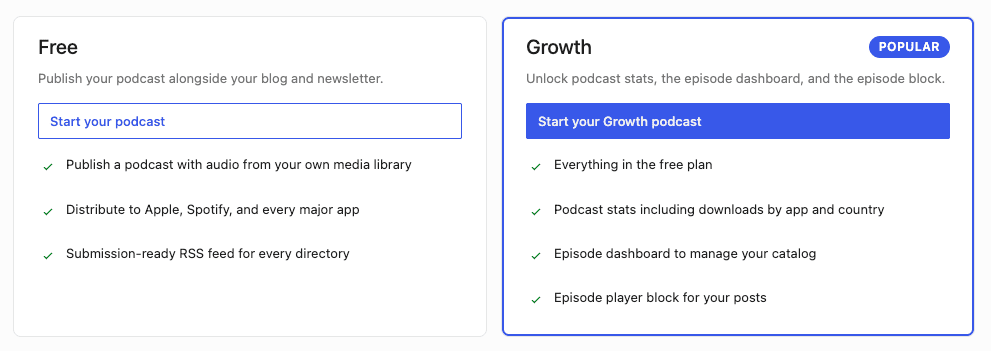
Podcasting features vary by plan. The Free plan covers the basics so you can publish a feed alongside your blog, while the Jetpack Growth or Jetpack Complete plans include listener stats, access to the Podcast Episode block, and the episode dashboard.
Publish a new episode
To create a new episode, click Create episode at the top of any tab in Jetpack → Podcast. This opens a new post that is already filed in your podcast category, so it will appear in your RSS feed when you publish.
What you see in the editor depends on your plan:
- On the free plan: the editor opens with an Audio block ready for you to upload or select an audio file from your media library.
- On a paid plan: the editor opens with a Podcast Episode block instead. The Episode block includes a rich audio player and lets you set podcast metadata directly in the editor, including season and episode numbers, episode type (full, trailer, or bonus), an explicit content flag, and per-episode artwork. You can learn more about the Podcast Episode block in the article, Podcast Episode block.
Add your audio, write your title and show notes, and publish. The episode appears in your podcast feed automatically.
You can also create an episode by creating a regular post and adding either the Audio block or Podcast Edisode and setting the cateogry to your podcast category. Any post published in your podcast category that includes audio will appear in your feed.
Supported audio file formats
Supported audio files formats include .mp3, .m4a, .ogg, and .wav. However, different podcasting platforms accept different formats:
- .mp3: Works with all platforms (Apple Podcasts, Spotify, Pocket Casts, and others)
- .m4a: Works with most platforms except Spotify
- .ogg and .wav: Not accepted by Apple Podcasts or Spotify
For best compatibility across all platforms, use the .mp3 format for your audio files.
Note: Audio files can be uploaded directly to your site using the Podcast Episode block. Do not embed audio from SoundCloud or Audiomack, as Apple Podcasts cannot download files from external hosting services.
Submit your podcast to directories
Submit your podcast to listening apps so people can find and subscribe to your show. Go to Jetpack → Podcast → Distribution. The Distribution tab has two sections: Automatic submission and Manual submission.
Automatic submission
Pocket Casts supports one-click submission. Click Submit next to Pocket Casts, and Jetpack sends your feed URL to Pocket Casts for you, without the need to copy or paste anything. Once your show is live, the button changes to View show and links directly to your show’s page.
Automatic submission is available for Pocket Casts only, and requires a WordPress.com connection. If you’re not connected to WordPress.com, submission is unavailable and shows a notice with a Connect link. Manual submission to the other directories still works without a WordPress.com connection.
Manual submission
Apple Podcasts, Spotify, and the other directories use manual submission. Each directory is listed with a button that opens the platform’s submission page with your feed URL ready to go. Complete the submission on the platform’s own site.
The directories available for manual submission are:
- Apple Podcasts.
- Spotify.
- YouTube Music.
- Amazon Music.
- Podcast Index.
If a submission button is disabled (grayed out), your podcast is not ready to submit yet. Complete the listed steps included in the notice at the top of the page to activate the button.
Manage your Episodes
The Episodes Dashboard at Jetpack → Podcast → Episodes gives you a central place to manage your podcast catalog. This feature requires a Jetpack Growth or Jetpack Complete plan.
The episode list shows your published, draft, and scheduled episodes with the title, publish date, episode number, duration, and play count for each one.
From the Episodes Dashboard you can:
- Search and filter episodes from the toolbar at the top.
- Click a play count to see the per-episode stats.
- Click an episode title to edit the post.
- Use the row actions menu in the Actions column to manage the episode.
To remove an episode from your podcast feed without deleting the post, open the post in the editor and uncheck the podcast category. The post stays published on your site but is no longer in your feed. To delete the post entirely, open it in the editor and use Post → Move to trash.
View your podcast stats
The Stats tab at Jetpack → Podcast → Stats shows how your podcast is performing. This feature requires a Jetpack Growth or Jetpack Complete plan.
Once you have published your first episode, submit your podcast to directories so listeners can find it in their podcast app, then check your stats.
Stats are organized into five views:
- A Downloads chart at the top.
- Four summary cards: Total downloads, Top app, Top country, and Top day.
- A Top episodes list.
- A By app breakdown.
- A By country breakdown.
Podcast stats are currently available through the web dashboard only and are not yet shown in the Jetpack mobile apps. You can access them from a mobile browser by visiting your site’s dashboard and navigating to Jetpack → Podcast → Stats.
To learn more about Podcast Stats, see View your podcast stats.
Still need help?
Please contact support. We’re happy to advise.
Dans cette section
- Podcast Episode block The Podcast Episode block lets you create podcast episodes with a rich player that supports chapters, transcripts, soundbites,…
- View your podcast stats View and understand the stats for your podcast, including download counts, top episodes, listener apps, and listener locations.…

