
Scheduling posts in WordPress allows you to plan your content ahead of time, ensuring a consistent schedule, even when you’re not available to publish manually.
In this guide, we’ll explore the benefits of scheduling, provide a detailed walkthrough of the process, and discuss advanced tools and troubleshooting tips to enhance your content management experience.
TL;DR
- Set the site timezone correctly before scheduling posts.
- Use the post editor’s publish date and time controls to schedule a future publish time.
- Preview the post before scheduling to check formatting, images, links, categories, tags, and featured image.
- Use an editorial calendar plugin when several authors or campaigns need scheduling visibility.
- Schedule social sharing separately with Jetpack Social or another scheduler when promotion should happen after publication.
- Avoid last-minute edits after scheduling unless you recheck publish time and status.
- Check for missed schedule issues if posts do not publish, including cron, caching, and hosting behavior.
- Review scheduled posts regularly so outdated announcements do not publish later.
Benefits of scheduling posts
- Consistency: Regular posting keeps your audience engaged and improves SEO rankings
- Time management: Plan and prepare content in advance, freeing up time for other tasks
- Audience targeting: Publish posts at optimal times when your audience is most active, regardless of your personal schedule
How to schedule a post in WordPress
1. Create a new post
- Log in to your WordPress dashboard. Access your site’s admin panel by navigating to yoursite.com/wp-admin.
- Navigate to the post editor: Hover over Posts in the left-hand menu and click Add New Post.
2. Write your content
- Add your title: Enter the post title in the designated field at the top of the block editor.
- Create your post: Use blocks — like Heading, Paragraph, Image, and List blocks — to write and build out your post.
3. Set the publish date and time
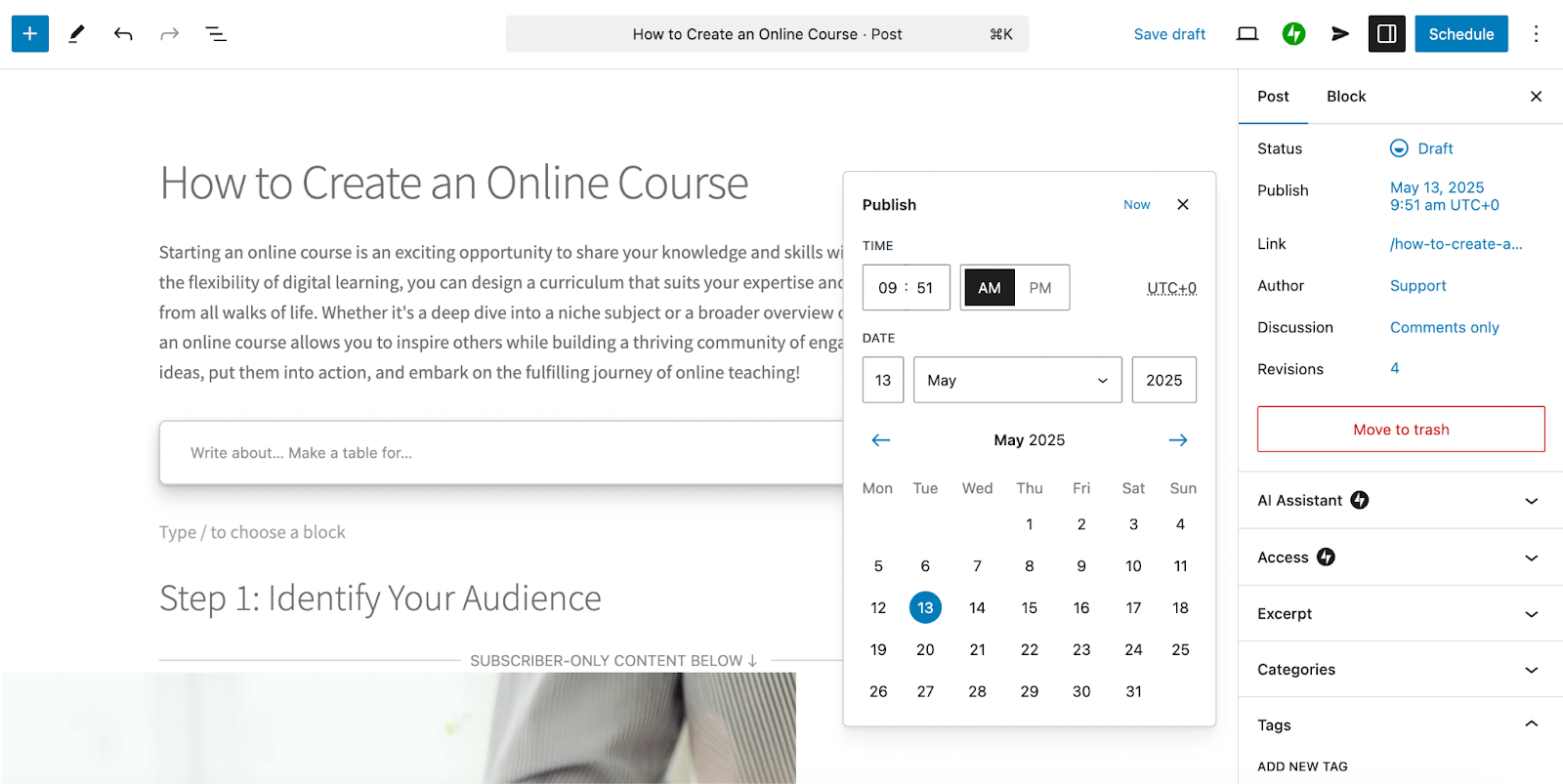
- Open the Settings panel: Open the post’s settings by clicking the icon at the top right of the block editor.
- Choose a date and time: Next to “Publish,” click the date and time that are currently set. In the panel that appears, select a time and date.
4. Schedule the post
- Review your settings: Ensure the date, time, and content are correct.
- Click “Schedule”: This button replaces Publish when a future date is set. Your post is now scheduled to go live at the specified time.
How to manage scheduled posts
Viewing scheduled posts
- Navigate to the “Posts” section: Click Posts → All Posts in the left-hand menu to view all posts.
- Filter by “Scheduled”: Use the filter options at the top to display only scheduled posts.
Editing a scheduled post
- Click on the post title: This opens the post editor.
- Make necessary changes: Update content, change the scheduled time, or adjust settings as needed.
- Click “Update”: Save your changes. If you’ve altered the schedule, the post will be published at the new time.
Unscheduling a post
- Open the scheduled post: Click on the post title to edit.
- Change the publish date to the current date and time: This sets the post to publish immediately.
- Click “Publish”: The post goes live right away.
Advanced scheduling tools
Plugins for enhanced scheduling
While the WordPress built-in scheduling is robust, plugins can offer additional features:
- Editorial Calendar: Provides a visual calendar to drag and drop posts, making it easy to manage your content schedule
- SchedulePress: Offers advanced scheduling options, including missed schedule handler and auto social sharing
Automating social media sharing
To maximize reach, consider scheduling social media posts alongside your WordPress content. Jetpack Social, for example, connects your site to social media accounts and automatically shares new posts upon publication. Learn more about Jetpack Social here.
Troubleshooting common scheduling issues
Missed schedule posts
Occasionally, WordPress may miss a scheduled post due to server issues or conflicts:
- Check your site’s timezone: Ensure it’s correctly set in Settings → General.
- Use a plugin: Plugins like Scheduled Post Trigger can publish missed posts automatically.
Best practices for scheduling posts
- Analyze audience behavior: Use analytics tools to determine when your audience is most active and schedule posts accordingly.
- Maintain a content calendar: Plan your posts in advance to ensure a steady flow of content.
- Monitor post performance: After publication, review analytics to assess engagement and adjust future scheduling strategies.
Keeping your content strategy on track
Effective scheduling is a cornerstone of successful content management. By mastering WordPress scheduling features and utilizing advanced tools, you can ensure your content reaches the right audience at the right time, maintaining consistency and maximizing engagement.
Create and schedule content faster with Jetpack AI Assistant
To further streamline your content creation and scheduling process, consider integrating the Jetpack AI Assistant into your workflow. This powerful tool offers several features designed to boost productivity:
- Seamless integration: Jetpack AI Assistant fits directly into the WordPress block editor, allowing you to generate and edit content without switching platforms.
- AI-powered content generation: Quickly create blog posts, pages, lists, and tables tailored to your needs, reducing time spent on drafting.
- Adaptive tone adjustment: Customize the tone of your writing to match your audience, whether it’s formal, conversational, or somewhere in between.
- Title and summary creation: Generate compelling titles and concise summaries that capture the essence of your content.
- Grammar and spelling correction: Ensure your posts are polished and professional with built-in language checks.
- Multilingual support: Translate your content into multiple languages, broadening your reach to a global audience.
Improving your content strategy with Jetpack AI Assistant enhances efficiency and elevates the quality of your WordPress site, making it an invaluable asset for content creators.