



If you collect data through WordPress forms, you’ll need an efficient way to organize it. Perhaps you have a survey on your site to help you better understand your audience. Maybe you collect dozens of quote requests through your forms each day.
So, what’s one great way to store and manage this data? By connecting your WordPress forms to Google Sheets.
In this guide, we’ll take a closer look at the benefits of this integration. We’ll also show you what you need to get started, then walk you through the process of connecting your WordPress forms to Google Sheets. Let’s dive right in!
Why should you connect WordPress forms to Google Sheets?
If you run an online business, you might receive dozens of submissions from your forms on a weekly or even daily basis. These may include requests for quotes, survey responses, event or course registrations, and more.
By connecting your WordPress forms to Google Sheets, you can better organize these submissions and facilitate easy access to all data.
Let’s take a closer look at the benefits:
- Quicker data collection: Instead of manually copying form submissions from WordPress into a spreadsheet, you can instantly export your data to Google Sheets.
- Data backup: When you store your entries in Google Sheets, you’ll essentially have a cloud-based backup of your data. This means that if your site encounters an issue, like technical downtime or a cyberattack, your submissions will be safely stored in a remote location, and you will still be able to access this information.
- Better organization Spreadsheets make it easy to sort, filter, and search through form entries and user details. This is especially important if you get a lot of submissions.
- Team collaboration. With Google Sheets, multiple team members will be able to view and update the sheet at the same time. Plus, you won’t need to give employees access to your WordPress website.
Prerequisites: What you need before you start
Now, let’s look at what you need to connect your WordPress forms with Google Sheets. We’ll assume you already have a WordPress website up and running.
You’ll also need Jetpack Forms. This free tool provides a simple way to design different types of forms and connect them to Google Sheets. We’ll show you how to install it in the next section.
Since you’ll be using Google Sheets, you’ll need a Google account. If you don’t already have an account, now is the time to create one.
Finally, make sure that you have access to the WordPress dashboard. As an administrator, you have full control over the website. However, if you’ve been assigned the role of author or editor, you have limited permissions.
So, if you’re not the owner of the website (or the administrator) and you’ve been entrusted with this task, you’ll need to request admin access.
How to connect a WordPress form to Google Sheets
Now, here’s how to connect a WordPress form to Google Sheets, using Jetpack.
Step 1: Install and activate Jetpack Forms
First, you’ll want to install the main Jetpack plugin. Navigate to your WordPress dashboard, click on Plugins → Add Plugin, and look for “Jetpack – WP Security, Backup, Speed, & Growth” in the search bar.
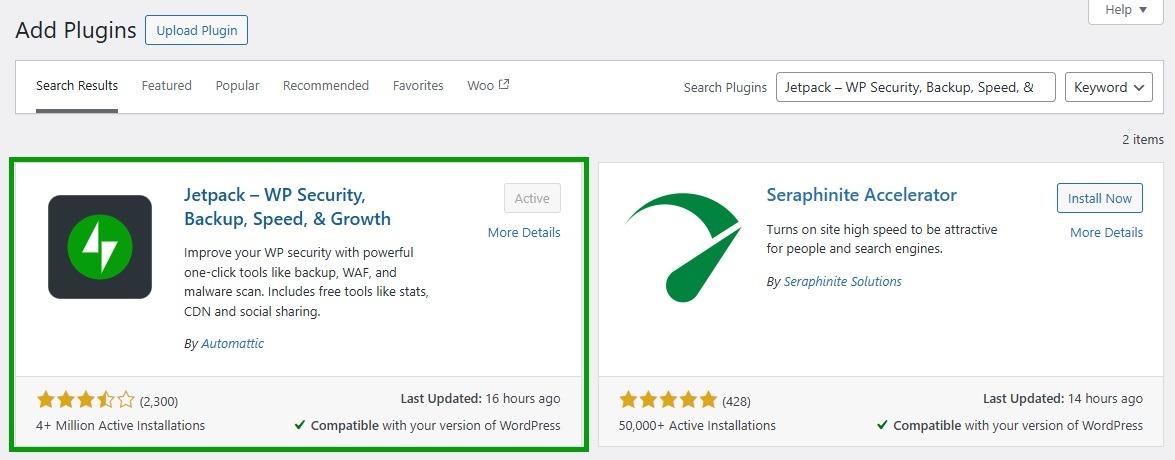
Select Install Now, then Activate. You’ll need to connect to your WordPress.com account, or create one for free.
Once you’ve successfully activated the plugin, you’ll instantly have access to Jetpack Forms.
Step 2: Create a contact form
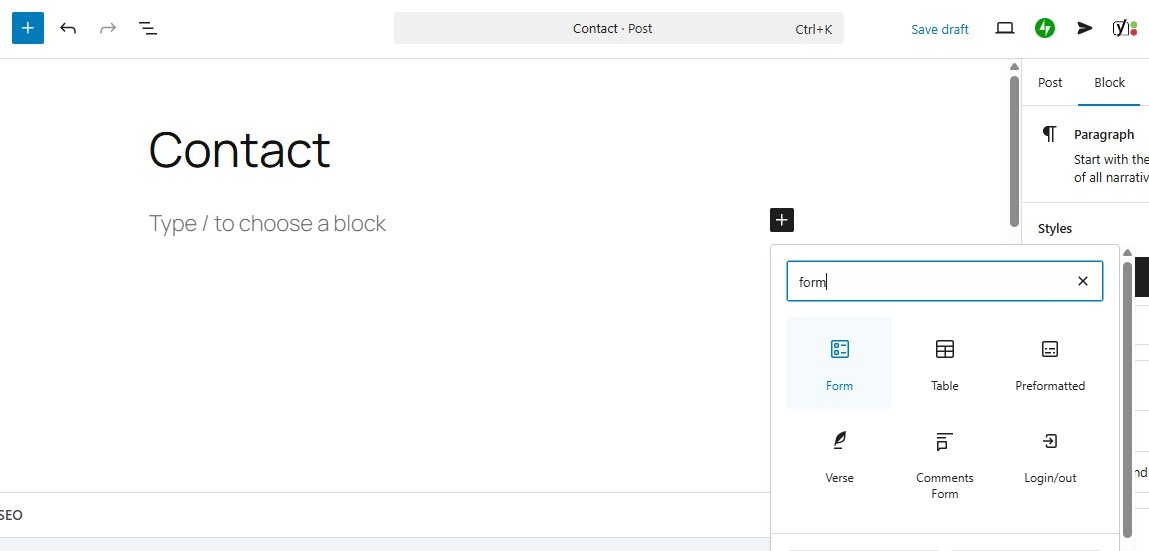
Open the page or post where you want to create your form. Click on the plus (+) icon to add a new block, and look for Form.
Jetpack gives you a selection of premade templates, including contact, feedback, registration, and RSVP forms. Go ahead and select the form you want to create.
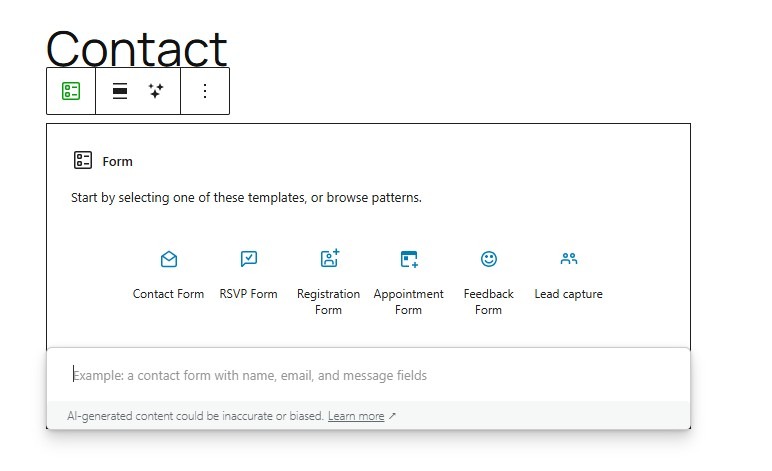
You can then customize the form. We’ll show you different ways to do this in the next section.
For now, make sure to add your “send to” address. In the block settings on the right, click on Email connection and enter your email address.
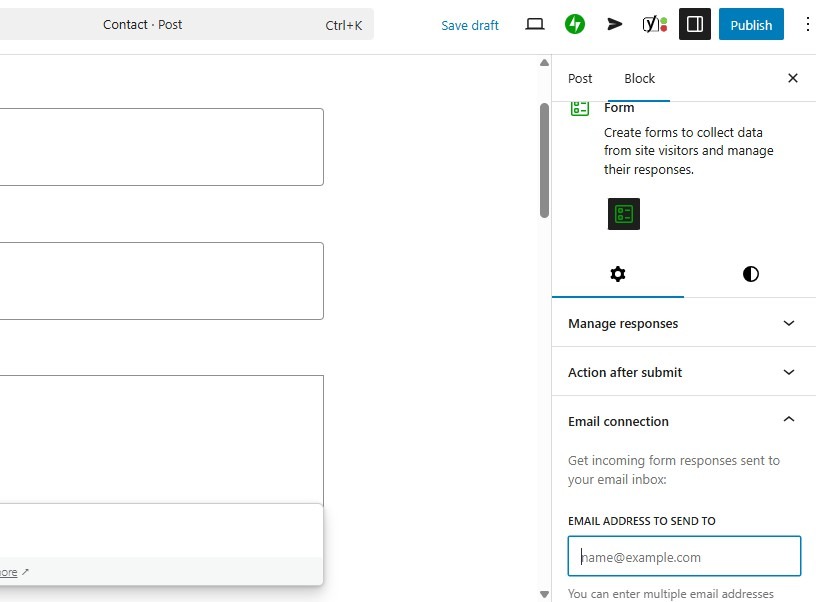
Here, you can also enter a subject line for all emails that come through this form.
Step 3: Connect Jetpack Forms to Google Sheets
In the form settings, you’ll see a section labeled Integrations. Select it, then click on Manage integrations.
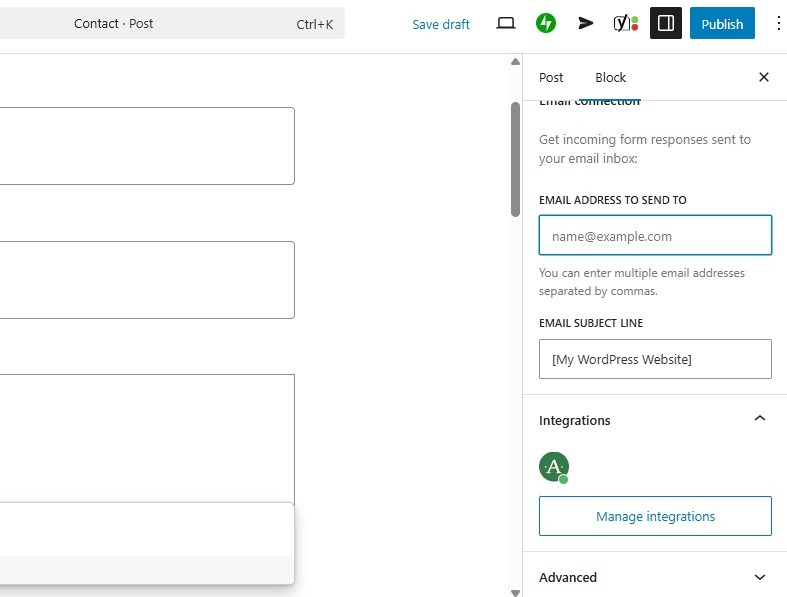
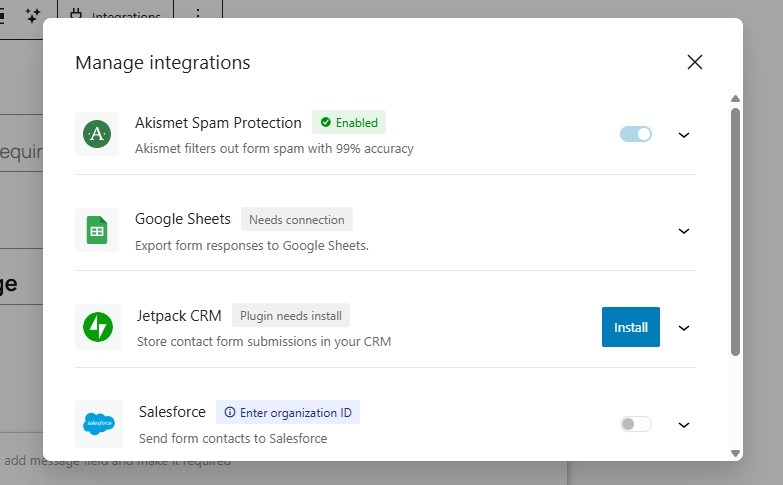
In the window that opens, you’ll see an option to connect to Google Sheets.
Select the arrow and click on Connect to Google Drive.
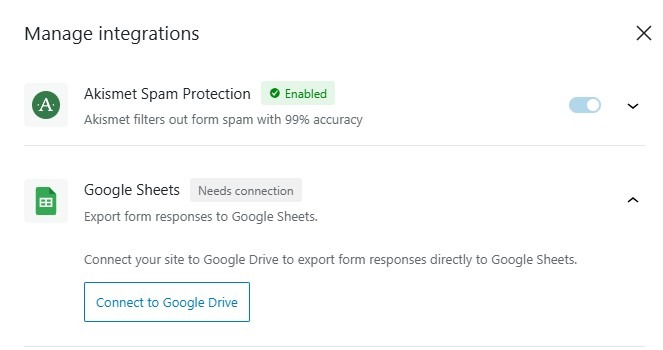
You’ll then be directed to Google to connect your account.
Step 4: Test the integration
Finally, you’ll want to test the integration to make sure that everything works. Visit the form you created on the front end (i.e., as a site visitor) and fill it out.
Then, go to Jetpack → Forms → Responses. Here, you should see your submissions.
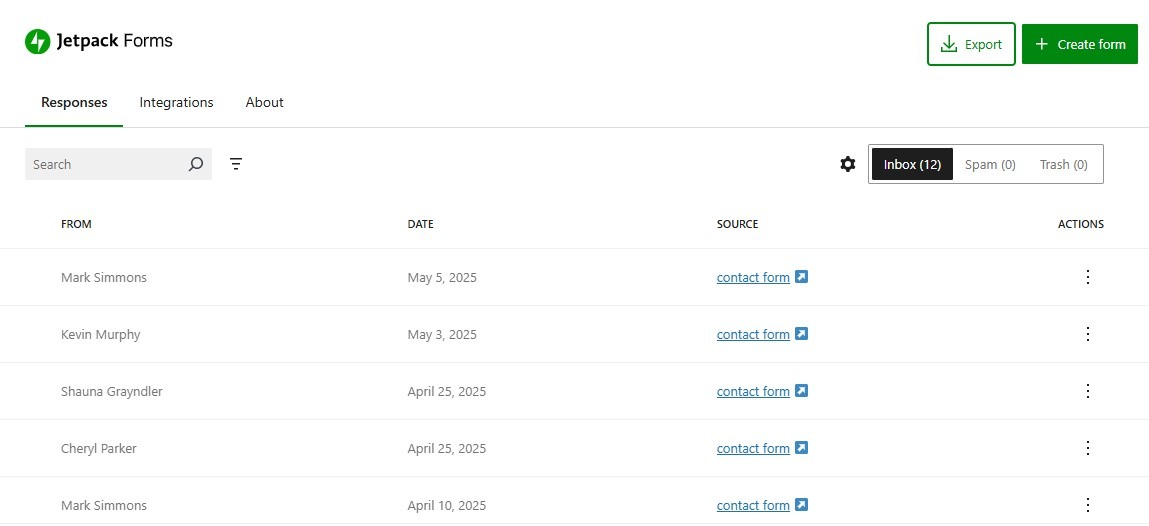
Click on the Export button, and you get two options: CSV File or Google Sheets. Select the Export button for Google Sheets.
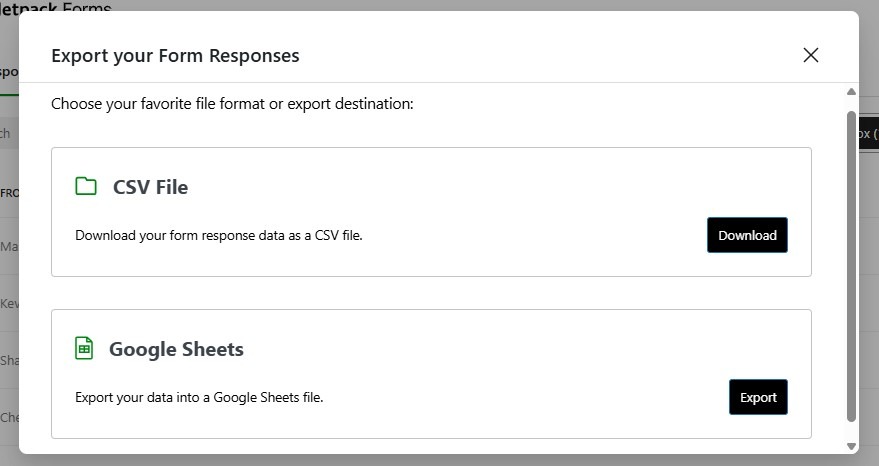
You should now be able to find the spreadsheet with form submissions in your Google Sheets account.
What else can you do with Jetpack Forms?
There are many other things you can do with Jetpack Forms, besides exporting data to Google Sheets. Let’s look at some of its best features.
Create custom forms in seconds with AI
With the free Jetpack plugin, you’ll also have optional access to the premium AI Assistant feature. This tool can generate different types of content, including paragraphs, images, tables, and more with just a simple text-based prompt.
You can also use it to customize your Jetpack Forms. All you need to do is enter your prompt.
For instance, you might ask it to add a website field.
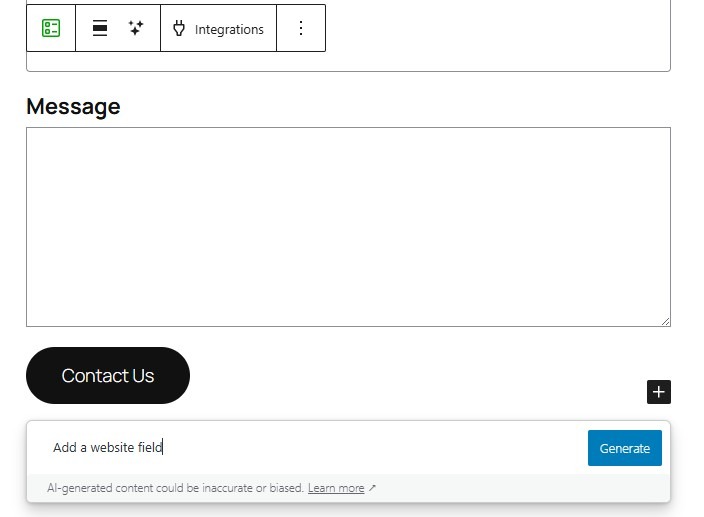
The AI Assistant can even generate time-consuming fields for you, like dropdowns with several options. For example, you might ask it to create a location dropdown field that lists all U.S. states.
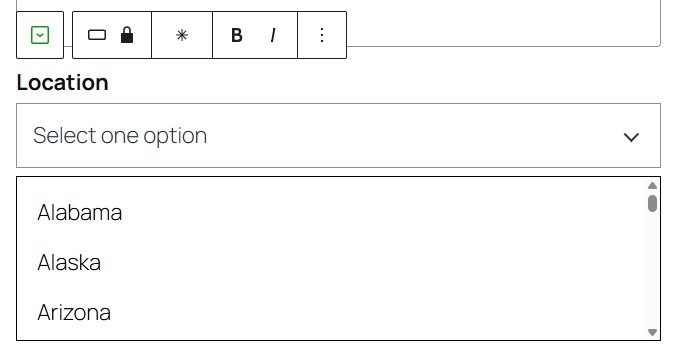
As you can see, using the Jetpack AI Assistant is an efficient way to build custom forms in WordPress.
Customize forms easily with blocks
You can also customize your Jetpack Forms with blocks. If you click on the plus (+) icon within your form, you’ll see blocks like Checkbox, Terms consent, Date picker, and more.
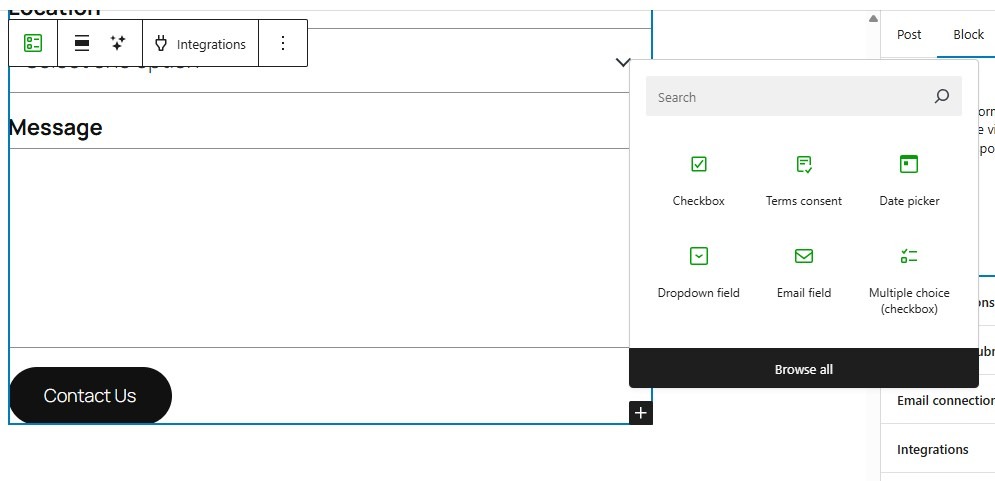
Add your preferred field to the form, and customize it using the available settings. For instance, you might make the field required, change the text colors, and more.
Enable spam protection with Akismet
Jetpack integrates with Akismet, which is a powerful anti-spam tool that keeps your inbox clean. Akismet filters out spammy submissions in the background, without interrupting the experience of genuine visitors.
You can enable it by navigating to Jetpack → Forms → Integrations, or by accessing the Integrations from the block editor (as shown earlier).
Get email notifications instantly
Whenever someone submits a form, you’ll receive a notification at your email address. This way, you won’t need to log into your WordPress site to check whether you’ve received anything.
The email notification includes a summary of responses, including the sender’s details.
Frequently asked questions
To wrap up, let’s answer some common questions about WordPress forms and Google Sheets.
Do I need coding skills to connect WordPress forms to Google Sheets?
Not at all. You just need to install Jetpack, then navigate to Jetpack → Forms → Integrations to connect to your Google Sheets account.
Is it free to connect WordPress forms to Google Sheets?
Yes, this feature is available with the free Jetpack plan.
How many WordPress forms can I connect to a single Google Sheet?
Jetpack lets you create as many forms as you want and export all the responses to Google Sheets.
If you only want to export submissions that come through a particular form (rather than all of them), you can do so using the Source filter in Jetpack → Forms → Responses. This enables you to display responses from a select form and export them as needed.
Can I share my Google Sheet with other team members safely?
Yes, you can copy the share link of your Google Sheet and send it to team members. Google gives you three role options: Viewer, Commenter, and Editor.
If you don’t want to allow members to make changes to the sheet, select the Viewer role when sharing the link.
Where can I learn more about Jetpack Forms?
You can visit this page to learn more about Jetpack Forms and its many useful features.




 Jetpack