

WooCommerce filter blocks for Jetpack Search
Learn about the five filter blocks in Jetpack Search that are built exclusively for WooCommerce stores, and how to configure each one.
For an overview of everything WooCommerce unlocks in Jetpack Search, including additions to shared blocks like Results List, Sort By, and Active Filters, see WooCommerce features in Jetpack Search blocks.
These five blocks only appear in the block inserter on sites with WooCommerce active. If you don’t see them, make sure WooCommerce is installed and activated on your site.
Filter by Product Attribute
The Filter by Product Attribute block lets shoppers narrow product results by one of your store’s WooCommerce product attributes, such as Color, Size, Material, Style, or any other attribute you’ve set up. Each block instance covers one attribute; add as many as you need side by side.
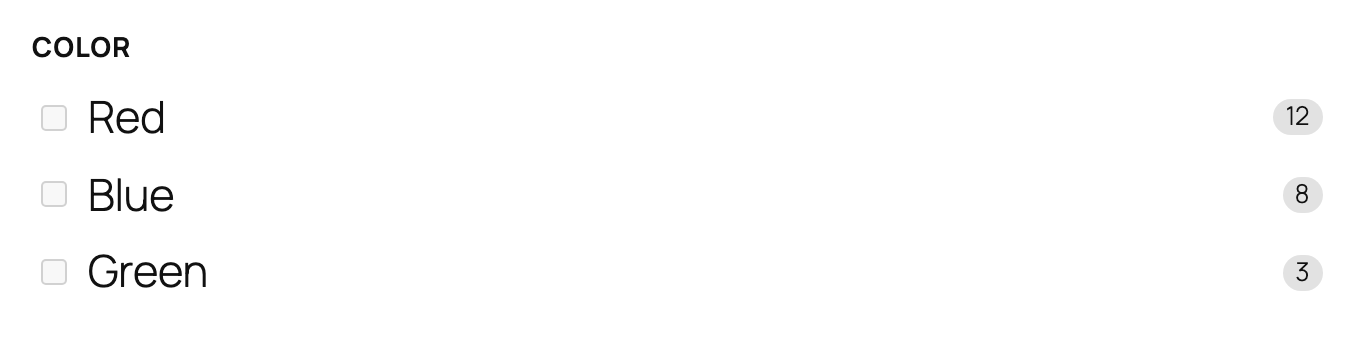
This block is a good fit for any shop where the same product comes in variations that shoppers filter by. Examples include: clothes by Size, paint by Finish, plants by Light requirement. Add one block per attribute you want exposed.
This block only appears in the inserter on sites that have WooCommerce and at least one product attribute registered. If you don’t see it, go to Products → Attributes in your WP Admin and create one (Color, Size, etc.).
Setting up the block
When you first add the block, open the settings panel and choose an attribute from the Attribute dropdown. This list reflects every attribute registered in WooCommerce. Until you pick one, the block shows a placeholder and won’t render on the front end.
Settings
These settings control how your product filters appear and behave in your store:
- Attribute (Required): Which WooCommerce product attribute this filter applies to.
- Label: The heading shown above the filter options. Leave this blank to use the default WooCommerce attribute name (for example, “Color”), or customize it for clearer wording (for example, “Made from” instead of “Material”).
- Show result counts: Displays the number of matching products next to each option (for example, “Red (12)”). Enabled by default.
- Display style: Controls how filter options appear. Choose a checkbox list (default, one option per row and screen-reader-friendly) or chips (compact pill-style buttons, ideal for short labels like sizes or colors).
- Maximum items shown: Sets how many options are displayed at once. Defaults to 10 and can be increased up to 50.
- Sort order: Determines how options are ordered. “By count” (default) shows the most popular options first, while “Alphabetical” lists them A–Z for easier scanning when users know what they want.
Filter by Price
The Filter by Price block lets shoppers narrow product results to a price range. It comes in two variations: a compact pair of Min / Max number inputs, and a wider version that adds a draggable range slider above those inputs.
This block works well on any shop page where visitors are likely to have a budget in mind, such as category pages, search results, and deal collections. It works best paired with the other product filters inside a Product Filters container.
Picking a variation
Both appear in the block inserter as separate cards. You can also switch a placed block between them using the Show slider toggle in the settings panel:
- Filter by Price (Default): Uses input fields only, allowing shoppers to enter minimum and maximum values. Best suited for narrow sidebars or mobile layouts where a slider would feel cramped.

- Filter by Price (Slider): Uses a slider, allowing shoppers to visually select a price range. Ideal for wider sidebars and for a more interactive browsing experience.
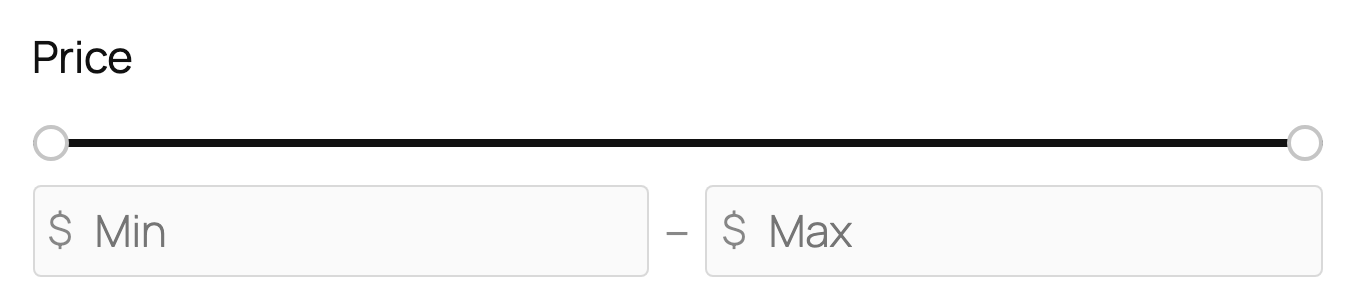
Filter by Price (Slider) settings
Use these settings to control how the price range is determined for the slider:
- Auto-detect range from store: Automatically sets the slider bounds based on the lowest and highest priced products in your catalog. On (default) keeps the range updated as your catalog changes. Turn off to define a fixed range manually.
- Minimum / Maximum: Sets fixed lower and upper bounds for the slider. These fields are only editable when auto-detect is turned off.
- Step: Defines the smallest increment the slider can move by. Defaults to 1. Increase to 5 or 10 for larger, rounded steps.
Settings
Use these settings to control how the price filter inputs and slider are displayed::
- Show slider: Toggles whether a slider is included. Off (default) shows minimum and maximum input fields only. On adds a draggable range slider above the inputs and reveals additional slider range settings below.
- Label: The heading shown above the inputs. Defaults to “Price.”
- Currency symbol: The currency symbol displayed inside the input fields. Leave blank to inherit your store’s WooCommerce currency setting (recommended).
- Symbol position: Controls whether the currency symbol appears before or after the amount. Defaults to your WooCommerce currency settings.
Filter by Rating
This block lets shoppers narrow product results by customer star rating. It shows five threshold rows so visitors can pick the quality floor they care about with a single click.
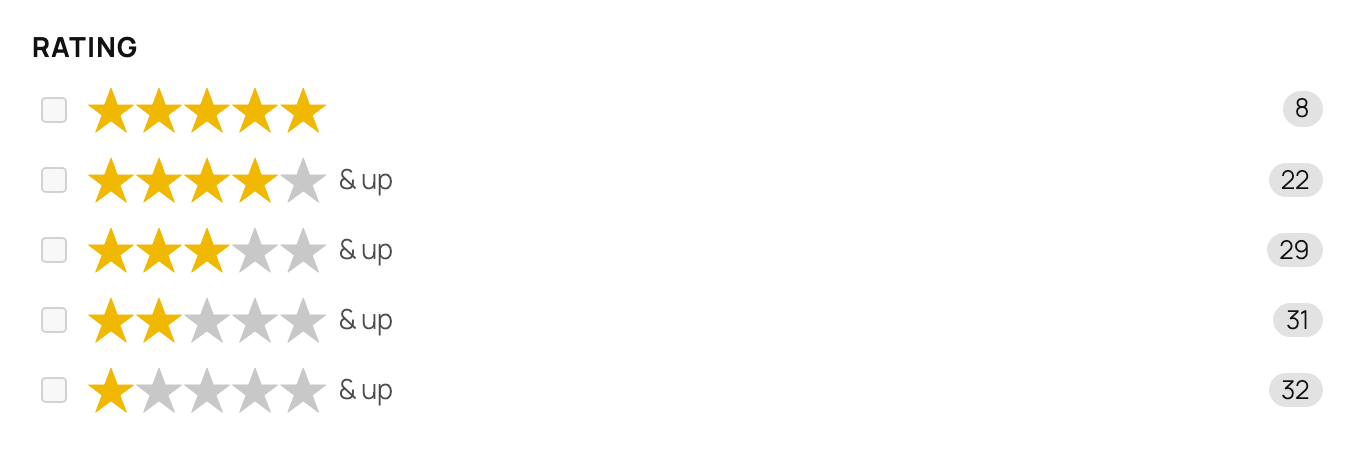
This block works well in any shop sidebar where product quality varies and shoppers want to skip lower-rated items. It pairs naturally with Filter by Price and Filter by Stock Status inside a Product Filters container.
How shoppers read the rows
Each row is a threshold, not an exact rating:
| Row | Threshold |
|---|---|
| ★★★★★ | Products with exactly five stars. |
| ★★★★ & up | Four stars or better. |
| ★★★ & up | Three stars or better. |
| ★★ & up | Two stars or better. |
| ★ & up | Any rated product. |
Counts beside each row show how many products clear that threshold, which is why counts always grow as you go down the list.
Settings
Use these settings to control how the rating filter appears in your store:
- Label: The heading shown above the rating options. Defaults to “Rating.”
- Show result counts: Displays the number of products matching each rating threshold. Enabled by default.
- Visible rows: Controls which of the five star-rating rows are shown. All rows are visible by default. You can hide specific rows to guide shoppers toward higher-rated products (for example, hide 1 star and up and 2 stars and up). At least one row must remain visible.
Adjust Visible rows only when you have a clear reason to guide shoppers toward a specific quality band. If most products in your store have similar ratings, this filter isn’t doing useful work. Instead, consider replacing it with Filter by Price or Filter by Product Attribute, where the options more meaningfully separate the catalog.
Filter by Stock Status
This block lets shoppers hide out-of-stock products with a single tick. It shows an In stock option with a count of matching products.

This block is a good fit for any shop sidebar where part of the catalog might be unavailable, either due to limited runs, perishables, made-to-order items, or seasonal stock. It pairs naturally with the other product filters inside a Product Filters container.
By default, search results include both in-stock and out-of-stock products so shoppers don’t lose sight of items that might come back. When a visitor ticks In stock, results narrow to only items available to buy right now. The count always reflects the current search query.
Settings
Use these settings to control how the stock status filter appears in your store:
- Label: The heading shown above the filter. Defaults to “Stock status.” You can customize it to better match your store’s voice (for example, “Availability” or “Show only available”).
- Show result counts: Displays the number of in-stock products matching the current search. Enabled by default.
Avoid pre-checking In stock for your visitors. Most shoppers want to discover the full catalog first; they’ll opt in to “in stock only” when they’re ready to buy. If your store almost never has out-of-stock products, this filter has very little signal, drop it and use the sidebar space for Filter by Price or Filter by Rating instead.
This block is included by default in the Product Filters container, so you don’t need to add it separately when starting from that container.
Product Filters
The Product Filters block is a ready-made sidebar for shop pages. Add it to your page and you immediately get a clean, vertical filter column wired up for WooCommerce; complete with Stock Status, Rating, Price filters, a Clear button, and an invisible scope that limits results to products only.
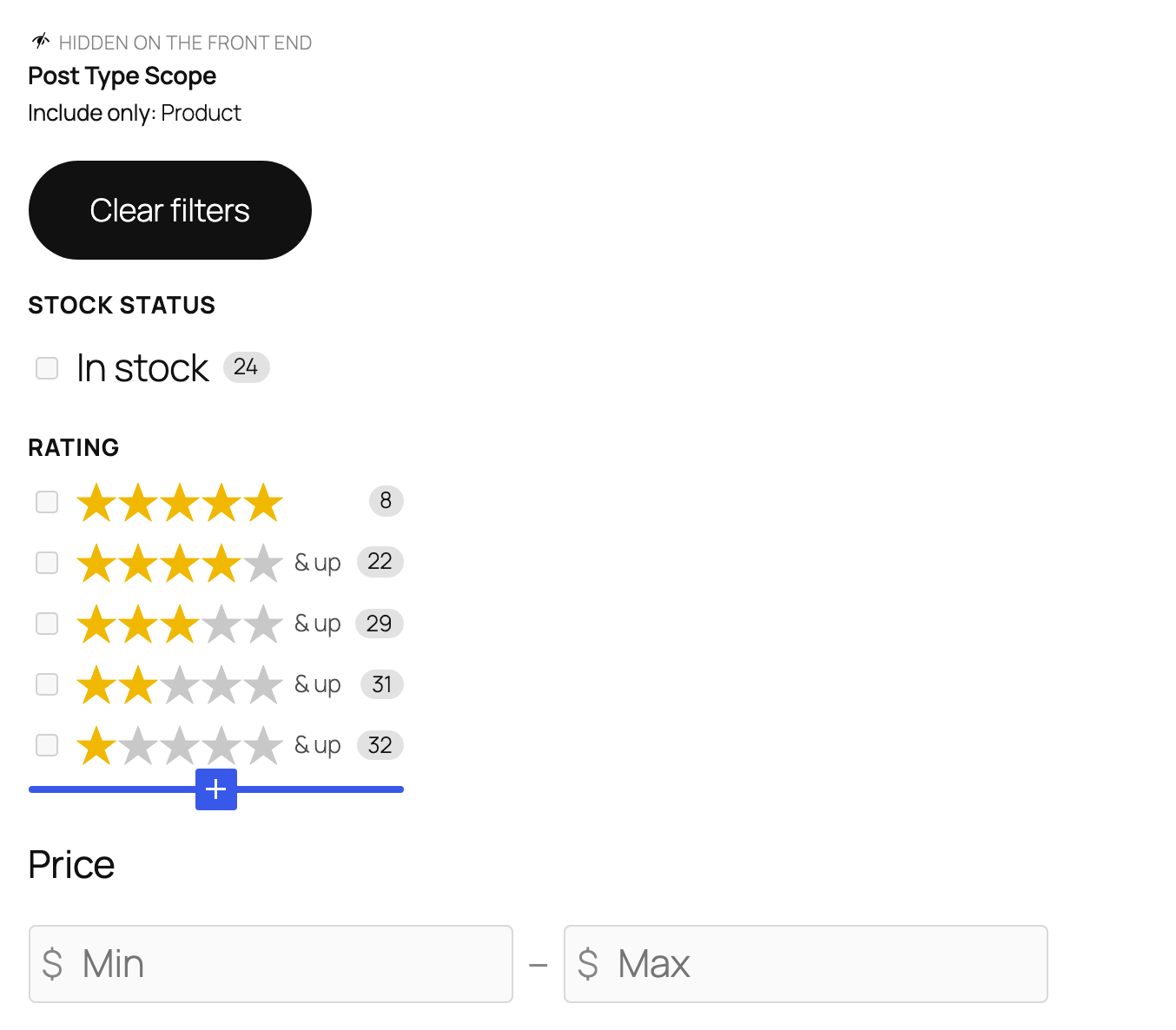
This block only appears in the inserter on WooCommerce sites. It’s the fastest way to get a usable shop search experience on the page without configuring each filter block individually.
What’s included by default
When you insert this block, it comes pre-populated with the following inner blocks. Each can be removed, rearranged, or duplicated:
- Post Type Scope: An invisible setting that limits results to products only, ensuring blog posts and pages do not appear in the shop view. This does not display to visitors.
- Clear Filters: A button that removes all active filters at once.
- Filter by Stock Status: Adds an “In stock” toggle to help shoppers quickly find available items. Remove If your store doesn’t use stock tracking.
- Filter by Rating: Displays star-rating threshold options for filtering products by customer ratings.
- Filter by Price: Provides minimum and maximum price inputs for narrowing results by price.
Adding more filters
Click the + icon at the bottom of the block to insert any of the following:
- Filter by Product Attribute: Adds a filter for attributes like Color, Size, or Material. Include one block per attribute you want to offer.
- Active Filters: Displays currently selected filters as removable pills, making it easy for shoppers to see and clear their choices.
- Checkbox Filter variations: Adds checkbox-based filters for Product Category, Product Tag, Product Brand, or any custom taxonomy.
- Filter by Date: Lets shoppers filter products by publication date, useful for highlighting new arrivals.
Add Product Filters into a sidebar column next to your Results List block for a classic two-column shop layout. Add a Filter by Product Attribute for each attribute your shoppers actually filter by: Color and Size are the most common.
Aim for three to five filters total; a short, focused sidebar converts better than a long one.
Still need help?
Please contact support. We’re happy to advise.

