

Video Playlist block
Last updated:
Learn how to use the Video Playlist block to play a series of VideoPress videos in a single player on your site.
Building a playlist with multiple videos requires either the standalone VideoPress plan or the Jetpack Complete bundle.
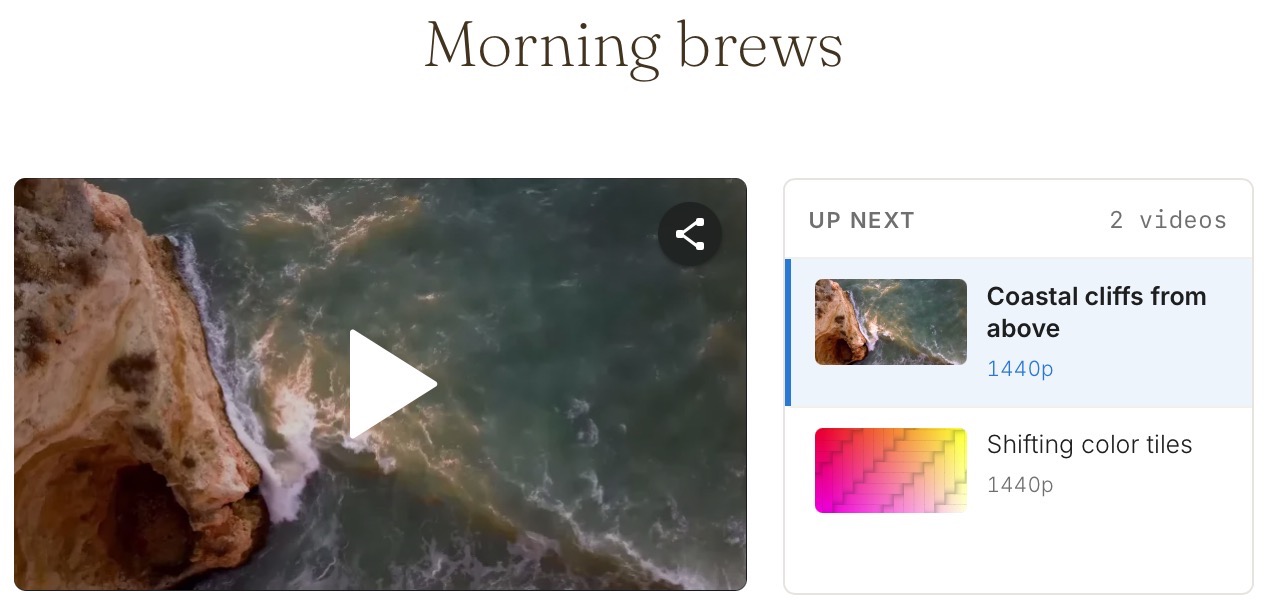
Add the Video Playlist block
- Open the post or page you want to edit.
- Click the + block inserter and search for Video Playlist.
- Click Video Playlist to add the block to your content.
The block starts with an empty placeholder, headed “Build a video playlist,” where you can begin adding videos.
Add videos to the playlist
The Video Playlist block works with videos that have already been uploaded to VideoPress. If you haven’t uploaded your videos yet, see Upload your videos on Jetpack VideoPress to get started.
You can add videos in two ways:
- Paste a link. Paste a VideoPress URL or video ID into the field and press Enter or click Add.
- Choose from the Media Library. Click the Media Library button and select one or more videos at once.
The title, thumbnail, duration, and resolution are pulled from the video itself, so there is nothing to type in.
If you paste a link that is not a VideoPress video, you will see a “No video found at that link” message and nothing is added. If you add a video that is already in the playlist, you will be asked to confirm with Add anyway or Cancel.
Reorder and remove videos
Open the Playlist panel in the block settings sidebar. Each entry has a drag handle you can use to change its position:
- With a mouse, drag an entry up or down. A drop indicator shows where it will land.
- With a keyboard, move focus to a drag handle and press the up or down arrow key.
- Click the × on an entry to remove it. The panel also shows the total number of videos and their combined running time.
Once a playlist has more than eight videos, a filter box and position numbers appear to help manage longer lists.
Add a title and description
Give the playlist a name and a short summary in the Settings tab of the block settings sidebar. Open the Playlist details section:
- Title names the playlist.
- Show title as heading adds the title above the playlist as a Heading block that you can edit and style in place. Turn it off to hide the heading; the title stays in the Title field.
- Description adds a short summary of the playlist.
The title and description appear wherever your site lists its playlists, such as the All Playlists block. The description does not appear above the playlist itself.
Customize the playlist
You can choose how the playlist plays, what each entry shows, and how the player and list are laid out. See Customize a video playlist.
To show your newest videos without picking them yourself, use the Latest Videos Playlist block. To list every playlist on your site in one place, use the All Playlists block.
Still need help?
Please contact support. We’re happy to advise.

