

Customize a video playlist
Last updated:
Learn how to choose how a video playlist plays, what each entry shows, and how the playlist is laid out.
These settings apply to the Video Playlist block and the Latest Videos Playlist block.
Playback settings
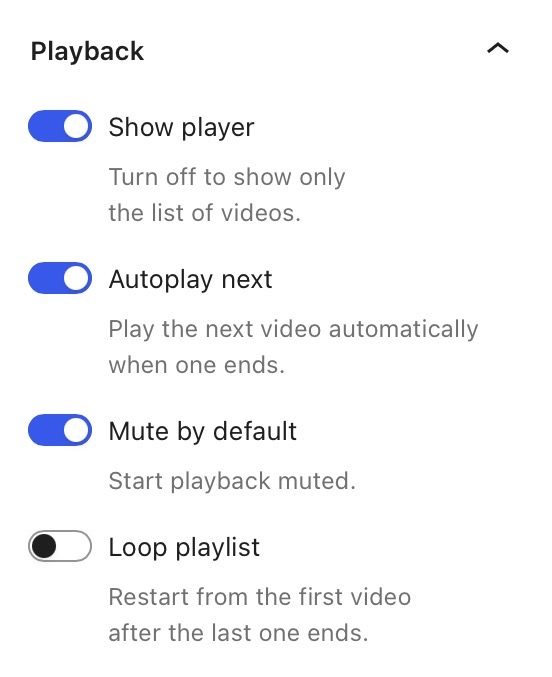
In the block settings sidebar, open the Settings tab and find the Playback section:
- Show player shows the video player with the list. Turn it off to show only the list of videos.
- Autoplay next starts the next video automatically when one finishes.
- Mute by default starts every video muted.
- Loop playlist returns to the first video after the last one finishes. Turning this on also turns on Autoplay next and locks it.
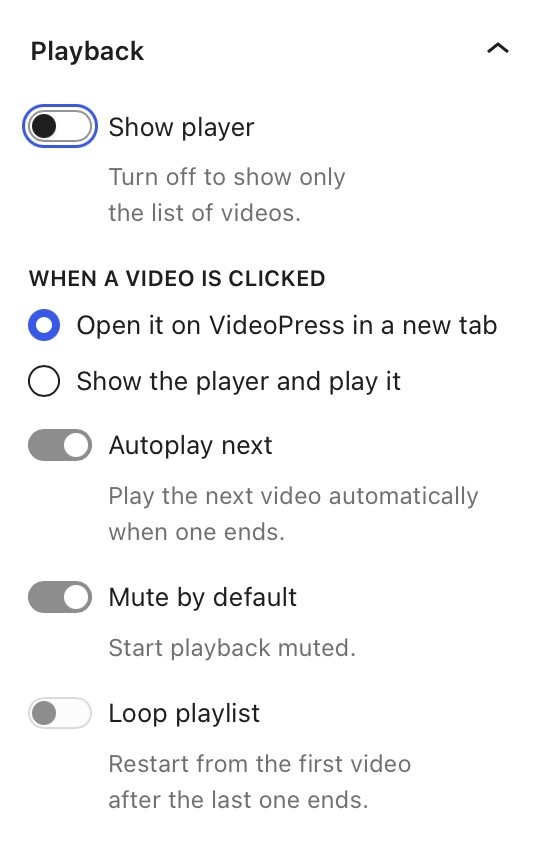
When you turn off Show player, the When a video is clicked options appear. Choose what happens when a visitor clicks a video in the list:
- Open it on VideoPress in a new tab opens the video on VideoPress in a new browser tab. The playlist never shows a player.
- Show the player and play it shows the player and plays the clicked video. After that, the playlist works as it does with the player on.
The editor preview never starts a video automatically. Preview or publish the page to check autoplay, looping, and what happens when a visitor clicks a video.
Show or hide entry details
In the Settings tab, the Show on each entry section lets you toggle what appears next to each video in the list:
- Thumbnail.
- Title.
- Resolution.
- Duration.
- Position number.
- Total runtime in header.
Choose a layout and style
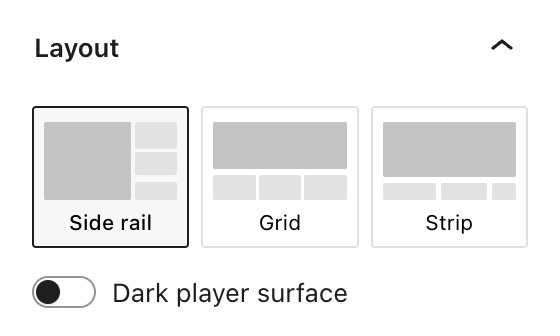
Open the Styles tab in the block settings sidebar. The Layout section offers three options:
- Side rail places an “Up next” list beside the player. The list scrolls on its own and does not grow taller than the player.
- Grid shows a grid of thumbnails. The currently playing video is marked with a Playing badge.
- Strip displays a compact numbered row that scrolls sideways, suited for longer playlists.
The Styles tab also includes:
- Dark player surface switches the playlist to a dark background.
- Typography sets the font used for entry titles, chosen from the fonts your theme provides. This panel only appears if your theme includes font presets.
Still need help?
Please contact support. We’re happy to advise.

