

Latest Videos Playlist block
Last updated:
Learn how to use the Latest Videos Playlist block to play your newest, most viewed, or oldest VideoPress videos in a single player on your site.
The Latest Videos Playlist block uses the same player as the Video Playlist block, but picks the videos for you from your VideoPress library, in the order you set. With the default newest-first order, new uploads join the playlist on their own. You do not need to edit the post or page. To hand-pick the videos, use the Video Playlist block instead.
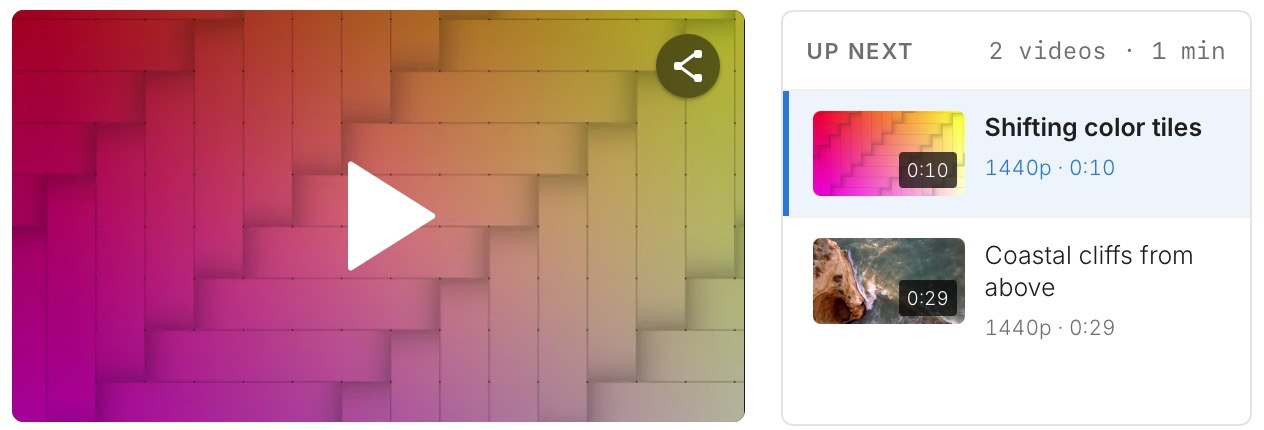
Add the Latest Videos Playlist block
- Open the post or page you want to edit.
- Click the + block inserter and search for Latest Videos Playlist.
- Click Latest Videos Playlist to add the block to your content.
The block needs at least one video in your VideoPress library. Until you upload a video to VideoPress, it shows “No VideoPress videos yet” in the editor and nothing on your published page.
Choose which videos to show
In the block settings sidebar, open the Settings tab and find the Videos section. Two settings there decide which videos the block shows:
- “Number of videos“: How many videos appear, from 1 to 20. The default is 5.
- Order: Which videos Jetpack picks, and in what order. Choose “Newest first” (the default), “Most viewed first“, or “Oldest first“. For example, with 5 videos and “Most viewed first“, the block shows your five most viewed videos.
Let visitors search and page through your videos
- Turn on “Search, sort and length filters” to show a search box above the playlist. Visitors also get Latest, Popular, and Oldest buttons, a length menu (under 20 minutes, 20 to 45 minutes, or over 45 minutes), and a count of matching videos. If nothing matches, the block shows “No videos match these filters.” and keeps the filters so visitors can change them.
- Turn on “Numbered pages” to split the list into pages, with page numbers and ← Previous and Next → links below it. The slider then sets “Videos per page“, up to 48. Turning numbered pages off brings the slider back to a maximum of 20.
Show view counts and leave out the current video
- Turn on “Views and upload date” to add a line under each entry with its view count and age, such as “12K views · 3 days ago.”
- Turn on “Hide the video being viewed” when the block sits on a video’s own page, for example as an “Up next” list. The block then skips the video that page is playing. Video pages are available on themes that support them.
Customize the playlist
The Latest Videos Playlist block uses the same playback, entry, and layout settings as the Video Playlist block. See Customize a video playlist.
The Latest Videos Playlist block does not have a playlist title or description, so it does not appear in the All Playlists block.
Still need help?
Please contact support. We’re happy to advise.

