

All Playlists block
Last updated:
Learn how to use the All Playlists block to show every video playlist on your site in one place.
The All Playlists block lists every playlist you have published with the Video Playlist block, as a gallery or a list. Each playlist shows its poster image, title, description, and number of videos, and links to the post or page that holds it.
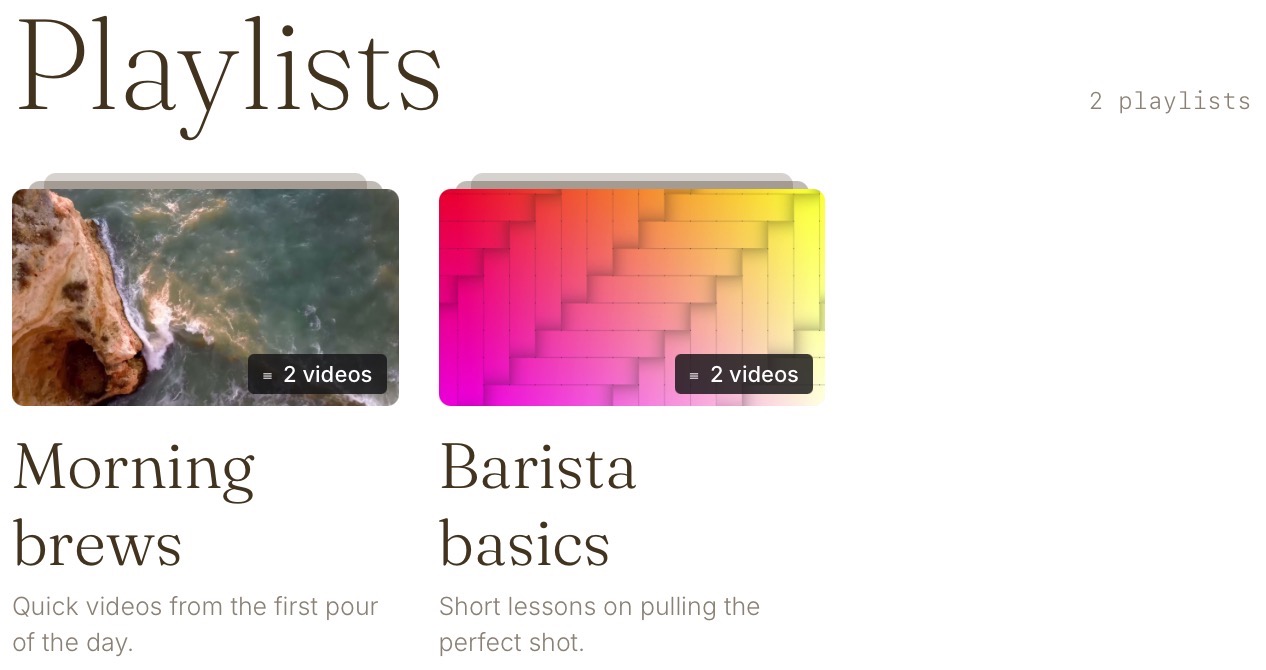
Each playlist’s title and description come from the Playlist details section of its Video Playlist block. See Add a title and description.
Add the All Playlists block
- Open the post or page you want to edit.
- Click the + block inserter and search for All Playlists.
- Click All Playlists to add the block to your content.
The block adds a “Playlists” heading above the list. The heading is a Heading block, so you can click it to change its text, level, and style.
The block lists only playlists in published posts and pages. Until you publish a post or page that has a Video Playlist block, it shows “No playlists yet” in the editor and nothing on your published page.
Choose how your playlists appear
In the block settings sidebar, open the Settings tab:
- Display
- Show playlists as chooses Gallery, which shows playlists as cards in a grid, or List, which shows them one below another.
- Columns sets how many cards appear in each row. This option appears only when you choose Gallery.
- Playlists per page sets how many playlists appear before visitors move to the next set.
- Order by sorts playlists by Newest first, Oldest first, or Title A–Z.
- Show on each playlist turns the Description and Video count on or off.
- Pagination chooses Numbered pages, which shows page numbers below the playlists, or a Load more button, which shows the next set on the same page.
Still need help?
Please contact support. We’re happy to advise.

