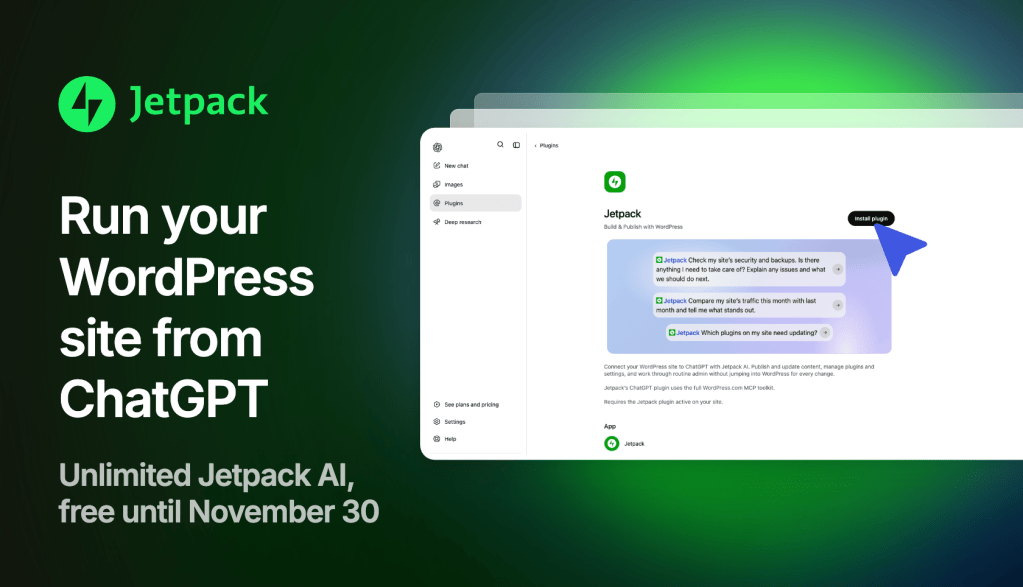

Until November 30, connecting ChatGPT or Claude to your WordPress site is free on every Jetpack site.
Then ask your AI, in plain words, to write a post, fix your images, change your design or clean up old pages. Tell it to show you first or save a draft, and you check the result before anything goes live.
What’s included until November 30
- You don’t need a paid Jetpack plan.
- It works with ChatGPT and Claude, and with coding agents like Claude Code, Cursor and Codex.
- Your ChatGPT or Claude plan is separate. You keep using the one you have.
After November 30, our pricing page shows which plans include AI agents. Everything your AI made for you stays on your site.
How to connect ChatGPT to your WordPress site
- Make sure your site runs Jetpack and is connected to WordPress.com. No Jetpack yet? Install it free.
- In ChatGPT, add the WordPress.com plugin.
- Sign in with the WordPress.com account your site is connected to, and approve. You choose read only or full access.
- Ask your first question.
For the full setup guide, read Connect an AI agent to your site with MCP.
12 things to ask ChatGPT about your WordPress site
Copy one into ChatGPT, or click Try it to open ChatGPT with the words already typed.
Start here
- “Look at my site and tell me three things worth fixing this week. Don’t change anything yet.” Try it
Write and edit
- “Write a 600-word post about [your topic] for new readers. Save it as a draft.” Try it
- “Read my recent posts and suggest three new ones my readers would like.” Try it
- “On my About page, make the second paragraph shorter and friendlier. Show me before you save.” Try it
- “Find posts that haven’t been updated in over a year and tell me which ones to refresh first.” Try it
Update your site’s design
- “Make the headings on my homepage a little bigger. Show me before you save.” Try it
- “Create an About page for my [type of business]. Save it as a draft.” Try it
Fix images and manage plugins
- “Find images on my site that are missing alt text and write it for each one. Show me the list first.” Try it
- “Which plugin would add a booking form to my site? Don’t install anything yet.” Try it
- “Show me which of my plugins need updates.” Try it
Stay on top of your sites
- “Give me a to-do list for my site: drafts to finish, comments waiting for me and pages that need updating.” Try it
- “Check all my sites and tell me which ones need attention first.” Try it
More prompts to try
The Jetpack prompt library has 26 more, including:
- Get your weekly site report
- Find out why your traffic dropped
- Turn your form messages into an FAQ page
- Plan a week of posts
Building a new site? Start with Build a WordPress site with ChatGPT or Claude. If you use Jetpack Backup or Scan, Where to start with Jetpack in ChatGPT has prompts for both.
Get better results from ChatGPT
- Name the page. “On my About page…” tends to work better than “on my site”.
- Ask for one change at a time. Once it looks right, ask for the next one.
- Ask to see it first. Add “Show me before you save” to any request.
- Say draft or publish. Start new posts as drafts and publish them yourself.
Use ChatGPT with WordPress on your phone
The ChatGPT app on your phone uses the same connection. Fix a typo, answer a comment or add a quick post from wherever you are.
Is it safe to let ChatGPT change my site?
You stay in charge. Connect with read only access if you just want answers, and switch off tools you don’t want in Jetpack → Jetpack AI. ChatGPT never gets more than your own WordPress permissions. Whether it asks before each change depends on ChatGPT’s settings. Every change shows in your activity log.
Prefer Claude?
Add the WordPress.com connector in Claude, sign in, and use the same prompts.
Common questions
Does the offer include the AI Assistant in the editor?
No. It covers connecting ChatGPT, Claude or another AI agent. The editor’s AI Assistant keeps its usual limits.
Is there a ChatGPT plugin for WordPress?
Yes. The WordPress.com plugin for ChatGPT works with WordPress sites running Jetpack and with sites hosted on WordPress.com.
What is MCP?
MCP (Model Context Protocol) is the open standard ChatGPT and Claude use to connect to other tools. Jetpack uses it to let your AI agent work on your WordPress site. That’s why each Try it prompt starts with “Use the WordPress.com MCP.”
Connect ChatGPT or Claude while it’s free.