

WordPress errors can disrupt your workflow, especially when they interfere with everyday tasks like updating and publishing content.
The “Updating Failed” and “Publishing Failed” errors happen occasionally, and often result from communication issues between WordPress and your host’s server.
In the modern Block Editor (Gutenberg), this error often appears as ‘The response is not a valid JSON response’ in a red banner. Whether you see this or a generic ‘Publishing Failed’ message, the root cause is usually the REST API being blocked.
This guide will walk you through identifying and resolving these issues effectively, so you can get back to running your website.
What are the “Updating Failed” and “Publishing Failed” errors?
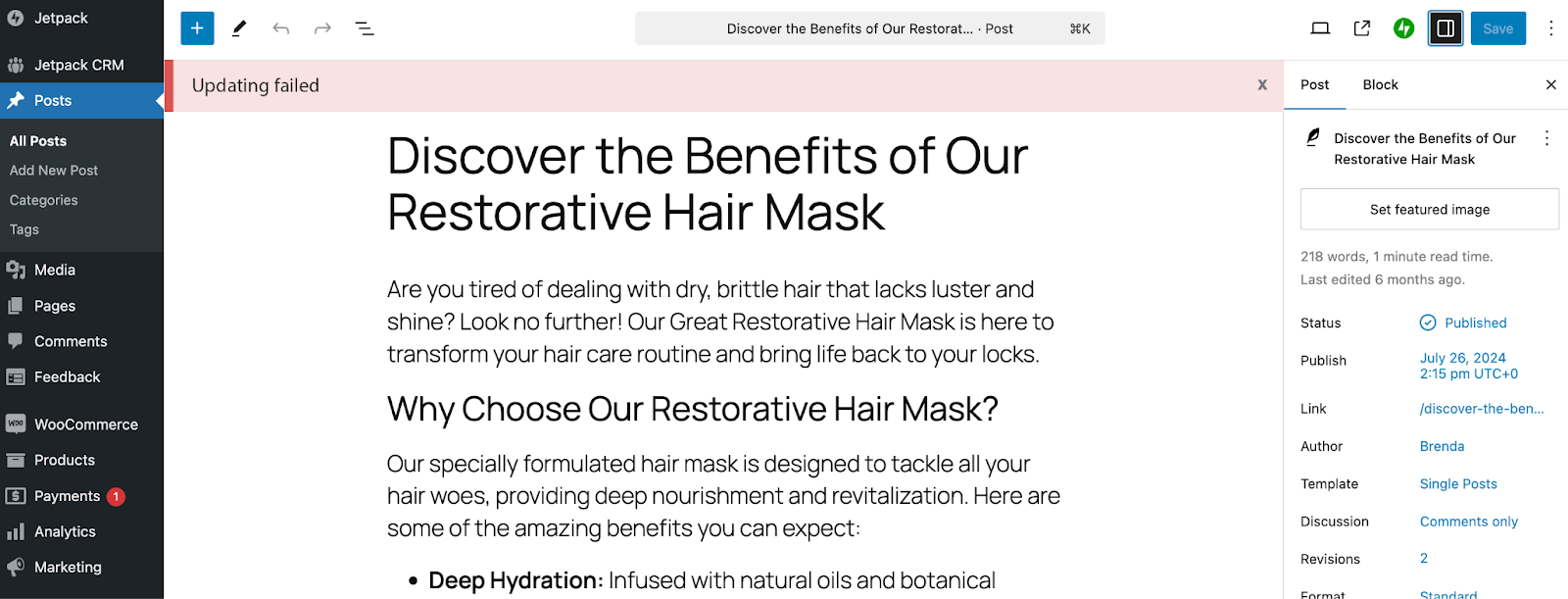
What exactly are these errors, and when might you encounter them on your site? The “Publishing Failed” error tends to appear when you’re creating new content within the block editor. It will show up as a red bar at the top of the editor after you click the blue Publish button.
The “Updating Failed” error will appear in the same place, but when you’re making changes to an already-published post or page. You can see an example of this error here:
Common causes:
- REST API problems: The REST API is used for a variety of purposes, such as enabling the block editor to communicate with WordPress. If the REST API is disabled or blocked due to server settings or third-party plugins, it could cause these error messages.
- Internet connectivity problems: This could happen if you’re not connected to the internet or if you’re using a low-quality connection.
- Plugin or theme conflicts: Extensions and themes can occasionally conflict with core WordPress functionality.
- An update to your site URL: If you accidentally changed your site URL, these error messages could appear.
Step 1: Check your internet connection and WordPress URL settings
Let’s start by checking common and easy-to-fix problems.
Verify your internet connection
Start by checking your internet connection. Are you connected to a network? Are you connected to the correct one? You can also check your speed using a tool like Google Fiber’s Internet Speed Test.
Review WordPress URL settings
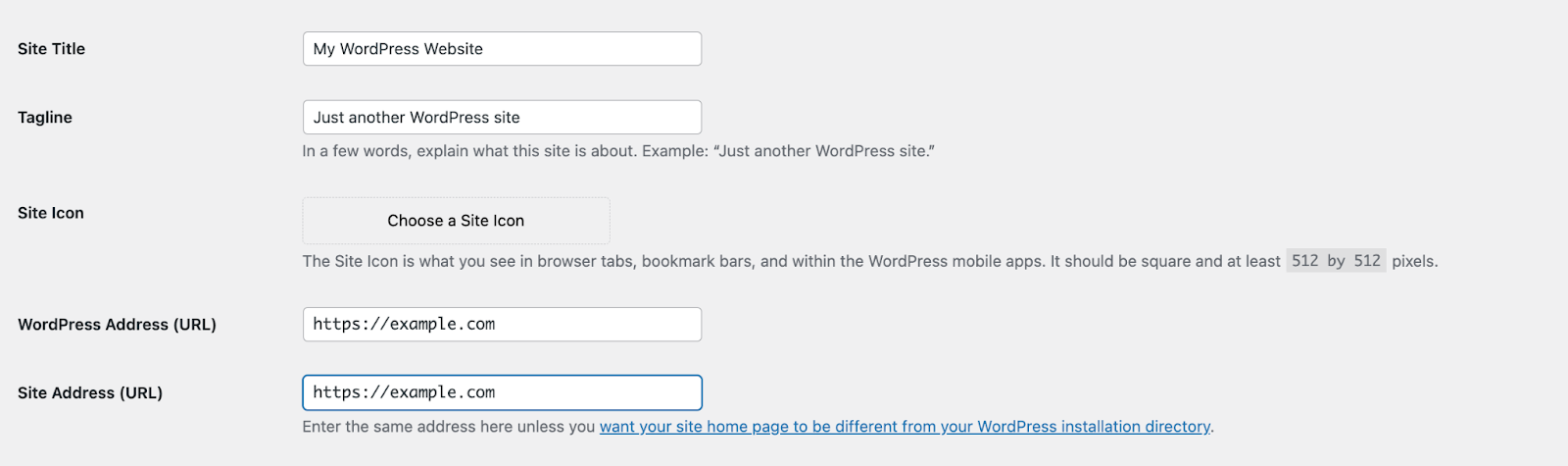
Navigate to Settings → General in your WordPress dashboard.
Verify that both the WordPress Address (URL) and Site Address (URL) are correct. They should both match, and include https:// if your site uses an SSL certificate (which it should).
Step 2: Debug the REST API
Since the REST API is central to updating and publishing in WordPress, your next step should be to identify and solve any potential problems.
Test your REST API functionality
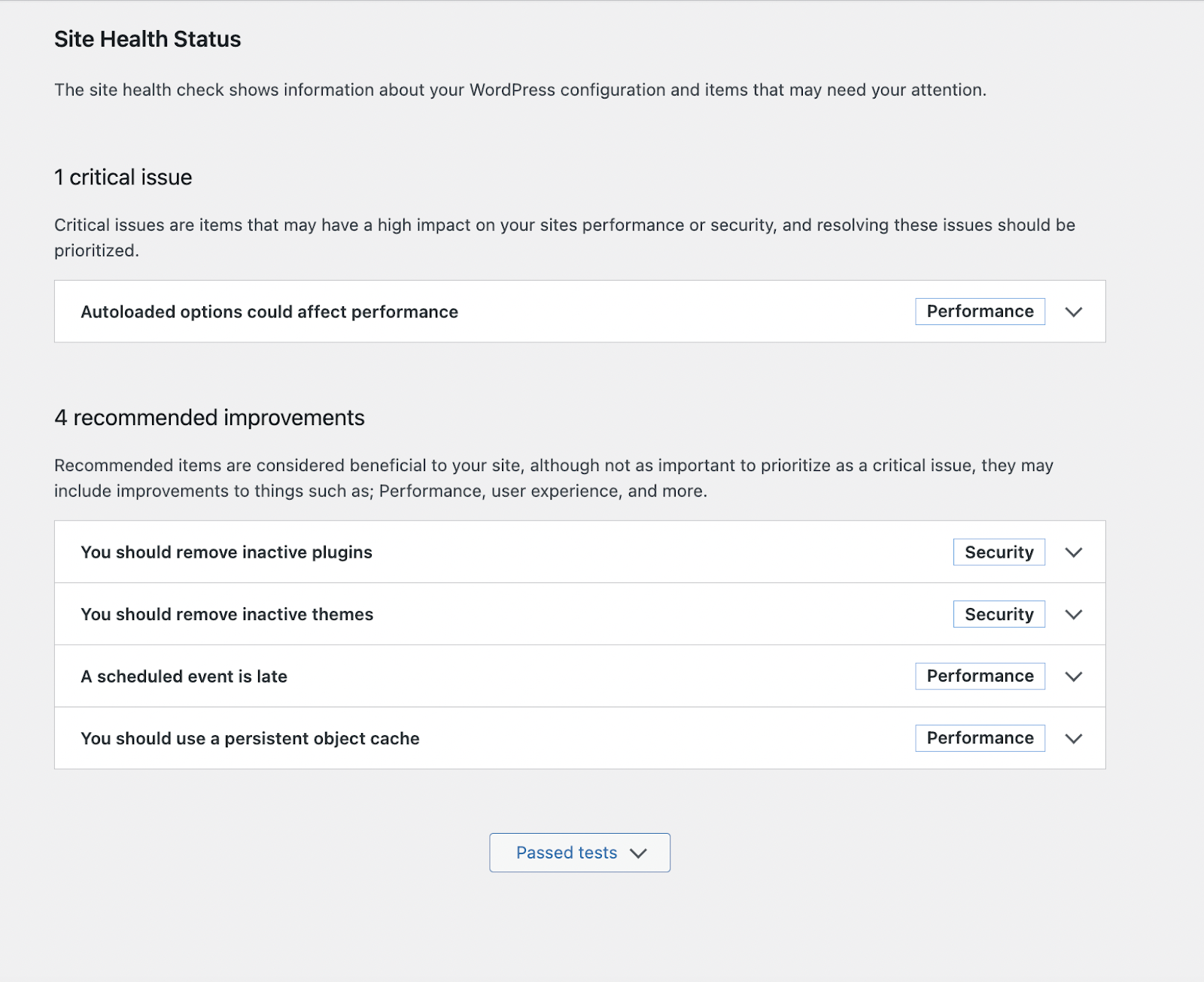
Go to Tools → Site Health in the WordPress admin panel. Check for errors under the Status tab, particularly messages related to the REST API.
Fix common REST API issues
Here are a couple of quick steps you can try to fix common issues with the WordPress REST API:
Reset your permalinks
Go to Settings → Permalinks and click Save Changes without making any modifications. This refreshes permalink rules and could potentially resolve an API issue.
Deactivate security plugins
Temporarily disable any active security plugins, which may block API requests or add restrictive firewall rules. If this solves the problem, reach out to the plugin’s support team for help.
Step 3: Troubleshoot plugins and themes
Conflicts between plugins, themes, and WordPress can cause errors. Below, you’ll find how to determine if they’re the cause of your problem. Keep in mind that, if at all possible, you should perform these tests in a staging environment and always have a full backup of your site on hand.
Disable all plugins
- Go to Plugins → Installed Plugins in your WordPress dashboard.
- Select all plugins, choose Deactivate, and click Apply.
- Try publishing or updating a post and see if the problem is resolved.
If the issue is resolved, reactivate plugins one at a time to pinpoint the problematic one.
Switch to a default WordPress theme
- Navigate to Appearance → Themes.
- Activate a default theme like Twenty Twenty-Five.
- Test the functionality again. If the issue disappears, the problem likely lies in your theme. Reach out to the developer for support.
Step 4: Update WordPress core, themes, and plugins
Updating all of your WordPress software can solve conflicts and patch bugs that may be at the root of your problem.
Update WordPress core
- Go to Dashboard → Updates in the WordPress dashboard.
- Click Update Now if a new version is available.
Update themes and plugins
- Navigate to Dashboard → Updates in the WordPress dashboard.
- Update all plugins and themes to their latest versions.
Step 5: Verify server settings and PHP configuration
If your server is experiencing problems or if your settings are misconfigured, this could lead to errors on your site. Here are some troubleshooting steps you can take:
Check your PHP version
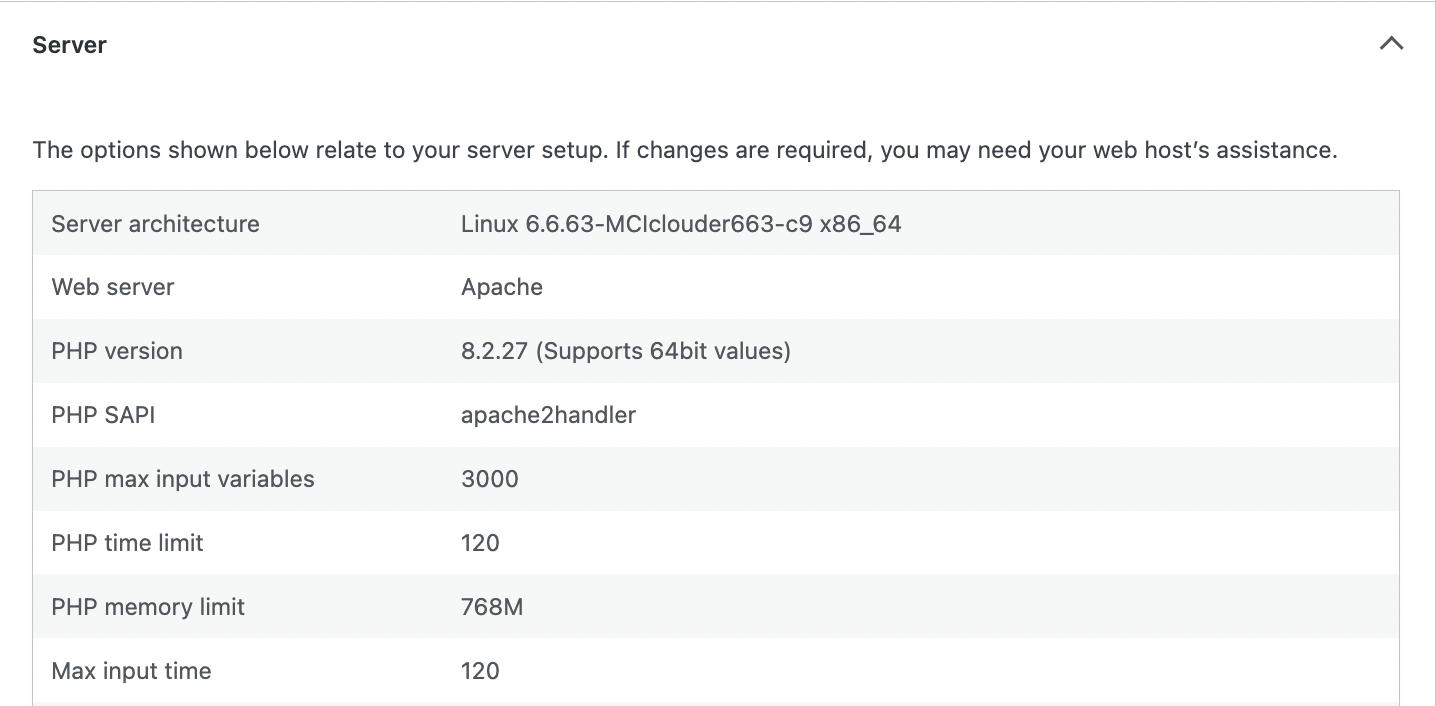
- Open Tools → Site Health in your WordPress dashboard.
- Click Info and expand the Server toggle.
- Your PHP version will be listed here. Make sure that it’s running at least the minimum version required by WordPress. If you need to update, reach out to your hosting provider.
Increase memory limits
- Edit the wp-config.php file in your WordPress root directory. You can access this through your hosting’s control panel or via file transfer protocol (FTP).
- Add the following line before the comment /* That’s all, stop editing! Happy blogging. */
define('WP_MEMORY_LIMIT', '256M');- Save the file and test.
Step 6: Fix authentication issues
Authentication failures can also lead to the “Updating Failed” and “Publishing Failed” errors.
Log out of WordPress
- Log out of your WordPress dashboard.
- Clear your browser cache and cookies.
- Log back in and see if the errors persist.
Regenerate authentication keys
- Open the wp-config.php file in a text editor like TextEdit on Mac and Windows Notepad on Windows.
- Replace existing keys and salts with new ones generated from the WordPress Secret Key Generator.
- Save the file.
Step 7: Check for JavaScript console errors
JavaScript issues can also cause errors on your site. Here’s how to check for any problems:
How to inspect JavaScript errors
The exact instructions here vary for each browser. We’ll explain how to check for JavaScript errors in Google Chrome:
- Right-click on the page of your site that you’re experiencing problems. Click Inspect.
- In the panel that appears, click the Console tab.
- There, you’ll find a list of any errors that exist on your site. Reach out to your hosting provider to help solve them.
Step 8: Contact your hosting provider
If the issue persists after following all steps, reach out to your hosting provider.
What to include in your support request:
- Describe the issue in detail, including steps to replicate it.
- Attach screenshots or logs of any errors.
- Mention the troubleshooting steps you’ve already tried.
Hosting providers can diagnose server-side problems or adjust configurations to resolve the issue.
Maintain a trouble-free WordPress site
After resolving the errors, take preventive measures to avoid similar problems in the future:
- Regularly update WordPress, themes, and plugins.
- Always have an updated backup on hand. Jetpack VaultPress Backup is a great option, as it runs automatic backups of your site in real time.
- Monitor site health with tools like Jetpack or through your hosting provider.
- Choose a reliable host with a strong reputation for WordPress support.
Following these practices will help keep your WordPress site running smoothly and error-free.
Frequently asked questions
Why does my WordPress site say “The response is not a valid JSON response”?
This specific error means your website editor tried to talk to the server but got a confusing answer back. The modern block editor needs a clear path to save your changes. If anything blocks that path, you see this red error message.
The most common cause is a mix-up with your web address settings. This happens if your site tries to load as “http” in one place but “https” in another. You can often fix this quickly. Go to your main settings and make sure both address lines match exactly. Saving your permalink settings again can also refresh the connection and fix the error.
How can I save my post if the “Update” button keeps failing?
Do not close your browser tab or you will lose your new words. First, copy all your text and paste it into a document on your computer for safekeeping. Then you can try a few safe steps.
Check if your internet connection dropped for a moment. Open a new tab and try to visit your dashboard there to see if you are still logged in. sometimes your session expires without telling you. If you can log in again on the new tab, go back to your post and try the save button one more time.
Does the “Publishing Failed” error mean my website is broken for visitors?
Usually, your website is still working fine for people who visit it. This error typically only affects the connection between you and the back of your website where you write. Your readers can likely still read your old posts and pages without any trouble.
The problem is specific to the tool that saves new changes. However, if the cause is a bigger server issue or a database problem, your site might run slowly. It is smart to check your homepage in a private browser window just to be sure everything looks normal to the public.
Why does the error happen only on long posts or posts with many images?
Long posts require more power from your hosting server to save. Every time you add a block or a photo, the computer that runs your website has to work a little harder. If your post is very large, the server might run out of memory or time before it finishes saving.
This is common on cheaper hosting plans that limit your resources. You can try breaking your long post into two smaller parts. You can also ask your hosting company to increase the memory limit for your site. This gives your website more room to breathe when saving big files.
What is the “mixed content” issue that causes saving failures?
Mixed content happens when your website is confused about security. A secure site loads everything over a protected “https” connection. If even one image or script tries to load over an insecure “http” connection, the browser might block it. The block editor relies on these secure scripts to work correctly. If the browser blocks them, the save button breaks.
You can check for this by looking at the small lock icon next to your website address. If the lock looks broken or missing, you likely have mixed content. A simple plugin specifically for SSL issues can usually force everything to load securely.
Can a corrupted .htaccess file stop me from publishing?
Yes, this small hidden file controls how your website handles links and traffic. If it gets messy or broken, your website might not know how to process the “save” command. This file sits in the main folder of your website files. It is very sensitive. Even a tiny typo inside it can cause big errors.
The easiest way to fix it is to let WordPress make a new one. When you go to your Permalink settings and click save, WordPress automatically overwrites this file with a clean version. This is often the magic fix for many strange errors.
Will reinstalling WordPress fix the publishing failed error?
Reinstalling the core WordPress software is a drastic step that is rarely needed for this specific error. The problem is almost always in your settings, plugins, or server limits, not in the WordPress software itself. Replacing the core files will not fix a bad plugin or a server block.
You should exhaust every other option first. The only time you might need to reinstall core files is if you accidentally deleted or changed a main system file. For a standard “Publishing Failed” message, focus on your plugins and hosting settings instead.