



Adding a Vimeo video to your WordPress site is a fast, simple process whether you’re using the block editor, classic editor, or a plugin. This guide will walk you through each method step by step, including how to customize and troubleshoot your video embeds.
With a few clicks, you can make your content more engaging and keep visitors around longer.
TL;DR
- Use the Vimeo block or paste the Vimeo URL into the block editor for a standard public video.
- Use iframe embed code in a Custom HTML block when you need Vimeo parameters for title, byline, loop, or display control.
- Use the Classic Editor Text tab when adding iframe code outside the block editor.
- Place reusable embeds in widget areas, template parts, or the Site Editor when the video belongs in a shared layout area.
- Check Vimeo privacy settings before troubleshooting, because private or domain-restricted videos can fail.
- Add captions, transcript, and surrounding text when the video contains important information.
- Test responsive sizing and playback on mobile.
- Use VideoPress when you want WordPress-integrated video hosting instead of relying on Vimeo.
1. Embed a Vimeo video using the WordPress block editor
If you’re using the WordPress block editor, simply take the following steps:
- Copy the URL of your Vimeo video.
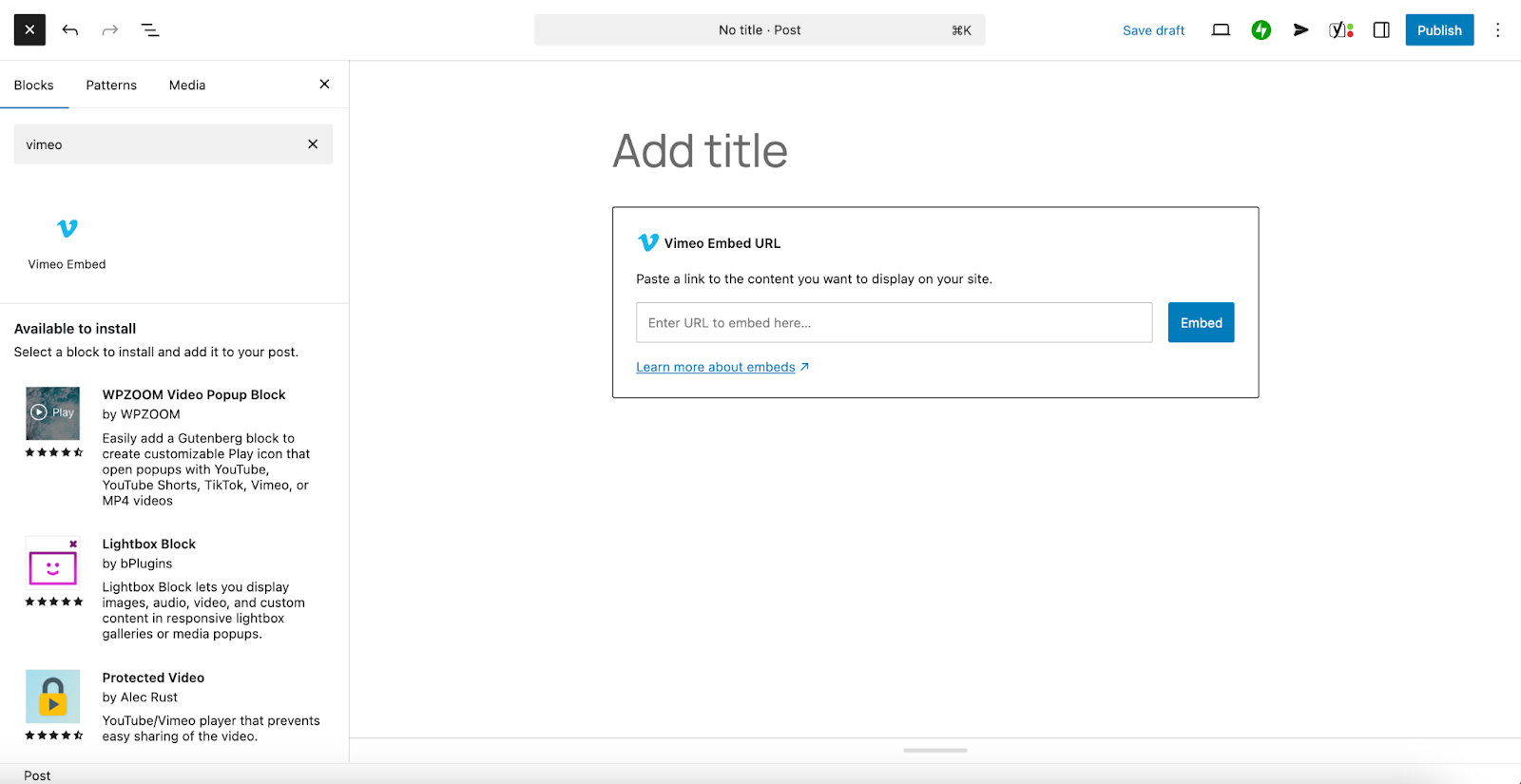
- In your WordPress post or page, click the plus (+) sign to add a new block.
- Type “Vimeo” in the search box.
- Click the Vimeo Embed block and drag it to your desired location on the page.
- Paste the video URL into the block and click Embed.
Your video will now appear directly in the editor. You can preview it before publishing the page.
Pros of using the Vimeo block:
- It’s fast and native to WordPress, requiring no extra tools or plugins.
- The block automatically handles responsive sizing.
- There are some settings you can adjust, including video alignment.
2. Embed a Vimeo video with a simple URL
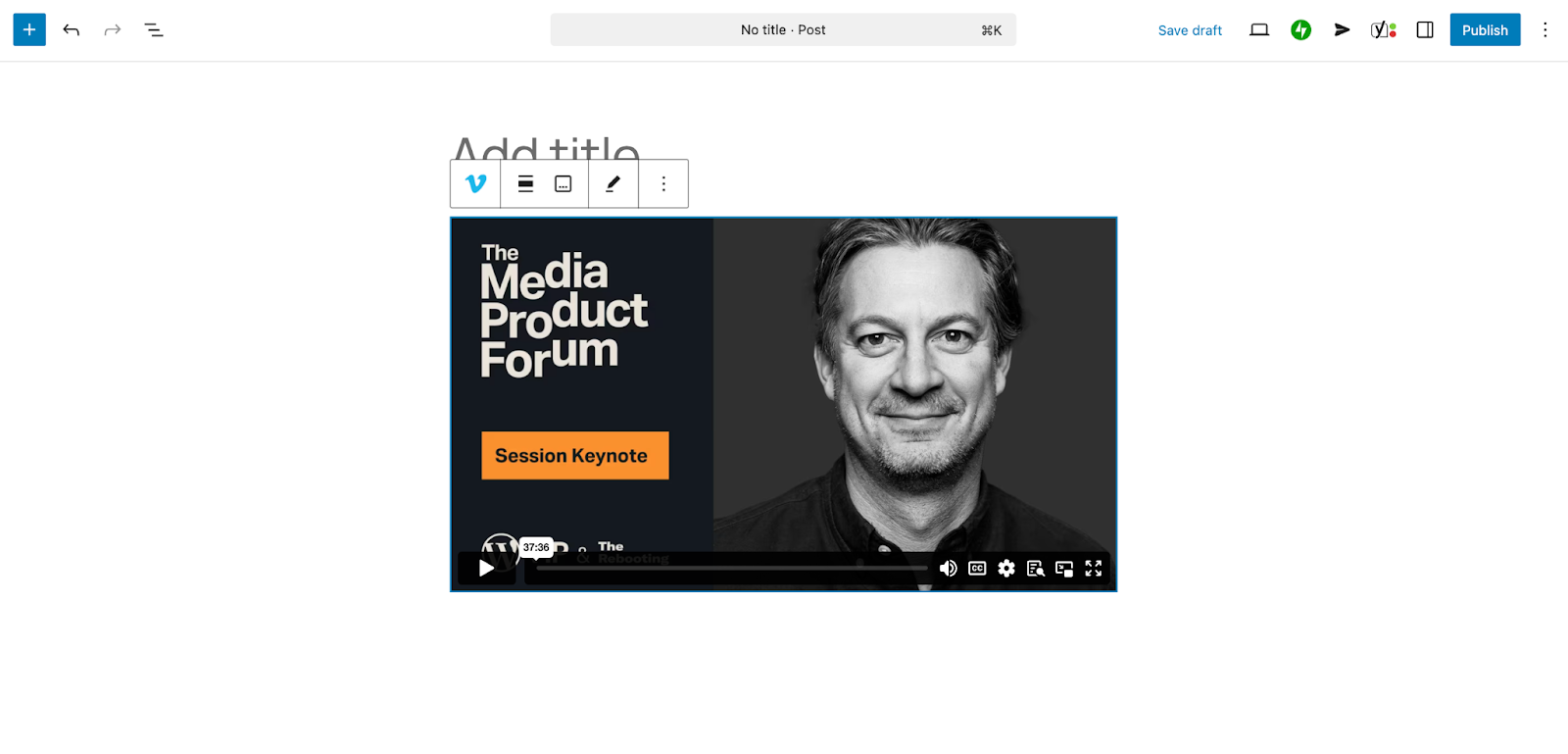
WordPress also supports oEmbed, which means that you can just paste the video URL into the editor, and it will automatically convert it into a video player. Here’s how:
- Copy the Vimeo video link from your browser.
- Paste it directly into a new line in the editor.
- WordPress will convert it into an embedded video.
This works in both the block editor and the classic editor.
When to use this method:
- When you don’t need extra formatting.
- When you’re editing a lot of content and need a quick solution.
3. Embed a Vimeo video using the classic editor
If your site still uses the classic editor, embedding is still simple and fast. Just follow these steps:
- Copy the Vimeo video URL.
- Go to the post or page where you want to add the video.
- Paste the URL into the visual editor on a new line.
- Save or update the page.
The video will show up when the post is viewed on the front end.
Note: You can’t preview the video directly in the classic editor until after publishing. Use the Preview button to see how it will look.
4. Embed a Vimeo video in widgets or sidebars
Want to add a video to your sidebar or footer? Here are two ways to do so, depending on whether you’re using a block theme or a classic theme:
Block theme:
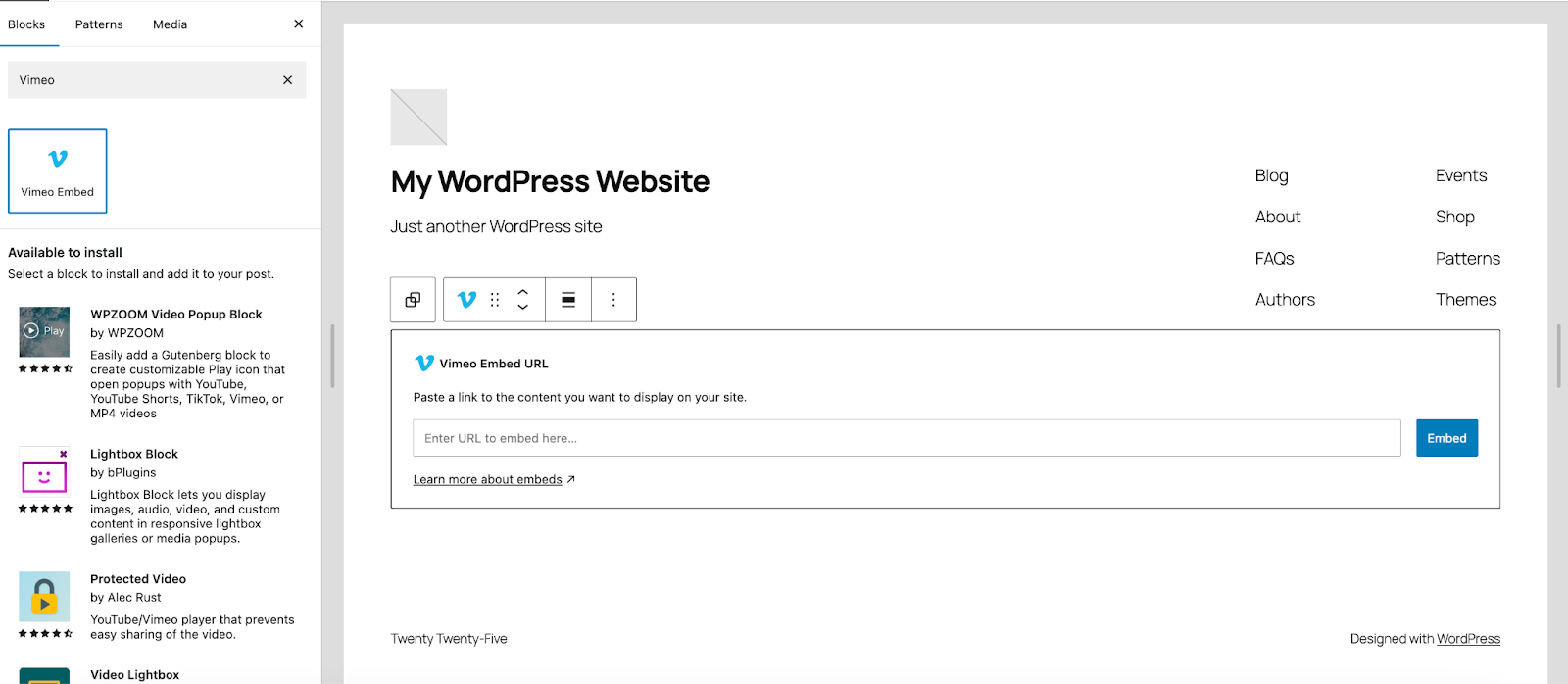
- In the WordPress dashboard, go to Appearance → Editor.
- Click Templates or Patterns and select the one you want to work with. In this example, we’re going to work with the footer.
- Click the + icon to add a new block to your template.
- Search for Vimeo and add the Vimeo embed block to the page.
- Paste your video URL, click Embed, and save the changes.
Classic theme:
- Navigate to the Vimeo video you want to add and click the Share icon.
- Select the Embed tab and copy the code there.
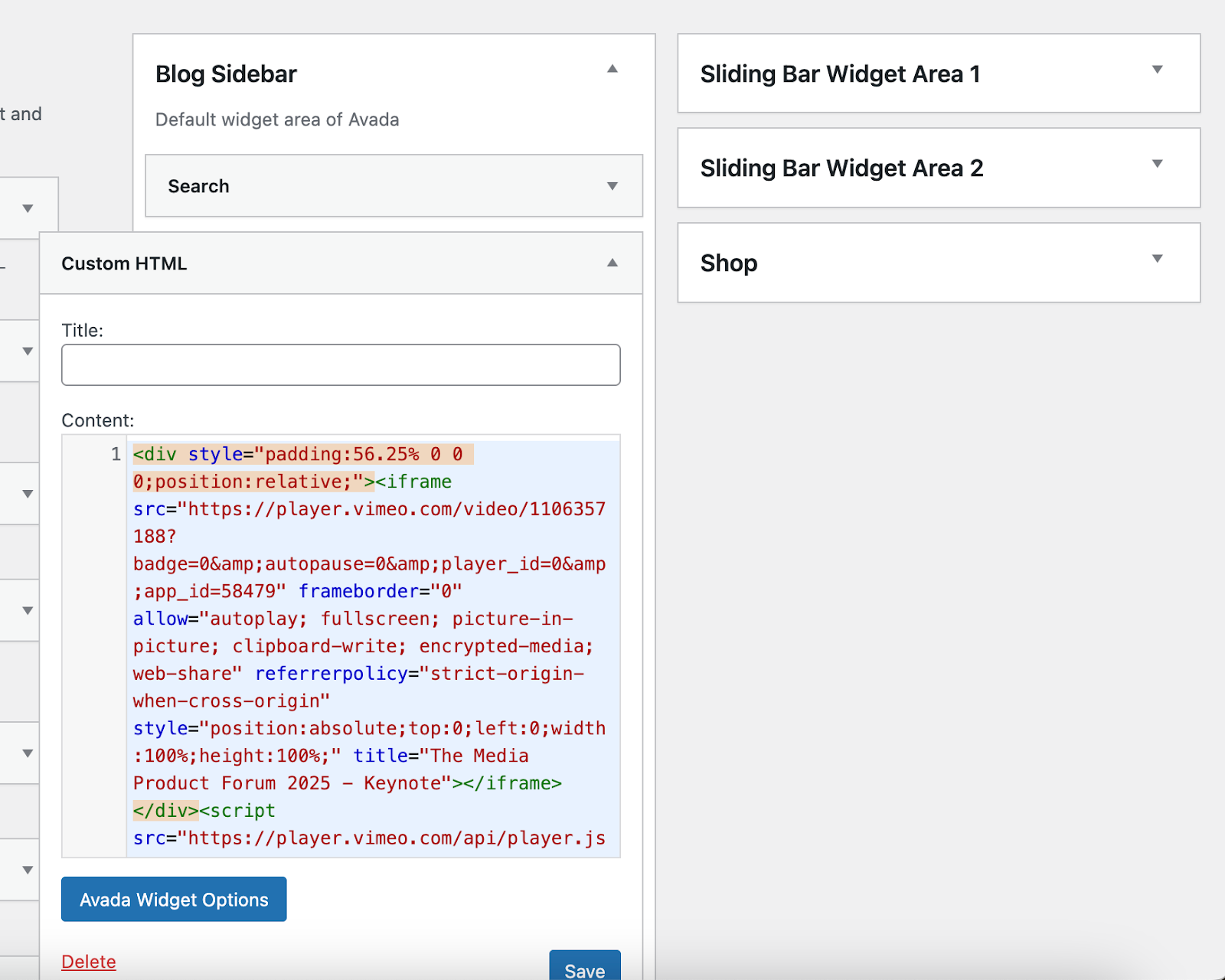
- In your WordPress dashboard, go to Appearance → Widgets.
- Add a Custom HTML widget to the widget area where you want it to appear. Paste the Vimeo embed code you copied into the widget.
- Save the widget.
5. Embed a Vimeo video with a plugin
There are also plugins available that give you more control over how Vimeo videos appear on your site. For example, with the Essential Grid plugin, you can display a Vimeo playlist, channel, group, or album in a unique grid layout on your site.
Each plugin will have its own instructions, so check the documentation before use.
How to customize your Vimeo embed
To change how the video looks or works, you can modify embed code. Here are some options:
- autoplay=1 starts the video automatically.
- loop=1 repeats the video when it ends.
- title=0 hides the video title.
- byline=0 hides the creator name.
- portrait=0 hides the profile image.
Example:
Paste this in a Custom HTML block or widget.
Troubleshooting common Vimeo embed issues
Sometimes the video doesn’t appear as expected. Here are quick fixes.
The video doesn’t show up:
- Make sure the video is public or set to “Anyone with the link”.
- Check if the URL was pasted on a new line.
- Clear your cache or try viewing in a private browser window.
The video isn’t responsive:
- If using iframe code, wrap it in a responsive container using CSS.
- Or use the built-in Vimeo block or a responsive plugin.
The video is too slow:
- Disable autoplay or background playback.
- Use lazy loading or thumbnails with a play button.
The smarter way to host and embed videos on WordPress
If you’re serious about keeping your site fast and your videos looking sharp, it’s worth considering a video hosting solution made specifically for WordPress like Jetpack VideoPress.
Jetpack VideoPress is built for WordPress, so it fits seamlessly into your existing workflow. It helps you upload, manage, and display videos without relying on third-party platforms. That means no ads, no clutter, and no distractions for your viewers.
Here’s what makes it stand out:
- Fast and reliable playback: VideoPress delivers lightning‑fast video streaming across all devices and screen sizes. Your videos load quickly and play smoothly, even on slower connections.
- High‑quality resolution: Upload your videos once, and VideoPress handles the encoding automatically. Viewers always get the best quality available, without you needing to worry about file sizes or formats.
- A clean, flexible video player: The default player is lightweight and distraction‑free. You can customize the appearance, remove playback controls, or autoplay videos as needed.
- Privacy protection: Since the videos are hosted independently from third-party services, you get full control over your content and your visitors’ viewing experience.
- Built-in storage and CDN: Your videos are hosted on Jetpack’s global content delivery network, so they don’t slow down your site or eat into your hosting plan’s bandwidth.
Who is it for?
Whether you’re a blogger, educator, business owner, or creative, Jetpack VideoPress gives you the tools to publish video content with less friction. If you want full control over how your videos are embedded, loaded, and viewed, this is a strong option that stays in your hands.
Learn more about Jetpack VideoPress here.
Frequently asked questions
Can I embed a Vimeo video in WordPress without using a plugin?
Yes, you can easily embed a Vimeo video in WordPress without a plugin. WordPress has a feature called oEmbed that automatically turns a link into an embedded video. To use it, copy the URL of your Vimeo video. Next, go to your WordPress editor, start a new paragraph, and paste the URL.
WordPress will automatically convert the link into a playable video player directly within your content. This is the simplest method and works perfectly for basic video embedding in both the block editor and the classic editor, requiring no technical skill.
How can I make my embedded Vimeo video autoplay and loop continuously?
To make a Vimeo video autoplay and loop, you must add specific parameters to the embed code. First, get the iframe embed code from Vimeo, not just the URL. Within the iframe code, find the src attribute URL. At the end of this URL, add ?autoplay=1&loop=1&muted=1.
The autoplay=1 parameter tells the video to start playing automatically. The loop=1 parameter makes it play again from the beginning once it finishes. Critically, you must also include muted=1 because most web browsers block videos from autoplaying with sound.
Why does my embedded Vimeo video show a “private” error on my website?
A “private” error message appears when the video’s privacy settings on Vimeo are too restrictive. Even if you have the correct link, the video will not play on your website if it is set to “Private.”
To fix this, you must log into your Vimeo account and navigate to the video’s settings. In the “Privacy” section, you need to change the setting to either “Public” or “Unlisted (Anyone with the link can see).” This change ensures that your WordPress site has permission to display the video to your visitors.
What is better: embedding from Vimeo or uploading videos directly to the WordPress Media Library?
For almost all use cases, embedding from Vimeo is a better choice than uploading videos directly to WordPress. When you upload a video to your own site, it consumes your server’s storage and bandwidth, which can make your website slow and expensive to run.
How do I embed a password-protected Vimeo video on my WordPress site?
You can embed a password-protected Vimeo video, but visitors will need to enter the password to view it. First, set a password for your video within its privacy settings on Vimeo. Then, copy the standard embed code and paste it into your WordPress page or post.
When a visitor views the page, the embedded player will display a password field. This is useful for sharing exclusive content within a private post or on a membership site. The password prompt is part of the Vimeo player, so it functions automatically without any extra setup in WordPress.
Can I customize the look of the Vimeo player, like changing its colors?
Yes, you can customize the appearance of the Vimeo player, but this feature is only available for paid Vimeo users (Plus, Pro, or Business plans). If you have a paid account, you can go to your Vimeo settings to create embed presets.
These presets allow you to change the player’s colors, hide or show the playbar, and remove the Vimeo logo. Once you save a preset, you can apply it to your videos. When you get the embed code for a video with this preset, it will reflect your custom design on your WordPress site.
How do I create a gallery of multiple Vimeo videos in WordPress?
Creating a gallery of Vimeo videos is best done with a WordPress plugin. While you could embed multiple videos one by one, a gallery plugin offers a much cleaner and more organized layout.
Look for a plugin that supports video galleries and connects to Vimeo. A good plugin will let you arrange your videos in a grid, add a “load more” button, and often create galleries directly from a Vimeo playlist or channel. This provides a better user experience than a long page of individual embeds and helps keep your page organized.



 Jetpack