

Embedding YouTube videos into your WordPress site is one of the simplest ways to add engaging content, and it only takes a few minutes!
This guide covers several ways to add a YouTube video to your WordPress site, whether you want quick and easy or more advanced control. It also includes customization tips, plugin options, and common fixes if something goes wrong.
TL;DR
- Use the YouTube block or paste the public YouTube URL into the block editor for the simplest embed.
- Use iframe embed code in a Custom HTML block when you need parameters or more control.
- Use the Classic Editor Text tab if you are working outside the block editor.
- Choose privacy-enhanced embedding when visitor tracking concerns matter.
- Add title, intro text, captions, transcript, or summary when the video contains important information.
- Check responsive display on mobile and tablet before publishing.
- Avoid adding many autoplaying or heavy embeds to one page.
- Use VideoPress or another video host when you need more control over branding, privacy, or playback.
1. Embedding a YouTube video with the YouTube Embed block
If you’re using the WordPress block editor, the YouTube Embed block allows you to quickly add a video to a page or post. Simply follow these steps:
- Copy the URL of your YouTube video.
- In your post or page, click the plus (+) sign to add a new block.
- Type “YouTube” in the block search bar.
- Drag the YouTube Embed block into your desired location on the page.
- Paste your video link into the field.
- Click Embed.
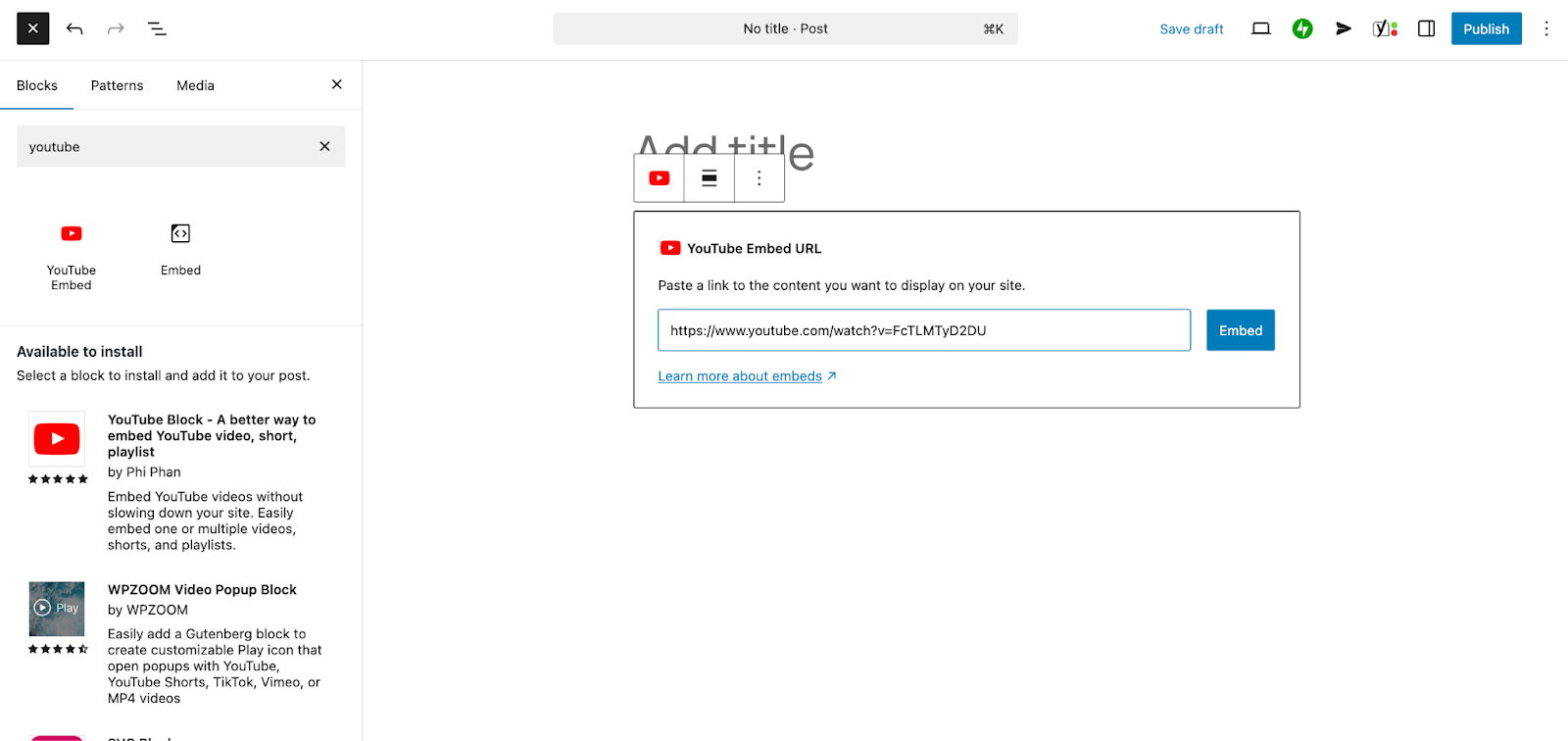
The video will appear directly in the editor. You can align it, resize the block, or add a caption if needed.
2. Embedding a YouTube video with a URL
WordPress supports automatic embeds using oEmbed, so you can paste a YouTube URL on its own line, and WordPress will turn it into a video automatically. To do this:
- Copy the video URL from YouTube.
- Go to your WordPress dashboard. In the page or post you’re working on, paste the URL on a new line.
- WordPress will detect it and convert it to a video player.
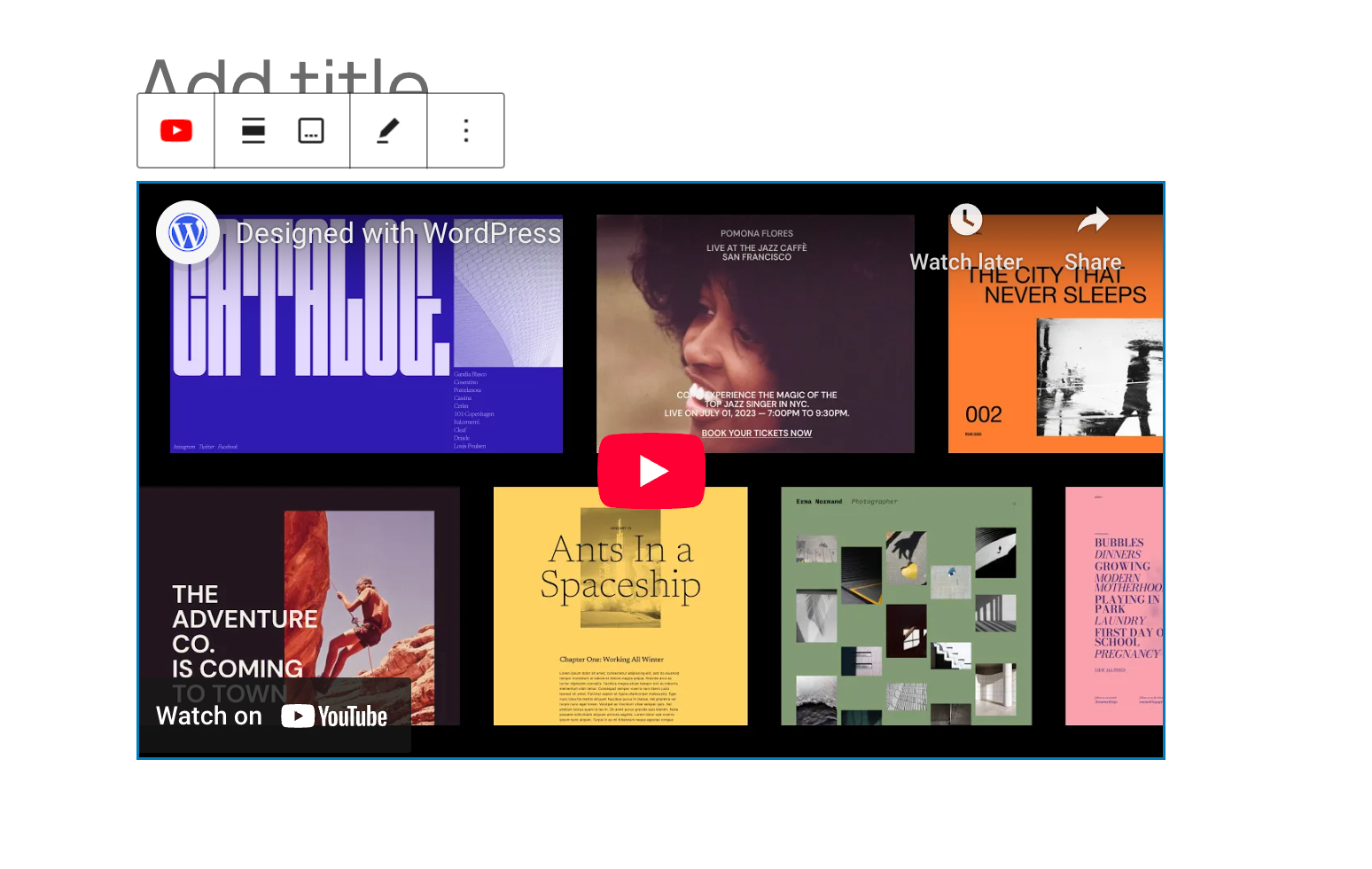
This method is fast and doesn’t require any extra setup on your end.
3. Embedding a YouTube video in the Classic Editor
If you’re still using the Classic Editor, embedding simply requires pasting the video link. Follow these steps:
- Copy the YouTube video URL.
- In the Classic Editor in WordPress, make sure you’re in the Visual tab (not Text).
- Paste the link on a blank line.
- Save or update the post.
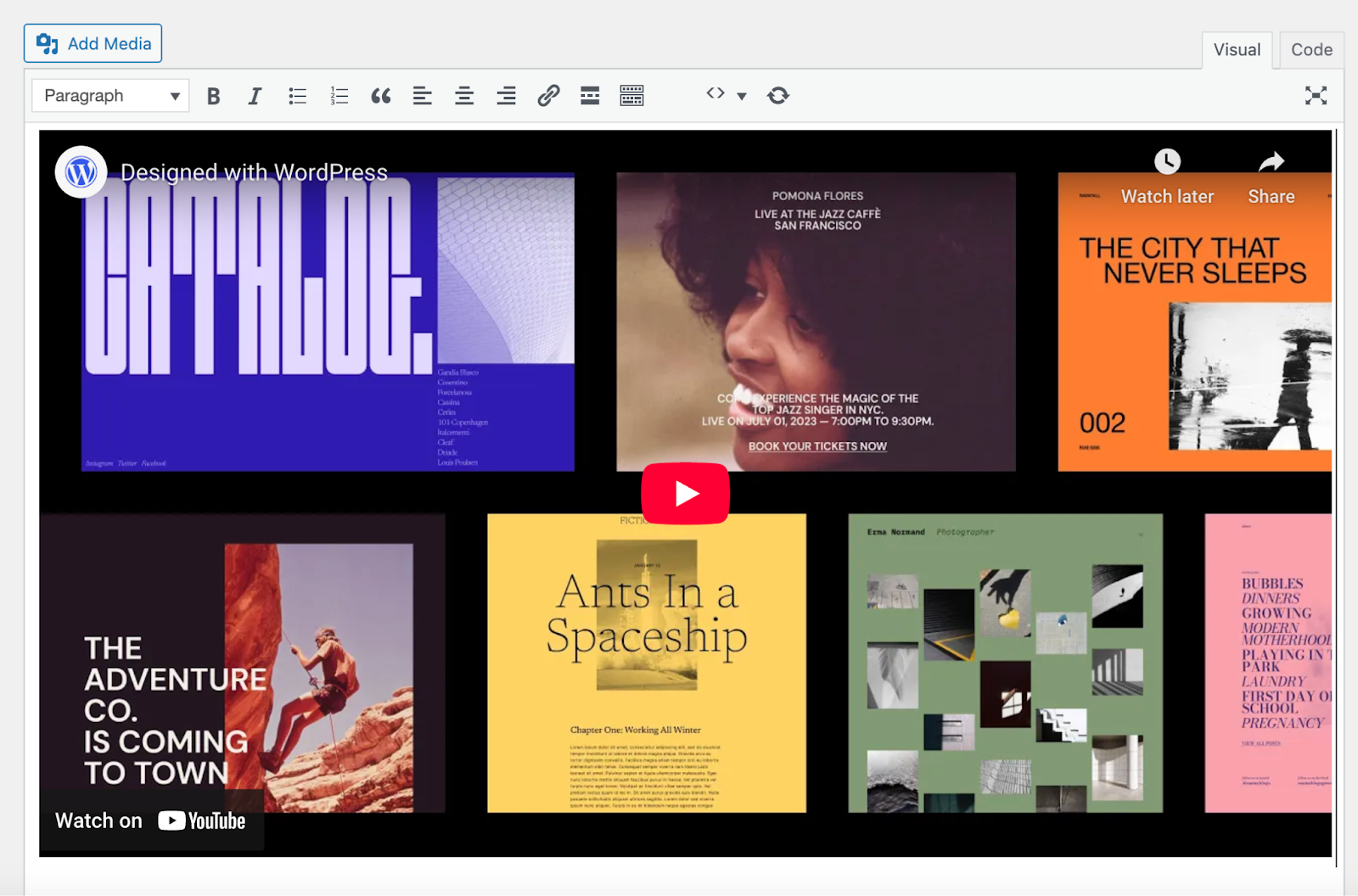
When you view the page, the embedded video will appear where you placed the link.
4. Embedding a YouTube video with the iframe embed code
If you want more control over how your video appears, try using the embed code from YouTube. Just follow these steps:
- On the YouTube video, click Share.
- Choose Embed, then copy the iframe code.
- In WordPress, add a Custom HTML block or widget to the page.
- Paste the iframe code into the block.
- Save or publish your page.
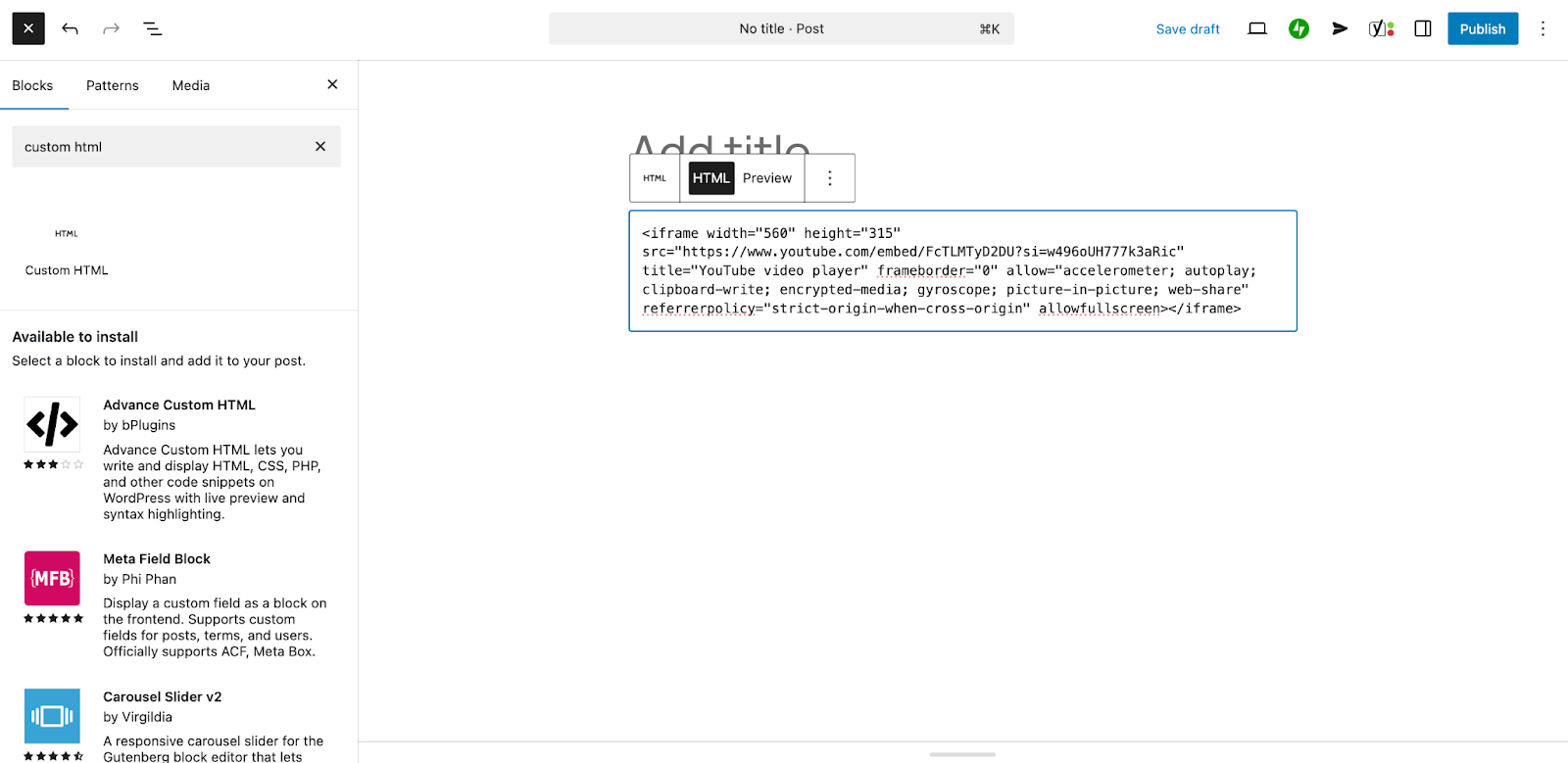
This method is great for advanced layout or design needs. If you’re familiar with basic coding principles, you can customize the iframe code by adding:
- autoplay=1 to start the video automatically
- rel=0 to hide related videos at the end
- controls=0 to hide playback controls
- mute=1 to start the video with no sound
Example:
Replace VIDEO_ID with the actual ID from your YouTube link.
5. Embedding a YouTube video in sidebars
Want to show a YouTube video in your sidebar or footer? If you’re using a block theme, simply:
- Navigate to Appearance → Editor in the WordPress dashboard.
- Open the Patterns tab, then choose the pattern or template part you want to edit (e.g. the footer).
- With the footer open, click the + icon at the top left to open the Block Inserter. Search for “YouTube” and add the YouTube Embed block where you’d like in the footer.
- Paste the YouTube video link into the block and click Embed.
- The video will appear in the Site Editor. Now, click Save to save your changes.
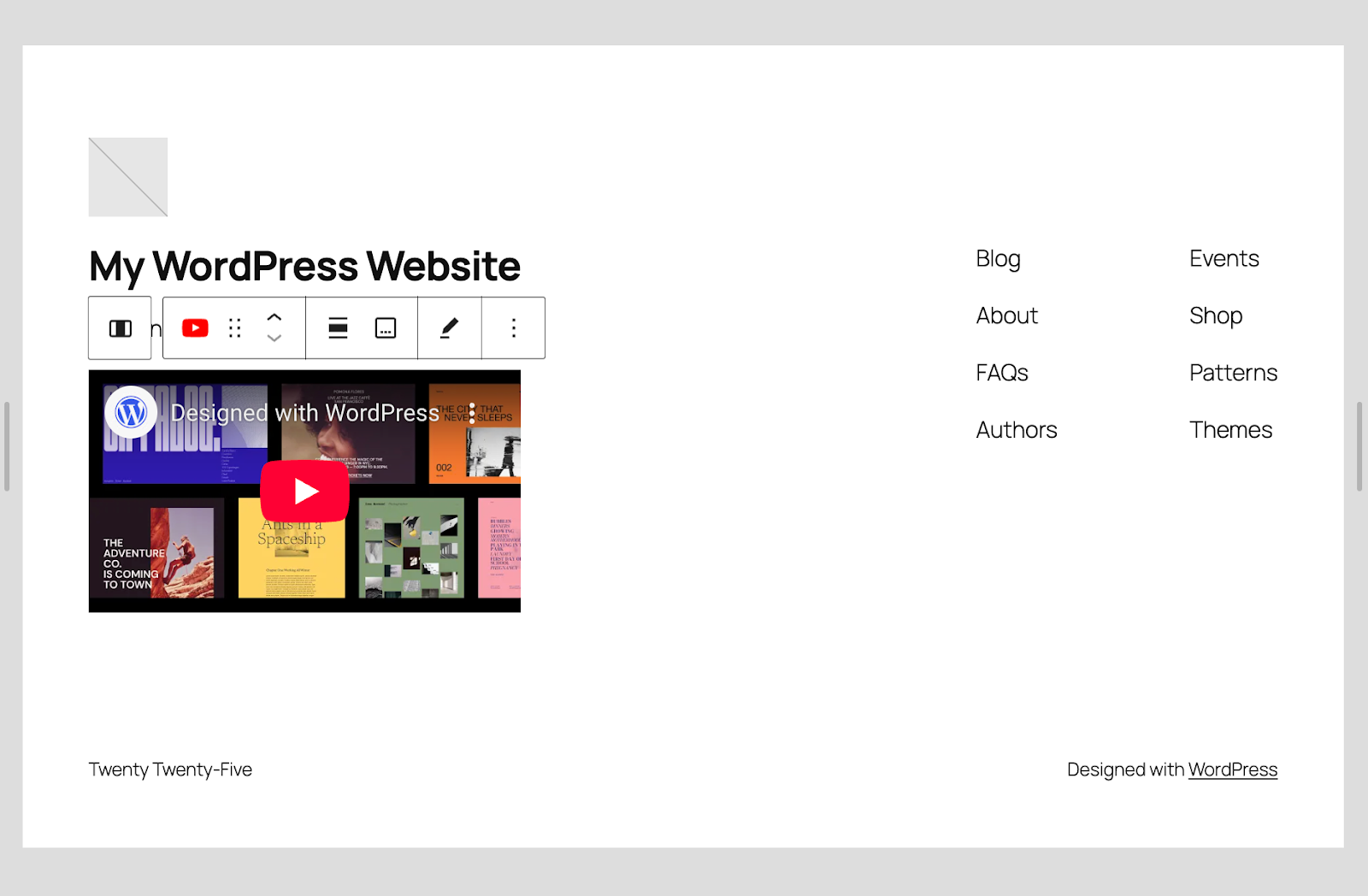
If you’re using a classic theme, follow these steps:
- On the YouTube video, click Share.
- Choose Embed, then copy the iframe code.
- Go to Appearance → Widgets in your WordPress dashboard.
- Expand the widget area where you want to add your video.
- Drag the Custom HTML widget into place.
- Add the iframe code you copied earlier and click Save.
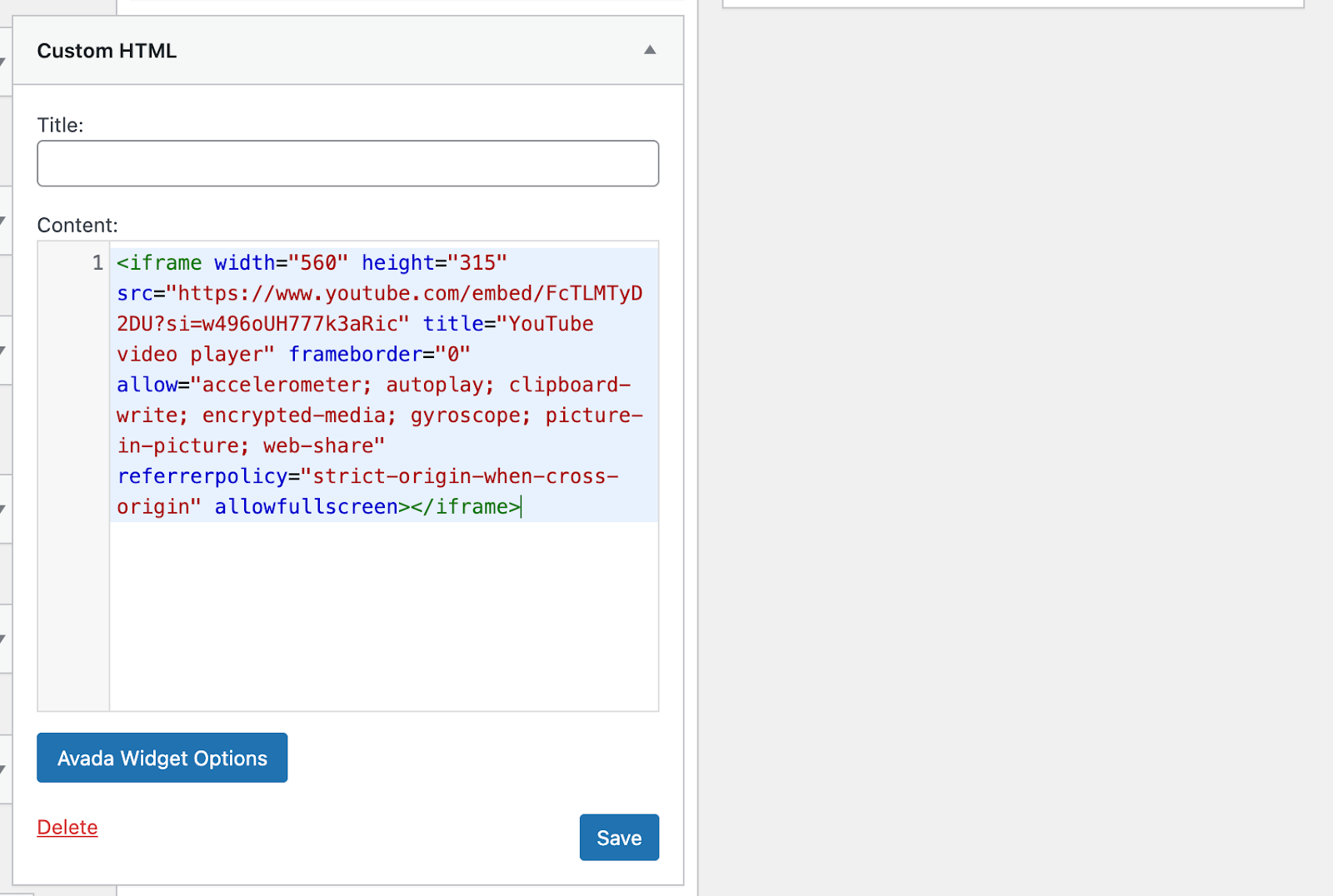
6. Embedding a YouTube video with a plugin
Plugins give you more options for things like displaying video galleries and adding lightboxes. Here are a few you can choose from:
- Embed Plus for YouTube: Embed and customize playlists, channels, livestreams, and more.
- Smash Balloon YouTube Feed: Show playlists, channels, or video grids and customize everything from video end actions to button displays.
Common YouTube embedding problems and how to fix them
Most of the time, embedding works without problems. But here are some potential problems and ways to fix them quickly:
The video doesn’t appear:
- Make sure the URL is not inside a block that changes formatting (like a Quote block).
- Place the URL on its own line with no other text.
- Try previewing in a different browser or clear your cache.
The video doesn’t resize on mobile:
- Use the YouTube block or plugins that make videos responsive.
- If using iframe code, wrap it in a container with CSS like max-width: 100%.
The playback starts with sound on:
- Add mute=1 to the embed code if you want autoplay without sound.
- Try a different browser. Most browsers will block autoplay with sound by default.
A faster, cleaner way to host videos on WordPress
YouTube is a great place to share and discover videos, but it’s not always the best fit for every site. If you want more control over how your videos are displayed, how quickly they load, or what shows up at the end, consider a dedicated video hosting solution like Jetpack VideoPress.
Jetpack VideoPress is built for WordPress, so you can upload and manage your videos directly from your dashboard. It gives you a fast, reliable player without third-party branding or distracting ads. Your visitors see your content, and nothing else.
Here’s what makes Jetpack VideoPress a smart choice:
- Fast load times: Videos are delivered through a global content delivery network (CDN) and stored separately from your site, so every page loads quickly.
- A clean player: There are no third-party logos, suggested competitor videos, or platform clutter — just your video, styled to match your site.
- Responsive design: The player adapts automatically to screen sizes, so your videos look great on phones, tablets, and desktops.
- Simple management: Upload videos from the WordPress editor or media library just like any other image or file.
If you’re publishing video content regularly and want more speed, control, and flexibility, VideoPress is an easy way to upgrade your setup without adding complexity.
You can learn more or get started here.
Frequently asked questions
Can I remove the YouTube logo and related videos from my embed?
You can’t remove all YouTube branding, but adding modestbranding=1 to your embed URL reduces how prominent the logo is. You also can’t fully disable related videos anymore, and the old rel=0 parameter no longer reliably limits them to your own channel. YouTube will still show related content at the end.
What is the difference between using the WordPress YouTube Block and an Iframe?
The WordPress YouTube Block is the easiest method for most users. It uses a system called oEmbed. You simply paste the URL, and WordPress automatically retrieves the video and formats it for you. It is simple but gives you fewer options for customization.
An iframe is a piece of HTML code that gives you manual control. You should use an iframe when you need to change specific settings that the Block does not support. For example, if you want to adjust the player controls, turn off the title display, or force specific height and width parameters, the iframe method is the better choice. It requires you to handle the code yourself but offers much more power.
Why does my YouTube embed say “Video unavailable” or “Refused to connect”?
This error message typically appears for one of three reasons. First, the owner of the video may have changed the privacy settings to “Private” or deleted the video entirely. If the source is gone, your embed cannot play it.
Second, the video owner might have disabled embedding for that specific video. Creators can choose to allow their video to play on YouTube but block it from playing on other websites.
Third, your own website security headers might be blocking the connection. If you have a strict “Referrer Policy” set up in your security plugin, it might prevent YouTube from validating the request. You should check your security settings if the video works fine on YouTube directly.
Does embedding YouTube videos help with SEO rankings?
Yes, embedding videos can improve your SEO rankings indirectly by increasing user engagement. When a visitor stops to watch a video on your page, they stay on your website longer. This metric is often called “dwell time.” Google interprets high dwell time as a sign that your content is valuable and helpful.