

If you run an online business, it’s pretty important that customers receive your emails. Even if you use a robust email marketing plugin, messages like order confirmations or password resets may be blocked or fail to arrive in people’s inboxes.
This is where SMTP (Simple Mail Transfer Protocol) plugins come in handy. These tools are designed to authenticate emails and verify their source, ensuring that messages arrive safely at the intended destination.
In this guide, we’ll explore the best WordPress SMTP plugins for your website. We’ll also discuss what to look for in an SMTP tool and share essential configuration tips to help you get started. So, let’s dive right in.
Why you may need an SMTP plugin for WordPress
By default, WordPress sends emails using a basic PHP function called wp_mail(). While this usually gets the job done, it has several limitations. These include:
- No authentication: Emails sent via PHP mail may lack proper authentication headers.
- Poor deliverability: Messages are more likely to land in spam folders or get blocked.
- Host conflicts: Hosting providers may disable PHP mail to prevent abuse and improve security.
- No visibility: There’s no record of error messages or confirmations that your emails were sent.
An SMTP plugin prevents these issues by routing your WordPress emails through an authenticated mail server or delivery service. As the website owner, you won’t have to rely on your web server’s basic mail function — the SMTP plugin lets you connect to trusted providers like Gmail, SendGrid, and Amazon SES.
What to look for in a WordPress SMTP plugin
While all SMTP plugins promise better email delivery, the results can vary widely from one tool to another. Plus, each plugin offers different levels of control and configuration, so you’ll want to choose wisely.
Let’s look at the most important criteria to consider when selecting a WordPress SMTP plugin.
Reliability and deliverability
The main purpose of an SMTP plugin is to improve email deliverability. It helps emails reach inboxes instead of spam folders.
A high-quality SMTP plugin should support authenticated SMTP connections. This shows receiving mail servers that your website is authorized to send emails on your domain.
Authentication is one of the factors that email providers like Gmail use to determine whether the source is trustworthy. So, you’ll want to look for plugins that support modern encryption methods such as SSL and TLS. The plugin should also let you authenticate using credentials, API keys, or OAuth.
Compatibility with email providers
Not every SMTP plugin works well with every email provider. Some enable you to connect to virtually any SMTP service as long as you have the correct credentials, while others are optimized for specific providers like Gmail, Outlook, SendGrid, or Amazon SES.
Before choosing a plugin, consider which email service you’re currently using (or would like to use), whether you plan to switch providers in the future, and if you need support for multiple providers.
A flexible plugin gives you the freedom to change providers without having to switch plugins. On the other hand, provider-specific plugins may offer deeper integrations or easier setup.
Ease of setup
Configuring an SMTP plugin can be difficult if you’re not familiar with email servers, ports, and encryption protocols. A good WordPress SMTP plugin does most of the work for you.
Look for a beginner-friendly plugin that offers step-by-step setup wizards and preconfigured settings for popular email providers. The plugin should also make it easy to update credentials, switch providers, or troubleshoot problems.
Email logging and debugging
You may not be aware that your emails are failing to send until you receive a message from a customer telling you that they never received an order confirmation. That’s why email logging is one of the most valuable features an SMTP plugin can offer.
Email logs help you see which emails were sent from your site, and whether they were successfully delivered. With logs, you’ll also be able to confirm timestamps and recipients, and diagnose recurring issues. Some plugins will also offer delivery status tracking and resend options for failed emails.
Support for transactional emails
Transactional emails are messages triggered by user actions like account creation, password resets, and orders. These emails are time-sensitive and important, so if you run an online business, your SMTP plugin must handle transactional emails quickly, even during traffic spikes.
Some plugins are better optimized for transactional email workflows. They ensure that high-priority messages are sent immediately and not delayed by bulk sending.
Security features
Your emails may include sensitive data like login credentials, personal information, and payment details. A good SMTP plugin should prioritize security with features like:
- Secure connections using SSL or TLS
- Support for modern authentication methods (OAuth, API keys)
- Protection against credential exposure
Additionally, plugins that ensure proper email authentication (like SPF, DKIM, and DMARC) help protect your domain from spoofing and phishing attempts.
Pricing and scalability
There are both free and premium SMTP plugins. When evaluating cost, consider the following:
- Whether the free version is sufficient for your current email volume and needs
- What essential features are locked behind paid plans
- Whether email sending limits could become a problem in the future
A free plugin may work well for a small shop, but as your business grows, you’ll need a solution that offers higher sending limits, better monitoring, and priority support. To be safe, choose a plugin that can scale with your site.
The six best SMTP plugins for WordPress (expert picks)
Now, here are the top picks for the best WordPress SMTP plugins, based on reliability, features, and ease of use.
1. MailPoet

MailPoet is a popular WordPress email plugin known primarily for its email marketing capabilities. It’s designed by Automattic, the people behind WordPress.com, WooCommerce, and Jetpack.
MailPoet combines newsletters, automated emails, and transactional email delivery. It also comes with an automated SMTP solution for WordPress that lets you deliver emails through your preferred service.
Key features of MailPoet:
- Built-in SMTP and email delivery service
- The ability to reroute all WordPress emails via third-party SMTP services or MailPoet’s own email delivery service
- Free email delivery for up to 5,000 emails per month
- Email analytics and tracking
- Seamless integration with WooCommerce
- Email templates and automation workflows, like abandoned cart reminders
Pros of MailPoet:
- It combines SMTP functionality with full email marketing tools, so you won’t need to set up an additional plugin for your emails.
- There’s no need to configure an external SMTP tool if you use MailPoet’s built-in delivery service.
Cons of MailPoet:
- Paid plans are required for higher sending volumes and advanced features.
Ease of use:
MailPoet is very beginner-friendly. Once you install and enable the plugin on your site, it will instantly start sending your emails through its SMTP service. Plus, you still have the flexibility to connect to an external SMTP service.
Best suited for:
- WordPress site owners who want both transactional emails and newsletters.
- Businesses that want reliable delivery without complex SMTP setup.
- Anyone looking for an all-in-one email solution.
Pricing:
- The free plan includes up to 5,000 emails per month
- Paid plans scale based on subscriber count. For example, the Business plan starts at $20/month for 1,500 subscribers.
2. WP Mail SMTP

WP Mail SMTP is one of the most popular WordPress SMTP plugins. It integrates with Mailgun, Brevo, SendLayer, Zoho, AWS, and other email service providers.
Key features of WP Mail SMTP:
- Support for major SMTP providers
- Email logging and reports
- Open and click tracking
- Email failure alerts
- Conditional logic that allows email sending through different providers
Pros of WP Mail SMTP:
- It gives you a lot of flexibility over SMTP configuration and which services to use.
- It offers backup connections with a secondary email provider, in case something goes wrong with the primary service.
Cons of WP Mail SMTP:
- The advanced features and configuration can be overwhelming for non-technical users.
Ease of use:
WP Mail SMTP has a guided setup wizard and a clean interface, but you’ll need some technical knowledge to set up more advanced configurations like conditional logic.
Best suited for:
- Medium to large-sized websites that want more control over SMTP configuration and in-depth reports on deliverability.
Pricing:
- A free version is available, but it does not come with access to email logging and alerts.
- Paid plans start at $49/year.
3. SMTP Mailer

SMTP Mailer is a lightweight, no-frills WordPress plugin designed specifically for SMTP email delivery. It works well with Contact Form 7, Jetpack, Formidable Forms, and other form plugins.
Key features of SMTP Mailer:
- Simple SMTP configuration
- Support for SSL/TLS encryption
- An email testing tool
Pros of SMTP Mailer:
- It’s completely free and easy to configure for basic needs.
Cons of SMTP Mailer:
- It has limited features and minimal support compared to premium plugins.
- Email logging is only available as an add-on.
Ease of use:
SMTP Mailer is straightforward to use, but requires a basic understanding of SMTP credentials.
Best suited for:
- Owners of small websites who want a free, simple SMTP solution without the need for advanced features.
Pricing
- This is a free plugin.
4. Post SMTP
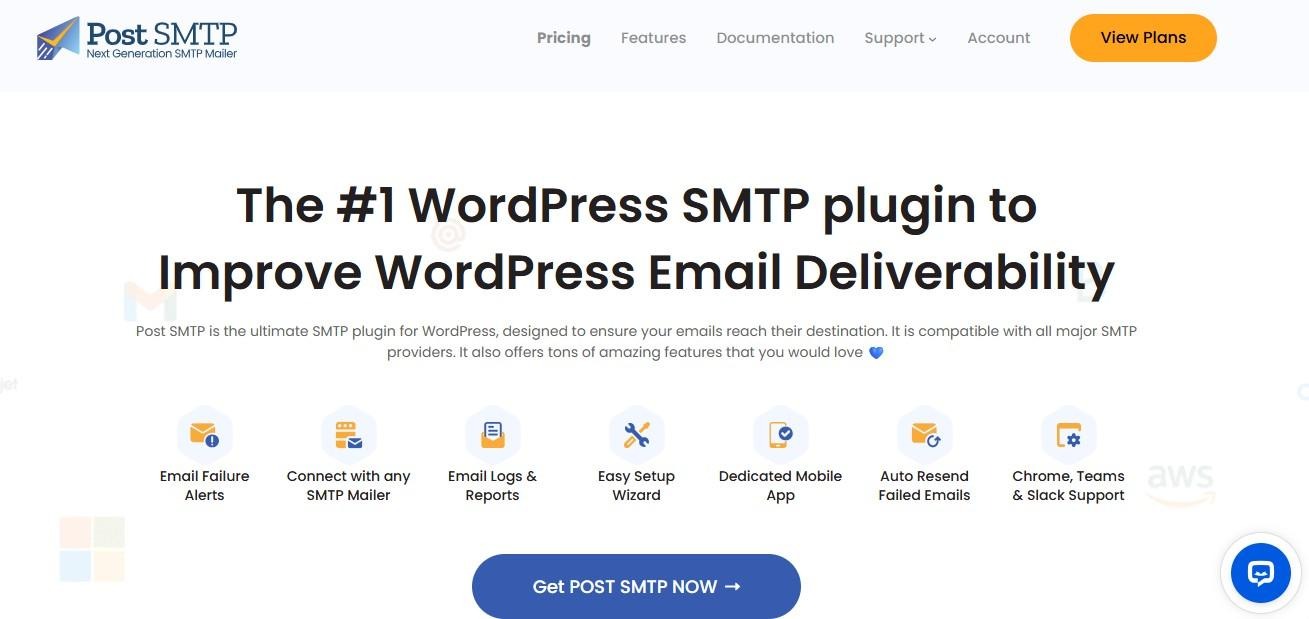
Post SMTP is a feature-rich SMTP plugin that’s ideal for website owners who want detailed diagnostics and advanced email delivery options. It’s a complete SMTP Solution with email logging, alerts, a backup SMTP server, and a mobile app.
Key features of Post SMTP:
- Advanced email logging and reporting
- A chrome extension for real-time email failure alerts
- Fallback SMTP servers
- OAuth 2.0 support for Gmail and other email providers
- Detailed error diagnostics
- A built-in spam score checker that evaluates your domain reputation
- Support for Outlook, Gmail, Amazon SES, Zoho, and other services
Pros of Post SMTP:
- It offers excellent debugging tools.
- It supports complex setups, making it ideal for websites that handle large volumes of emails.
- The mobile app enables you to monitor and manage your WordPress emails on the go.
Cons of Post SMTP:
- The interface can feel overwhelming for those who are new to SMTP.
Ease of use:
Post SMTP is more complex than beginner plugins, but once you understand the interface, you’ll have a powerful setup.
Best suited for:
- Developers and advanced users who work on websites with complex email requirements.
- Website owners who want detailed delivery insights and instant alerts.
Pricing:
- The core plugin is free.
- The premium version starts from $59.99/year.
5. Easy WP SMTP
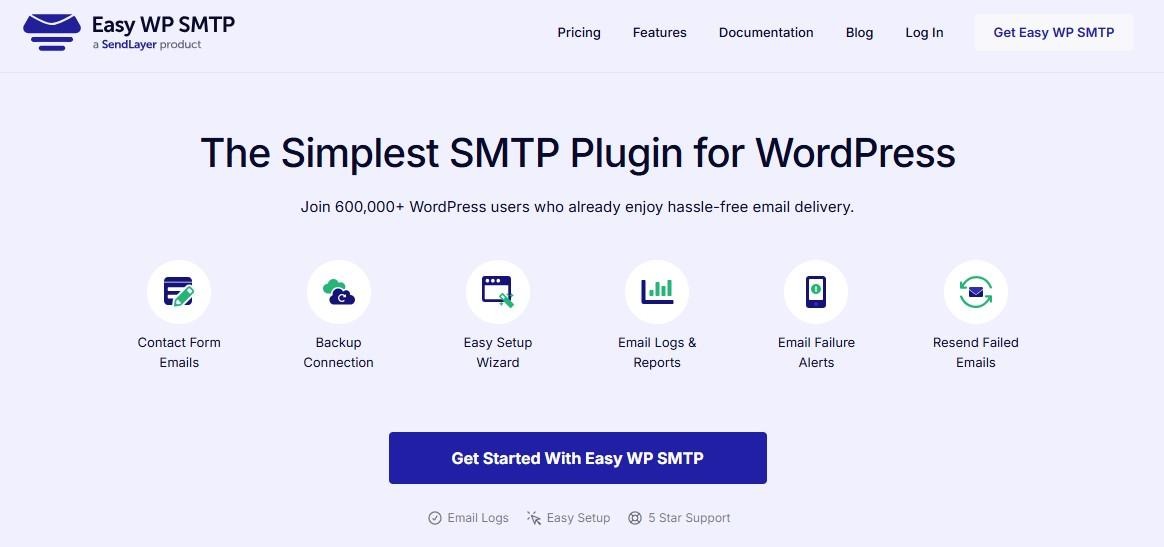
As the name suggests, Easy WP SMTP is a WordPress plugin that makes SMTP setup an easy and straightforward process. It’s ideal for small blogs, personal websites, and basic business sites.
Despite being a beginner-friendly tool, it offers various integrations, including SendLayer, Amazon SES, Gmail, Mailgun, Mailjet, Outlook, Brevo, and more.
Key features of Easy WP SMTP:
- Basic SMTP configuration
- Support for popular transactional mailers
- Backup connections
- Email notifications via email, Slack, Microsoft Teams, and more
- Smart conditional routing that enables you to send different types of emails through various mailers
Pros of Easy WP SMTP:
- It’s designed with beginners in mind, so it’s a user-friendly tool with minimal configuration.
Cons of Easy WP SMTP:
- Most of its features are only available with the premium version.
Ease of use:
Easy WP SMTP comes with a setup wizard that helps you configure your SMTP solution in minutes. It also offers a fast and easy Gmail integration.
Best suited for:
- Owners of small websites or stores who favor simplicity over advanced features.
Pricing:
- A free version is available.
- The pro plugin starts at $49.50/year.
6. Gmail SMTP

Gmail SMTP is a niche WordPress plugin created specifically to connect WordPress with Google’s email infrastructure. It enables you to send WordPress emails through Gmail or Google Workspace SMTP servers.
The plugin uses the OAuth 2.0 protocol to authorize access to the Gmail API. This means that you won’t have to enter any username or password to set up the SMTP.
Key features of Gmail SMTP:
- Gmail SMTP integration
- OAuth authentication
- Support for TLS encryption
- The ability to test email functionality
Pros of Gmail SMTP:
- It provides reliable Gmail delivery and serves as a secure solution for Google Workspace users.
Cons of Gmail SMTP:
- It’s limited to Gmail.
- It isn’t suitable for high-volume sending, as Gmail’s sending limits apply.
Ease of use:
The plugin requires Google API setup for OAuth, which can be difficult if you’re unfamiliar with the protocol.
Best suited for:
- Small businesses using Google Workspace and websites with low-volume email sending.
Pricing:
- This is a free plugin.
A comparison of the top SMTP plugins on WordPress
| Best for | Email logs | Built-in delivery service | Ease of use | Free plan | |
| MailPoet | Email marketing and transactional emails | Yes | Yes | Very easy | Yes |
| WP Mail SMTP | Medium to large websites that want more control over SMTP configuration | Yes | No | Moderate | Yes |
| SMTP Mailer | Small websites that want a basic solution | Available as an add-on | No | Easy | Yes |
| Post SMTP | Websites with complex email requirements. | Yes | No | Moderate | Yes |
| Easy WP SMTP | Small websites with minimal configuration needs | Yes | No | Very easy | Yes |
| Gmail SMTP | Small businesses that use Google Workspace | Available as an add-on | No | Moderate | Yes |
SMTP plugin configuration tips for WordPress
Once you select the right SMTP plugin, you’ll need to make sure that you set it up correctly. The plugin can fail to deliver emails if your configuration is incomplete or your domain isn’t properly authenticated.
Here’s what you’ll need to do:
Use proper authentication records
To maximize deliverability and protect your domain’s reputation, configure the following DNS authentication records. These records tell receiving mail servers that your emails are officially authorized by your website.
SPF (Sender Policy Framework)
SPF defines which mail servers are allowed to send emails on behalf of your domain. When an email is received, the recipient’s server checks the SPF record to verify that the sending server is authorized.
When setting up your SPF record, include all services that send emails for your domain (SMTP providers, email marketing tools, hosting providers). Also, avoid creating multiple SPF records. You should only have one per domain.
If your SPF record is missing or misconfigured, receiving servers may mark your emails as spam or reject them.
DKIM (DomainKeys Identified Mail)
DKIM adds a cryptographic signature to each of your emails. This signature enables receiving servers to verify that the message hasn’t been altered in transit and that it originated from your domain.
DKIM setup typically involves generating a DKIM key pair in your email service or SMTP provider. Then, you’ll need to add a public DKIM key as a DNS record for your domain and enable DKIM signing in your SMTP or email delivery service.
DKIM significantly improves trust. It’s a requirement for reliable email delivery, especially for transactional emails.
DMARC (Domain-based Message Authentication, Reporting, & Conformance)
DMARC builds on SPF and DKIM by telling receiving servers how to handle emails that fail authentication checks. It also enables reporting, so you can see how your domain is being used (or misused) for email.
With a DMARC policy, you can specify whether unauthenticated emails should be monitored, quarantined, or rejected. You’ll also receive reports about authentication failures.
Match your “From” address
Your “From” email address should always match the domain you’re sending from (for example, hello@yourdomain.com). Using free email addresses like Gmail or Yahoo as the sender can trigger spam filters, even if SMTP authentication is technically correct.
Be sure to do the following:
- Use a domain-based email address for all WordPress emails (e.g., support@mystore.com, info@mystore.com, orders@mystore.com).
- Match the “From” address with the domain used in your SPF and DKIM records.
- Force the “From” address in your SMTP plugin to prevent overrides by themes or other plugins
Consistency between your sending domain, SMTP server, and authentication records is important for building trust with receiving mail servers.
Test your emails
After configuring your SMTP plugin, send a test email to your personal address to confirm that everything is working as expected. Most SMTP plugins include a built-in test feature that sends a message using your current settings.
When testing, try to send emails to multiple providers (Gmail, Outlook, Yahoo). Also, check both the inbox and spam folders, and retest anytime you change SMTP credentials, DNS records, or email providers.
Regular testing helps you catch problems before they affect real users.
When to use an SMTP plugin vs. a dedicated email marketing plugin
SMTP plugins are primarily designed to ensure the safe delivery of WordPress emails. They replace WordPress’s default PHP mail function with authenticated SMTP sending, and therefore improve deliverability for emails like password resets, contact form notifications, and WooCommerce order confirmations.
However, SMTP plugins generally don’t handle marketing emails like newsletters. They route emails through a secure server, but they don’t help you manage ongoing email communication with your audience.
Meanwhile, a dedicated email marketing plugin is designed to help you manage both transactional and marketing emails within WordPress. Some plugins like MailPoet even have a built-in SMTP service. For example, you can use MailPoet to improve email deliverability as well as create newsletters, manage subscribers, set up automated workflows, and track engagement.
This can be especially useful for sites that rely heavily on email, like WooCommerce stores, membership sites, or content-driven businesses. Using a single tool for both SMTP and marketing emails will simplify your workflow.
So, if your email needs are limited to system notifications like password resets, an SMTP plugin may be enough. However, if email plays a larger role in your business, a dedicated email marketing plugin with built-in SMTP functionality is a better solution.
Frequently asked questions
Do you still have questions about SMTP plugins for WordPress? Let’s answer them.
Can I send WordPress emails without an SMTP plugin?
Yes, but it’s not recommended if successful email delivery is important for your business. Many hosts block or limit PHP mail, which means your customers won’t receive your emails.
How does an SMTP plugin improve email deliverability in WordPress?
An SMTP plugin authenticates your emails, uses trusted mail servers, and reduces spam filtering. As a result, receiving mail servers are much less likely to block your messages.
Do I need an SMTP plugin if I’m using a managed WordPress host?
Managed hosts improve performance and security, but unsuccessful email delivery may still be an issue without SMTP.
How do I choose the best SMTP plugin for my WordPress site?
Consider your email volume, technical skill level, and whether you need marketing features.
Which SMTP plugin is best for WooCommerce transactional emails?
Choose a solution that’s designed to handle transactional emails reliably, even in large volumes. MailPoet is a robust tool for online businesses, as it was built by the same people behind WordPress.com. You can also use MailPoet for marketing campaigns and newsletters.
What’s the difference between a transactional email plugin and an SMTP plugin?
SMTP plugins route emails, while transactional email plugins send automated messages like order confirmations. Ideally, you’ll use a plugin that combines both services, like MailPoet, so you can streamline your workflow and manage everything from one place.
What information do I need to configure a WordPress SMTP plugin?
You’ll typically need an SMTP host, port number, encryption type, username and password, and API credentials.
How do I test if my SMTP plugin is working correctly in WordPress?
Most plugins have a test email feature, so you can send messages from your website to your personal address to confirm delivery.