Update: Reader Chat has been renamed Site Chat to avoid confusion with WordPress.com Reader. The feature and how it works remain the same.
Site search is great when visitors know what to type. A lot of the time, they don’t.
They land on a post with a question. They skim an archive looking for a thread. They want to know whether you’ve written about a topic before, but they don’t know the exact keyword that will get them there.
Site Chat gives them a more natural way in.
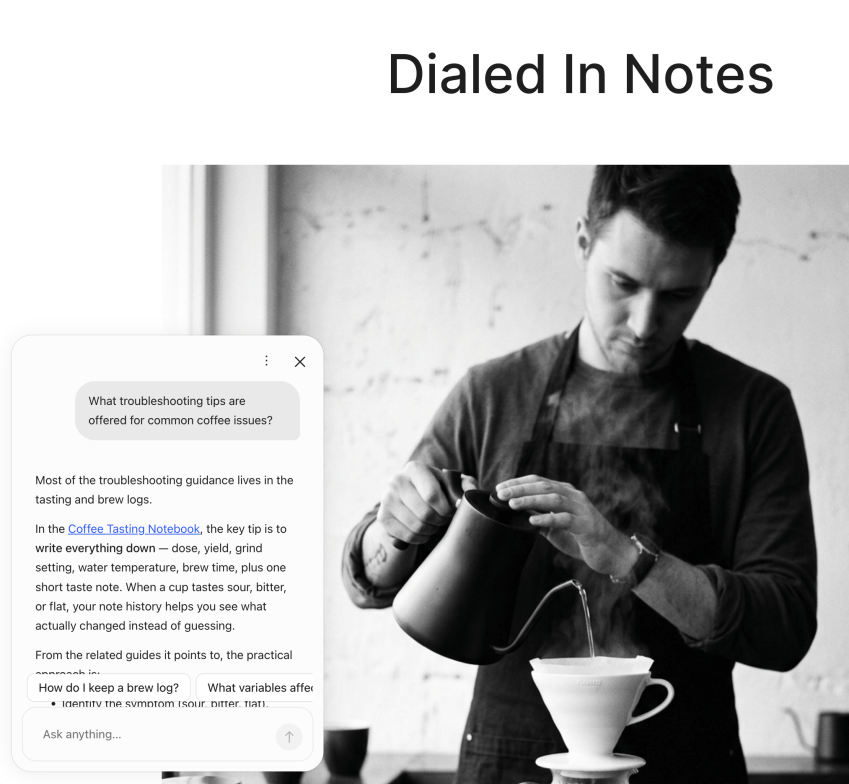
It adds a small chat experience to your public site, so visitors can ask questions and get answers based on your site content. On a post, it can use that post as context. On the home page or an archive, it can help visitors explore the site overall.
See Site Chat in action
A better way into your archive
The more useful your archive gets, the harder it can be for visitors to find the right entry point.
Site Chat lets visitors ask questions across that archive. Instead of guessing the perfect search term, a visitor can ask things like:
- What’s the main takeaway from this post?
- What else has this site published about this topic?
- Can you recommend a good post to read next?
- How does this idea connect to earlier posts?
Search is still the right tool when someone wants a results page, filters, sorting, and a list of matching posts. Site Chat is for the next kind of question: the one a visitor has while they’re already reading.
Suggestions that fit the page
Site Chat starts with suggested questions, so visitors don’t have to begin from a blank box.
On a post, suggestions can focus on the article in front of them: the main point, key details, or related context. On the home page or an archive, suggestions can help them explore recent posts, learn what the site covers, or find something worth reading next.
After a visitor gets an answer, follow-up suggestions help keep the conversation moving without sending them away from your site.
Give Site Chat a voice
Site Chat can use your site’s Guidelines to shape how it responds.
That means site owners can set the tone, boundaries, and style they want Site Chat to follow. A travel site might want warm, practical answers. A technical site might want short, precise ones. A personal site might want responses that feel closer to the author’s own voice.
Site Chat still answers from your content, but Guidelines help it respond in a way that feels like it belongs on your site.
How to enable Site Chat
Site Chat is opt-in. To turn it on:
- Go to your site’s WP Admin.
- Open Jetpack → Search.
- Go to the Settings tab.
- Turn on Enable Site Chat.
- Save your changes, then visit a public post on your site to try it.
Site Chat appears only on eligible public sites with a Jetpack Search plan. It won’t load on Coming Soon or unlaunched sites.
How to set Guidelines
Guidelines are optional, but they’re useful if you want Site Chat to match your site’s voice and expectations.
- Go to your site’s WP Admin.
- Open Gutenberg → Experiments.
- Enable Guidelines.
- Open Settings → Guidelines.
- Use Site to describe what your site is about, who it’s for, and what visitors usually come there to find.
- Use Additional for Site Chat-specific guidance, like tone, answer length, topics to avoid, or when to point visitors back to posts.
- Click Save guidelines.
Example:
Keep answers warm, practical, and concise. Use the site’s existing posts as the source of truth. When possible, point visitors to related posts they can keep reading. Avoid sounding formal or promotional.
Availability
Site Chat is available in Preview on eligible public sites with Jetpack Search. It’s live now on WordPress.com sites with a Jetpack Search plan, and on self-hosted WordPress sites running Jetpack 15.9 or later.
Search that talks back
Search helps visitors find the right post. Site Chat helps them ask the next question once they’re there.
If your site has a deep archive, detailed guides, or posts that connect across topics, Site Chat gives visitors a faster way to follow those threads and keep reading.
