

If you offer multi-tiered services, like software subscriptions or memberships, you may want to display a head-to-head comparison of your different plans. This way, your site visitors can easily see what to expect from each service. Or you might be looking for a way to showcase information like class schedules or user directories in a more visually-appealing format.
With a WordPress table plugin, you can present data in a neat and compact way. Some tools enable you to customize the table so that it aligns with the rest of your site. You may even be able to import your data from a spreadsheet, which would save you a lot of time!
On this page, we’ll cover the features to look for in a WordPress table plugin. We’ll then compare the best tools on the market, discuss what makes a good table plugin, and answer some frequently asked questions. Let’s get started!
Key features to look for in a WordPress table plugin
When it comes to creating tables, there are many WordPress plugins to choose from. But, you’ll want to make sure to select a tool that offers all the essential features for presenting your data.
Here are some things to look for when choosing a WordPress table plugin for your website:
1. Ease of use and automation
Creating tables in WordPress can be a little tedious. You’ll need to create rows and columns, and make sure you enter the right information in the correct fields.
Therefore, you’ll want to choose a plugin that simplifies the process. Some tools come with a drag-and-drop builder that lets you create your table visually, and you can preview the changes in real time.
If you’re creating tables with a large amount of data, ease of use is even more important. In this case, you’ll also want to prioritize automation.
For instance, you might select a plugin that enables you to import data from a CSV file. This way, you wouldn’t need to enter your data manually.
Additionally, you may want to look for a WordPress table plugin that syncs with your data source. This can help by pulling information from your forms or online platforms like Google Sheets and automatically updating what’s displayed on the site as the data changes.
2. Responsiveness and mobile-friendly design
When you’re adding elements like tables to your website, it’s important to remember that a large portion of your visitors will be viewing your content from their mobile phones. So the plugin you choose should definitely be mobile-friendly.
Of course, the mobile version will likely look different from the desktop version, as only a few columns or rows will be displayed at a time.
But this is okay because If the table were not responsive, mobile phone users would have to swipe around the screen and zoom in and out to read the data, which can be frustrating. In the worst-case scenario, all the data could appear jumbled, and they’d be unable to understand it or make comparisons at all.
3. Customization and styling options
If design is important to you, you’ll want a WordPress table plugin that gives you a lot of customization options. At the very least, you should be able to choose the colors and fonts.
Having a table that aligns with the design of your page can help you project a more professional image. This is particularly important if you’re using tables on key pages, like Pricing and Services.
Some WordPress table plugins also offer customization settings for pagination, filters, and other components.
4. Integration with other WordPress tools
You’ll also want to consider the plugin’s integration with other tools that you use. For instance, if you have a WooCommerce store and want to create product comparison tables, the plugin must integrate with this ecommerce tool.
Similarly, if you have a listings website or directory, you’ll want to ensure that the table plugin integrates with your form plugin. This way, you can sync the two tools so that the information in the table is updated automatically as new data is submitted through the form.
Ideally, the table plugin should also work with any page builder you use on your website. Some may have blocks that you can access through the WordPress editor.
A review of table builder plugins for WordPress
Now, let’s look at the best WordPress table plugins on the market. Here, you’ll find information about the features, pricing, pros and cons, ease of use, and best scenarios for each tool.
1. Jetpack AI
You may already be familiar with Jetpack. Created by Automattic, the people behind WordPress.com, Jetpack is known for its all-in-one security, performance, and growth solution. As part of this, the company offers an AI tool that helps you create content faster.
Jetpack AI is a writing assistant that uses prompts to generate elements like paragraphs, forms, lists, and tables. You can access it from the WordPress block editor (look for the AI Assistant block), and enter your prompt.
For instance, you might ask it to create a table that compares WordPress.org and WordPress.com:
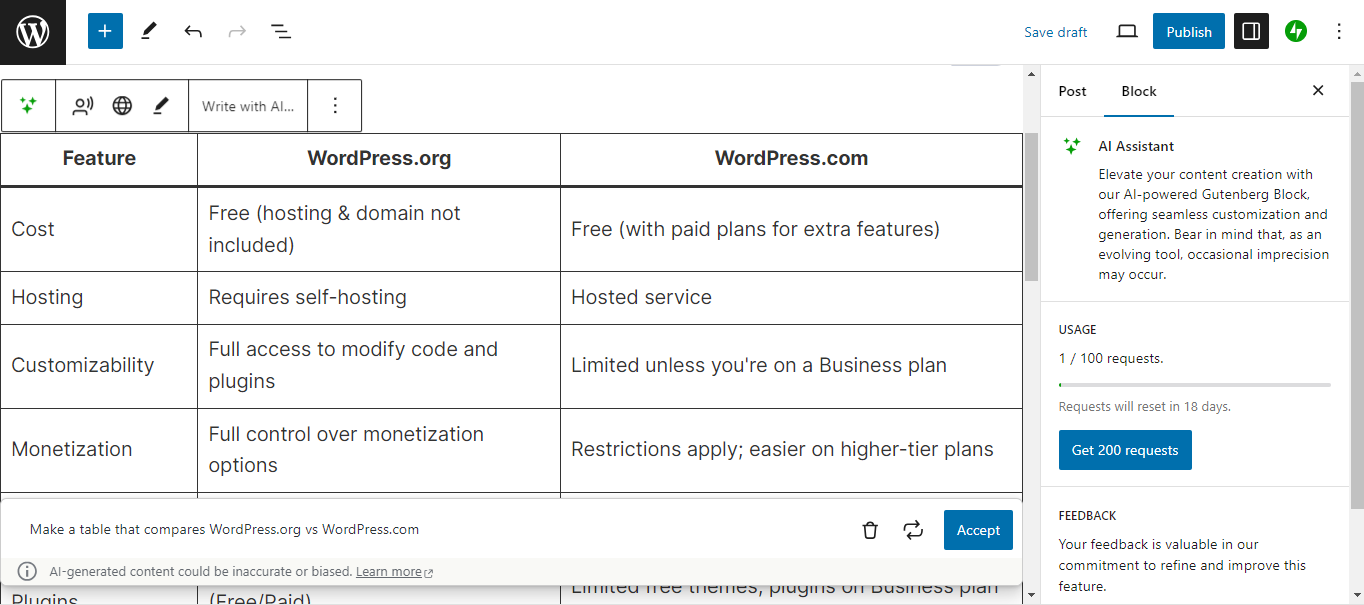
You could also provide more details in your prompt. If you want Jetpack AI to generate a comparison table for your services or products, you can enter the key features (and other details you want to include) and it will design the layout for you.
Then, you’ll be able to customize the generated table from the settings panel. You can choose a table style, change the background and text color, and more.
Key features of Jetpack AI:
- Seamless integration with the WordPress editor, thanks to a dedicated AI Assistant block
- Table generation in just a few seconds, based on your prompts
- Forms, lists, summaries, titles, and many other elements in addition to tables
- The ability to customize the table as you would any other block
Pros of Jetpack AI:
- Jetpack AI is an all-around solution, so you’ll get more than just tables out of it.
- There isn’t a lot of manual input involved — you can simply enter your prompt, and it will design the table for you.
- You have the option to accept or regenerate the table, and edit its content.
Cons of Jetpack AI:
- It’s not a standalone WordPress table plugin, so you’ll need to connect to the full Jetpack tool to get access to the AI Assistant.
Ease of use:
Since Jetpack AI fits right into the WordPress block editor, there’s no learning curve involved. You can use it like any other block, and customize the table from the settings panel.
Also, you don’t need to feed it a lot of details to create your table. Since it’s an AI tool, it uses its extensive knowledge base to generate information. For instance, you might ask it to create a comparison table for Rome and Venice, and it will provide details on population, region, tourist attractions, cuisine, and more.
Best for:
All websites. Anyone can use Jetpack AI, whether you’re a blogger, product reviewer, or business owner.
Pricing:
You can use Jetpack AI for free, but you’ll be limited to 20 requests. This won’t be an issue if you’re only looking to create a couple of tables on your website.
If you need more tables, you can upgrade for $8.33 per month. This gives you access to 100 monthly requests (which, of course, you can use on tables as well as other AI-generated content).
2. TablePress

TablePress is a comprehensive WordPress table plugin that comes with live sorting, pagination, search functionality, and other features. It lets you input data manually and import tables from Excel, CSV, HTML, and JSON files. You can then embed tables into posts and pages using the block editor or shortcodes.
Key features of TablePress:
- Support for images and links in your tables
- The ability to use math formulas in your table
- The option to adjust the design of your tables for different screen sizes with the Responsive Tables module (available with the premium version)
- Styling for your tables with CSS code
Pros of TablePress:
- You can create unlimited tables, even on the free plan.
- It gives you a lot of control over the design of your table. For instance, you can highlight cells, reorder columns, group table rows by a common keyword, and more.
Cons of TablePress:
- While TablePress offers a lot of table styling and management features, these are only available with the premium version. With the free plan, you only get basic options.
Ease of use:
TablePress offers a comprehensive suite of features, which can be a bit overwhelming at first. But if you go with the free version, you’ll get a simpler interface.
Plus, it enables you to import existing tables from Excel spreadsheets and other files. That means there’s not much work involved if you already have your data table.
Best for:
Building extensive tables with images, formulas, and advanced filtering and search options.
Pricing:
You can get started with the free plugin, but you’ll have to use manual styling to customize the table.
With the Pro plan, you’ll get access to the Style Customizer tool, as well as an automatic filter, buttons, row grouping, and other features. This costs $79 per year.
There’s also the Max plan, which includes additional features like a custom search builder, advanced loading, and more. This costs $189 per year.
3. WP Table Builder

The next plugin on the list is a drag-and-drop table builder. You can use WP Table Builder to create pricing tables, restaurant menus, class schedules, and more.
This tool offers a selection of pre-built table templates, which you can customize in the builder. Then, you can add the table to your page using a shortcode or the dedicated block.
Key features of WP Table Builder:
- Support for elements like images, buttons, and star ratings
- The ability to import and export tables from/to CSV or XML files
- A search option and pagination features
- Control over background colors, padding and margins, border colors, and more
Pros of WP Table Builder:
- The drag-and-drop builder enables you to view changes to your table as you make them.
- You can save your own tables as templates, which can help you save a lot of time if you want to create multiple tables with the same design.
Cons of WP Table Builder:
- It only supports imports from CSV or XML files.
Ease of use:
If you’re already familiar with using a drag-and-drop builder, this plugin will be very easy to use. You can simply drag table components onto a page and customize them to suit your needs. Plus, you can select a ready-made template to get started.
Best for:
Creating all sorts of tables, including schedules, menus, product comparisons.
Pricing:
There’s a free version available, but it’s very basic. The premium version offers three plans: Starter, Professional, and Lifetime. These include advanced elements like circle rating, ribbons, styled lists, and more.
With the Starter plan, you can only use the plugin on one site. This costs $49 per year.
Meanwhile, the Professional plan lets you use the plugin on up to 10 sites, and is priced at $79 per year. With the Lifetime plan, you can build tables on unlimited sites for a one-time cost of $299.
4. Data Tables Generator

Supsystic is a software company that produces a variety of plugins, including the Data Tables Generator. You can use this to create tables, charts, and diagrams.
Data Tables Generator lets you import data from a variety of sources, including Excel, Google Sheets, CSV, JSON, and XML files. It also supports front-end editing, so you can customize the table in real time.
Key features of Data Tables Generator:
- Search, pagination, and sorting functionality
- The ability to add links, images, and videos to tables
- Auto-updates from Google Sheets (with the pro version)
Pros of Data Tables Generator:
- You get unlimited rows and columns, even with the free version.
- It supports different data formats, including currencies, percentages, and dates.
Cons of Data Tables Generator:
- Essential features like editable fields, imports, and exports aren’t offered with the free version.
Ease of use:
Data Tables Generator requires a bit more manual input than other plugins on this list. There are a lot of settings to configure, and many tabs to navigate in the plugin interface.
Best for:
Building data tables, like company performance reports.
Pricing:
The free plugin can be used on a single site but lacks some basic functionality. The Personal plan costs $49 per year (or $89 for a lifetime license), but can only be used on one site.
The Developer plan starts at $99 per year, and you can use it on up to five sites. If you run a large company, you might want the Enterprise plan, which costs $199 per year and can be installed on six sites or more.
5. Easy Pricing Tables

If you’re mainly looking to create pricing tables, you might want to consider choosing a more niche table plugin. Easy Pricing Tables is specifically designed for this purpose.
You can use the pricing table block in the block editor, or design your table in the plugin dashboard and add it to your page via shortcode. Additionally, the plugin lets you create unlimited pricing table rows, customize the design with color and font pickers, reorder columns, and more.
Key features of Easy Pricing Tables:
- A feature to draw visitors to your most popular products by highlighting the relevant columns
- PayPal and Stripe payment links, and other checkout links that you can add to your pricing table
- The ability to save your pricing tables as reusable blocks so you can easily include them on other pages
Pros of Easy Pricing Tables:
- It’s compatible with any WordPress theme and integrates with WooCommerce.
- It lets you add pricing toggles, so interested visitors can switch between currencies and monthly/yearly pricing (available with the premium version).
Cons of Easy Pricing Tables:
- It doesn’t support imports of CSV files and other data.
Ease of use:
Easy Pricing Tables creates a dedicated table block in the block editor. So, it’s quite straightforward to use if you’re already familiar with the interface. Additionally, you can simply point and click to edit elements within the table, like fields and text.
If you use the premium version, you’ll also get a selection of pricing table templates to accelerate the design process.
Best for:
WooCommerce store owners and service providers who want to create pricing tables complete with call-to-action buttons.
Pricing:
Like most WordPress table plugins on this list, a free version is available. The Personal plan ($49 per year) gives you more customization options but can only be used on one website.
If you want to integrate the plugin with WooCommerce, you’ll need to purchase the Business plan (up to five sites) or Agency plan (unlimited sites). These cost $79 and $129 per year respectively.
6. wpDataTables
As the name suggests, wpDataTables is a plugin for creating data tables and charts. It lets you import data from Excel, CSV, XML, JSON, PHP, and other sources.
You can customize and configure the columns of your WordPress table, as well as the color and font settings. Then, you have the option to add the finished table to your page via shortcode or the dedicated block.
Key features of wpDataTables:
- Global, individual, and multiple columns sorting
- Row grouping
- Ability to customize the headers, text, borders, pagination, and other table components
Pros of wpDataTables:
- It supports popular page builders including Elementor, Divi, Avada, and WP Bakery.
- You can cache your data tables for faster loading times, and auto update the table cache from the source file.
Cons of wpDataTables:
- Integration with form plugins like Formidable Forms and Gravity Forms is only available as an add-on.
Ease of use:
wpDataTables uses a more technical approach. You don’t get a visual builder for your table. Instead, you have an extensive suite of settings to configure the data and layout of your tables. Therefore, it might take a while to build your table and customize it to your preferences.
Best for:
Those who want to break down complex data into user-friendly tables.
Pricing:
You can use the plugin for free, but you won’t have access to its integration features.
The Basic plan starts at $55 per year and includes unlimited tables, conditional formatting, and other features.
The Pro plan can be used on three domains and starts at $85 per year, while the Developer plan starts at $185 per year and can be used on unlimited domains.
7. Visualizer

Visualizer is a tables manager developed by ThemeIsle, the company behind some popular WordPress themes and plugins. It provides an easy way to create and embed interactive charts and tables into your WordPress posts and pages.
With Visualizer, you can add your data manually, import it from remote URLs, by querying your database, or using an external API. Plus, you can design your table within your post or page, using the dedicated Visualizer block.
Key features of Visualizer:
- Advanced interaction controls that you can add to your tables, including pagination, instant search, filters, and multi-column ordering
- A variety of layout options to display your data, including the DataTables table and 12 charts from Google Charts
- The ability to sync your data tables with online files for auto updates
Pros of Visualizer:
- It enables you to easily synchronize your data.
- You can use it for both tables and charts.
- You have many options when it comes to adding your data. You can import it from Excel, CSV, or Google Sheets. If it’s hosted on another platform, you can import it via API or a remote URL.
Cons of Visualizer:
- It seems to have more templates and settings for charts than it does for tables, so you may be a bit limited in terms of customization.
Ease of use:
The plugin uses an excel-like data editor, so it should be easy to manage your content if you’re already familiar with this program.
Best for:
Creating tables with data that needs to be regularly updated.
Pricing:
Visualizer is available in both free and paid versions. The Personal plan starts at $99 per year, and can be used on one site.
There’s also the Developer plan, which starts at $199 per year. This comes with custom permissions for charts, an on-page data editor, and other features. It can be used on three sites. Lastly, the Agency plan starts at $399 per year and can be used on unlimited websites.
8. Responsive Pricing Table

Responsive Pricing Table is another plugin you might consider if you sell plans or subscriptions. You can add features to your different plans, choose a color, and configure other settings. Then, you’re able to display your pricing table anywhere on your site via shortcode.
Key features of Responsive Pricing Table:
- The ability to highlight a plan
- Custom buttons for PayPal, Stripe, and other payment gateways
- The option to remove or change currency signs
Pros of Responsive Pricing Table:
- You can add as many service and product features as you want.
- The premium version is quite affordable.
Cons of Responsive Pricing Table:
- There’s no visual builder — you’ll need to configure the settings in the plugin’s interface, then preview the table on the front end.
- Handy features like price toggles are not available in the free plan.
Ease of use:
The plugin doesn’t have a visual builder, but the interface is straightforward. You’ll just need to enter the plan details in the corresponding fields, and then add the table to your post or page via shortcode.
Best for:
Anyone looking to build quick and easy pricing plan tables.
Pricing:
The free plugin is pretty decent, but with the pro version, you’ll get additional features like price toggles, info bubbles, different layouts, and more. If you only need the plugin for a single site, it will cost you $19 per year. If you want to use it on multiple sites, the price is $49 per year.
9. Ninja Tables

Ninja Tables is a sales-focused table plugin that can be used for pricing plans, product comparisons, and even listings. It has a drag-and-drop interface, and lets you import CSV or JSON files of existing tables.
The plugin supports dynamic data, which means you can add elements like media and links to your tables. You also get a lot of customization options, including conditional formatting and custom filters.
Key features of Ninja Tables:
- The ability to turn emails and other contact details into clickable links
- Support for multimedia like GIFs and videos on your tables
- The option to build tables with data submitted through forms on your site
- The ability to WordPress posts or pages and display them in a table
Pros of Ninja Tables:
- It integrates with WooCommerce, Fluent Forms, and Google Sheets.
- It’s highly customizable, and you can work with pre-made templates.
Cons of Ninja Tables:
- There’s no free version available.
Ease of use:
Ninja Tables has an easy drag-and-drop interface that enables you to customize your table in real time. It also offers a selection of pre-made templates, including layouts for pricing plans.
Best for:
Businesses (including WooCommerce stores) that don’t mind paying for a premium tool if it offers flexibility and advanced functionality.
Pricing:
A single-site license costs $63 per year. Meanwhile, the Agency License can be used on 20 domains and costs $103 per year. There’s also the Unlimited License, for $240 per year.
10. Dynamic Tables Builder for WordPress

The last plugin on our list is part of JetEngine; an all-around content tool that’s designed for Elementor, the block editor, and Bricks. Dynamic Tables Builder lets you showcase posts, products, users, and other data.
You can fetch data from your SQL tables and add the content to your page. Then, you’re able to customize the table in the page builder. The plugin provides both Elementor widgets and Gutenberg blocks.
Key features of Dynamic Tables Builder:
- Filters and pagination options
- Data display options that include everything from custom fields and fetched columns
- The ability to create product lists and catalogs with the WooCommerce integration
Pros of Dynamic Tables Builder:
- It works well with different SEO plugins, including RankMath, SEOPress, and Yoast.
- You can use any data in your WordPress database, including user details, comments, products, podcast data, and more.
Cons of Dynamic Tables Builder:
- It’s not a standalone plugin — you’ll need a JetEngine subscription to get it, and there’s no free plan available.
Ease of use:
This tool requires some experience with data management, so it might not be that easy to use if you’re not familiar with WordPress databases.
Best for:
Creating tables with data from SQL databases and custom fields.
Pricing:
A JetEngine subscription starts at $43 per year for a single-site license. If you want to use it on multiple sites, it costs $88 per year.
Comparison of WordPress table builder plugins
| Data imports | Block or shortcode | Customizable (without code) | Automation capabilities | Drag-and-drop editor | Price | |
| Jetpack AI | No | Block | Yes | Yes | No | Free – $8.33 per month |
| TablePress | Yes | Both | Yes | No | No | Free – $189 per year |
| WP Table Builder | Yes | Both | Yes | No | Yes | Free – $79 per year |
| Data Tables Generator | Yes | Shortcode | Yes | Yes | No | Free – $199 per year |
| Easy Pricing Tables | No | Both | Yes | No | No | Free – $129 per year |
| wpData Tables | Yes | Both | Yes | Yes | No | Free – $185 per year |
| Visualizer | Yes | Block | Yes | Yes | No | Free – $399 per year |
| Responsive Pricing Table | No | Shortcode | Yes | No | No | Free – $49 per year |
| Ninja Tables | Yes | Shortcode | Yes | Yes | Yes | $63 – $240 per year |
| Dynamic Tables Builder | Yes | Block | Yes | Yes | Yes | $43 – $88 per year |
What makes a good WordPress table plugin?
So far, we’ve discussed what to look for in a WordPress table plugin and listed the best options on the market. But, you might still be wondering what makes a good WordPress table plugin.
Here are the main determining factors:
- It’s easy to configure and use. A good WordPress table plugin should make it easy to create and add your tables. Ideally, it will offer tools like a dedicated table block and a drag-and-drop editor.
- It has built-in automation capabilities. If you’re importing data from online files and platforms, the plugin should be able to synchronize with the source. This way, when you update the file, the table will reflect these changes.
- It enables you to create responsive and mobile-friendly tables. Due to the number of mobile users, responsive design is a must. Most plugins will let you create mobile-friendly tables. Still, it doesn’t hurt to check out recent user reviews to ensure that the plugin is responsive.
- It’s cost-effective. A good WordPress table plugin shouldn’t break the bank. It should offer the best value for money. Of course, if you want a license for multiple sites, then it’s going to be a bit more costly.
- It’s compatible with the latest version of WordPress. And finally, a reputable plugin will be compatible with the latest WordPress version. You can easily verify this on the plugin page. If the plugin is well-maintained, the developer will release updates as soon as a new version of WordPress is released.
Some of these things will only become apparent once you start using the plugin. But doing a bit of research can help you eliminate any doubts about the tool.
If you visit the plugin page on the WordPress plugin directory, you’ll see key details like number of downloads, last update date, and WordPress compatibility.

You’ll want to prioritize plugins that have been updated within the last six months, support PHP version 7.0 or higher, and have been tested with the latest WordPress version.
Frequently asked questions
This guide has covered the basics of WordPress table plugins, including what to look for in these tools and the best options available. But, you might still have some lingering questions. Let’s answer some of them.
What is a WordPress table plugin?
A WordPress table plugin is a tool that enables you to compile and present data in neat tables. You can use it for pricing presentations, membership plans, product comparisons, and many other purposes.
What are the main benefits of using a table plugin on WordPress?
Using a table plugin can make it easier to present key information about your product or services. For instance, you can compare membership levels, subscription plans, and more. Alternatively, you can create organized listings or directories.
Most table plugins enable you to import data from a spreadsheet. Some also integrate with popular form plugins. This means that you won’t need to enter and update data manually.
Plugins that also integrate with WooCommerce can help you send customers directly from a comparison table to the checkout page with minimal friction.
How much does a table plugin cost on WordPress?
Most table plugins have a free plan, although the features will be limited. If you want a premium license for one website, you’ll likely pay around $50 per year. Multi-site licenses will cost a lot more — typically around $200 per year.
Is it easy to set up and use a table plugin on WordPress?
Some plugins are easier to set up than others. For instance, they may require less manual input or configuration.
You can set up Jetpack AI with just a few clicks — especially if you already have the Jetpack plugin installed on your site. All you need to do is navigate to Jetpack → My Jetpack in your WordPress dashboard (as shown above), find the AI feature, and activate it (or upgrade to a premium plan).
Then, you’ll be able to access the AI Assistant through the block editor. Simply add the block to your post or page.

As shown earlier, you can enter any prompt you want, and the AI Assistant will get the job done.

The most powerful AI tool for WordPress
Turn your ideas into ready-to-publish content at lightspeed.
Elevate your content Jetpack