

Your site might feel fast to you, but that doesn’t guarantee a smooth experience for everyone else. Different locations, devices, connection speeds, and even times of day all influence how quickly your site loads.
That’s why regularly checking your WordPress site speed matters. It helps you understand how your site performs for real people and pinpoints areas where it lags behind. Even better, it gives you a chance to fix issues before they start affecting things like traffic, engagement, or conversions.
Thankfully, you don’t need to be a developer or a performance expert to do this. With the right tools, you can run a quick speed test, review the results in plain language, and take steps to improve your site’s performance.
In this guide, we’ll walk through the key speed metrics you should know, offer up tools to use, and show you how to run a site speed check.
Important site speed metrics and terminology
When you run a speed test on your WordPress site, you’ll likely get back a mix of numbers, grades, and technical-sounding terms. Don’t worry, though. Understanding these core metrics isn’t as complicated as it seems.
Here’s a look at the most important terms you’ll see when checking your WordPress site speed:
1. Mobile and desktop score
Most speed testing tools give you two separate scores: one for mobile and one for desktop. This matters because mobile users often have slower connections and less processing power, so your site might perform very differently on phones compared to laptops.
Mobile speed tends to be harder to optimize, which is why many tools prioritize it in their analysis. If your mobile score is low, even if your desktop score looks great, it’s worth paying attention and making improvements.
2. Time to first byte (TTFB)
TTFB measures how long it takes for your browser to receive the first piece of data from the server after making a request. Basically, it reflects how responsive your hosting environment is.
A slow TTFB usually points to a delay on the server’s end. This could be due to poor hosting, database overload, or even a heavy plugin running behind the scenes. It’s one of the earliest indicators of a performance issue. A good TTFB is less than 0.8 seconds, according to web.dev.

3. First contentful paint (FCP)
FCP measures how quickly the browser displays the first visible element on a page — whether it’s text, an image, or another piece of content. It gives users a clear signal that the page has started to load.
When FCP takes too long, visitors see a blank screen and may assume the site isn’t working. Even if the rest of the page loads quickly, a delayed FCP can make your site feel slower than it is. Aim for an FCP under 1.8 seconds to deliver a smooth, responsive experience.
4. Largest contentful paint (LCP)
LCP measures how long it takes for the largest visible content element, like a featured image, hero section, or heading, to fully load. It’s one of the most important metrics for understanding perceived performance from a visitor’s point of view.
A poor LCP score indicates delays in loading large assets like images or background videos. A score less than 2.5 seconds is considered fast.
5. Total blocking time (TBT)
TBT measures how long the browser is blocked from responding to user input like clicking, scrolling, or typing while JavaScript processes. Even if your site looks ready, it might not be usable during this time.
This metric highlights how efficiently your code runs. A high TBT means scripts are likely interfering with interactivity. Strive for a score below 200 milliseconds.
6. Cumulative layout shift (CLS)
CLS tracks how much content shifts around while the page loads. For example, if you’ve ever tried to click a button and it suddenly moves, causing you to press something else instead, that’s layout shift in action. It’s often caused by images or ads loading without defined dimensions.

For a solid user experience, web.dev recommends a CLS of 0.1 seconds or less.
The six best tools to check WordPress site speed
You don’t need a full technical audit to understand how your WordPress site is performing. These six tools make it easy to run detailed speed tests, highlight performance issues, and even suggest actionable fixes — all without a developer.
Each one offers a different mix of insights and features, so depending on your needs, you might find one more helpful than the others. Here’s a closer look at the top options:
1. Jetpack Boost

Jetpack Boost helps you speed up WordPress sites without leaving the dashboard. It runs performance tests using Google Lighthouse and offers one-click tools to improve key metrics like LCP, FCP, TBT, and CLS.
Key features of Jetpack Boost:
- A real-time performance audit using Google Lighthouse, with separate scores for mobile and desktop
- Critical CSS generation to prioritize above-the-fold content and speed up perceived load time
- Deferred JavaScript loading to reduce total blocking time and improve interactivity
- Automatic concatenation of JavaScript and CSS for more efficient loading
- An integrated image CDN that automatically resizes images and converts them to modern formats like WebP
- One-click optimization toggles with no manual configuration required
- The ability to monitor your site’s performance over time with historical charts and reports in the premium version
Pros of Jetpack Boost:
- Jetpack Boost integrates with WordPress for a smooth setup experience.
- You don’t need any technical skills to activate or use its optimization features.
- The plugin focuses directly on improving Core Web Vitals like LCP, CLS, and TBT.
- It’s lightweight, user-friendly, and designed for quick, effective performance improvements.
Cons of Jetpack Boost:
- The plugin doesn’t offer advanced customization options for developers.
- It delivers the best results when used with high-quality, performance-optimized hosting.
Ease of use:
Simply install Jetpack Boost like any plugin, activate it, and start testing. The interface clearly explains what each feature does, so you can make improvement choices with confidence.
Best suited for:
WordPress bloggers, small business owners, or agencies who want better speed with minimal effort.
Jetpack Boost pricing:
A free version is available, and premium features start at $9.95/month, billed annually.
2. WordPress Page Speed Test

The WordPress Page Speed Test is a free, browser-based tool for checking site speed and performance using Google Lighthouse metrics. It works on any site — WordPress.com, self-hosted, or otherwise — with no installation or account needed. Just enter a URL and get results in seconds.
Key features of WordPress Page Speed Test:
- Instant performance analysis powered by Google Lighthouse
- Desktop and mobile speed scores
- Actionable tips to improve Core Web Vitals
- Easy sharing of results with a public link
Pros of WordPress Page Speed Test:
- You don’t need to log in or install a plugin to use the tool.
- The interface is fast, clean, and straightforward to understand.
- It works well for quick performance checks or sharing reports with clients.
Cons of WordPress Page Speed Test:
- The tool doesn’t include built-in options for applying optimizations.
- It doesn’t offer historical tracking or the ability to save past reports.
Ease of use:
The WordPress Page Speed Test is simple to use. Input your URL and view your site’s performance in seconds. There’s no technical setup involved but no tools for fixing issues, either.
Best suited for:
Site owners and developers who want a quick, no-commitment way to measure performance.
WordPress Page Speed Test pricing:
This tool is free to use.
3. Google PageSpeed Insights
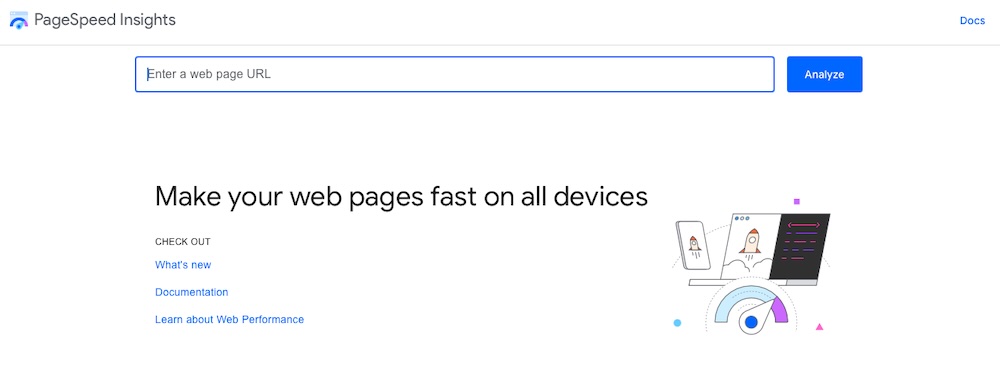
Google PageSpeed Insights is a popular tool for analyzing site performance. It combines lab and real-world user data to show how your site performs and where it needs improvement. With separate mobile and desktop scores, it highlights Core Web Vitals and gives SEO-focused suggestions to boost speed and user experience.
Key features of Google PageSpeed Insights:
- Dual performance scoring for mobile and desktop
- Real-world user data (when available) through the Chrome UX Report
- Lab-based testing using Lighthouse for consistency
- A clear breakdown of Core Web Vitals scores including LCP, FID (or INP), and CLS
- A prioritized list of speed and usability improvement suggestions
Pros of Google PageSpeed Insights:
- Google maintains and regularly updates the tool, making it a trusted source for performance insights.
- It helps you prioritize speed improvements thanks to its focus on Core Web Vitals.
- You don’t need to install anything and the tool runs directly in your browser.
Cons of Google PageSpeed Insights:
- The tech-focused results can be overwhelming for beginners.
- The tool doesn’t include built-in features to apply fixes directly, so you’ll need to make changes manually or use other tools.
Ease of use:
PageSpeed Insights offers a simple interface. Input your URL to review a detailed report. Each section includes a plain-language description and links to helpful documentation if you want to dig deeper.
Best suited for:
Site owners, marketers, and developers focused on SEO and performance improvements backed by real user data.
Google PageSpeed Insights pricing:
PageSpeed Insights is free to use.
4. GTmetrix
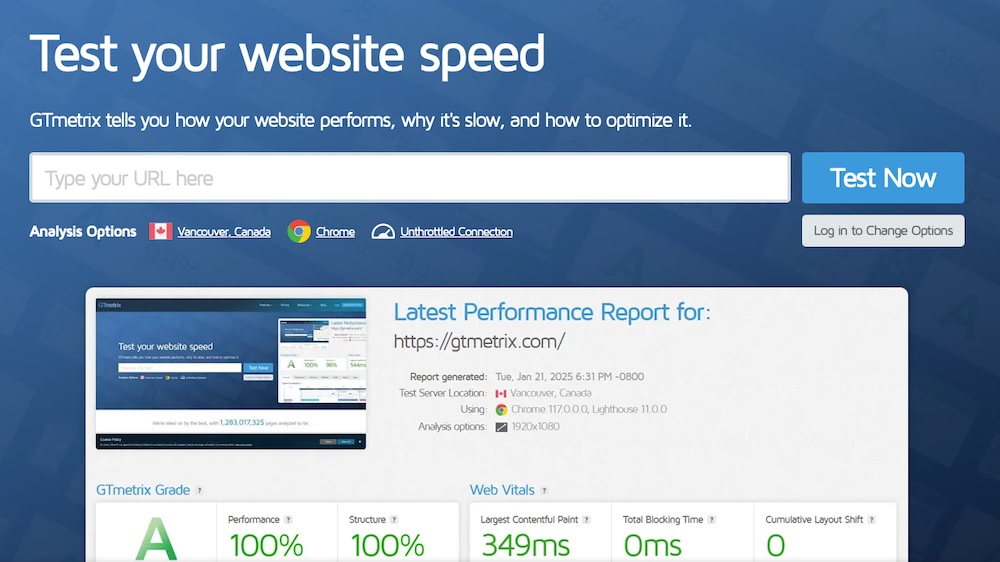
GTmetrix combines Google Lighthouse with its own diagnostics to give you an in-depth view of how your site loads. It tracks key metrics like load time, page size, and total requests, and displays a waterfall chart so you can see exactly when and how each asset loads.
Key features of GTmetrix:
- Detailed Lighthouse-based performance reports
- A waterfall chart for resource loading
- Location-based and device-specific testing
- Historical performance tracking available on Pro plans
Pros of GTmetrix:
- The visual load sequence helps you quickly identify performance issues.
- GTmetrix offers customizable test settings that make it a powerful tool for advanced users.
Cons of GTmetrix:
- You’ll need a paid plan to access advanced features like mobile testing and additional test locations.
- The interface and reporting is more technical.
The easiest speed optimization plugin for WordPress
Jetpack Boost gives your site the same performance advantages as the world’s leading websites, no developer required.
Boost your site for freeEase of use:
Getting a report from GTmetrix is simple, but interpreting the results and putting them to use requires some technical knowledge.
Best suited for:
Developers, agencies, and performance-conscious site owners will appreciate the reports GTmetrix provides.
GTmetrix pricing:
There’s a free version available and paid plans start at $5/month.
5. Pingdom Website Speed Test
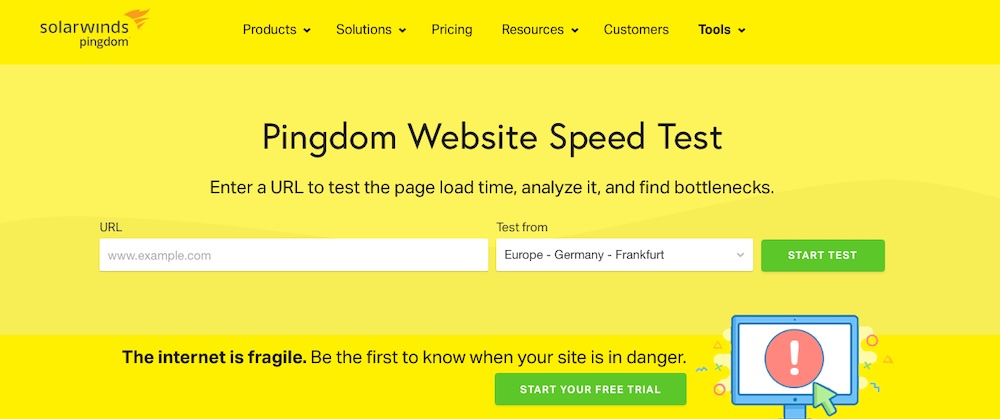
Pingdom is a long-trusted tool for checking website performance with a focus on simplicity. It offers simple reports that include load time, performance grades, request counts, and file sizes, all broken down by content type and domain.
Key features of Pingdom:
- Reports that include load time and performance scores
- A breakdown of file requests and resource usage
- Geographic test location selection
- A visual timeline of page load events
Pros of Pingdom:
- The interface is clean and beginner-friendly so reading reports is simple.
- It provides just enough performance data to be useful for casual users and more technical site owners alike.
Cons of Pingdom:
- It offers fewer insights into Core Web Vitals compared to other tools.
- The free plan doesn’t include real-world user data, so results are based solely on simulated tests.
Ease of use:
Using Pingdom involves inputting your URL, selecting a test location, and reviewing the results. There’s no account needed to begin.
Best suited for:
Site owners who want a quick, visual overview of page speed will benefit the most from Pingdom.
Pingdom pricing:
You can use Pingdom for free. Advanced features like real user monitoring start at $15/month.
6. Chrome DevTools – Lighthouse Performance Audit
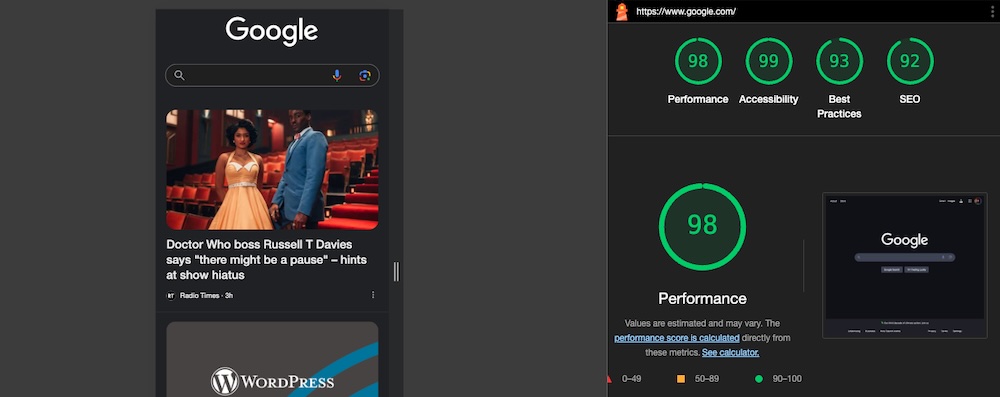
Built into Google Chrome, the Lighthouse Performance Audit offers a fast, reliable way to test your site’s speed directly from your browser. It provides a full report covering performance, accessibility, SEO, and best practices.
Key features of Lighthouse in Chrome DevTools:
- In-browser performance testing
- Core Web Vitals and SEO information
- Mobile and desktop testing options
Pros of Lighthouse in DevTools:
- You can access Lighthouse directly in Google Chrome at any time, with no setup required.
- It’s a great option for running real-time diagnostics during development and testing.
Cons of Lighthouse in DevTools:
- It doesn’t offer historical tracking or the ability to save past reports.
- The interface lacks the beginner-friendliness of some standalone performance tools.
Ease of use:
Since this tool is built into Chrome, it’s readily accessible and simple to create a report. Interpreting the results and making changes requires other tools or tech skills, however.
Best suited for:
Developers, site maintainers, or tech-savvy people looking for real-time testing inside their browser.
Chrome DevTools pricing:
The Lighthouse Performance Audit is free and available with any Chrome installation.
Step-by-step guide to testing WordPress site speed
You can test and optimize your site’s speed in minutes with Jetpack Boost. Here’s how:
Step 1: Install Jetpack Boost
In your WordPress dashboard, go to Plugins → Add New Plugin, search for “Jetpack Boost,” then click Install Now and Activate.

Step 2: Run a speed test
Go to Jetpack → Boost in your dashboard and wait for the performance test to run.

You’ll get mobile and desktop scores and more information if you have a premium plan.
Step 3: Review the results
View your color-coded performance, SEO, and best practices scores. Jetpack Boost explains each metric in plain language so you know where to focus.
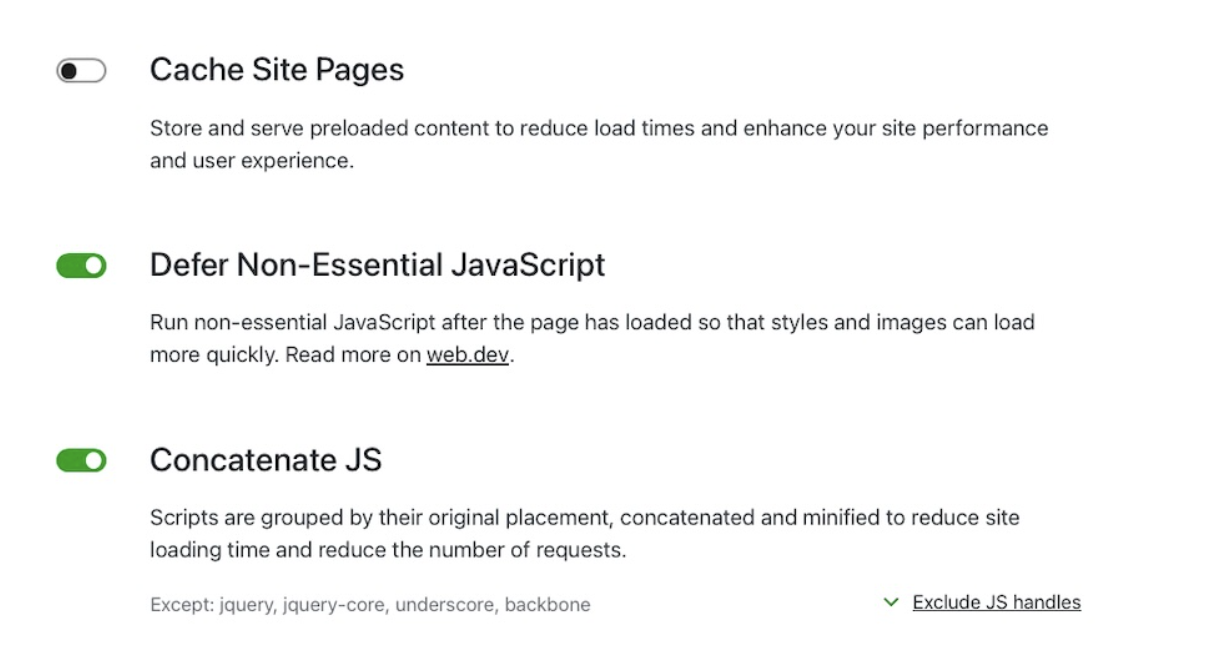
Step 4: Apply optimizations
Enable suggested features like caching site pages, deferring non-essential JavaScript, concatenating JS and CSS, and turning on the Image CDN. No manual setup is required.
Step 5: Re-test and monitor
Re-run the test to see your improved scores. Check back regularly, especially after content updates or plugin changes.
Common reasons for slow WordPress speed
A WordPress site can still feel sluggish if you leave a few behind-the-scenes elements unoptimized. Here are some of the most common causes of slow load times:
1. Low quality hosting
Your web host directly affects your site’s speed. When the server runs slowly or lacks WordPress optimization, your site lags, especially during traffic spikes. Shared hosting often struggles under pressure, but switching to a managed WordPress host with more resources improves load times and reliability.

Pressable offers high-performance infrastructure built specifically for WordPress, with built-in caching, a global CDN, and expert support to help your site stay fast, no matter the traffic load.
2. A heavy theme
Heavy themes include animations, extra fonts, and unnecessary features that slow down your site, especially on mobile. These bloated elements increase page size and delay rendering. When you switch to a lightweight, performance-focused theme, load speed improves.
3. Unoptimized images
High-resolution images that aren’t compressed or resized properly weigh down your pages. They often affect key metrics like LCP and FCP.
4. Lack of caching
Without caching, WordPress rebuilds each page from scratch every time someone visits. This slows things down. Caching stores pre-rendered versions of your pages, so they load much faster.
5. Render-blocking JavaScript & CSS
JavaScript and CSS control how your site looks and behaves, but if they load too early, they block content from appearing quickly. This impacts both perceived and actual performance. Deferring non-essential scripts and using critical CSS loading — both available in Jetpack Boost — resolves this.
Actionable tips to improve WordPress site speed
Once you’ve identified what’s slowing down your site, small improvements quickly add up. Many don’t require technical skills, just the right tools. Here are a few things you can do immediately:
- Use Jetpack Boost’s website acceleration tools. Jetpack Boost offers one-click features like an Image CDN, CSS optimization, and deferring JavaScript, all great for improving Core Web Vitals without coding.
- Optimize and compress images. Before uploading images to your site, resize and compress them to reduce file sizes. Then, use the Image Size Analyzer in Jetpack Boost to scan your site to identify oversized images. The Image CDN also serves images in modern formats like WebP.
- Host videos off-site. Avoid uploading videos directly to your site. Use platforms like VideoPress for fast, responsive playback and reduced server strain.
- Limit plugin bloat. Too many or poorly optimized plugins slows things down. Remove anything you don’t actively use.
- Choose a lightweight theme. Use a fast theme that’s optimized for performance and avoids unnecessary features.
- Enable caching and use a CDN. Caching reduces load time by serving pre-built pages. A CDN speeds up delivery for global visitors. Jetpack includes CDN support for images and static files.
What is considered a good load time for a WordPress site?
40% of visitors will leave a website if it takes more than three seconds to load.
Keep in mind that different tools measure speed in different ways. Jetpack Boost and other performance tools break it down into multiple metrics, so even if your site seems fast, there may still be hidden delays worth addressing.
Can I improve my WordPress site speed without any technical skills?
You can improve your WordPress site speed with beginner-friendly tools like Jetpack Boost. Just install the plugin, activate key features like Image CDN and script deferral, and let it handle the rest.
Even more advanced tasks like caching, image optimization, and concatenating scripts can be done through simple settings. If you can install a plugin, you can speed up your site.
Jetpack Boost: Test and optimize your WordPress speed in minutes
Jetpack Boost makes testing and speeding up your WordPress site simple. After toggling on a few settings, you can:
- Run a performance test powered by Lighthouse
- Get clear mobile and desktop scores
- Enable tools like an Image CDN, critical CSS, and script deferral
- Improve key metrics like LCP, CLS, and TBT instantly
Whether you’re running a blog or managing client sites, Jetpack Boost helps you deliver faster load times with less effort. Now is a great time to get started with Jetpack Boost.

The easiest speed optimization plugin for WordPress
Jetpack Boost gives your site the same performance advantages as the world’s leading websites, no developer required.
Boost your site for free Jetpack