

If you’re hosting videos on Dropbox or Google Drive, you can still display them directly on your WordPress site. While these platforms don’t work the same as YouTube or Vimeo, it’s possible to embed or link to videos with a few small tweaks.
This guide walks you through how to embed a video stored on Dropbox or Google Drive, along with styling tips, plugin options, and solutions for common issues.
Should you host videos on Dropbox or Google Drive?
Dropbox and Google Drive are built for file storage, not video streaming. While they can serve video files, they don’t offer features like closed captions, analytics, or fast buffering. If your video is short, private, or meant for limited access, this is a decent option. For larger public videos, use a video hosting tool like Jetpack VideoPress.
| Feature | Google Drive / Dropbox | YouTube | Jetpack VideoPress |
|---|---|---|---|
| Cost | Free | Free (Ad-supported) | Premium |
| Bandwidth Limits | Strict (Can break if viral) | Unlimited | Unlimited |
| Player Branding | Messy (Generic UI) | Heavy Branding | Clean / White-label |
| Ads | None | Yes (often) | None |
| Mobile Experience | Poor (Often non-responsive) | Good | Excellent |
How to embed a Google Drive video with the block editor
Google Drive has a built-in video player that you can embed using an iframe. Here’s how:
- Upload your video to Google Drive.
- Right-click the file and choose Share → Copy Link.
- Make sure the sharing setting is set to Anyone with the link and Viewer.
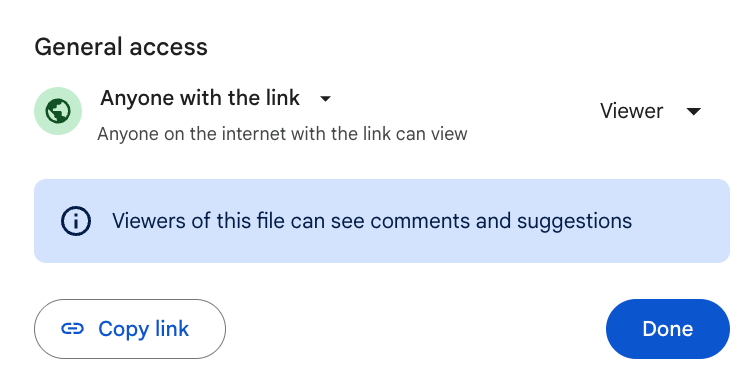
- Open the video in your browser by pasting the URL you copied. Then click the three-dot menu in the top right.
- Choose Embed item and copy the iframe embed code.
- In WordPress, open the page where you’d like to add your video. Click the plus icon at the top left and add a Custom HTML block to the page.
- Paste the embed code you copied. If you click Preview above the block, you can see how the video will display.
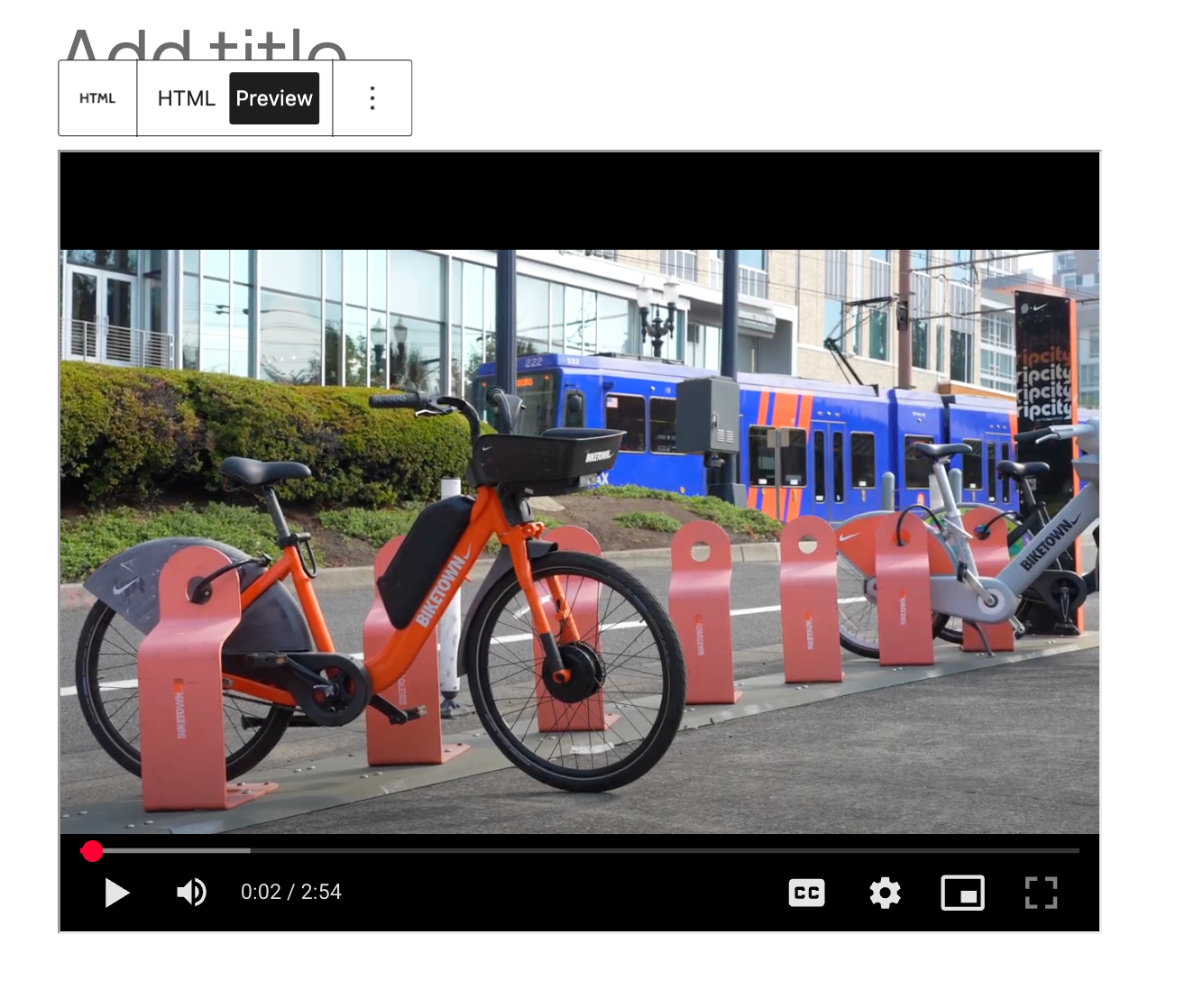
Notes:
- Only videos set to “Anyone with the link” will play.
- Google Drive doesn’t support advanced playback controls.
How to embed a Google Drive video with the Classic Editor
If you’re still using the Classic Editor, follow these steps to add a Google Drive video:
- Follow the steps above to copy the embed code from Google Drive.
- Open the page you want to edit in WordPress.
- Switch to the Code tab in the Classic Editor.
- Paste the embed code you copied earlier.
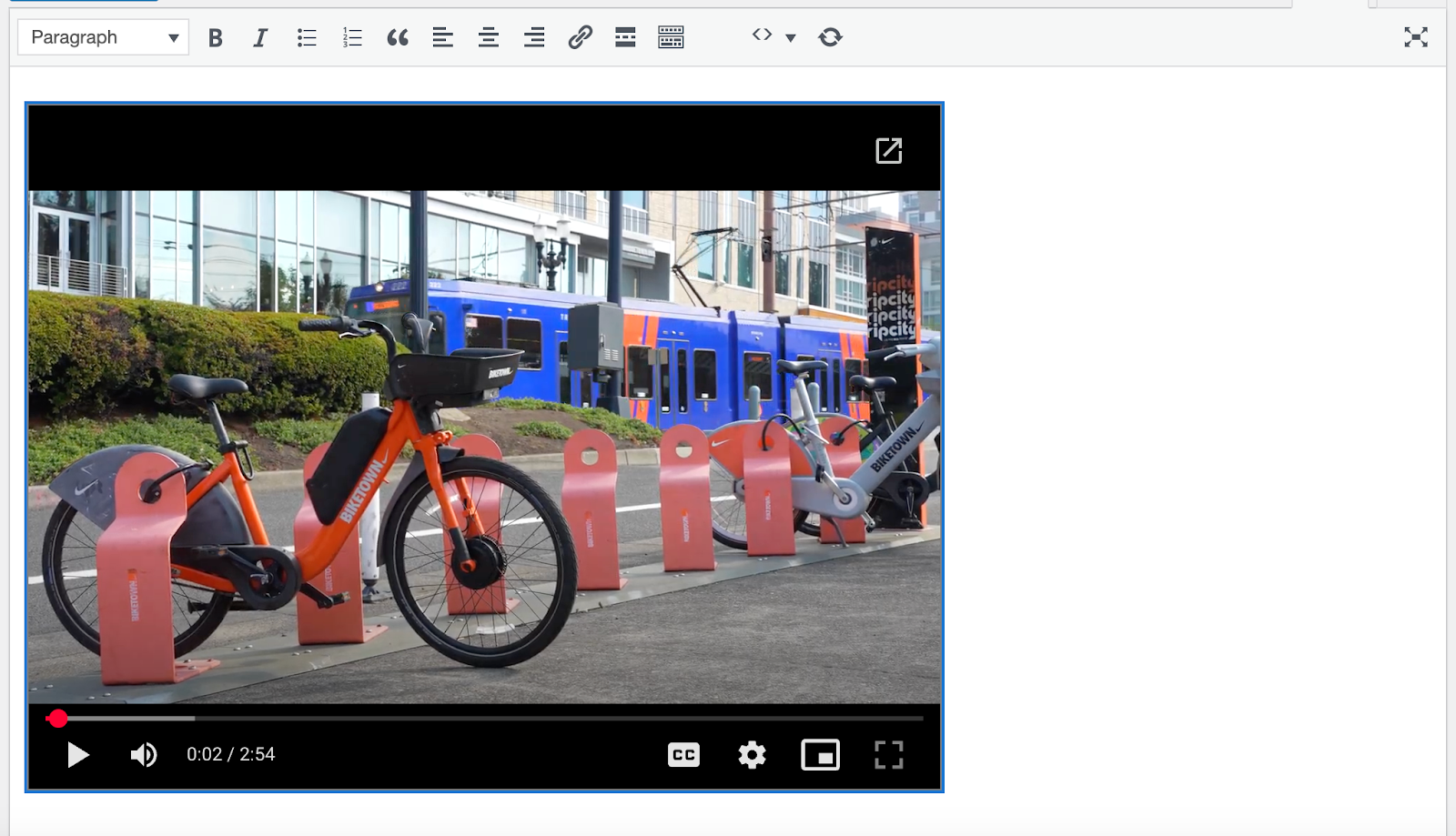
The player will load on the front end if the link is valid and public.
How to embed a Dropbox video in WordPress
In order to embed a Dropbox video on your WordPress site, you’ll need to use an external plugin. In this example, we’ll use File Manager for Dropbox.
- In your WordPress dashboard, go to Plugin → Add Plugin and search for “File Manager for Dropbox.”
- Click Install Now → Activate.
- A setup wizard will open, with options to activate a license key or continue with the free version of the tool. Proceed through the wizard.
- You’ll then be taken to a dashboard, where you can connect to your Dropbox account. Follow the documentation here to do this.
- Then, generate a shortcode by going to Dropbox → Shortcode Builder. You’ll have several options, but should choose Media Player.
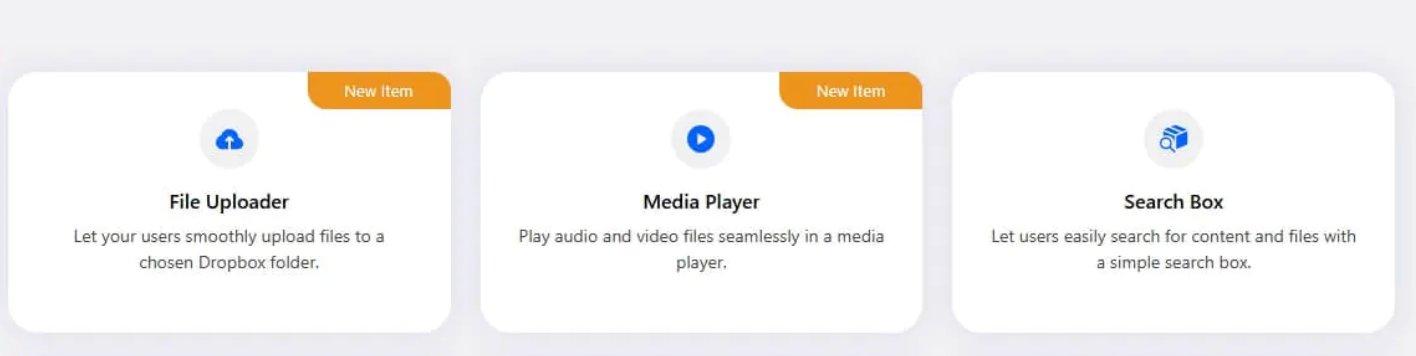
- Follow the steps that appear on the page. It will walk you through choosing your video file and configuring settings and permissions. Save the shortcode when you’re done.
- Now, copy the shortcode and add it anywhere you’d like the media player to appear on your site. That’s it!
Plugins to manage external video files
If you regularly embed videos from Dropbox or Google Drive, plugins can prove helpful thanks to their customization options and extra functionality. Here are a couple of plugin options:
- File Manager for Dropbox: Allows you to embed Dropbox videos into WordPress, control settings and permissions, and add a variety of other Dropbox file types to your site.
- EmbedPress: Adds embed support for Google Drive and other platforms.
Plugin benefits:
- Make videos responsive automatically.
- Customize player appearance.
- Add fallback settings if a file is unavailable.
- Improve video performance and load times.
How to embed videos in sidebars or widgets
Want to feature a Dropbox or Google Drive video in your sidebar? You’ll follow the same steps as you did above, depending on the platform you’re using. However, instead of adding the block to a page or post, you’ll either add it to a template using the Site Editor or the Appearance → Widgets panel if you’re using a Classic theme.
Troubleshooting Dropbox and Google Drive video embeds
The video doesn’t load:
- Check that the file is set to public.
- Make sure you’re using a direct playback link (not a share page link).
- Remove tracking query strings from the URL.
The layout looks broken:
- Use a responsive container or set width=”100%”.
- Avoid using fixed widths unless needed for your theme.
The player doesn’t appear on mobile:
- Test in a private browser window.
- Avoid themes that strip iframes or video tags from content.
A smarter way to host and share videos on WordPress
Dropbox and Google Drive can work for basic embeds, but they’re not built to handle large-scale or high-traffic video playback. If you want a faster, more reliable option made specifically for WordPress, Jetpack VideoPress is the perfect choice.
Jetpack VideoPress is a video hosting plugin for WordPress. It offers high‑quality, lightning‑fast streaming without the distractions, ads, or branding that come with third-party platforms. Videos are hosted on Jetpack’s global CDN, so they load quickly no matter where your visitors are located.
Benefits of Jetpack VideoPress:
- Fast playback, anywhere: Videos are optimized for performance and delivered through a high-speed global network.
- A clean, flexible player: The built-in video player is lightweight, responsive, and fully integrated with the WordPress block editor.
- No ads or distractions: Unlike public platforms, viewers stay focused on your content.
- Privacy-friendly: You have control over who can view your videos.
- Unlimited views: There are no bandwidth caps or hidden limits on traffic.
VideoPress works seamlessly within your WordPress dashboard, so there’s no need to upload your video in one place and embed it from another. Just drag, drop, and publish. You can also customize the player’s appearance to match your site’s style.
If you regularly share product demos, tutorials, interviews, or member-only videos, VideoPress gives you the tools to do it professionally without giving up speed, privacy, or control.
For WordPress users who want simplicity, quality, and peace of mind, it’s a smarter way to deliver video. Learn more about VideoPress here.
Frequently asked questions
Why is my Google Drive video not showing on my WordPress site?
Most Google Drive embeds fail because the file is not shared correctly or the visitor does not have permission to view it.
Check the file’s sharing settings in Google Drive. For a public site, set General access to Anyone with the link and set the role to Viewer. Then copy a fresh embed code again and replace the old iframe on your WordPress page.
Are Dropbox and Google Drive good for hosting videos on a public website?
They can work for low-demand use, but they are not built for smooth public video streaming.
Dropbox and Google Drive are file storage services. They may limit playback controls, load times, and public sharing behavior. Visitors can also hit permission screens if sharing is not set correctly.
For business sites, course sites, or high-traffic pages, a dedicated video hosting solution usually gives more stable playback, better delivery speed, better privacy controls, and clearer analytics.
Will embedding a Drive or Dropbox video hurt my site speed and Core Web Vitals?
It can, especially if the video loads early, uses heavy iframes, or causes layout shifts.
Embeds can increase page weight, add third-party requests, and delay loading. That can hurt metrics such as LCP and INP. You can reduce impact by placing the video lower on the page, using a static image thumbnail that loads first, and loading the video only when a visitor clicks play.
If you must embed above the fold, keep the page simple and avoid stacking many embeds. Also make sure your images are compressed and your layout has set dimensions so the page does not jump while loading.

 Jetpack