
Facebook Live is one of the fastest ways to connect with your audience in real time. If you’re streaming to Facebook and want to share your broadcast on your WordPress site, there are a few simple ways to do this.
This guide explains how to embed a Facebook Live stream in WordPress using the block editor, the Classic Editor, plugins, and widgets. You’ll also learn what to do before, during, and after your stream to make sure everything goes smoothly.
How Facebook Live embeds work
Before diving in, it’s helpful to know that Facebook treats Live videos like regular video posts. Once the stream begins, it has its own video URL and embed code. You can prepare your embed ahead of time using the video link or wait until you go live.
How to embed a Facebook Live stream using the block editor
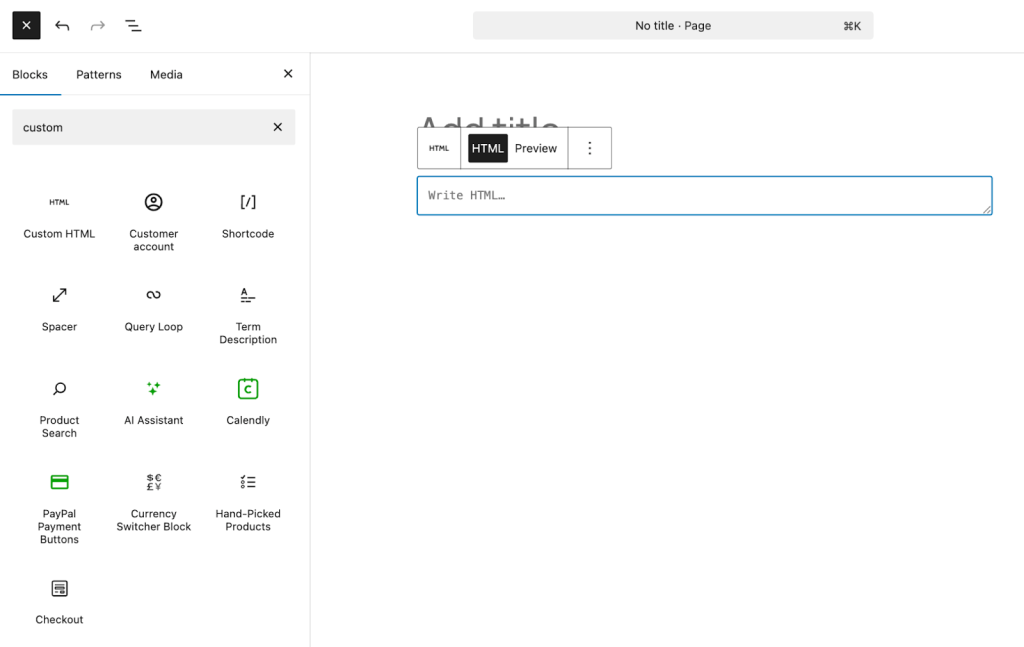
WordPress doesn’t include a Facebook Live block, but you can use the Custom HTML block to embed the video code provided by Facebook. Here’s how:
- Go to your Facebook Page and find the Live stream post that you want to embed. If it hasn’t started yet, you can use a scheduled Live event. If it’s already live, open the stream and copy the post link.
- Click the three dots at the top right of the post.
- Select Embed, then click Advanced Settings to open the Facebook Embed Tool.
- Copy the full HTML embed code.
- In the WordPress editor, add a Custom HTML block.
- Paste the code and click Preview. The Live player will load automatically when your stream begins.
Tips:
- Make sure your video is public, or the embed won’t display.
- Always copy both the <div> and <script> tags.
How to embed a Facebook Live stream in the Classic Editor
If you’re using the Classic Editor plugin, the process is very similar.
- Get the embed code from the Facebook Live post or scheduled stream.
- In the WordPress editor, switch to the Code tab.
- Paste the embed code where you want the player to appear.
- Save or update the post.
You won’t see a preview in the editor, but the stream will appear once it’s live.
How to embed a Facebook Live stream with a plugin
If you stream regularly, a plugin can help automate things and improve the display of the stream. For example, with the Smash Balloon Facebook Feed Pro plugin, you can embed Live videos along with a range of other types of content. Follow these steps:
- Install and activate the plugin.
- In your dashboard, go to Facebook Feed → All Feeds and click Add New.
- In the list of options that appears, select Videos and click Next.
- Follow the on-screen instructions to connect your Facebook account.
- Choose the look and feel of your feed, from layout to colors.
- Now, click the Embed button at the top. In the popup that appears, choose Add to a Page.
- Select the page and click Next. This will open the block editor.
- Click the + icon at the top left and drag the Custom Facebook Feed block into the page.
- Save your page.
There are lots of different ways you can configure this tool, making it a great option for sites with active social feeds.
How to embed a Facebook Live stream in a page template
To feature your stream in a sidebar, footer, or landing page, you can use the Site Editor.
- Copy the Facebook Live embed code.
- In the WordPress dashboard, go to Appearance → Editor.
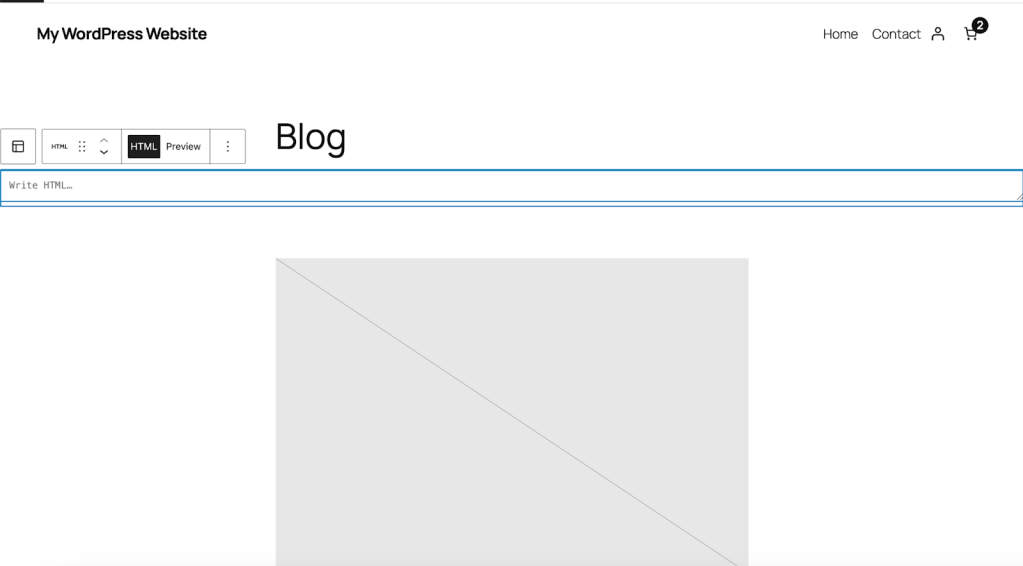
- Open the template you want to edit. In this case, we’re selecting Templates → Blog Home.
- Click the + icon and drag the Custom HTML block into your page.
- Paste the embed code into the block and save the page.
What to do before going live
Facebook generates a new embed code every time you go live unless you schedule a stream or use the same stream key. With that in mind, here are some best practices:
- Schedule the stream in advance: This gives you a static link and embed code.
- Set the post to public: If your stream is private or restricted, it won’t show on your site.
- Test on mobile and desktop: Check the layout and playback before promoting the page.
- Announce the stream ahead of time: Add the embed to a landing page you can promote early to maximize engagement.
Troubleshooting Facebook Live embed issues
The player doesn’t load:
- Confirm the video is live and set to public.
- Check if your theme blocks third-party scripts.
- Make sure you’ve pasted the full embed code, including the <script> tag.
The video won’t autoplay:
- Facebook often disables autoplay with sound.
- Viewers must click the video to play if autoplay is blocked by their browser.
The layout is broken or too wide:
- Wrap the embed in a container with a max-width style.
- Use CSS to control margins or alignment.
Example:
<div style="max-width: 100%; margin: 0 auto;"> <!-- Facebook embed code here --></div>
Go a step further with your social strategy
Embedding your Facebook Live stream is a great way to keep visitors engaged while they’re on your site. But what happens after the broadcast ends? Getting your content in front of the right people at the right time matters just as much.
That’s where Jetpack Social can help.
Jetpack Social is a powerful tool built for WordPress users who want to simplify and strengthen their social media marketing. It connects your site to your Facebook, Instagram, and LinkedIn accounts (among other platforms), so you can automatically share new posts as they’re published.
How it helps:
- Promote your stream before it starts: Schedule posts that link to your WordPress page with the embedded Facebook Live stream.
- Share automatically after you go live: As soon as your recap post or video archive is published, Jetpack Social can share it across your connected accounts.
- Save time with automation: Focus on content creation while Jetpack Social handles distribution in the background.
- Keep messaging consistent: Craft custom messages for each platform without switching tools or tabs.
If you’re already using WordPress to manage your content, Jetpack Social brings social media into the same workflow without clutter or extra steps. It’s a smart way to build momentum around your live videos and keep your audience in the loop, no matter where they follow you.
Learn more about Jetpack Social and how it fits into your WordPress strategy.

Publish once. Share everywhere.
Automatically share your website content to your favorite social media platforms, from one place.
Get Jetpack Social for free Jetpack