

Adding a Facebook post or feed to your WordPress site is a great way to share updates, showcase reviews, or highlight your brand’s social activity.
This guide covers how to embed Facebook content in WordPress using built-in tools, manual embed codes, and plugins. You’ll also find tips for layout, privacy settings, and troubleshooting. Let’s dive in!
Embed a single Facebook post using the Facebook Embed block
While WordPress does not include a Facebook block by default, the Jetpack plugin adds this functionality for free. After installing and activating any Jetpack plan, follow these instructions:
- Open the page or post where you want to add your Facebook post.
- Click the + icon at the top left and search for “Facebook.”
- Drag the Facebook Embed block into place on the page.
- Paste the URL of the Facebook post into the block and click Embed.
- Save the page. When you view it on the front end, the post will appear.
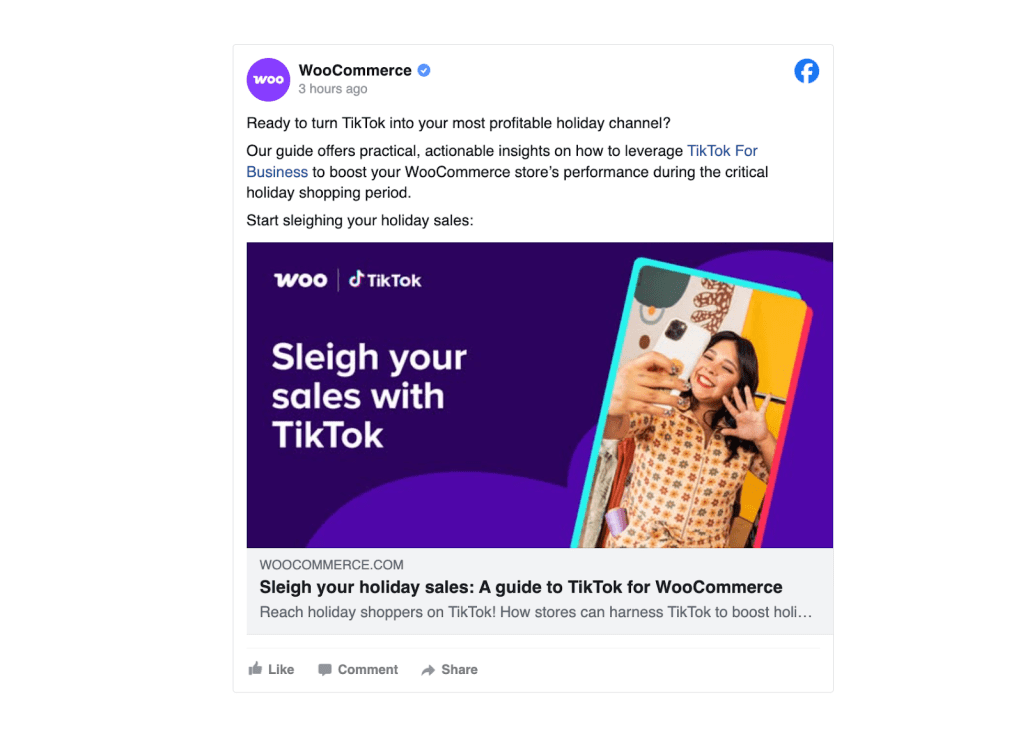
Embed a single Facebook post using the Custom HTML block
You can also add a Facebook post using the Custom HTML block. Here’s how:
- Go to the Facebook post you want to embed.
- Click the three-dot menu at the top right of the post.
- Select Embed and copy the generated embed code.
- In the WordPress block editor, add a Custom HTML block.
- Paste the code into the block, save the page, and preview.
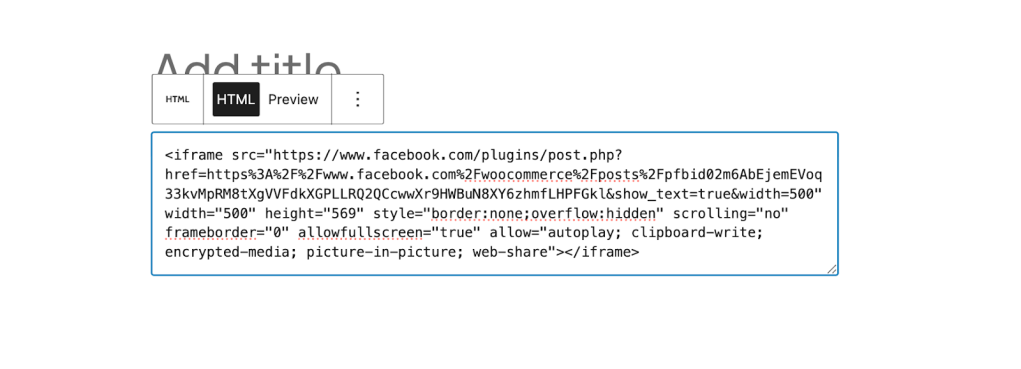
The post will display with comments, reactions, and media if the original content is public.
Embed a Facebook video or livestream
If the post is a Facebook video or livestream, you can embed it the same way.
- Open the video post on Facebook.
- Click the three-dot menu and select Embed.
Copy the full embed code. - In WordPress, add a Custom HTML block and paste the code.
- Save the page and preview.
Facebook videos are responsive by default and will scale with your layout.
Embed Facebook content in the Classic Editor
If you’re using the Classic Editor plugin, embedding follows a similar process.
- Copy the embed code from Facebook.
- In the WordPress editor, switch to the Code tab.
- Paste the code where you want the post or feed to appear.
- Save or preview the post.
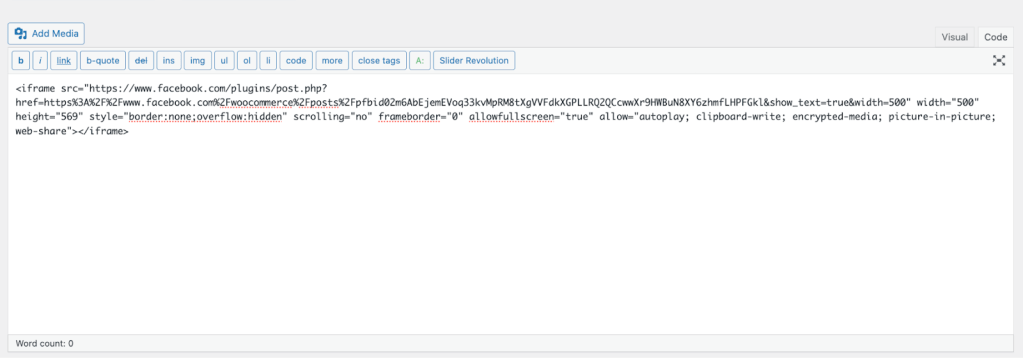
You won’t see the preview in the editor, but it will appear correctly on the published page.
Embed a Facebook page feed or timeline
If you want to show a live feed of your entire Facebook Page, you’ll need to use the Facebook Page Plugin, which is a tool directly from the Meta team.
- Visit the official plugin generator.
- Enter your Page URL.
- Set your display options, such as width, height, and tabs (timeline, events, messages).
- Click Get Code.
- Copy the HTML code from the second box, under “Step 3.”
- In WordPress, add a Custom HTML block.
- Paste the code and save.
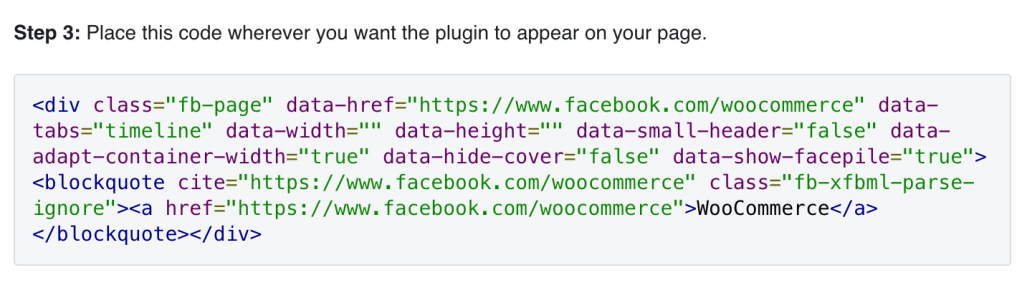
This creates a live feed of your Facebook page, showing posts, likes, and a follow button.
Embed Facebook posts or feeds with plugins
If you prefer a hands-off solution, there are plugins that make embedding Facebook content easier. Here are a couple of options:
- Smash Balloon Social Post Feed: Shows full Facebook feeds with advanced options for layouts and caching
- EmbedSocial for Facebook: Lets you display albums, reviews, and videos from your Facebook page
Embed Facebook posts or feeds in widgets or sidebars
You can also show Facebook content in global areas, like your sidebar or footer. Note that the following instructions specifically apply to block themes:
- In your WordPress dashboard, go to Appearance → Editor.
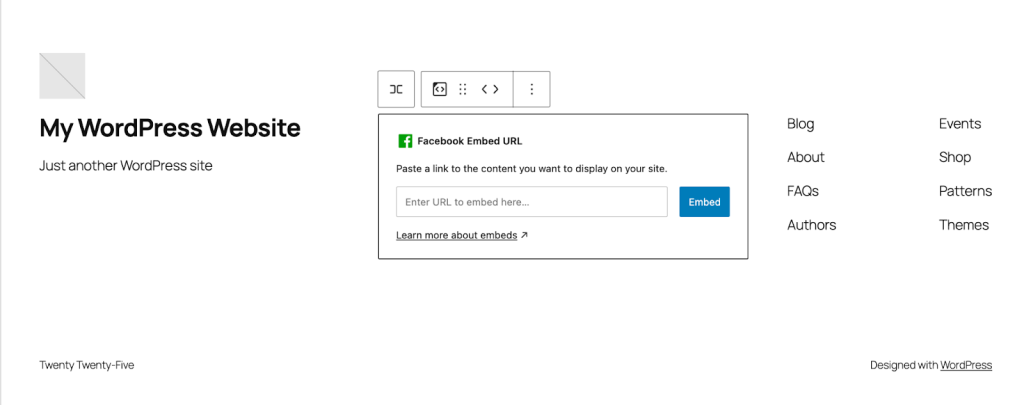
- Select the template you want to edit. In this case, we’re selecting Patterns → Footer.
- Click the + icon at the top left.
- Search for either the Facebook Embed block (if you use Jetpack) or the Custom HTML block. Drag it into the template.
- Paste the Facebook post URL or embed code, depending on the block you chose.
- Save the post and preview on the front end.
Troubleshooting Facebook embed problems
Let’s address a few potential issues and how to solve them.
The embed doesn’t appear:
- Check that the post or page is set to public.
- Make sure your browser is not blocking third-party scripts.
- If using a plugin, verify that you’ve connected the correct Facebook Page ID.
The embed code breaks the layout:
- Make sure you’re using a Custom HTML block, not a Paragraph or Quote block.
- Remove any extra line breaks or formatting tags.
- If using the Classic Editor, always paste in the Code tab, not Visual.
The feed looks too wide or narrow:
- Adjust width settings in the embed code.
- If needed, wrap the embed in a <div style=”max-width: 100%;”> to make it responsive.
How to enhance your social media strategy on WordPress
Embedding a Facebook post or feed is a great way to highlight content, but it’s only part of the picture. To get the most from social media, it helps to have a tool that brings everything together.
That’s where Jetpack Social can make a big difference.
Jetpack Social lets you automatically share new posts from your WordPress site to your connected Facebook, Instagram, LinkedIn, and Tumblr accounts. You can schedule posts in advance or share them right away, all from your WordPress dashboard. This saves time and keeps your publishing consistent without needing to copy and paste links manually.
If you’re working with a team or managing multiple sites, Jetpack Social supports planning across platforms with built-in queueing and scheduling tools. You can even add custom messages for each network, so your content is perfect everywhere it appears.
The best part? You don’t need to switch between tabs or rely on separate apps. Everything runs inside WordPress, so you can focus on writing and let Jetpack handle the rest.
Learn more about Jetpack Social here.
Frequently asked questions
How do I embed a Facebook post in WordPress without using a plugin?
You can embed a Facebook post in WordPress without installing an extra plugin by using the built‑in oEmbed feature. Start by opening the post on Facebook and copying the full URL of that post. Then go to your WordPress editor, create or edit a page or post, and paste the URL on its own line inside a paragraph or short code block.
WordPress will automatically convert it into an embedded Facebook post as long as the post is set to public and oEmbed is enabled. You can repeat this for multiple posts if you want to add a small feed of Facebook content directly into your page or post content.
This method works best if you only want to show a few individual posts and do not need advanced layout options, filters, or caching. If you notice that the embed does not appear, check that the Facebook post is public, your site is not blocking external scripts, and your theme supports the oEmbed feature correctly. Jetpack users can also rely on Jetpack to keep Facebook posts working even after changes to Facebook’s API.
Can I embed an entire Facebook page feed on my WordPress site?
Yes, you can embed an entire Facebook page feed by using the Facebook Page Plugin or a dedicated social feed plugin. The Facebook Page Plugin lets you show your full page timeline, including posts, events, and messages, in a widget‑style layout.
To use it, go to the Facebook Page Plugin page, enter your Facebook page URL, choose the width, height, and layout options, then click “Get Code.” Copy the generated iframe or JavaScript code and paste it into a Custom HTML block or widget in WordPress where you want the feed to appear.
Alternatively, plugins such as Smash Balloon or EmbedSocial allow you to connect your Facebook page and display a customized feed with more control over appearance, caching, and performance. These plugins can show your latest posts, reviews, or specific content types, reduce reliance on external scripts, and give you more design options than the default Facebook widget. If you want a simple, official solution, use the Facebook Page Plugin. If you want advanced settings and better UX, use a social feed plugin.
Why does my Facebook post or feed not show up on the front end of my site?
If your Facebook post or feed does not appear on the front end, the most common reasons are privacy settings, script blocking, or incorrect placement. Make sure the Facebook post or page is set to public, because private or restricted posts cannot be embedded.
Check that your site is not blocking external scripts with a browser extension, ad blocker, or security plugin, as Facebook embeds rely on JavaScript. Also verify that you pasted the URL in a block or widget that supports oEmbed, such as a Paragraph, Custom HTML, or a dedicated social feed block or widget.
If you used an iframe or JavaScript code, ensure it is pasted into a Custom HTML block or text widget and not inside a plain text paragraph. If the problem persists, test the embed on a different page or a temporary theme to rule out theme or plugin conflicts.
How can I make a Facebook feed responsive on my WordPress site?
To make a Facebook feed responsive, wrap the embed code in a container that respects your site’s layout instead of using fixed dimensions. When using the Facebook Page Plugin, you can set the width to a percentage or leave it blank so the plugin adapts to the available space.
In WordPress, place the embed inside a block or widget that naturally resizes, such as a full‑width or contained content area. You can also add a small CSS rule like max-width: 100%; to the container to prevent horizontal overflow on small screens.
If you are using a social feed plugin, most provide responsive layout options in the settings, such as grids, lists, or carousels that adjust to different screen sizes. Avoid hard‑coding very large pixel values for width and height, since they can break the layout on mobile devices. Test the feed on desktop, tablet, and mobile views to confirm that it scales smoothly and does not cause layout shifts or horizontal scrolling.
Can I embed a Facebook feed in my WordPress sidebar or footer?
Yes, you can embed a Facebook feed in your WordPress sidebar or footer by using a Custom HTML block or a social feed widget. In the block editor, add a Custom HTML block to the sidebar or footer area, then paste the Facebook Page Plugin code or the shortcode from a social feed plugin. In the classic widget area, add a Text widget, paste the code, and save. The feed will appear in that area on every page where the sidebar or footer is active.
If you use Jetpack or a plugin like Smash Balloon or EmbedSocial, you might also have a dedicated block or widget designed for social feeds, which simplifies the process. When embedding in the sidebar or footer, choose a layout that fits the narrower space, such as a vertical timeline or compact grid, and avoid very tall or wide dimensions. This helps keep the feed visible without pushing other content too far down the page.
How does embedding Facebook posts or feeds affect site speed and Core Web Vitals?
Embedding Facebook posts or feeds can affect site speed and Core Web Vitals because they load external scripts and iframes that may delay page rendering. Facebook’s own widgets and oEmbeds run third‑party code that can increase Largest Contentful Paint (LCP) and First Input Delay (FID) if not handled carefully.

Publish once. Share everywhere.
Automatically share your website content to your favorite social media platforms, from one place.
Get Jetpack Social for free Jetpack