

Sharing a LinkedIn post or feed on your WordPress site is a great way to share thought leadership, company news, or industry updates. While WordPress doesn’t include a LinkedIn block by default, it’s still easy to add LinkedIn content in just a few steps.
This guide covers how to embed a single LinkedIn post or full feed into WordPress using embed codes, plugins, widgets, and both the block and Classic Editors. You’ll also learn how to handle layout issues and visibility settings.
Quick start (fastest method)
Best for most sites: Embed a single LinkedIn post using a Custom HTML block.
- On LinkedIn, open the post → … (More) → Embed this post → copy code.
- In WordPress → Add block → Custom HTML → paste → Preview → Publish.
If it doesn’t display, jump to the Troubleshooting section of this guide.
Embed a LinkedIn post using the block editor
LinkedIn provides an embed code for each public post that you can paste into a Custom HTML block in your WordPress dashboard. Here’s how to do so:
- Go to LinkedIn and find the public post you want to embed.
- Click the three dots at the top right of the post.
- Select Embed this post.
- Copy the HTML code that LinkedIn provides.
- In WordPress, open your post or page and click the plus (+) to add a new block.
- Choose the Custom HTML block and drag it into the page.
- Paste the embed code into the block.
- Save or publish your page or post.
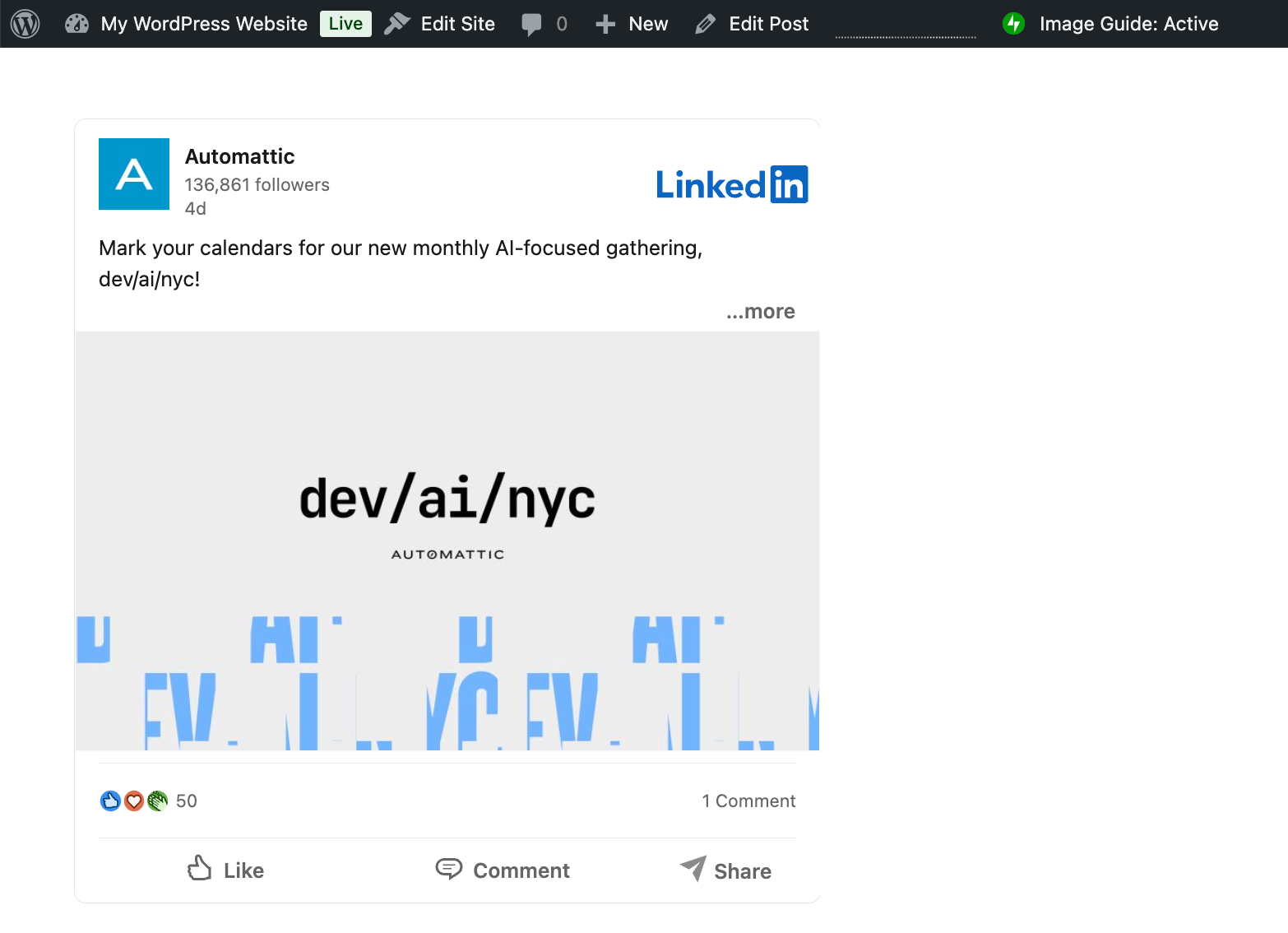
Notes:
- You can only embed public posts.
- The embed includes the profile name, post text, and any image or video.
Embed a LinkedIn post with the Classic Editor
If you’re using the Classic Editor, the process is nearly the same:
- Copy the embed code from LinkedIn.
- In WordPress, open a page or post and switch to the Text tab of the Classic Editor.
- Paste the code into the content area.
- Save or preview your post.
The post will appear on the front end of your site when you preview or publish your post.
Embed a LinkedIn company feed or profile feed
LinkedIn doesn’t offer a native way to embed entire company feeds or personal timelines by default. However, you can use third-party plugins or services to bring a dynamic feed to your site. Here are a couple of options:
- Elfsight Blocks: Embed LinkedIn feeds on your site using the block editor and choose from a variety of layouts to make it truly yours.
- Embed Social: Display a LinkedIn feed that automatically updates and is completely customizable.
Each plugin has its own set of instructions, so refer to the documentation for a detailed walkthrough.
Embed LinkedIn content in templates or widgets
If you want to show a LinkedIn post or feed on every page (like in a sidebar or footer), you can add the Custom HTML block to a template (using the Site Editor) or a widget (using the Customizer).
The Site Editor (for block themes):
- Go to LinkedIn and find your post. Then, click the three dots at the top right of the post.
- Select Embed this post. Copy the HTML code that LinkedIn provides.
- In your WordPress dashboard, go to Appearance → Editor.
- Open the template you want to edit. In this case, we’ll open Patterns → Footer and open the Footer pattern.
- Click the plus (+) to add a new block.
- Choose the Custom HTML block and drag it into the page.
- Paste the embed code into the block.
- Save or publish the template.
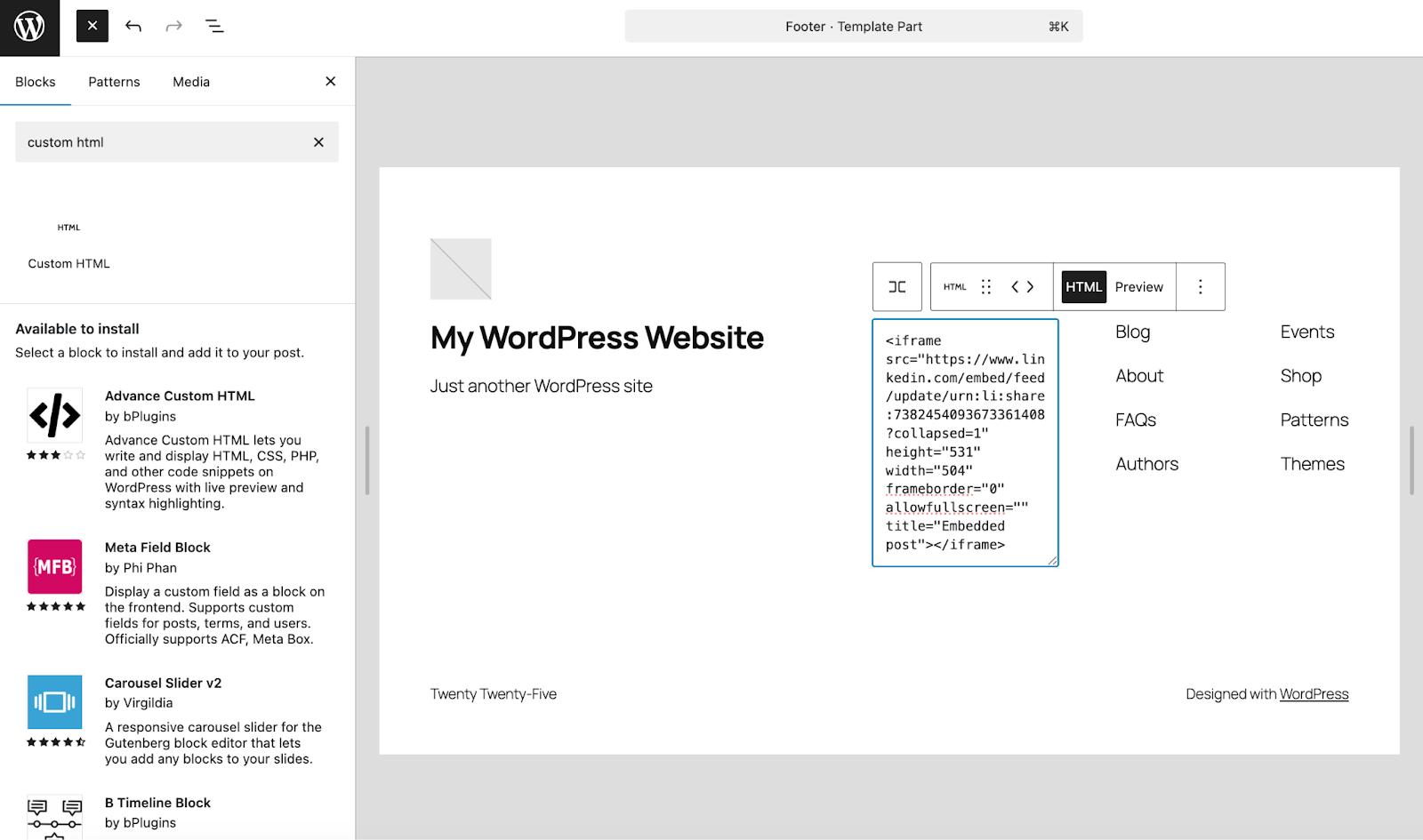
Widget settings (for Classic themes):
- Go to LinkedIn and find your post. Then, click the three dots at the top right of the post.
- Select Embed this post. Copy the HTML code that LinkedIn provides.
- In your WordPress dashboard, go to Appearance → Widgets.
- In the left-hand side, find the Custom HTML widget and drag it into the widget area where you’d like to add your post.
- Paste the HTML code you copied and click Save.
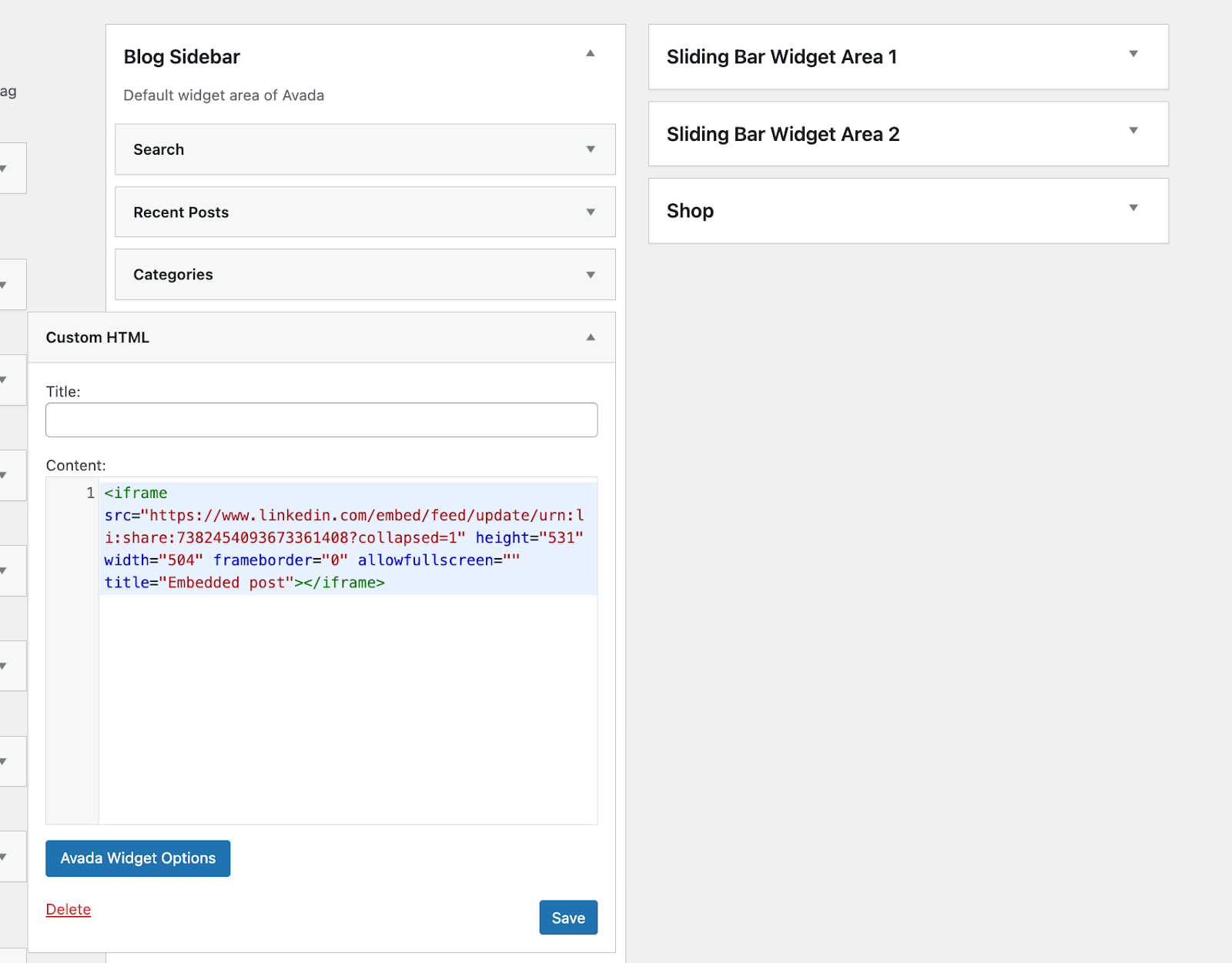
Customize your LinkedIn post or feed
The default LinkedIn embed code includes the name, image, and description of the post. You can’t directly style it with CSS, but you can control how it appears on your site. Here are some examples:
- Use container divs or theme settings to align your embed.
- Wrap the code in a responsive wrapper if needed:
<div style="max-width: 100%; margin: 0 auto;"> <!-- LinkedIn embed code --></div>
- Test the height of your embed if it cuts off content. You can manually adjust the height in the iframe code.
Troubleshoot LinkedIn embeds
Let’s explore a few potential problems you may encounter and how to solve them.
The post won’t display:
- Confirm that the post is public on LinkedIn.
- Check that you copied the full embed code, including all <script> tags.
- Clear your site’s cache and refresh.
The feed doesn’t show updates:
- Wait a bit. Some third-party feeds refresh every few hours.
- Check your plugin’s settings for update frequency.
The layout is broken:
- Make sure you’re using a Custom HTML block or widget.
- Avoid pasting into a Quote or Paragraph block.
Make the most of your social content
Embedding LinkedIn posts or feeds on your WordPress site is a smart way to keep your content fresh and credible. But if you’re also managing content across multiple social platforms, staying consistent can take quite some time.
That’s where Jetpack Social can help.
Jetpack Social is built to simplify how you share content from WordPress to your social channels. Instead of switching between platforms to post updates, you can automatically publish new blog posts to LinkedIn, Facebook, Instagram, and other networks directly from your WordPress dashboard.
With Jetpack Social, you can:
- Auto-publish your latest posts to LinkedIn and other platforms.
- Schedule social shares ahead of time.
- Add custom messages for each channel.
- Track engagement with built-in performance stats.
It’s especially useful if you already embed social content into your site and want to keep everything working together. By combining real-time embeds with scheduled shares, you can keep your audience engaged without doubling your workload.
If you’re ready to streamline your publishing workflow and get more out of every piece of content you create, Jetpack Social makes it easier to stay consistent and visible across platforms.
Learn more about Jetpack Social here.
Frequently asked questions
Can I embed a private LinkedIn post?
No, LinkedIn embeds only work reliably for posts that are public.
Why does the embed work in preview but not after publishing?
Caching, script optimization, or cookie consent tools can block LinkedIn scripts on the live page.
Can I embed a full LinkedIn company feed for free?
LinkedIn doesn’t provide an official full-feed embed. Most “feed” displays require a third-party plugin/service.
Will LinkedIn embeds slow down my site?
They can. Third-party scripts may add requests and affect Core Web Vitals—limit embeds per page and lazy-load when possible.
What’s the simplest lightweight alternative to embedding LinkedIn posts?
Add a screenshot of the post and link to it on LinkedIn.

 Jetpack