

Pinterest is an ideal platform for sharing inspiration, products, and curated ideas. And with WordPress, you can easily showcase anything from a single Pin to a full Board right on your site.
In this guide, you’ll learn how to embed Pinterest content in WordPress using the block editor, Classic Editor, custom HTML, and plugins. You’ll also find helpful tips to customize your layout and fix common issues.
Embed a Pinterest Pin using the block editor
If you want to share a specific Pin in a WordPress post or page, you can use the built-in Pinterest Embed Block. This method keeps your content looking clean and works without any additional plugins.
- Open Pinterest in your browser and click on the Pin you want to show on your site.
- Copy the full URL from the address bar.
- Go to the WordPress editor and open the post or page where you want the Pin to appear.
- Click the + icon to add a new block.
- Search for Pinterest in the block library and click Pinterest Embed to add it.
- Paste the URL of the Pin into the field that appears.
- Click Embed.
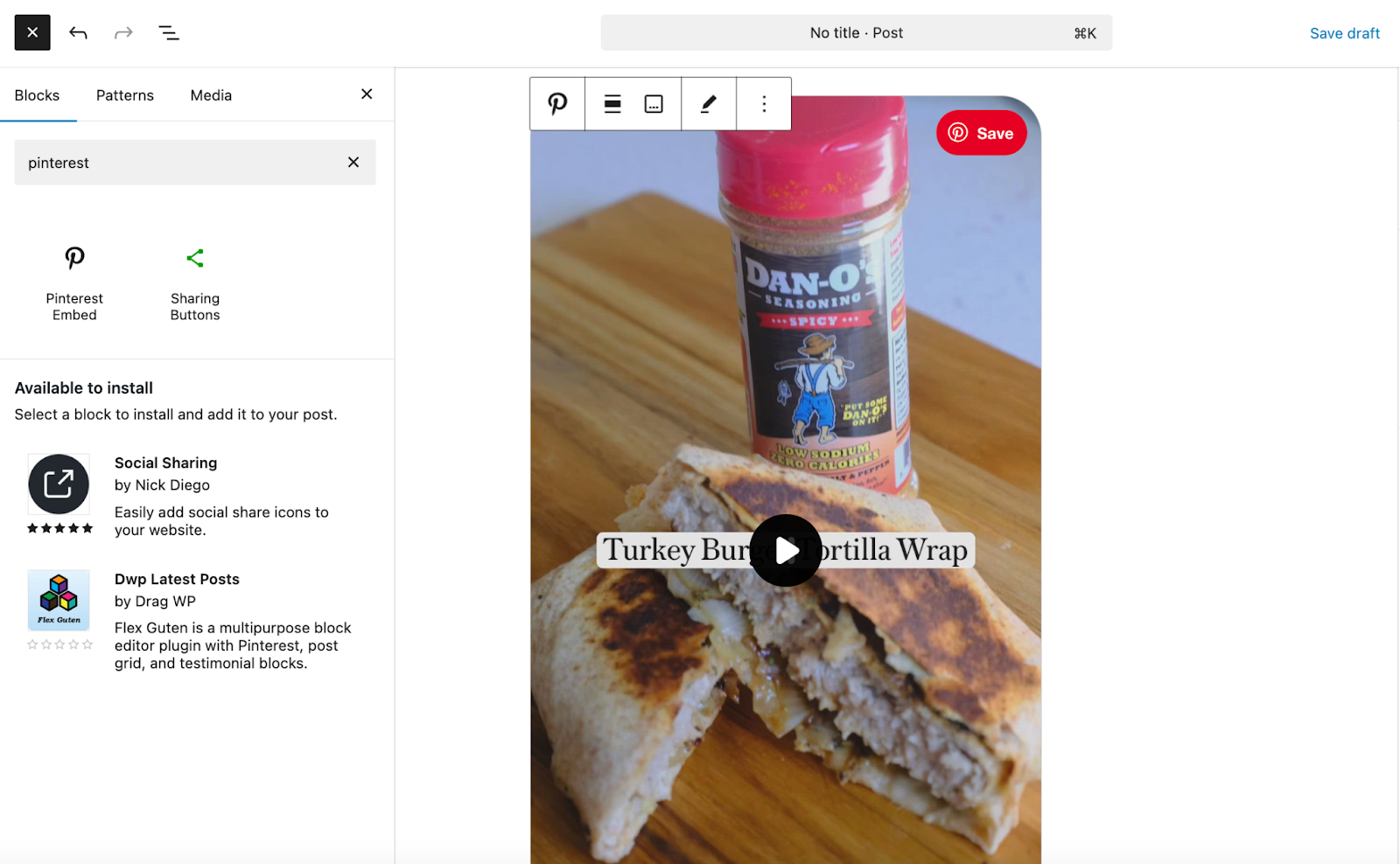
You’ll now see a live preview of the Pin directly in your post. The embed includes the image, title, and a clickable link back to Pinterest.
Notes:
- The Pin must be public. Private or restricted Pins will not display.
- If the embed doesn’t load, double-check the URL or try reloading the editor.
The block works well on both desktop and mobile, so your visitors can view and interact with the Pin, no matter what device they use.
Embed a Pinterest Board with the block editor
You can also display an entire Pinterest Board using the Pinterest Embed Block. This is a good way to show a themed collection of ideas or showcase related products in one spot.
- Go to Pinterest and open the Board you want to embed.
- Copy the Board’s full URL from the browser.
- In your WordPress post or page, click the + button to add a new block.
- Search for Pinterest and select the Pinterest Embed block.
- Paste the Board URL into the input field.
- Click Embed.
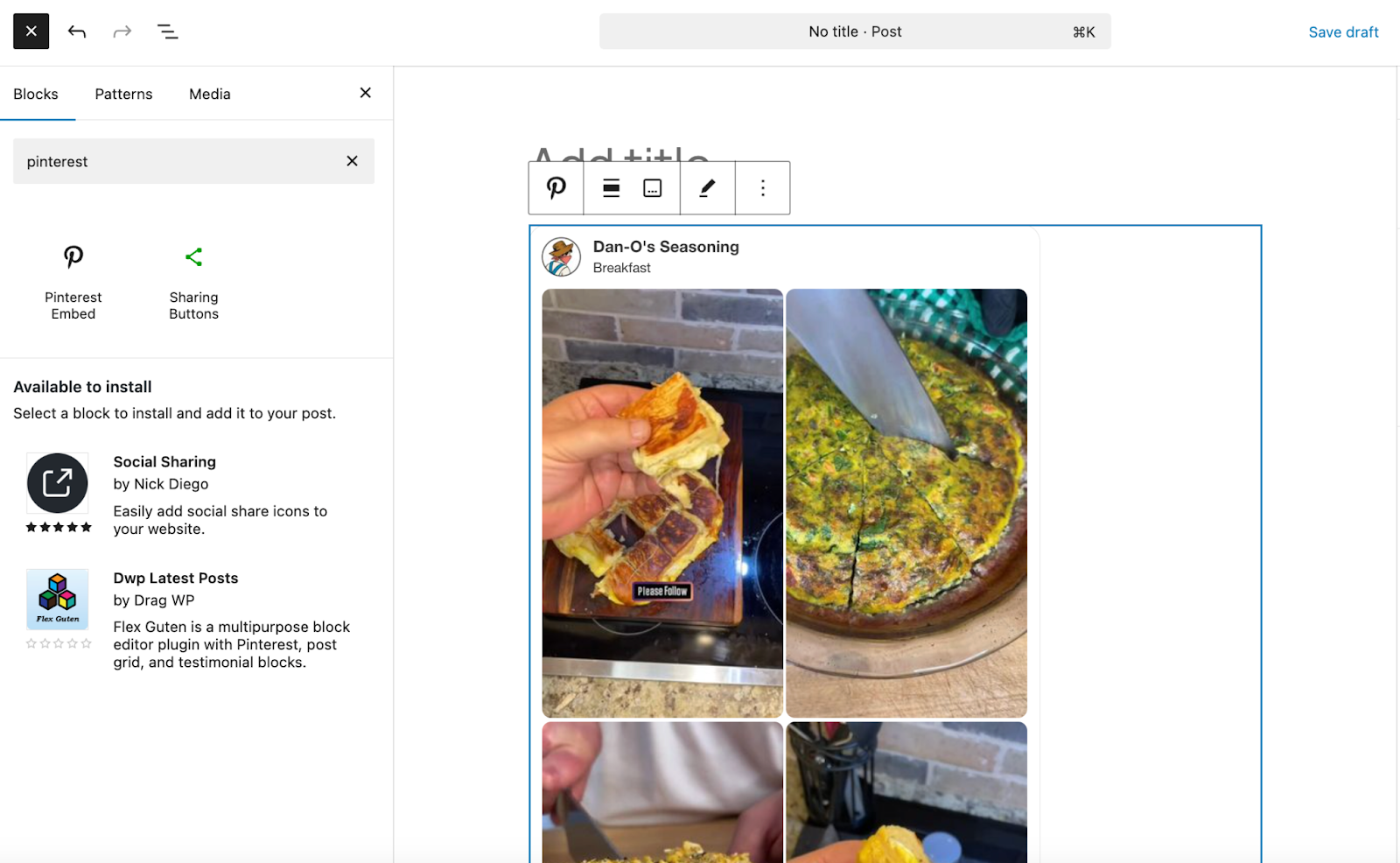
The block will load a scrollable preview of the Board. Visitors can click through the content or open the full Board on Pinterest.
This method is quick, reliable, and doesn’t require any coding. It gives you a visual way to support your posts using Pinterest content.
Embed Pins using the Classic Editor
If you’re still using the Classic Editor, you can easily embed with a URL.
Embed a single Pin:
- Copy the Pin’s URL from Pinterest.
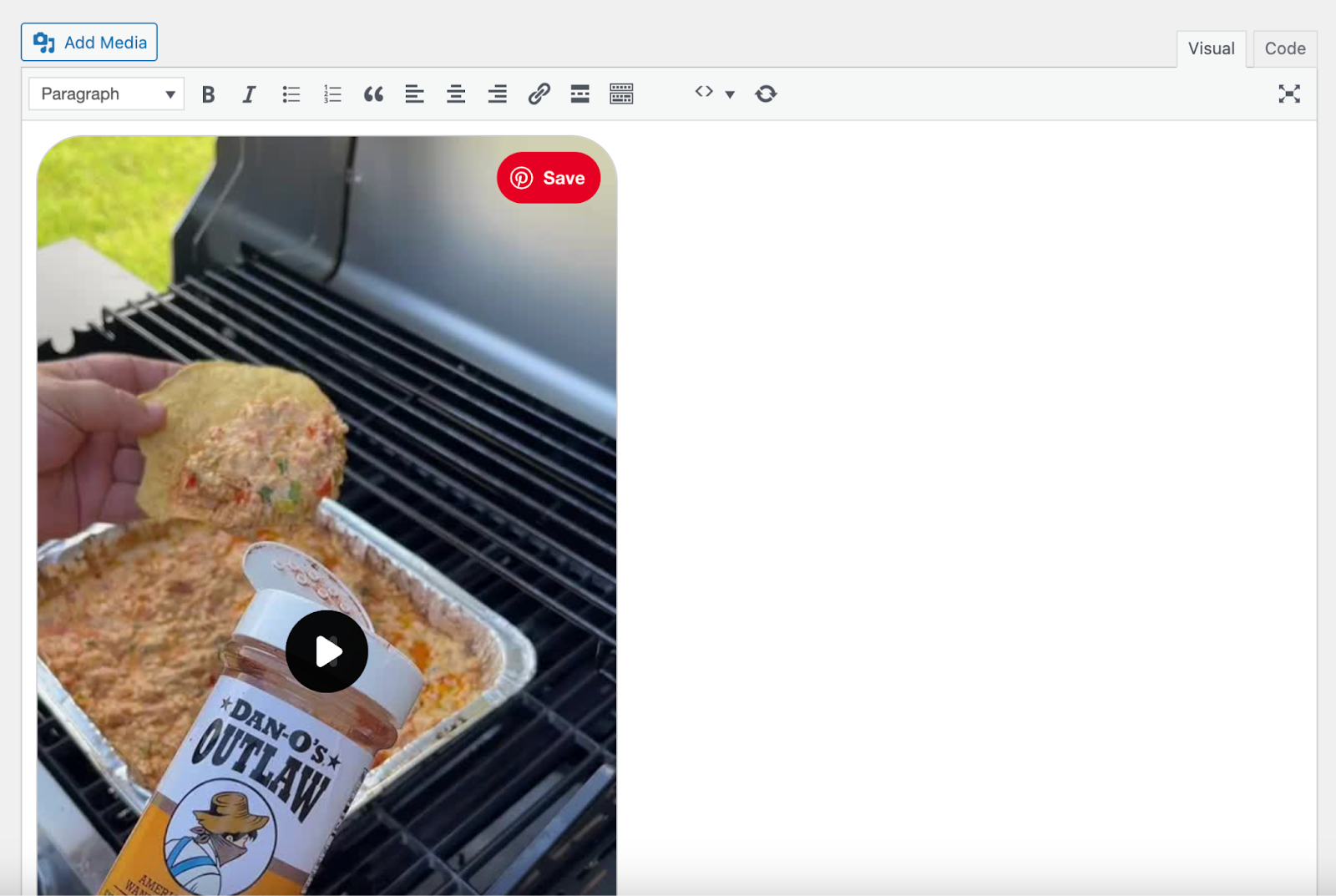
- Paste it on its own line in the Visual tab of the page or post you’re working on.
- WordPress will auto-convert it into an embedded post.
Embed Pinterest content with a plugin
If you plan to embed a lot of Pinterest content or want more control, a plugin may be the perfect solution. Here are a few options:
- GS Pinterest Portfolio: Display Pinterest Boards or Pins in a gallery-style view and more.
- EmbedSocial: Automatically sync your Pinterest account and update content on your site.
Why use a plugin:
- Customize layout, size, and alignment.
- Enable lightbox viewing for Pins.
- Display multiple Boards or a profile feed.
- Improve compatibility with themes.
Plugins can also help with lazy loading or caching for faster performance.
Publish once. Share everywhere.
Automatically share your website content to your favorite social media platforms, from one place.
Get Jetpack Social for freeEmbed Pinterest content in a template
If you want to embed a Pin or Board into one of your page templates — like the 404 page, for example — you can do so with the Site Editor.
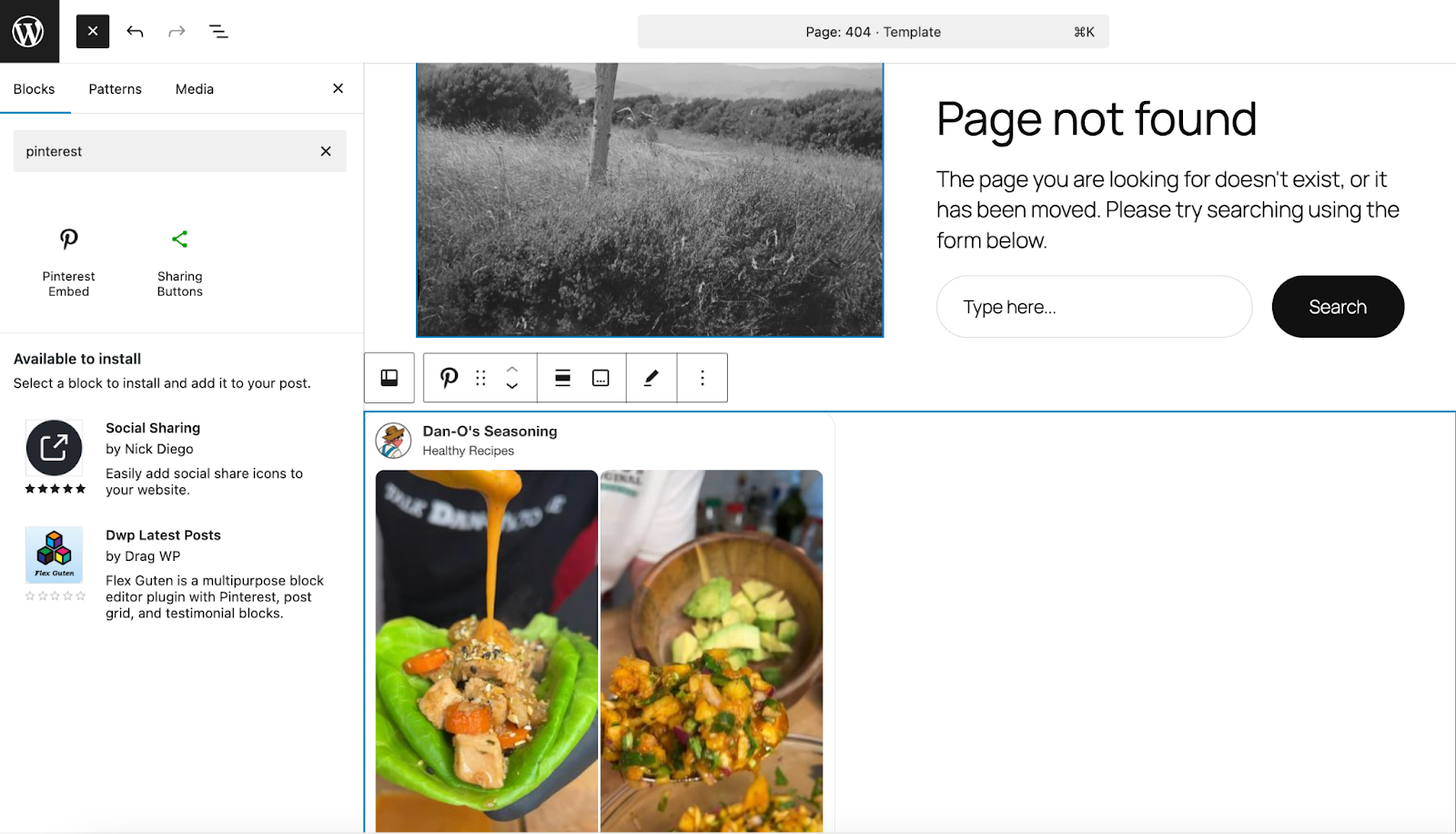
- In the WordPress dashboard, go to Appearance → Editor → Templates and select the one you want to edit. In this case, we’ll choose the Page: 404 template.
- Click the blue + icon at the top left and search for “Pinterest.”
- Drag the Pinterest Embed block into place on the page.
- Paste the URL of the Pin or Board you want to embed.
- Click Embed, then save your page.
A smarter way to manage social media sharing
Embedding content like Pinterest Pins or Boards is one piece of the social puzzle. But keeping your audience engaged across multiple platforms also means staying consistent with sharing, timing, and reach.
That’s where Jetpack Social can help.
Jetpack Social is a tool built for WordPress users who want a simpler way to share their content across major social networks, without needing to log in to each one separately. Once you publish a post, Jetpack Social can automatically share it to platforms like Facebook, Instagram, LinkedIn, and more.
Here’s how it helps:
- Auto-share your posts: Publish once and your new post is shared instantly to your connected accounts.
- Write custom messages: Add different captions for each social platform without switching tools.
- Schedule ahead: Set your posts to publish at times when your audience is most active.
- Track performance: See which content performs best through built-in stats and insights.
Jetpack Social makes it easier to promote your content where your followers spend their time. Whether you’re managing a blog, small business, or online shop, it saves you time and keeps your content moving.
You can learn more about Jetpack Social and how it connects with your WordPress workflow at jetpack.com/social.
Frequently asked questions
What is the best way to embed Pinterest in WordPress, using the block editor, custom HTML, or a plugin?
There is no single method that works best for every site, since each option has its own strengths. The default block editor embed is simple and fast to use, so it suits most people.
A dedicated plugin helps if you need advanced layouts, automatic feed updates, or social wall style pages, but plugins add extra code and may affect speed, so site owners often start with the built in embeds and only add a plugin if they need more advanced display options.
Why is my Pinterest embed not working in WordPress or showing “content could not be embedded”?
Pinterest embeds in WordPress often fail because the URL is not a direct pin or board link, the content is private, or a plugin or theme blocks the Pinterest script. The error text that says the content cannot be embedded usually points to one of those problems, so first check that you are using the exact public URL of a pin or board copied from the browser bar, not a search page or profile feed.
If the URL is correct, test by switching to a default WordPress theme and disabling other plugins one at a time, then try again, and if it works only with some tools turned off you likely have a conflict and may need to keep a lighter setup or switch to using the official widget HTML in a Custom HTML block.
How do I fix blurry or low quality Pinterest pins when they are embedded in WordPress?
Blurry Pinterest embeds in WordPress usually come from how the theme scales the images, not from Pinterest itself. If your theme stretches the embed into a very wide container or applies custom CSS that changes the default Pinterest widget styles, the image can look soft, so try placing the embed in a narrower column or container and check if the quality improves.
Does embedding Pinterest pins or boards slow down my WordPress site, and how can I reduce the impact?
Yes, Pinterest embeds can slow down a WordPress site because they load external scripts and images from Pinterest’s servers. Every embed adds another external request, so a page full of pins and boards can feel slower, especially on mobile connections, and this can affect your Core Web Vitals scores and user satisfaction.
To reduce the impact, limit the number of embeds on a single page, use lazy loading for iframes and scripts when possible, and consider replacing long grids of live embeds with a small number of key embeds plus static screenshots or image galleries that link to Pinterest.

Publish once. Share everywhere.
Automatically share your website content to your favorite social media platforms, from one place.
Get Jetpack Social for free Jetpack