

Sharing a single Tweet or a full X (formerly Twitter) feed on your WordPress site is a great way to add social proof, real-time updates, and fresh content to your posts or pages. Whether you want to highlight a specific post or display a live feed from your profile, WordPress gives you several simple ways to make it happen.
This guide walks through how to embed Tweets and X feeds using WordPress blocks, custom code, plugins, and widgets. You’ll also find tips for fixing common display issues and making sure your embedded content looks great across devices.
Embed a single Tweet using the block editor or by pasting the URL
WordPress supports direct Tweet embedding through its native oEmbed feature, so you can add posts from X with just a URL
It’s quick, requires no extra plugins, and works with any public Tweet. Plus, embeds are responsive by default, making them a solid choice for mobile-friendly pages.
Embedding a single Tweet in the block editor:
- Go to X.com and open the Tweet you want to embed.
- Copy the Tweet’s URL from your browser.
- In the WordPress editor, select the plus (+) icon to add a block.
- Choose the Twitter block.
- Paste the Tweet URL into the field.
- Click Embed.
Once you do, the Tweet will appear in your editor, including images, hashtags, and links.
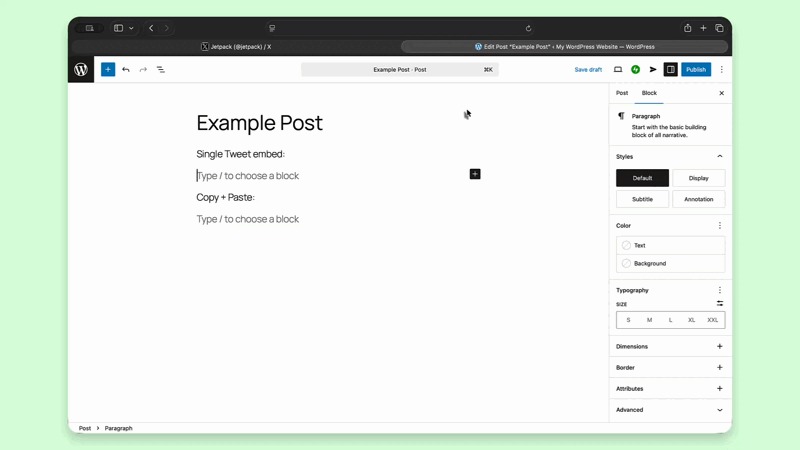
If you prefer an even faster option, you can paste the Tweet URL directly into the editor without adding a block first. WordPress will automatically convert it into an embed. This shortcut works in both the block editor and the Classic Editor, making it ideal for quick updates or lists of Tweets.
Embedding Tweets in the Classic Editor
If you’re using the Classic Editor plugin, you can still embed Tweets on your site, but there are a few extra steps compared to the block editor.
Embedding a single Tweet in the classic editor:
- Go to X.com and open the Tweet you want to embed.
- Click the More menu (the three dots in the upper-right corner of the Tweet).
- Select Embed Post.
- This will open the Twitter Publish tool with your embed options.
- Copy the generated embed code.
- In WordPress, switch the Classic Editor to Text (the code view).
- Paste the embed code where you want the Tweet to appear.
- Update or preview your post to confirm everything looks right.
WordPress will display the Tweet as a fully interactive embed on the front end of your site.
Embedding a Twitter/X feed or timeline
Embedding a single Tweet is great for articles, but sometimes you need to showcase an entire feed like a profile timeline or brand updates. To do that, you’ll use X’s timeline embed tool.
Embedding an X feed in WordPress:
- Visit the Twitter Publish tool.
- Enter the URL of the profile you want to display (for example: twitter.com/yourusername).
- Select Embedded Timeline as your format.
- Copy the embed code that’s generated.
- In WordPress, add a Custom HTML block where you want the feed to appear.
- Paste the embed code into the block.
- Use Preview to check the layout.
- Save or publish your post or page.
You can also paste the same embed code into a Custom HTML widget if you want your timeline to appear in a sidebar or footer.
Customizing your X embeds
When using the Twitter Publish tool, you can adjust several display settings before generating your embed code. Options include the height and width of the feed, a light or dark theme, link color, language, and the number of Tweets shown. For even more control, you can manually tweak the attributes in the iframe or apply custom CSS through your theme customizer.
Using plugins to embed Tweets and feeds
Embedding a Tweet or feed directly in WordPress is already quick and straightforward, but if you want more control over styling, layout, or extra features, a plugin like Smash Balloon Twitter Feed can be a great addition.
Plugins such as Feed Them Social or Smash Balloon Twitter Feed let you display dynamic feeds that update automatically, customize the appearance of your timelines, and even make it easier to share new content from your site to your social channels.
Troubleshooting common Twitter/X embed issues
Even with the simplest embedding methods, sometimes Tweets or feeds don’t render quite right. A few quick checks usually solve most problems.
- A Tweet isn’t displaying: Make sure it’s from a public account, double-check that the URL isn’t broken or shortened, and try pasting the URL on a new line in a Paragraph block.
- Your feed doesn’t load: Your theme might be blocking scripts, so try switching to a default theme for testing. Clearing your browser cache or using a different browser can also help. If you’re using a plugin, check for conflicts or JavaScript errors.
- The layout breaks on mobile: Use responsive embed containers or blocks, and avoid fixed-width sidebars or narrow columns that can restrict display.
Once everything is working, your Tweets and X feeds should display smoothly across your site, keeping your content engaging and up to date.
Make sharing easier with Jetpack Social
Embedding Tweets or feeds on your site helps visitors see your social content without leaving the page. But just as important is sharing your posts across your own social channels — and that’s where Jetpack Social can save you time and effort.

With Jetpack Social, you can publish once in WordPress and instantly share to multiple networks, edit captions for each platform (including Facebook, LinkedIn, and Tumblr), schedule posts to go live at a future time, and even track performance to see how your content is doing across channels.
If you’re already embedding Tweets on your site, Jetpack Social helps close the loop by pushing your content back out to followers on other platforms, keeping your audience engaged without adding extra work. You can get started right from your WordPress dashboard. It’s quick to set up and easy to use, so you can focus on creating great content instead of juggling multiple accounts.

Publish once. Share everywhere.
Automatically share your website content to your favorite social media platforms, from one place.
Get Jetpack Social for free Jetpack