

After the Jetpack 13.4 release, Jetpack AI now includes a way to generate featured images for posts using AI directly from the block editor.
What is a featured image?
A featured image represents a post or page’s contents, mood, or theme and is used throughout your site. Your theme will determine how featured images will appear on the site. For example, they can be used as post thumbnails or post heading images. Social media sites like Facebook often use the page’s featured image when you share it.
How do you generate a featured image with Jetpack AI?
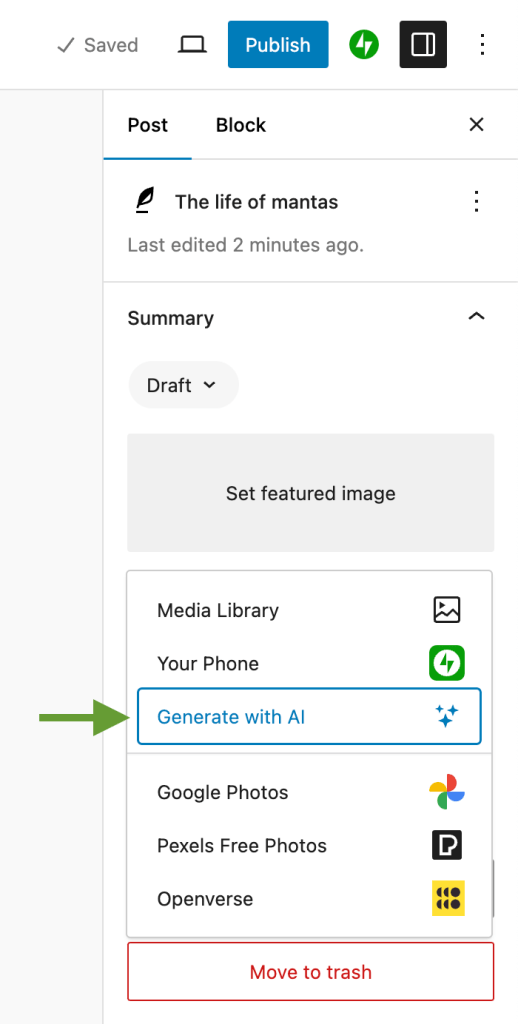
To generate an image based on the content of your post, look for the Featured Image section on the Settings sidebar.

If you don’t have a featured image, click “Set featured image” and select “Generate with AI” on the menu.
If you already have some image set as featured, click “Replace” and then select “Generate with AI” to generate another one.
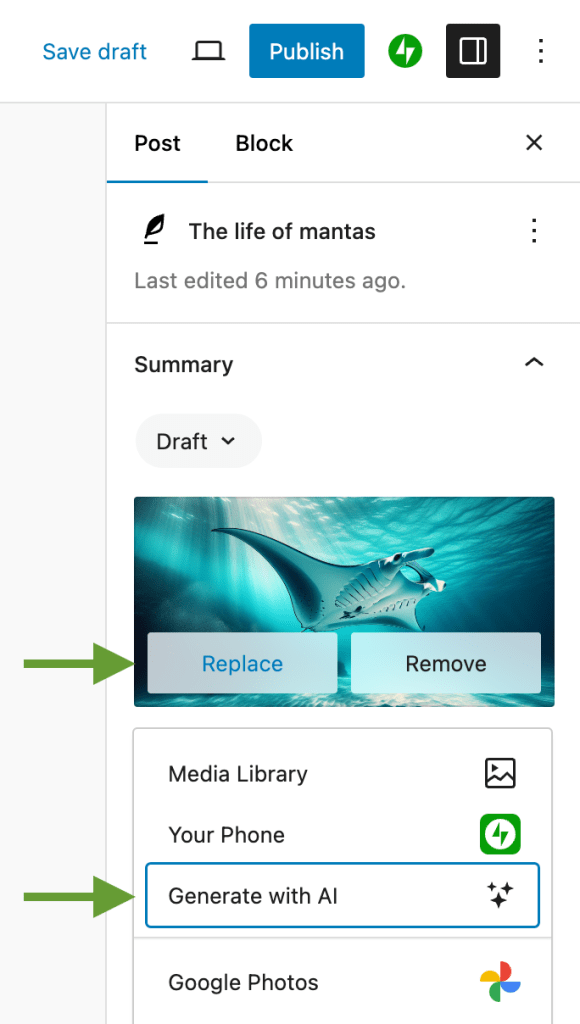
Older versions of Gutenberg may have a dedicated section for featured images on the Settings sidebar. The “Generate with AI” option will also be available there.

As soon as you click on the “Generate with AI” option, a new screen will appear over the editor, and the generation of the first image will start automatically. We analyze your post content to formulate a prompt.
The screen will show a loading animation while the image is being created. When the image is ready, you can decide between using it as featured or generating another if you’re not happy with it, providing an optional prompt to customize the generated image.
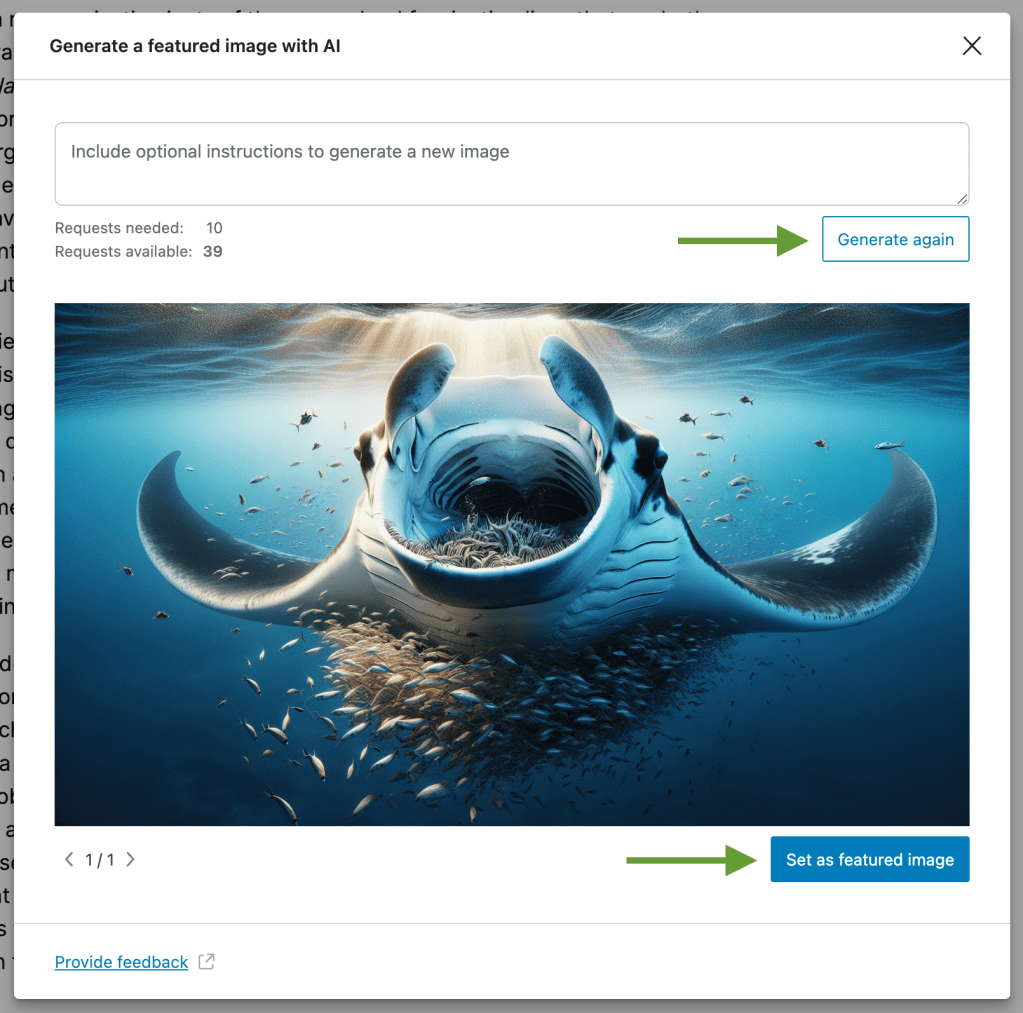
If you generate another one, the screen will show the loading animation again. You can navigate between images when more than one is available and when a new one is generated.
Clicking the “Set as featured image” button will set the image as featured. When you click it, the tool will close, and the editor will show up with the featured image in its proper place.

All generated images are saved automatically to the media library, so you can access it later if you want to. The image format is PNG, and the resolution is 1792×1024 pixels.
Note: Image generation is subject to content policy moderation and will not produce images of public figures like celebrities and politicians, as well as copyrighted characters and other images protected by copyright law.

 Jetpack
Why are you hiding this important feature under Summary? It should be in the Block list !
LikeLike
Hi – it shouldn’t be showing under Summary? It shows when you click the Featured Image section and add an image.
As for it being in the Block list – do you mean the ability to generate AI images for the content body too – not just the featured image?
LikeLike
I misunderstood what it says in the article about looking under Summary . As for the Block list , I meant that it would be nice to have this option under Images so that when you click the plus sign you can create an image in the article while you’re writing .
LikeLike
Thanks for clarifying – I see what you mean now I’ve just updated the article to be clear. Looks like it was an older screenshot and the featured image section was under “Summary”.
Mike
LikeLiked by 1 person