

Meta tags play a critical role in search engine optimization (SEO), providing search engines with essential information about a page’s content.
You can add meta tags to WordPress manually or with plugins. This guide explores both methods, and shares some best practices to maximize SEO impact.
What are meta tags and why are they important?
Meta tags are snippets of HTML code that provide metadata about a webpage. Search engines and social media platforms use them to understand and display content appropriately. Some of the most important meta tags include:
- Title Tag: Defines the page title shown in search results
- Meta Description: Provides a brief summary of the page content
- Meta Robots: Direct search engines on how to index the page
- Open Graph Tags: Optimize content for social media platforms
- Canonical Tag: Prevents duplicate content issues by specifying the preferred URL
Each of these meta tags contributes to improved search engine rankings and a better user experience.
Which meta tags matter for SEO (and which don’t)
- Matters most: title tag, meta description (CTR), canonical (duplication control), robots meta (indexing control).
- Matters for sharing: Open Graph tags (Facebook/LinkedIn), X/Twitter card tags.
- Usually ignored: meta keywords (Google doesn’t use it for ranking; adding it can look spammy).
How to add meta tags manually in WordPress
Those who prefer a hands-on approach, you can manually add meta tags to WordPress with code. Note that you should always make changes using a child theme and have a full backup of your site on hand before editing your site code.
For Classic themes: Edit the header.php file
If you’re using a Classic theme, you can use the header.php file to add meta tags to your site. Simply follow these instructions:
- Access your WordPress dashboard.
- Navigate to Appearance → Theme File Editor.
- Locate and open the header.php file.
- Add meta tags within the <head> section. Example:
<meta name="description" content="Your page description here"><meta name="robots" content="index, follow">
- Save changes.
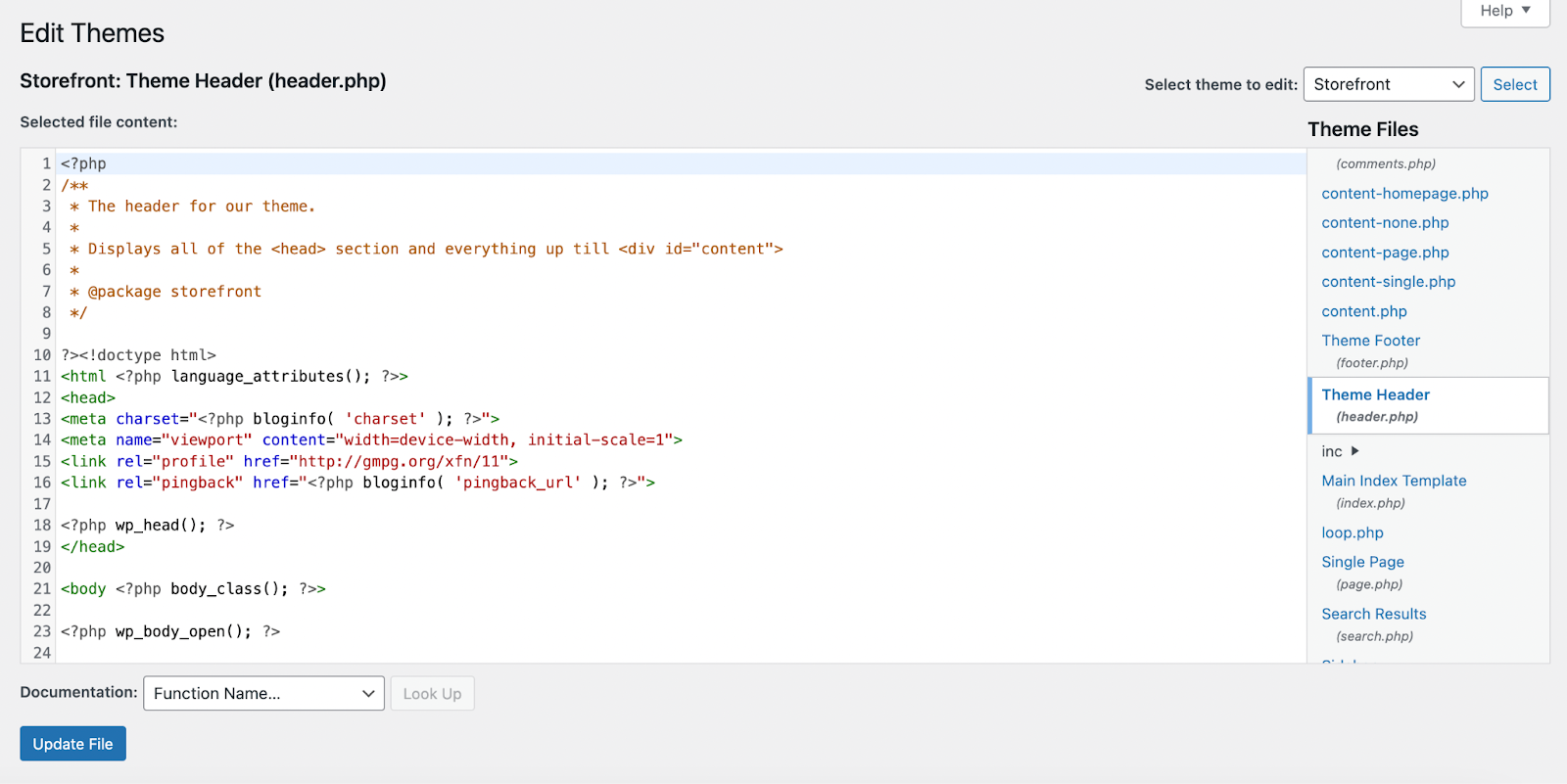
For Classic or Block themes: Use the functions.php to add meta tags dynamically
Instead of editing the header file directly, you can add meta tags by modifying the functions.php file.
- Using your host’s file editor or SFTP software, open the functions.php file. This is found inside of your child theme folder.
- Insert the following code snippet:
function add_meta_tags() { echo '<meta name="description" content="' . get_the_excerpt() . '" />';}add_action('wp_head', 'add_meta_tags');
- Save the changes.
This method dynamically generates meta descriptions based on post excerpts.
How to add meta tags using plugins
SEO plugins greatly simplify the process of adding meta tags, provide additional functionality, and make sure that you’re implementing tags correctly. The top plugins for this purpose are Jetpack, Yoast SEO, and Rank Math.
Using Jetpack to add meta tags
Jetpack is a powerful WordPress plugin with tools for SEO, security, performance, growth, and more. Here’s how to use it to add meta tags to your WordPress site:
- Install and activate Jetpack from Plugins → Add New.
- Navigate to Jetpack → Settings → Traffic.
- Enable the SEO Tools feature.
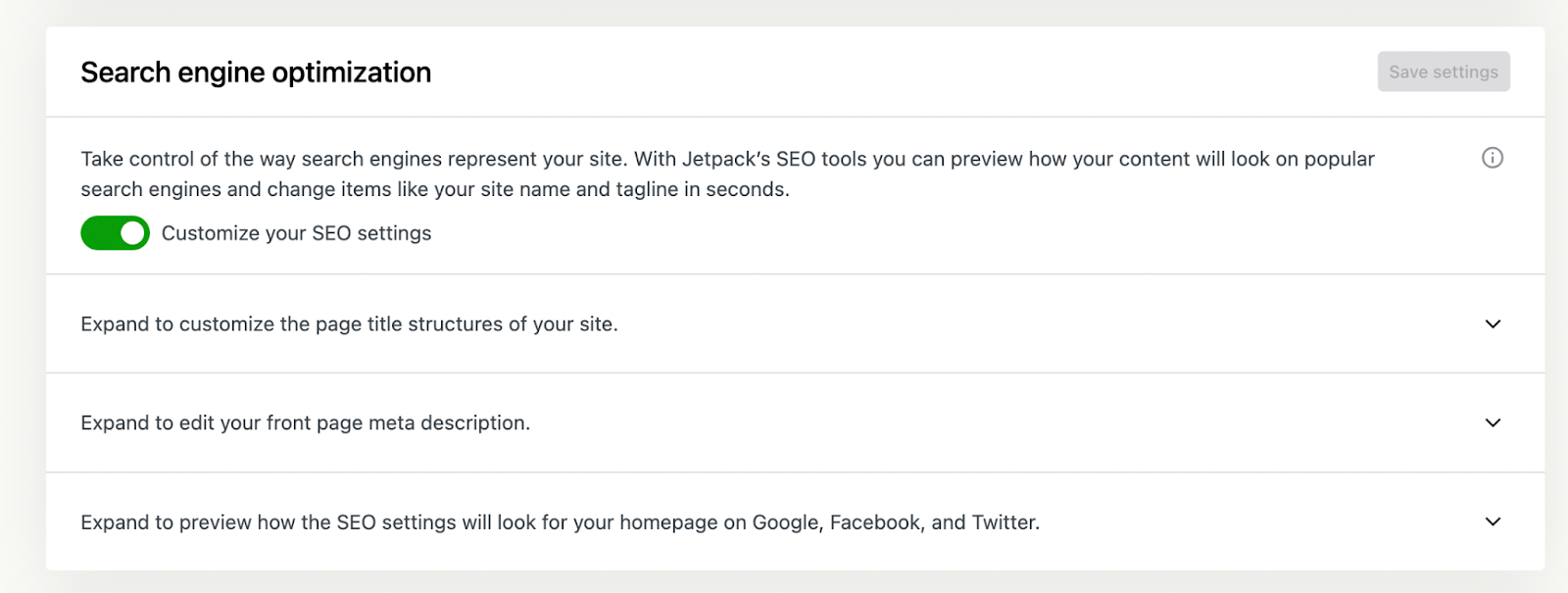
Once you’ve enabled this feature:
- When editing a post or page, click the Jetpack icon at the top right of the block editor.
- There, add your custom title tag and meta description for the content.
- Click the blue Save button.
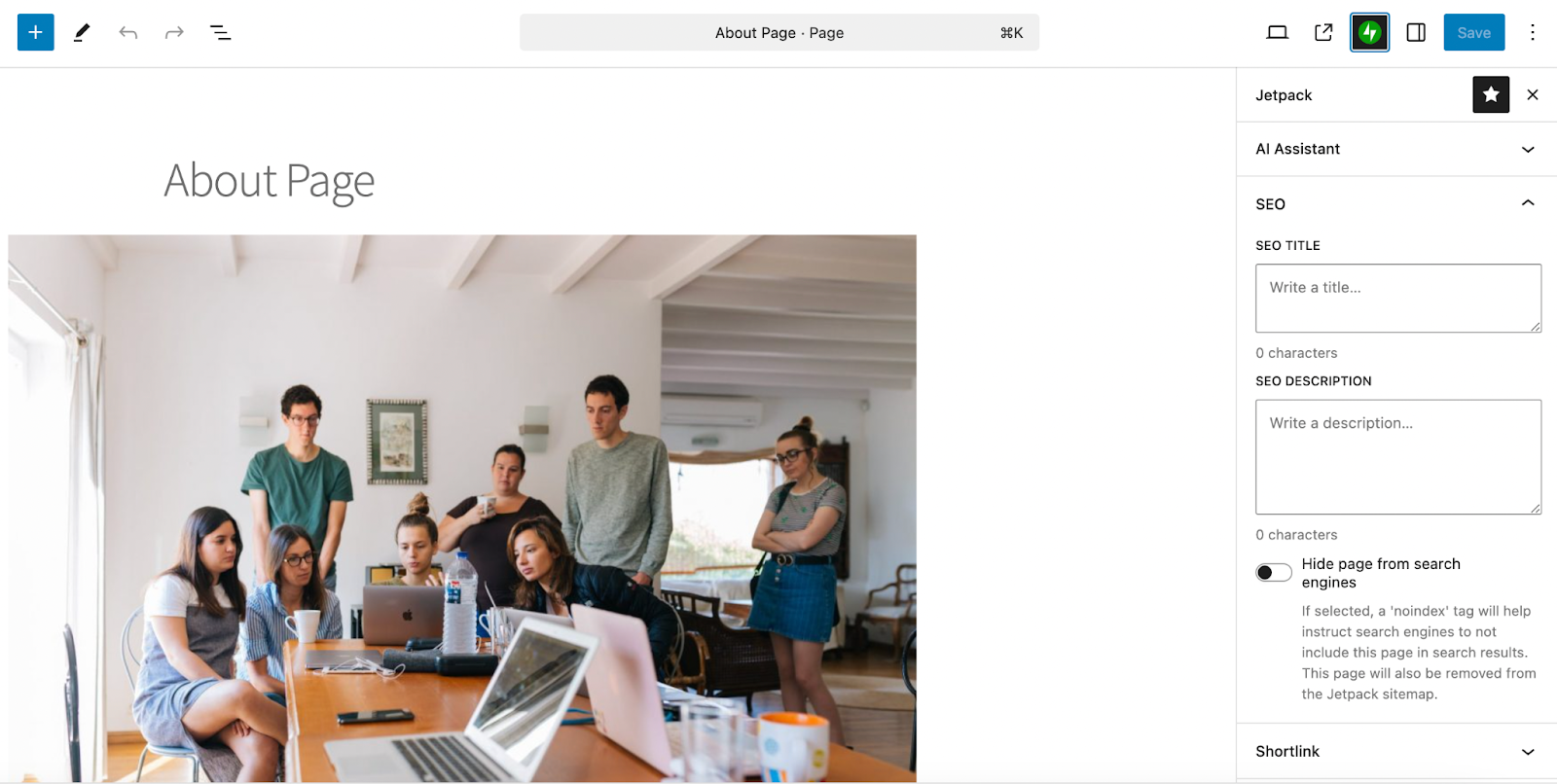
Jetpack also automatically adds structured meta tags, including Open Graph data, optimizing content for search engines and social media platforms.
Using Yoast SEO to add meta tags
Yoast SEO is an SEO plugin that includes advanced tools for optimizing your WordPress site. To add meta tags with Yoast on a global level:
- Install and activate Yoast SEO from Plugins → Add New.
- Go to Yoast SEO → Settings.
- Find the Content types section.
- Select the content type you want to edit (Posts, Pages, Products, etc.) and edit the default settings for meta tags.
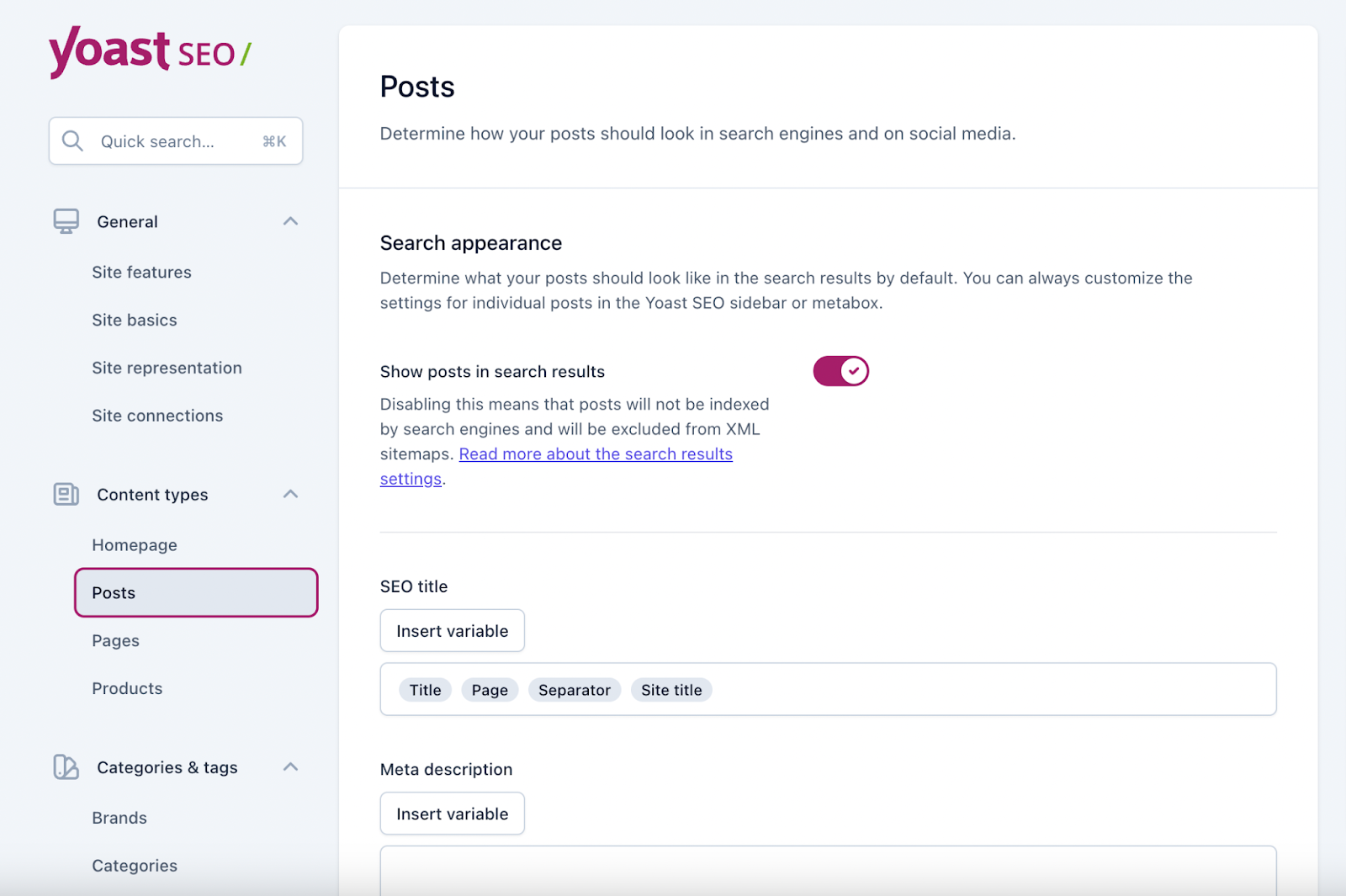
To edit an individual piece of content:
- Open the post or page in the block editor.
- Scroll down to the bottom to find the Yoast SEO box.
- There, you can edit the meta description, SEO title, slug, and more.
- Once you’re done, save the post or page.
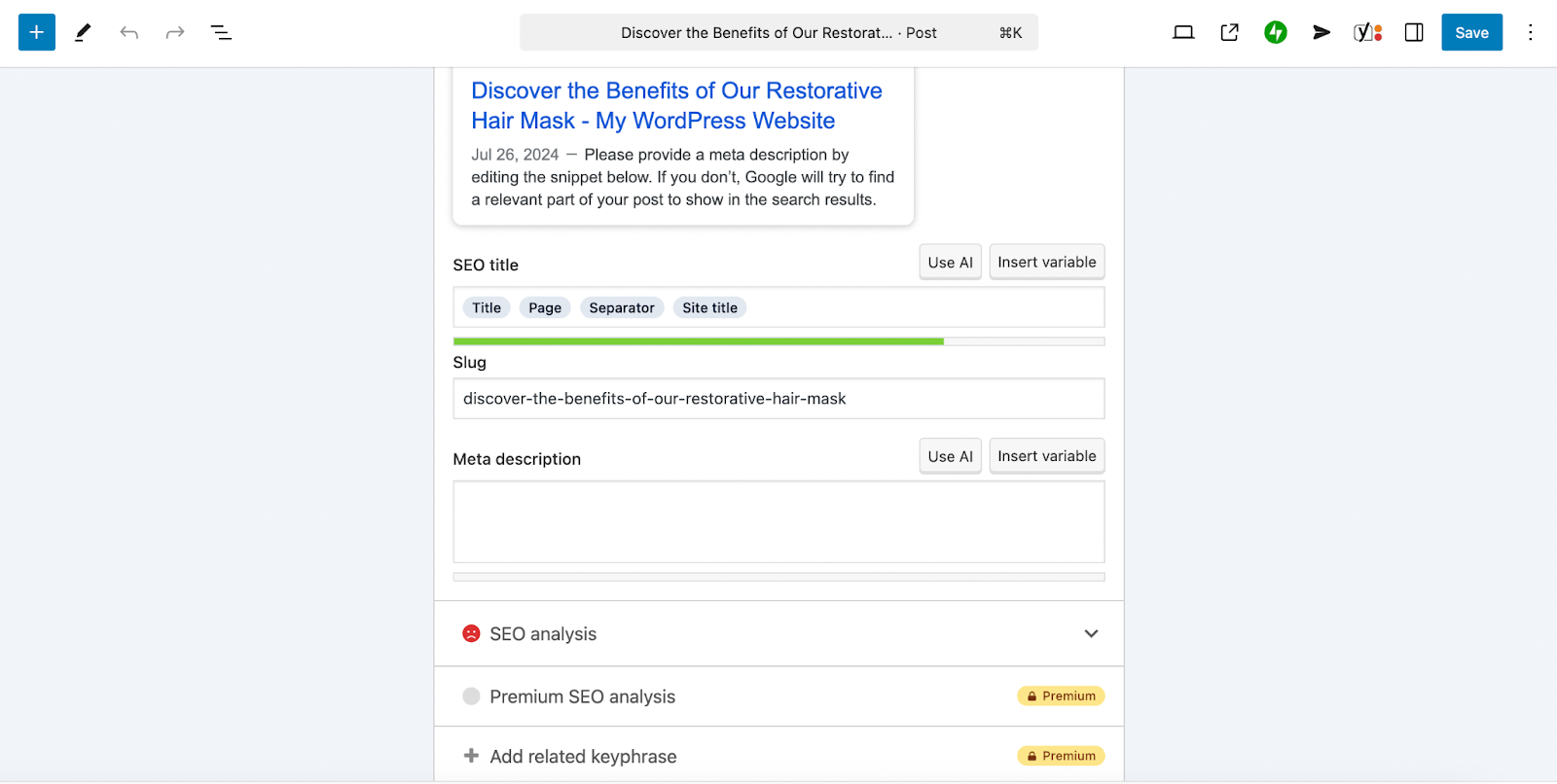
Yoast SEO also includes meta robots settings, Open Graph tags, structured data support, and more.
Using Rank Math to add meta tags
Rank Math is similar to Yoast SEO, providing advanced SEO features and AI-based suggestions for meta descriptions. Here’s how to configure default meta tag settings with Rank Math:
- Install and activate Rank Math from Plugins → Add New.
- Complete the setup wizard.
- Navigate to Rank Math SEO → Titles & Meta.
- Configure meta title and description templates.
- Click Save Changes.
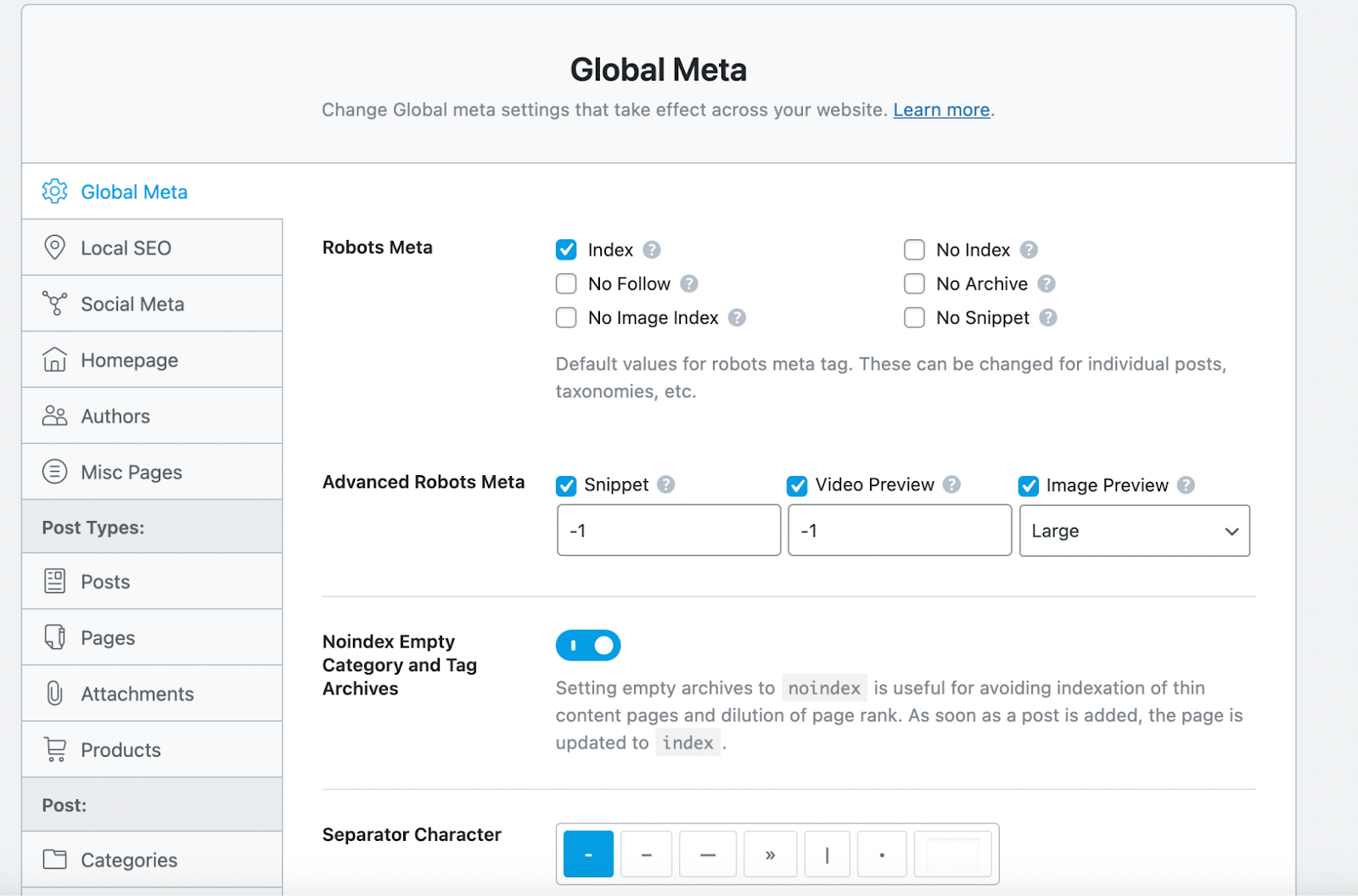
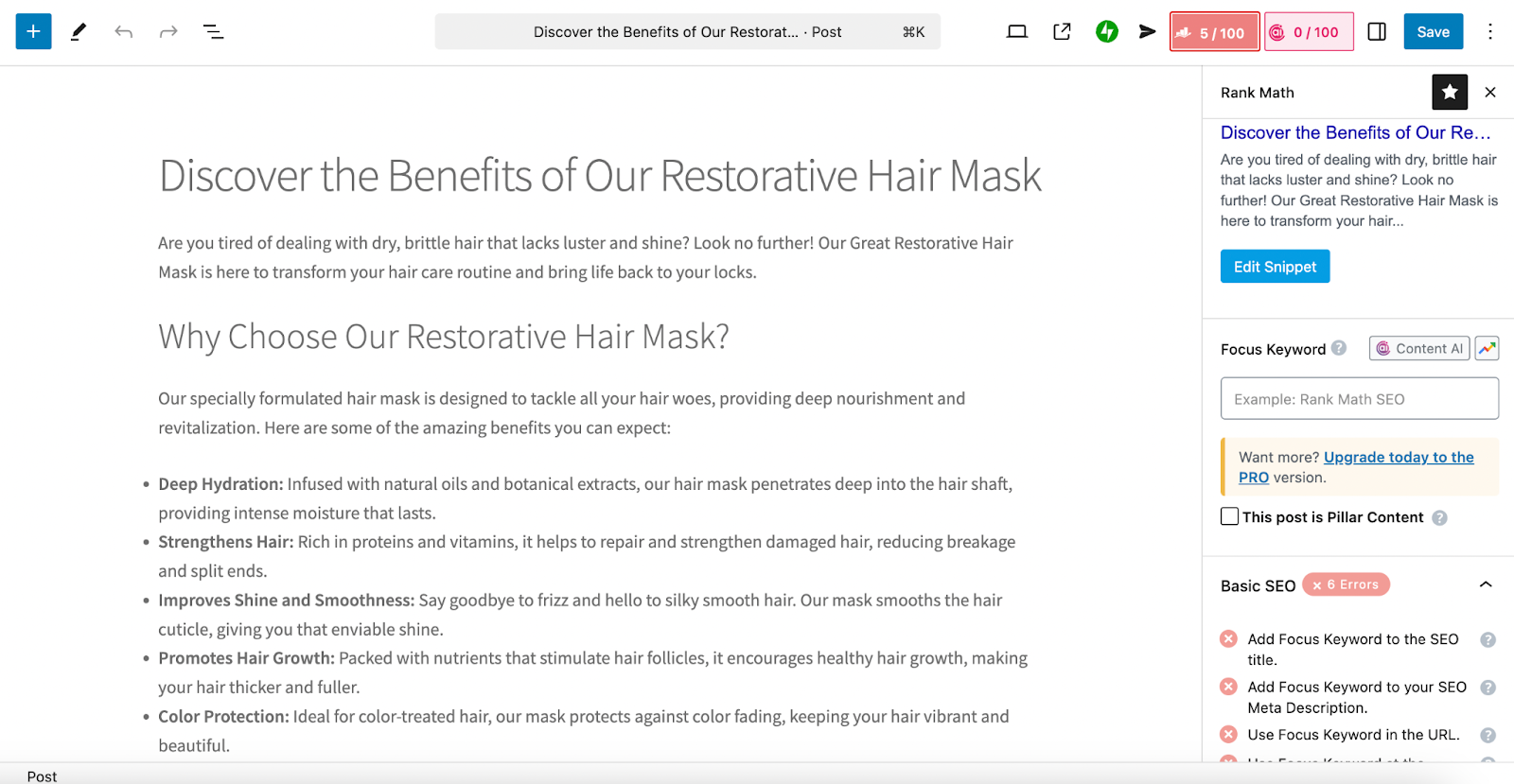
To edit meta tags on an individual page/post basis:
- Open your page or post in the block editor.
- Click the Rank Math button at the top right (it will show your current SEO score).
- Make any edits you’d like.
- Click Save.
Best practices for optimizing meta tags
To maximize SEO impact, follow these best practices when adding meta tags:
- Write compelling meta descriptions: Keep them under 160 characters and include primary keywords.
- Optimize title tags: Ensure that they’re under 60 characters and feature your main keyword at the beginning, if possible.
- Use the meta robots tag wisely: Set noindex for pages that should not appear in search results (e.g., admin pages, thank you pages).
- Implement the Open Graph protocol: Enhance how content appears on social media platforms.
- Avoid duplicate meta tags: Use canonical tags to prevent indexing of duplicate content.
How to check whether your WordPress meta tags are working
- View page source: open your page, then view source and search for meta tags like <title>, name=”description”, rel=”canonical”, and property=”og:”.
- Confirm you only have one of each: multiple description or canonical tags usually means two plugins (or theme + plugin) are both outputting tags.
- Test social previews: use Facebook Sharing Debugger and X Card Validator to confirm Open Graph/Twitter tags are being read.
- Validate structured data the right way:
- Use Google’s Rich Results Test for Google-eligible rich results.
- Use Schema Markup Validator (schema.org) for general schema validation.
Monitoring and testing meta tag effectiveness
After implementing meta tags, track their impact using SEO tools like:
- Google Search Console: Analyzes search performance and highlights issues with content
- Google Analytics: Tracks organic traffic and visitor behavior
- Schema Markup Testing Tool: Ensures that structured data is correctly implemented
- Rich Results Test: Test Google rich-result eligibility
- Schema Markup Validator: validate schema syntax/types beyond Google’s tools
How to maximize SEO with meta tags and AI content
Adding and optimizing meta tags in WordPress is a critical part of SEO, enhancing search visibility and user engagement.
To further improve your SEO strategy, consider integrating Jetpack AI Assistant into your content creation workflow. This AI-powered tool, seamlessly embedded within the WordPress editor, offers a suite of features designed to streamline and elevate your content efforts.
Efficient meta tag generation
Crafting precise and compelling meta tags is essential for SEO success. Jetpack AI Assistant simplifies this process by:
- Creating meta descriptions: It can analyze your content and generate concise, compelling meta descriptions.
- Optimizing title tags: It can suggest impactful titles that resonate with both search engines and readers.
Content enhancement for SEO
Beyond meta tags, Jetpack AI Assistant contributes to overall SEO by:
- Adjusting tone: It modifies your content tone to align with your brand voice and audience preferences.
- Correcting grammar and spelling: It ensures error-free content that maintains professionalism.
These features collectively enhance content quality, making it more appealing to both readers and search engines.
Seamless integration and usability
Jetpack AI Assistant integrates directly into the WordPress block editor, offering:
- A user-friendly interface: Accessible tools within your existing workflow
- Prompt-based content generation: The ability to create content, lists, and tables based on your prompts
- Multilingual support: Content translation to reach a broader audience.
This seamless integration ensures that enhancing your SEO strategy with AI capabilities is both intuitive and efficient. Learn more about Jetpack AI Assistant here: https://jetpack.com/ai/
Frequently asked questions
Do meta tags still matter for SEO?
Yes, meta tags remain critical for SEO. While Google confirmed they don’t use the keywords meta tag for rankings, meta descriptions directly impact click-through rates from search results, which is a ranking factor. Title tags are one of the strongest on-page SEO signals. Open Graph tags determine how your content appears on social media, driving traffic.
Do I need a plugin to add meta tags in WordPress?
No, but plugins are safer for most sites because they help prevent duplicates and let you set titles/descriptions per post without editing theme files.
Why isn’t my meta description showing up in Google search results?
Google rewrites meta descriptions for 63% of search results (according to this study) when they determine their auto-generated version better matches search intent. Common reasons:
- Your meta description is too short (<120 characters) or too long (>160 characters)
- It doesn’t include the search query keywords
- Your content doesn’t match the description
- Google’s cache hasn’t refreshed (use Search Console URL Inspection tool to request re-crawling)
- You have multiple plugins creating conflicting meta tags.
Which is better: adding meta tags manually or using a plugin?
Use a plugin (like Jetpack, Yoast, or Rank Math) unless you’re an experienced developer.
Plugins can provide: (1) Easy per-page/post customization, (2) Character count previews, (3) Automatic Open Graph and Twitter Card tags, (4) SERP preview simulators, (5) Bulk editing capabilities, (6) No risk of breaking code.
Manual implementation requires maintaining code through theme updates and offers no preview functionality. The only advantage of manual implementation is avoiding plugin overhead, which is minimal for modern SEO plugins.
Can meta tags hurt my WordPress SEO if not handled correctly?
Yes, here are common issues:
- Duplicate meta tags from multiple plugins conflict and confuse search engines
- Keyword meta tags are ignored by Google and add unnecessary page weight
- Incorrect robots meta tags (noindex, nofollow) can prevent pages from ranking
- Conflicting canonical tags cause indexation issues.
Solution: Use only one SEO plugin, audit your page source code quarterly, and remove legacy meta tags from old themes/plugins.
How do I add meta tags to my WordPress homepage vs. individual posts?
Different approaches:
- Homepage: Go to Pages → Edit homepage → scroll to your SEO plugin section (Jetpack, Yoast, or Rank Math) → customize title and description. If using a static page for homepage, edit that page.
- Individual posts: Edit any post → find SEO plugin metabox → customize per-post meta tags. Best practice: Homepage should target brand + primary keywords; posts should target specific longer tail keywords.
What’s the difference between meta tags and schema markup?
Meta tags are simple HTML elements in the section that describe your page (title, description, robots instructions).
Schema markup (structured data using JSON-LD, Microdata, or RDFa) is far more detailed, providing specific information about content types (articles, products, reviews, recipes, events) that enables rich results in search (star ratings, pricing, availability).
Both are important: meta tags control basic SERP appearance, while schema enables enhanced rich results. Use both for optimal SEO.

The most powerful AI tool for WordPress
Turn your ideas into ready-to-publish content at lightspeed.
Elevate your content Jetpack