

Changing the author of a WordPress post seems simple, but getting it wrong can create broken author profiles, hurt your SEO, and cause headaches for your content team. Whether you’re rebranding, reassigning content from a former employee, or managing guest contributors, you need a process that is both efficient and safe.
In this guide, we’ll go beyond the basic steps. Drawing on our vast WordPress experience, we’ll show you not only how to change an author but also which method to choose for your specific situation, and how to avoid common pitfalls.
Changing the author of a post in WordPress
WordPress provides several built-in and plugin-based methods to change the author of a post. Here are the five easiest ways:
| Method | Best For | Speed | Technical Skill |
| Block Editor | Changing a single post | Fast | Beginner |
| Quick Edit | Changing a few posts without opening them | Very Fast | Beginner |
| Bulk Edit | Changing dozens of posts at once | Moderate | Beginner |
| Plugin | Assigning multiple authors or advanced rules | Varies | Beginner |
| Database | Changing hundreds or thousands of posts | Slowest (but scalable) | Advanced |
1. Change the author via the block editor
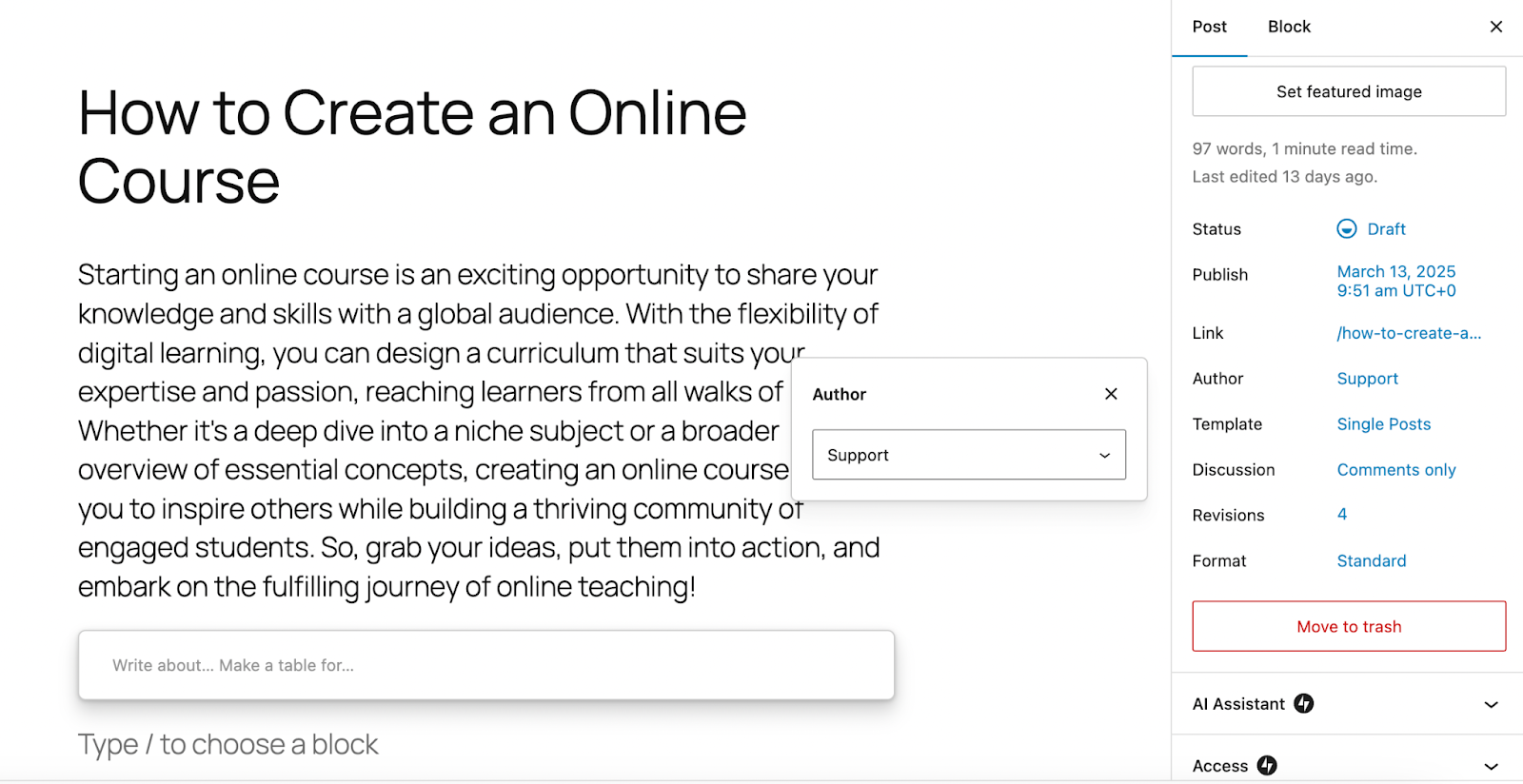
The simplest and quickest way to edit a post’s author is through the block editor, particularly if you need to change just one or two posts. Here are the steps to do so:
- Log in to your WordPress dashboard.
- Navigate to Posts → All Posts.
- Click on the post you want to edit.
- In the right sidebar, locate the Post tab.
- Scroll down to the Author section.
- Click the current author name, then choose a new author from the dropdown list.
- Click Update to save changes.
If you’re still using the classic editor, you can follow these instructions:
- Open the post you want to edit.
- Click Screen Options in the top-right corner.
- Check the Author box to enable it.
- Scroll down to the Author section below the post editor.
- Select the new author from the dropdown list.
- Click Update to apply the changes.

2. Change the author using Quick Edit
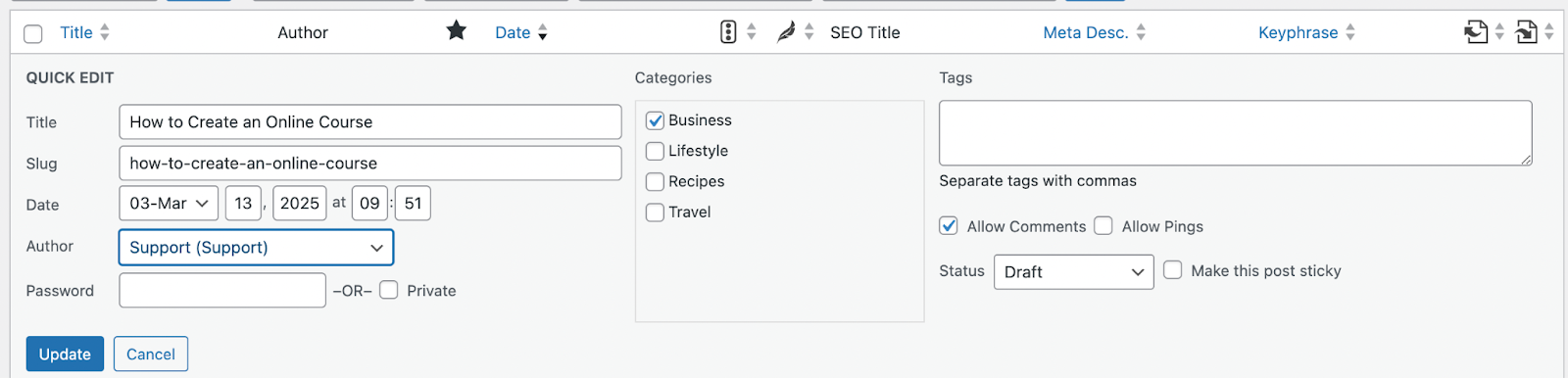
If you need to update multiple posts quickly, the Quick Edit feature speeds up the process. To use this method, simply:
- Go to Posts → All Posts.
- Hover over the post you want to update and click Quick Edit.
- Locate the Author dropdown menu.
- Select the new author.
- Click Update to save changes.
3. Bulk change post authors
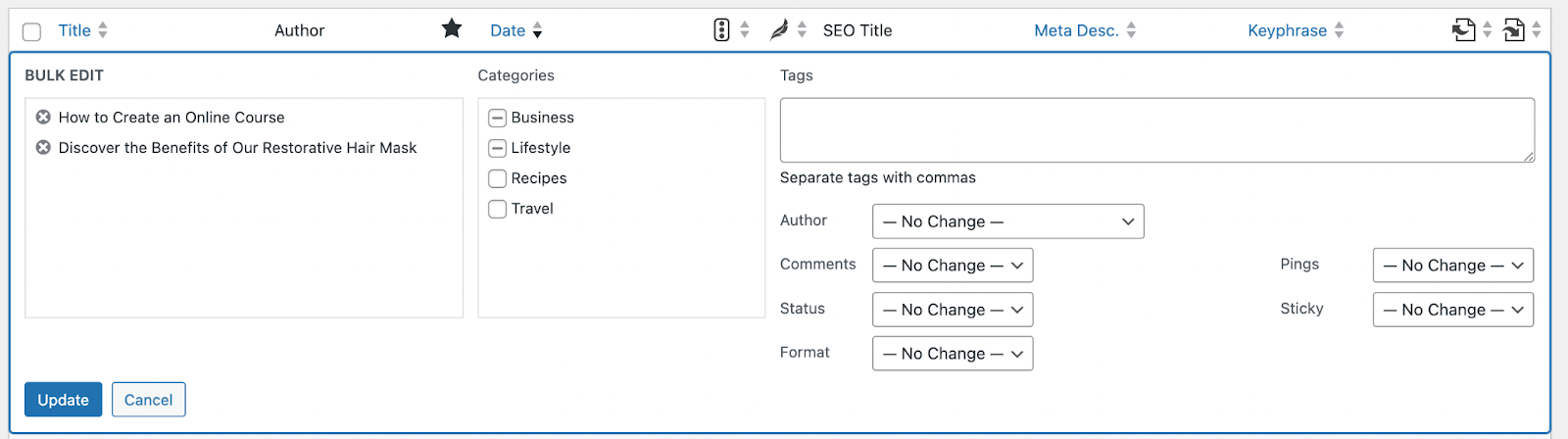
If you need to change a lot of posts at once, try the bulk edit feature:
- Navigate to Posts → All Posts.
- Select the posts you want to update by checking the box next to each one. Or, choose the checkbox at the top left to pick all the posts on the list.
- Click Bulk Actions and choose Edit.
- Click Apply.
- Locate the Author dropdown.
- Choose the new author.
- Click Update to apply changes to all selected posts.
4. Change a post author with a plugin
For sites with multiple contributors, a plugin can provide additional options. Here are some popular plugins:
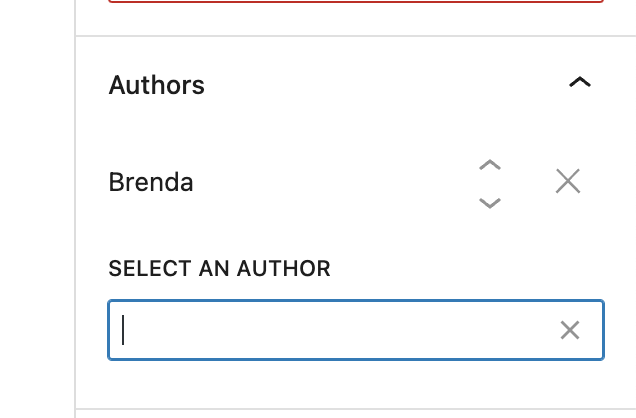
Let’s explore how to do this using the Co-Authors Plus plugin, which also allows you to assign more than one author to a post:
- Install and activate the Co-Authors Plus plugin.
- Navigate to Posts and open one you want to edit.
- In the Authors section, select a new author or add multiple authors.
- Click Update to save changes.
5. Change the author in the database (advanced)
For developers or site administrators who need to make mass changes, updating the author directly in the database is an option. Note that this is an advanced method and should only be taken by those with database management experience. You should also back up your site before making any changes. Then, follow these steps:
- Access your hosting control panel (e.g., cPanel) and open phpMyAdmin.
- Select your WordPress database.
- Find the wp_posts table. Note that the prefix (wp_) might be different for your site.
- Locate the post you want to edit.
- Change the post_author field to the new author’s user ID, in the Value field.
- Click Save.

How to update an existing author’s profile
Instead of changing the author of a post, you may need to update the existing author’s details. Here are several changes you can make and how to perform each one:
1. Edit general user details
- Navigate to Users → All Users.
- Click on the author’s username.
- Update any fields you’d like, such as Name or Email.
- Click Update User.
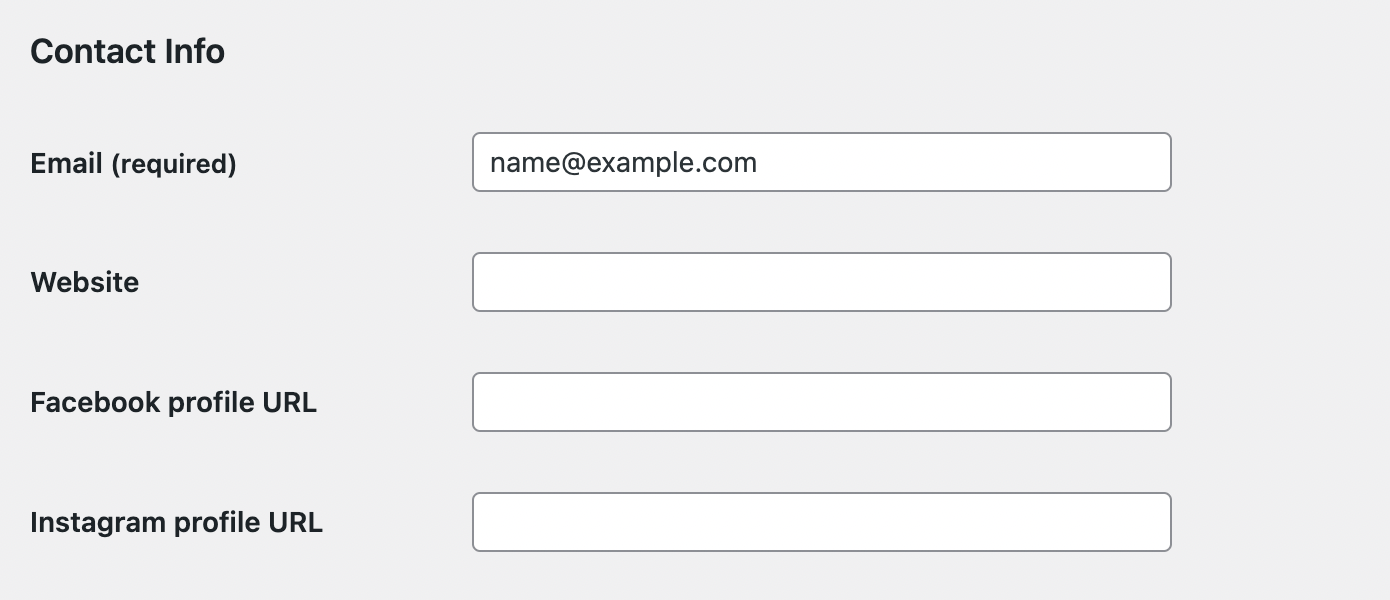
This applies to all past and future posts under the author profile.
2. Change the author’s display name
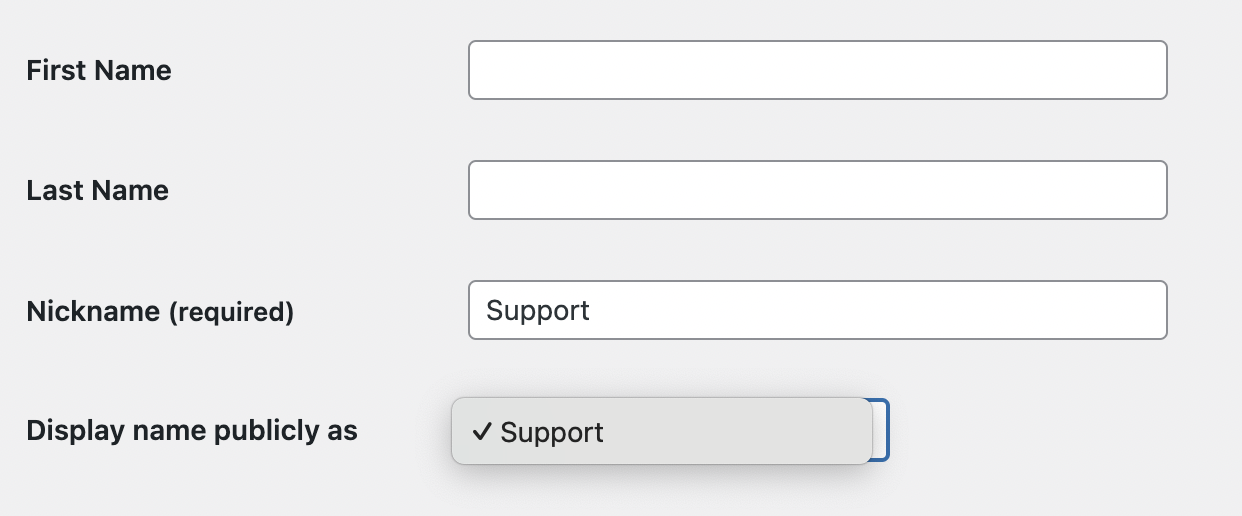
If you want to change how the author’s name appears, simply adjust their display name:
- Go to Users → All Users.
- Select the user you want to edit.
- Change the Nickname field.
- Choose the new nickname from the Display name publicly as… dropdown.
- Click Update User.
3. Assign a new user role
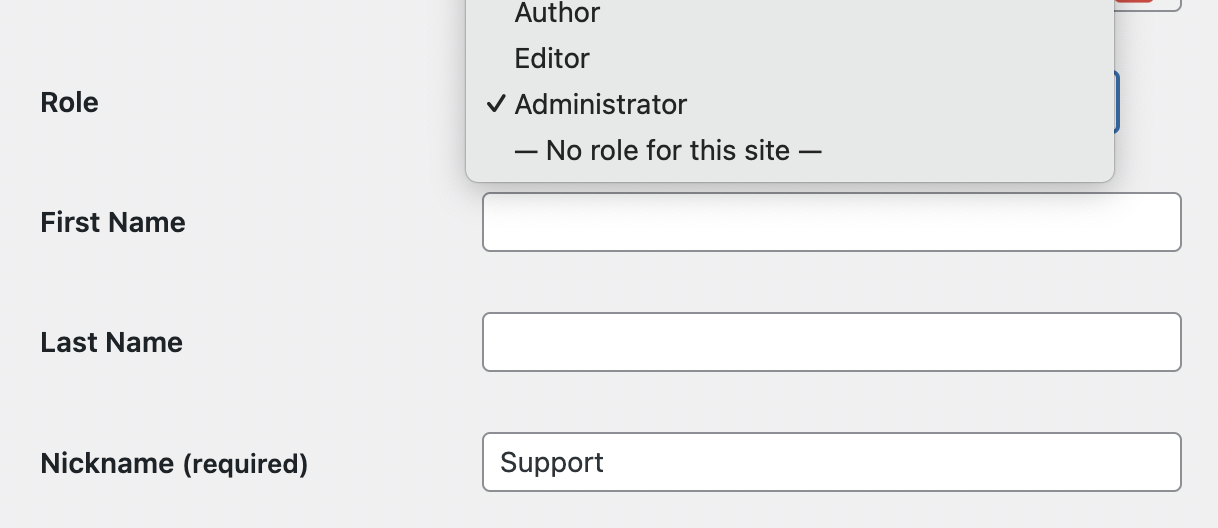
If you want to adjust a user’s permissions, change their user role:
- Go to Users → All Users.
- Select the user you want to change.
- Choose a new role (e.g., Editor, Administrator).
- Click Update User.
Choosing the best method for your needs
Changing the author of a WordPress post is straightforward, whether you do it manually, in bulk, or with a plugin. The best method depends on your workflow:
- For one-time changes, use the block editor.
- For quick edits, the Quick Edit tool works best.
- For multiple posts, bulk edit is the fastest method.
- If customization is needed, a plugin is ideal.
- For advanced users, the database method offers full control.
When and why should you change a post’s author?
Before you touch anything, it’s crucial to understand your goal. The method you choose depends on it. Common scenarios include:
- Staff Departures: Reassigning all content from a departed employee to a current editor or generic “Brand” account.
- Consolidating Authority: Moving posts from multiple junior writers under a single, high-authority expert profile to boost E-E-A-T signals.
- Ghostwriting: Attributing content written by a freelancer to an internal team member.
- Acquisitions: Updating authorship after acquiring another blog or website.
The most powerful AI tool for WordPress
Turn your ideas into ready-to-publish content at lightspeed.
Elevate your contentSupport your authors’ writing journey with an AI assistant
Looking for more ways to enhance your content? Jetpack AI Assistant integrates seamlessly into the WordPress block editor, offering a suite of AI-powered tools designed to boost your productivity and content quality.
Key features of Jetpack AI Assistant:
- Content generation: Quickly create blog posts, pages, lists, and tables tailored to your needs, saving you time and effort.
- Tone customization: Adjust the tone of your text — whether it’s formal, conversational, or otherwise — to match your desired style.
- Grammar and spelling correction: Ensure your writing is polished and professional with advanced grammar and spell-check tools.
- Multilingual support: Reach a global audience by translating your content into multiple languages with ease.
- Title and summary creation: Generate compelling titles and concise summaries to enhance your posts’ engagement.
By incorporating Jetpack AI Assistant into your workflow, you can streamline content creation and optimization, allowing you to focus on delivering valuable information to your readers.
Frequently asked questions
What happens to the original author’s profile when I change a post’s author?
Changing the author on a post does not delete the original author’s user profile. Their profile remains, but they are no longer publicly associated with that specific post. However, if you delete a user, you must choose to either delete their posts or reassign them to another user.
What should I do if the author I want to select is not in the dropdown list?
First, you must create a new user profile for that person in WordPress. The author dropdown list only shows existing users on your website. To add a new user, go to your WordPress dashboard and navigate to the “Users” section, then click “Add New.” You will need to fill in their details, including a username and email.
It is important to assign them the correct user role, such as “Author” or “Contributor.” Once the user profile is created, they will appear in the author dropdown list, and you can assign posts to them.
Does changing the author of a post affect SEO?
Yes, changing a post’s author can influence your site’s SEO. Google works to show content from trustworthy sources. It reviews the author of a post to help determine if the information is credible.
Assigning a post to a recognized expert in a field can build trust and may help the post rank higher over time. In contrast, changing authors frequently without a clear strategy can make your website’s expertise appear less consistent. This is not beneficial for building long-term authority with search engines.
Is it possible to assign a single blog post to more than one author?
WordPress does not include a built-in feature to assign a post to multiple authors. By default, each post can only have one designated author. However, you can add this capability by using a plugin.
A popular option is the “Co-Authors Plus” plugin. Once installed and activated, it modifies your post editor to allow you to select and credit multiple authors for a single piece of content. This is very useful for collaborative posts, interviews, or articles with contributions from several team members.
What is the difference between changing a post’s author and changing a user’s display name?
Changing a post’s author reassigns ownership of the post from one user account to another. The new author must be a separate user on your site. This is a structural change.
Changing a user’s display name only alters the name that is shown publicly on all posts written by that specific user. The underlying user account and post ownership do not change. You would change the display name if an author gets married, wants to use a nickname, or decides on a different public name for their work.
What happens to an author’s posts if I delete their user account?
When you delete a user account from WordPress, you are given a critical choice. WordPress will ask you what to do with the content created by that user. You can either delete all of their posts permanently, which is not recommended, or you can reassign all of their content to another existing user. For example, you could move all posts to an “Admin” account or to a specific editor. This ensures the content remains on your website under a new author.
Is it better for SEO to use a real person’s name or a generic brand name for the author?
Using a real person’s name is almost always better for SEO and building trust. Google’s quality guidelines focus on experience, expertise, authoritativeness, and trustworthiness (E-E-A-T).
An author with a name, a biography, and a history of writing on a topic can be seen as a credible expert. This is difficult to achieve with a generic name like “Admin” or “Site Staff.” A real author builds a connection with readers and search engines. A brand name should only be used if there is a strong, strategic reason for it.
Can I change the author of a WordPress page in the same way I change it for a post?
The ability to change the author of a WordPress page depends on your specific WordPress theme and configuration. By default, many themes do not display author information on pages because pages are typically used for timeless content like “About Us” or “Contact.”
However, pages do have an author assigned in the database. If your editor shows an author selection box for pages, you can change it just like a post. If not, the theme may be hiding this option, but it can often be enabled with a plugin or custom code.
How do I find all the posts written by a specific author to change them in bulk?
You can easily filter posts by author directly from the “All Posts” screen in your WordPress dashboard. At the top of the post list, you will see several filter options, including a dropdown menu that lists all authors.
Select the author whose posts you want to see, and then click the “Filter” button. WordPress will then display only the posts written by that person. From there, you can use the checkboxes to select all the posts and use the “Bulk Actions” menu to edit and reassign them to a new author.
Does changing the author also change the post’s original publication date?
No, changing the author of a post does not affect its publication date. The author and the publication date are two separate pieces of information associated with a post. When you reassign a post to a new author, the original date and time it was published will remain the same. If you need to change the publication date, you must do so separately through the “Post” settings in the WordPress editor, where you can edit the “Published on” date.
What is an author slug, and should I worry about changing it?
An author slug is the part of the URL for an author’s archive page, for example, yoursite.com/author/john-doe. The slug is typically generated from the user’s username. You might consider changing it to be shorter or to better match their public name.
However, changing an author’s slug will change the URL of their archive page. If that page gets traffic or has links pointing to it, changing the slug will create broken links. If you must change it, you should set up a 301 redirect from the old author URL to the new one to preserve SEO value. Before changing slugs, make sure to read this comprehensive guide on WordPress slugs.

The most powerful AI tool for WordPress
Turn your ideas into ready-to-publish content at lightspeed.
Elevate your content Jetpack