

Changing your WordPress theme should be exciting, but it often causes anxiety about breaking your site or losing content. This guide removes the guesswork. We’ll walk you through the professional, fail-safe process experts use to migrate themes. We’ll cover the critical pre-flight checklist, the step-by-step migration process, and how to fix the most common issues that arise.
Note: This guide is about switching to a different theme (a design/framework change). If you’re only installing an update to your current theme, follow our theme update guide instead. Theme switches require extra steps because layouts, templates, and theme-bundled features can change.
Expert Tip: The single biggest mistake you can make is underestimating theme-specific functionality. If your current theme uses a built-in page builder or custom shortcodes, your content will break. The key is to migrate that functionality before you switch themes. We’ll cover how to do so.
TL;DR: Safest way to switch themes
- Clone to staging first (never experiment on production).
- Back up files + database with a plugin like Jetpack VaultPress Backup.
- Inventory theme-locked content (builders, shortcodes, widgets, theme blocks, WooCommerce templates).
- Install + activate the new theme on staging, then rebuild templates and reassign menus/widget areas.
- Verify key pages on desktop and mobile, forms, checkout, search, schema, 404s, Core Web Vitals.
- Deploy on your live site
Signs it’s time for a WordPress theme change
Whether you run an online store, blog, or service-based website, there may come a time in which you need to consider updating the design or functionality of your site. Maybe you need a new look to match a brand refresh. Maybe you want to keep up with new, modern design trends. Or maybe you need to improve your site’s speed or add valuable features.
Here are some reasons you may want to switch WordPress themes:
- Show your visitors a modern, cutting-edge design that matches your current branding
- Make effective use of the most recent WordPress features and additions
- Incorporate up-to-date changes in Google SEO ranking factors, like mobile-first design
- Meet standards for ADA or WCAG accessibility without having to hand-code solutions
- Access page layouts and new block types to add attractive content to your site quickly and easily
- Improve speed issues on your site with more streamlined code
- Protect your site’s security if your theme is no longer supported by its developer
With all these potential benefits, is it ever a bad idea to change your WordPress theme? Well, yes. Here are some potential scenarios that make switching themes more difficult:
- Your website was built using a custom, theme-dependent page builder
- Your website includes extra functionality in addition to styling — such as custom widgets, shortcodes, or post types — that will be lost if you change themes
- Your website includes specific blocks or plugins that were packaged with the theme
These potential problems can all be tackled, though. And in some cases, it’s critical that you switch themes. For example, if your theme is no longer supported, sticking with it will introduce real security and functionality risks.
But we highly recommend that, especially in these sorts of cases, you take a full backup of your site before proceeding and work on a staging environment if at all possible.
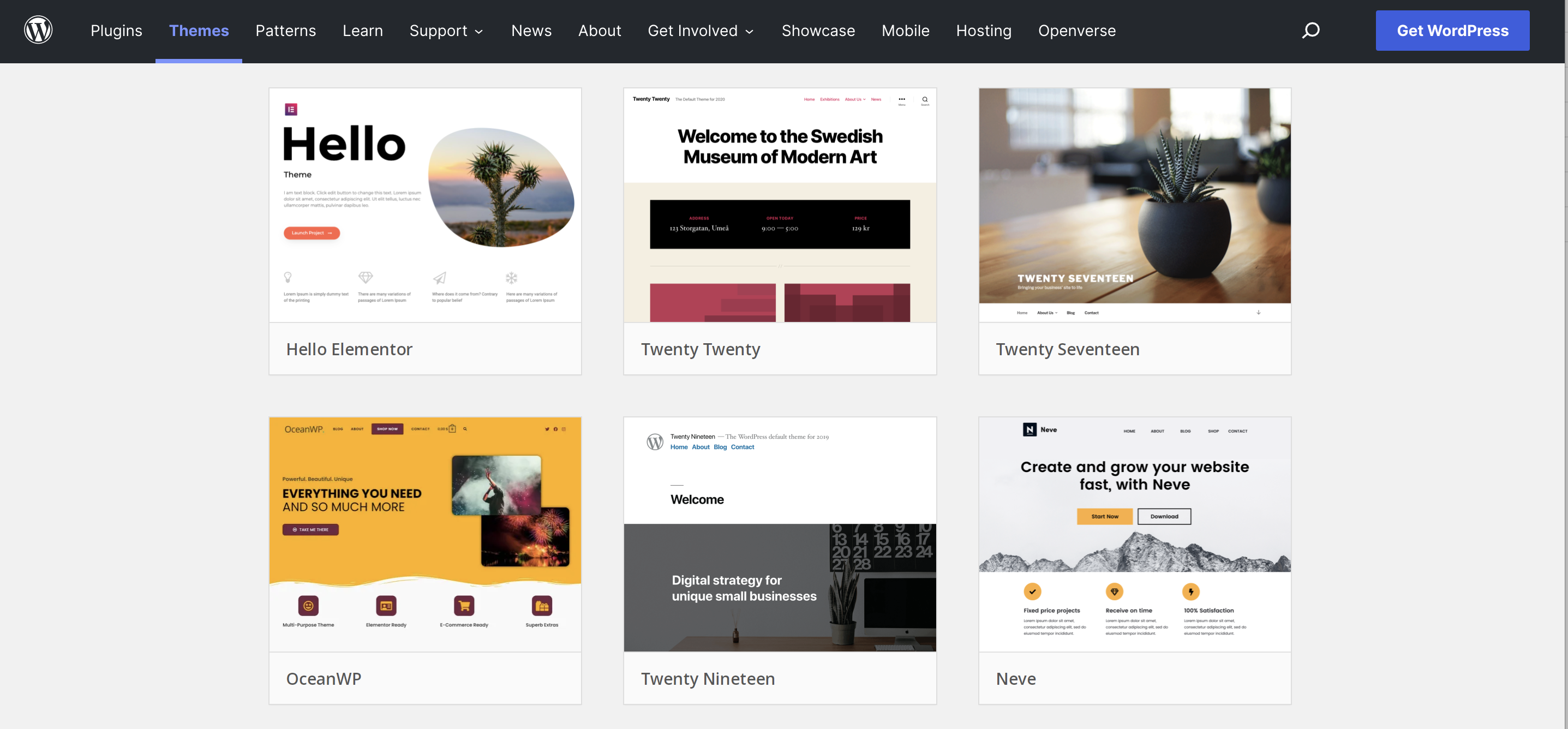
What to look for in a new WordPress theme
When choosing a new WordPress theme (or a WooCommerce one), look for the following:
1. Functions that won’t tie you down
Themes that provide a lot of bonus functionality — like custom post types or page builders — may seem like a great all-in-one deal. But using a theme like this means it’s much harder to switch in the future. In order to keep essential functionality, you’ll be locked into this theme. That can become a security problem if the developer stops offering support or updates in the future. It can also make your site slower than it needs to be if you’re not using all the functionality included.
So, in many cases, it’s better to look for a theme that provides layout only, and use separate plugins to provide the functionality that you need.
2. Active development and support
Make sure that you choose a theme that’s regularly updated to work with the latest version of WordPress. And that applies whether you choose a free theme or premium option. You’ll also want to pick a theme that includes support, whether that’s through an open forum or private ticketing system.
3. Modern design techniques
This means a great visual look, of course, but also one that’s built with modern browsers in mind, using mobile-first design, leveraging WordPress blocks, and implementing accessibility standards.
4. Good reviews
Reviews are, very often, the best way to tell that a theme is high quality. See what real users have to say about design, ease of use, speed, functionality, and support. And if there’s a lot of bad feedback, you may want to stay away.
What can break when you switch themes (and how to spot it fast)
| What’s at risk | How to detect it | Typical fix |
| Homepage sections built by the theme | Check Appearance → Customize / Editor for theme “Home” panels | Rebuild with blocks or a page builder section |
| Shortcodes from old theme/builder | Search posts/pages for [ characters or specific shortcode names | Replace with blocks or a plugin equivalent |
| Widgets / sidebars / footer columns | Check Appearance → Widgets → “Inactive widgets” | Drag back into new widget areas |
| Menus not showing | Appearance → Menus → Manage Locations | Reassign menus to new locations |
| WooCommerce templates | Test product page, cart, checkout, account | Use WooCommerce templates/blocks supported by theme; re-check hooks |
| Custom CSS in theme options | Look for CSS fields in theme settings | Move to Additional CSS or a snippets plugin |
Things to do before changing your WordPress theme
Once you’ve chosen a new theme, make sure that your current website is in the best possible place to handle the switch. Take the following steps before changing themes:
- Back up your site. Make sure to create a full backup before starting the process. Jetpack Backup is easy to restore from — it just takes a few clicks — and you should consider continuing to let it protect your investment even after the theme change. If anything ever goes wrong, it will be your best friend.
- Audit your existing site for any custom PHP code. Check your current theme files for any custom code that was added, especially to the functions.php file. Copy code snippets to a local file where they can be inserted into your new theme or use a plugin like Code Snippets to make functionality like this non-theme dependent.
- Audit your existing site for any custom CSS code. Check your current theme for any changes you’ve made directly to the CSS code that might tie into functionality on the site. Copy any key changes to a local file where they can be inserted into your new theme. You may also want to use the Additional CSS section of the WordPress Customizer to add custom CSS code in the future, which separates it from your theme.
- Preserve any tracking codes. This includes Google Analytics tracking codes and Facebook pixels. Simply copy these to a separate file so you can add them back to your site.
- Take a snapshot of any widgetized areas. Widget areas — like footers and sidebars — are the most likely sections to be lost during a theme change. Take screenshots of the widgets in your dashboard so you can easily recreate them after the switch.
- Replace any required theme-dependent functionality. If your site uses theme-specific functionality — like a built-in page builder, custom post types, shortcodes, or packaged premium plugins — you’ll need to find another solution. The best strategy is to replace this functionality with trusted plugins that provide the same service, but outside of your theme. If your theme uses a custom page builder, then this is especially important, but also tricky. You may want to preserve your text-based content in a simple local file in case it needs to be completely rebuilt inside the new theme.
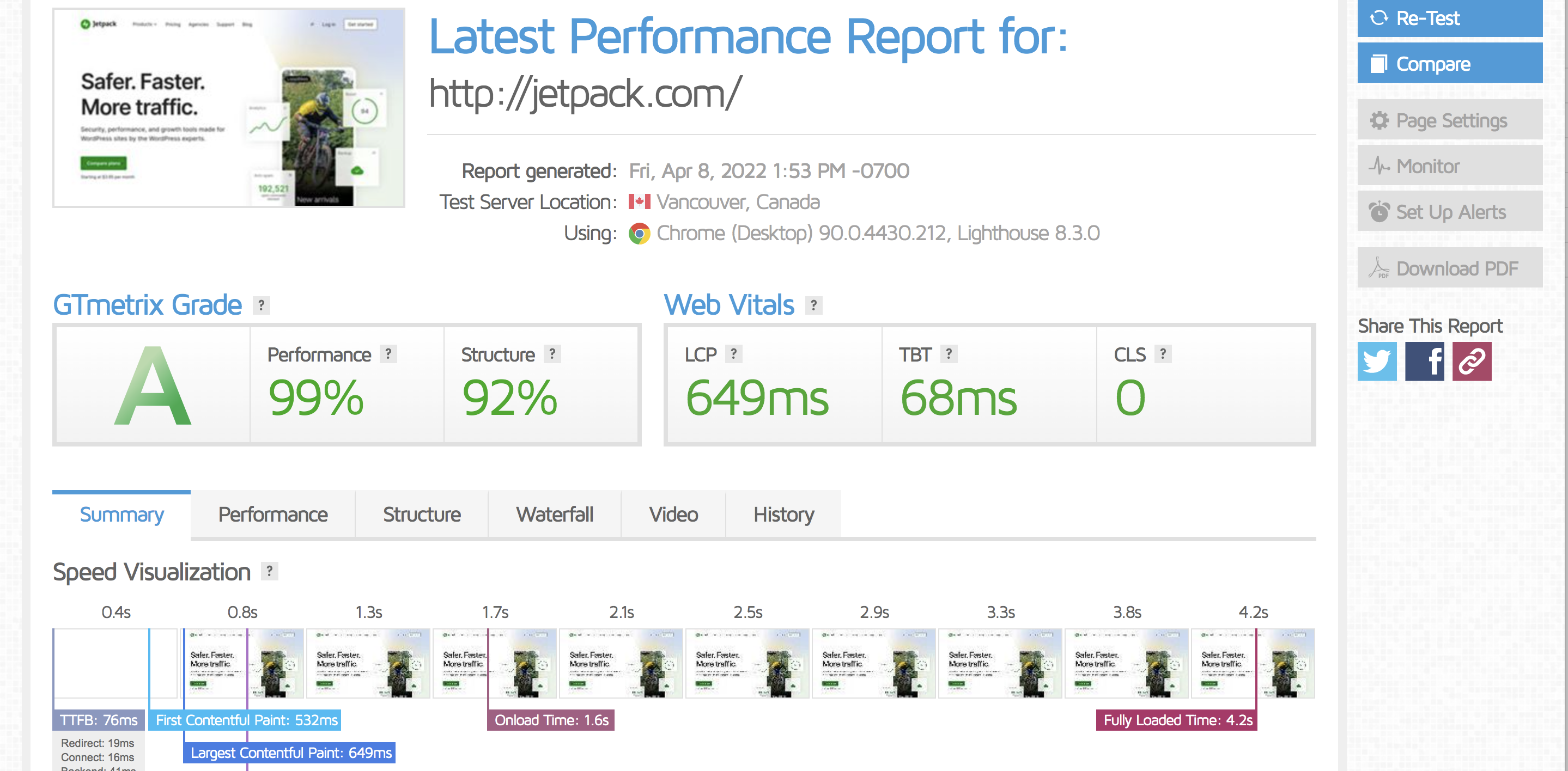
- Run a speed test. Lastly, you’ll want to make sure your new theme is performing at least as well as your old site. So, run a speed test prior to the switch so you can compare results before and after. Tools like Google PageSpeed Insights and GTmetrix are great options.
How to change your WordPress theme
Once you’re ready to change your WordPress theme, begin by locking your site down. Ensure that no one will make any changes or take any actions on your site that may not be transferred — no new blog posts, eCommerce orders, or form submissions, for example. You also want to make sure that site visitors don’t see an unfinished or faulty website during the transition.
Usually, this means putting your whole site into maintenance mode. There are several great plugins that replace the entire front end of your site with a maintenance page without affecting your search engine rankings.
Once in maintenance mode, you can work on your live site’s layout behind the scenes, without visitors seeing your theme swap in progress. But if you have access to your hosting, it’s even better to create a staging site, which is a complete copy of your site for development work. Good hosting packages allow you to create a staging site with one click from your hosting control panel, and publish it back to your main site just as easily. If your hosting does not have this feature, you can use Jetpack Backup to create a copy and install it under a subdomain or use a staging plugin like WP Staging.
Whether you’re working on your main site behind the maintenance wall or on a staging site, here are the steps to change your theme:
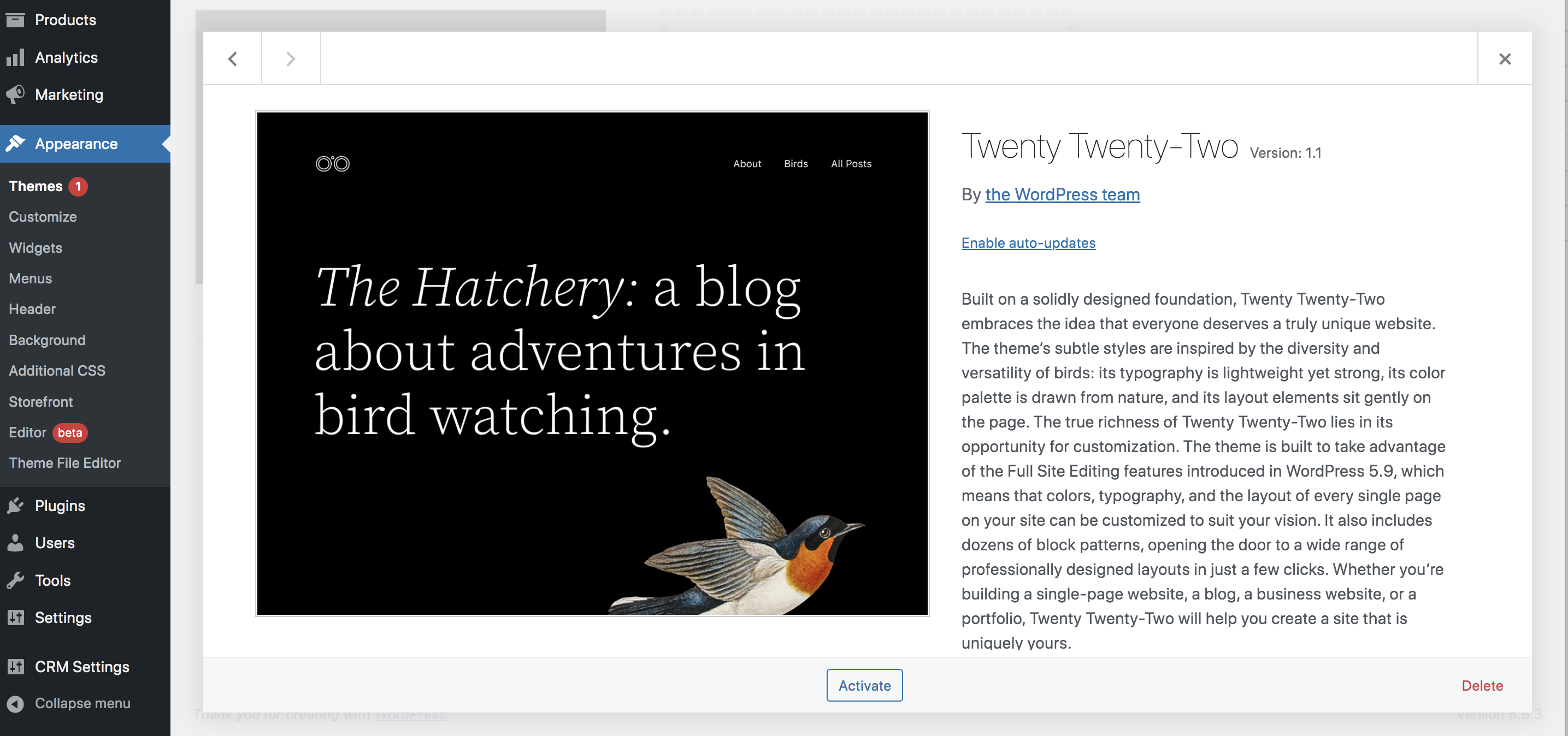
- Install your new theme. In your WordPress dashboard, go to Appearance → Themes and click the Add New button at the top. You can either upload your new theme’s ZIP file here or, if your theme is in the WordPress directory, use the search feature to find and select it.
- Preview your theme. Choose Appearance → Customize from the dashboard menu, and you’ll see your current theme listed at the top left. Click the Change button next to its name to view all installed themes. Then click the Live Preview button under your new theme. Don’t worry if the result is an awkward version of your site with missing content — you can fix it once the new theme is active. Right now, just make note of any obvious problems you’ll need to address and ensure the theme can be viewed without any major errors.
- Make the switch! If the preview looks okay, click the Change button at the top of the Customizer menu on the left to deactivate the current theme and activate the new theme.
Go ahead, have a look around! With your new theme activated, it’s time to go through each page and figure out what’s working well and what needs attention.
Steps to take after changing WordPress themes
Now is the time to go through any problems on your site methodically, one by one, and repair anything that needs fixing. Here are the steps you should take after switching themes:
- Rebuild any pages that have lost content. Double-check all of your pages for any custom block areas that were lost during the switch. Then, re-add content using blocks from your new theme. Watch for widgetized areas, too — your sidebar or footer content may need to be rebuilt.
- Fix any custom shortcode issues. If your original site was built with a page builder that was tied into your theme, then you may need to remove old shortcodes and recreate them using the WordPress editor or plugins.
- Add any required custom code to your new theme files, including PHP snippets, custom CSS, and tracking codes. But remember: it’s always best if you can separate these types of customizations using plugins or the WordPress Customizer, if possible.
- Test, test, test. Try every page and as many posts as you can. Test them on different devices, using a variety of browsers. Make sure you try mobile devices, tablets, and desktops (or try an online screen resolution tester like Screenfly). Look for any layout problems and repair or rebuild page sections as required.
Everything look good? It’s time to show the world! Push your staging site back to your main site, and remove the maintenance mode page. Your new theme is live!
Once the new site is up, finish by running a final speed test to make sure everything is responding well and running smoothly. Compare this to your original benchmarks to make sure the new theme is working properly.
What to do if something goes wrong after changing WordPress themes
If you take your time and follow the checklists, your new site should be ready to go. But problems do sometimes happen — don’t panic!
If you see the dreaded white screen of death, then you’ve likely run into a conflict between your new theme and some other part of your website. Use your hosting panel or connect to your site via FTP to disable your plugins and identify the problem. If the issue is with a plugin, you may need to find an alternative.
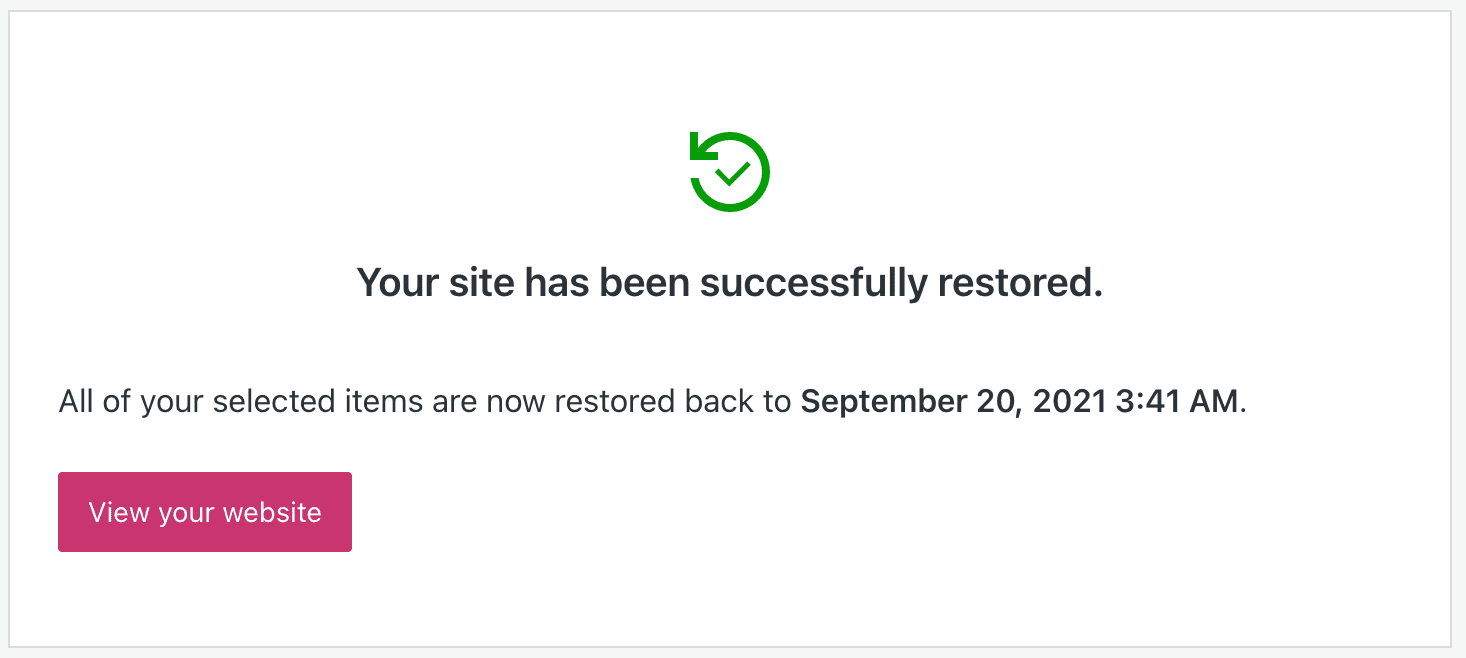
This problem can also happen if you’re running out of memory on your site. Try using your hosting control panel to increase your memory limit. And if that doesn’t solve the problem, you can always restore a backup.
If you see a problem with your website URLs, this can usually be fixed by resetting your permalinks. Look under Settings → Permalinks in your dashboard and simply click Save Changes. This should refresh your permalinks and fix any 404 errors.
Enjoy your new WordPress theme!
Congratulations, you should now have a fresh new site with improved visuals and functionality for visitors and a better experience for you, too. Make sure to protect your site with a WordPress security plugin like the one offered by Jetpack. From real-time backups that continuously save copies of your site to brute force attack protection, you can keep things running smoothly without breaking a sweat.
Frequently asked questions
Will changing my WordPress theme affect my SEO rankings?
Yes, changing your WordPress theme can affect your SEO rankings. A new theme changes the underlying HTML code, site speed, and mobile responsiveness of your website. Google’s John Mueller confirmed that a theme change can impact rankings. A well-coded, fast, and mobile-friendly theme can improve your SEO. A slow, poorly coded theme can hurt it. It is important to monitor your rankings and technical SEO performance in Google Search Console for several weeks after you make the switch to identify and fix any negative effects quickly.
Can I lose content when I switch my WordPress theme?
You will not lose core content like pages, posts, or images, as these are stored in your WordPress database, not the theme files. However, you can lose content that is specific to your old theme. This includes any text or images placed in theme-specific widget areas, homepage sections, or content created with a page builder that was built into the theme. Always perform a content audit before switching to identify what might be lost and plan how to reintegrate it into the new theme.
What is a staging site, and do I need one to change my theme?
A staging site is a private clone of your live website. It allows you to test major changes, like a new theme, without affecting your visitors. Using one is highly recommended for a professional workflow. On a staging site, you can activate the new theme, fix layout issues, test plugin compatibility, and ensure everything works perfectly. Once you are satisfied, you can push the changes to your live site, which minimizes downtime and prevents public-facing errors.
How do I fix broken shortcodes after changing my theme?
Broken shortcodes appear when your new theme does not recognize the shortcodes used by your old theme. This happens often with themes that include their own functionality. To fix this, you must first identify what the shortcode was supposed to do, for example, create a button or a column layout. Then, you need to manually replace the broken shortcode on each page with a new solution, such as a block from the WordPress editor or a feature from a separate plugin that is not tied to your theme.
My website is much slower after changing themes. How can I fix this?
A slower website after a theme change is usually caused by the new theme being bloated with unoptimized code or large image files. Start by running a speed test. Next, optimize your images using a pagespeed optimization plugin (like Jetpack Boost) to ensure they are not too large. Then, review the plugins that came with the new theme and deactivate any you do not need. If the theme itself is slow, you may need to choose a more lightweight, performance-focused theme to regain your site speed.
How do I keep my custom CSS when I change themes?
Custom CSS added directly to your old theme’s style.css file or its theme options panel will be lost when you switch. To prevent this, always add your custom CSS to the WordPress Customizer’s “Additional CSS” section. This CSS is saved in the database and applies to any theme you have active. Before you switch, copy any custom CSS from your old theme’s settings and paste it into the “Additional CSS” section.
Will my website’s navigation menus stay the same with a new theme?
Your menus themselves are saved in WordPress, so they will not be deleted. However, each theme defines its own “menu locations,” like “Primary Menu” or “Footer Menu.” When you activate a new theme, you must tell WordPress where to display your saved menus. Go to Appearance > Menus > Manage Locations. Here, you will see the new theme’s available locations. Assign your existing menus to the appropriate new locations to make them appear on the site.
What happens to my widgets when I change my WordPress theme?
Your existing widgets will be moved to an “Inactive Widgets” area when you switch themes. This happens because new themes have different sidebars and widget areas. To get them back, go to Appearance > Widgets. You can find your old widgets in the Inactive Widgets section and drag them into the new widget areas provided by your new theme. You may need to reconfigure some widgets if their settings do not translate perfectly.
How long should I monitor my site after a theme change?
You should closely monitor your website for at least four to six weeks after a theme change. Use Google Search Console to watch for any new crawl errors, changes in Core Web Vitals, or indexing problems. Use Google Analytics to track organic traffic, bounce rates, and user engagement metrics. This period allows you to see how Google is responding to the changes and gives you time to fix any issues that appear before they cause a lasting negative impact on your rankings.

 Jetpack