

WordPress has been the leading open source content management system (CMS) for more than two decades. During that time, there have been numerous version updates — each bringing significant improvements to security, features, and performance.
Since your WordPress version affects numerous aspects of your site, from plugin compatibility to maintenance and troubleshooting, knowing which one your site is running is crucial.
This guide covers seven step-by-step methods to check your website’s WordPress version.
Method 1: Check from the WordPress dashboard
This is the fastest and most common way to check your WordPress version.
- Log in to your WordPress dashboard.
- Look for the At a Glance section. Your WordPress version will be listed there.

Method 2: Check the page source code
If you can’t access your WordPress dashboard, you can still check your version by viewing the site’s source code.
Here’s how:
- Open any page of your WordPress site in a browser.
- Right click anywhere on the page and select View Page Source.
- You can also press Ctrl + U (Windows/Linux) or Cmd + Option + U (Mac).
- Press Ctrl + F (Windows/Linux) or Cmd + F (Mac), then search for “generator”.
- If the meta tag hasn’t been hidden, you’ll see something like: <meta name=”generator” content=”WordPress 6.4.2″ />
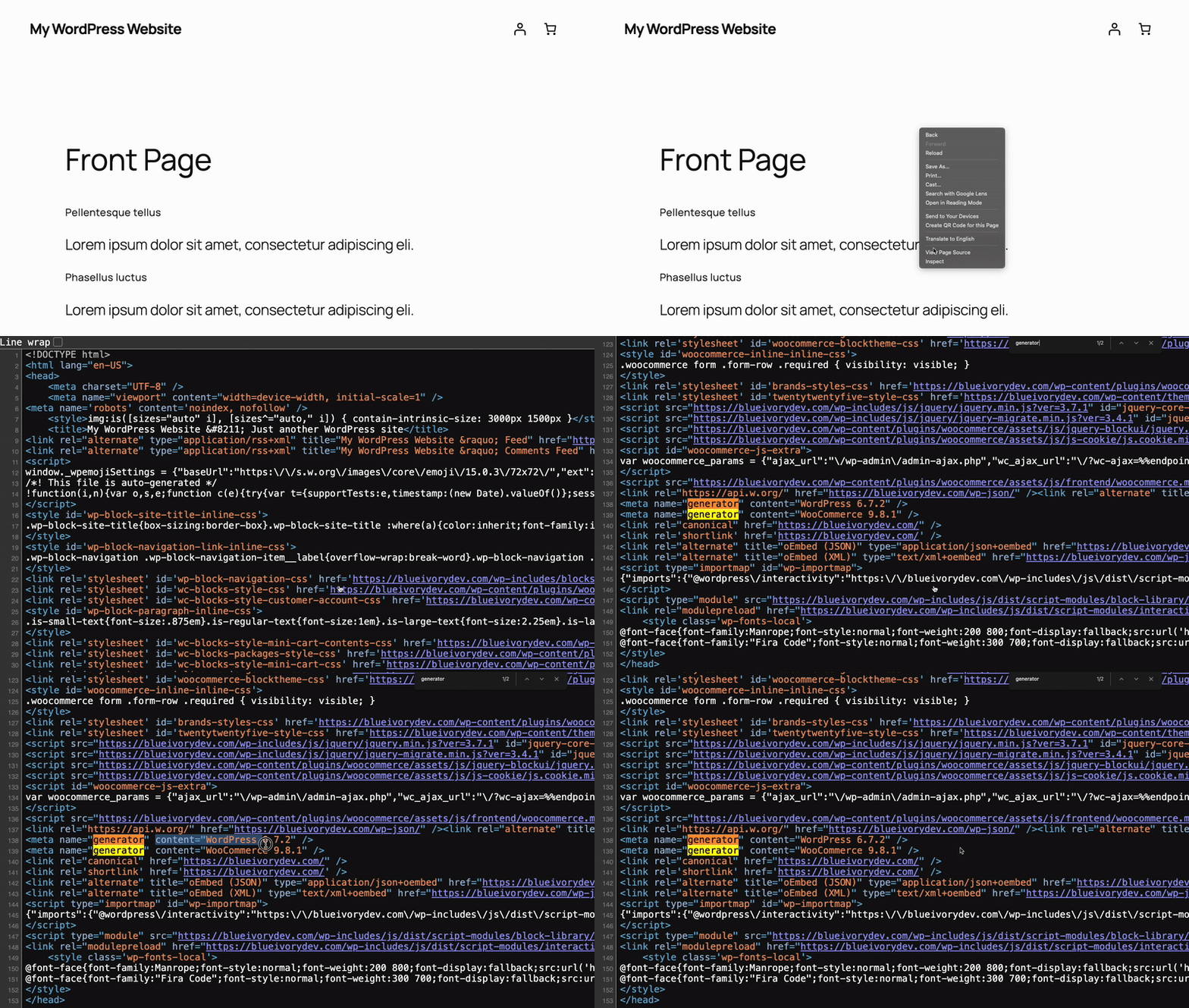
Note: Some WordPress sites may disable this tag for security reasons, so this method won’t always work.
Method 3: Check the RSS feed
If the generator tag is hidden in the source code, the site’s RSS feed is often the next best place to look.
Go to your site’s URL and add /feed to the end (e.g., yourwebsite.com/feed).
Press Ctrl + F (or Cmd + F) and search for “generator”.
You will see a tag like wordpress.org/?v=6.4.2. The number after ?v= is your version.
Method 4: Check the readme.html file
WordPress often includes a readme.html file with basic information about your installation — including the version number.
To check it:
- In your browser, go to: yourwebsite.com/readme.html
- Look for the version number near the top of the page.
Note: If your WordPress version is fully up-to-date, you may just see the WordPress logo without a version number.

Can’t find the file? For security reasons, some developers or plugins remove or block access to readme.html. If that’s the case, don’t worry — there are still plenty of other ways to check your WordPress version.
Method 5: Check the version.php file
If you have access to your WordPress installation files, you can find the version number inside the version.php file. This method works whether you’re using your hosting provider’s file manager or an FTP client like FileZilla.
- Connect to your site via FTP or open your host’s File Manager.
- Navigate to your site’s root directory.
- Open the wp-includes folder.
- Locate and open the version.php file.
- Look for the version by finding the $wp_version tag.
- Line example: $wp_version = ‘6.4.2’;
Method 6: Check the version using WP-CLI
If you have SSH access to your server, you can use WP-CLI (the WordPress Command Line Interface) to check your site’s version.
- Connect to your server via SSH using a terminal or SSH client like PuTTY.
- If you need to locate your root directory, use: find . -type f -name wp-config.php
- Navigate to your WordPress root directory: cd /path/to/your/wordpress/directory
- Run the core version command: wp core version
This will output your site’s current WordPress version.
Tip: Make sure WP-CLI is installed on your server. Some hosts include it by default, while others may require manual installation.
Method 7: Check your database
If you have access to your WordPress database, you can look up your version directly using phpMyAdmin or MySQL CLI.
Don’t worry — you’re not changing anything here, just viewing a value. That said, databases are a critical part of your site, so be careful when working with them. If you’re unsure, always back up your site first or consult your hosting provider.
- Access your database via phpMyAdmin (often found in your hosting control panel) or by using the MySQL CLI.
- Select your WordPress database from the list.
- In phpMyAdmin, click the SQL tab at the top before typing the query below.
- In MySQL CLI, you can type the following directly: SELECT option_value FROM wp_options WHERE option_name = ‘wp_version’;
- You’ll see your current WordPress version listed in the results.
Note: If your database uses a different table prefix (other than wp_), adjust the table name in the query accordingly.
Why your WordPress version is critical to know
Now that we’ve covered the ‘how,’ let’s cover the ‘why.’
Security: Outdated WordPress versions are a top target for hackers. Knowing your version helps you assess your security risk immediately.
Plugin & Theme Compatibility: Plugins and themes are designed to work with specific ranges of WordPress versions. An update can break your site if a plugin isn’t compatible.
Troubleshooting: When you ask for support (such as in the WordPress forums or from a developer), the very first question will generally be, “What version of WordPress are you running?”
Access to New Features: Major WordPress updates introduce new features like the block editor, performance improvements, and more. If you’re running an old version, you’re missing out.
Keeping your WordPress version up to date
Keeping WordPress updated is one of the easiest ways to protect your site and take advantage of the latest features and performance improvements. Here are a few best practices to help you stay current and secure:
- Enable automatic updates for WordPress core to ensure you receive the latest security fixes.
- Always back up your website before performing any updates.
- Use a staging site to test updates before pushing them live to catch any potential compatibility issues ahead of time.
- Update your themes and plugins regularly to make sure they stay compatible with the latest WordPress version and don’t introduce vulnerabilities.
Staying on top of updates is one of the best things you can do for your site’s health and security.
Enhance security, performance, and automation in WordPress
Constantly checking your WordPress version, managing updates, and scanning for vulnerabilities can feel like a full-time job. This is where automation can save you time and protect your site.
Jetpack Security is designed to put your site’s security on autopilot. With features like automated malware scanning, donwtime monitoring, and real-time backups, you can spend less time on maintenance and more time creating great content. Jetpack will even alert you the moment your site goes down.
If you’re ready to secure and streamline your site, explore Jetpack’s security features here: https://jetpack.com/features/security/
Frequently asked questions
How do I know if my WordPress version is up to date?
To check if your WordPress version is current, log into your WordPress admin panel and go to Dashboard > Updates. The system will show your installed version and inform you if an update is available.
You can also compare your version number with the latest release listed on wordpress.org/news. Keeping your site updated is essential for security, performance, and plugin compatibility. If your version is outdated, perform a full site backup before running the update.
What is the first thing I should do after finding my WordPress version?
The first thing you should do is compare your version to the latest official WordPress release. If your version is old, you need to make a plan to update it.
Before you update, always create a full backup of your website. This backup saves your files and database. If the update causes a problem, you can use the backup to restore your site to how it was. Updating keeps your site safe and gives you access to new features. A good backup is your most important safety step before any update.
What is the difference between a major and a minor WordPress update?
A major WordPress update introduces significant new features or big changes to the software. These are shown by the first two numbers in the version, for example, version 6.4 changing to 6.5. A minor update includes small fixes, security patches, and small improvements. These are shown by the third number, for example, version 6.4.1 changing to 6.4.2.
By default, WordPress applies minor updates automatically for security. You must start major updates yourself. It is important to prepare for major updates by backing up your site and checking for theme and plugin compatibility.
What should I do if my site breaks after a WordPress update?
If your site breaks after an update, do not panic. The first step is to use the backup you made before the update to restore your site. This will bring your website back online quickly. Once your site is working again, you need to figure out what went wrong.
The most common cause is a conflict with a plugin or your theme. You can troubleshoot by deactivating all your plugins and switching to a default WordPress theme. Then, reactivate them one by one until the site breaks again. This will identify the source of the problem.
How can I find my WordPress version if I do not have admin access?
If you cannot log in as an admin, you can still find the WordPress version. The easiest way is to visit the website in a browser, right-click on the page, and select “View Page Source.” Then, search for the word “generator.” You will often find a meta tag that lists the version.
If that is hidden, try adding /feed to the end of the website’s address. In the code of the feed page, search for “generator” again. This will usually show the WordPress version number even if it is hidden on the main site.
How do I know if my plugins and theme are compatible with a new WordPress version?
Before you update WordPress, check the details for your plugins and theme. Go to the “Plugins” page in your WordPress dashboard. For each plugin, click “View details.” This will show information from the developer, including which WordPress versions it has been tested with.
You can do the same for your theme in the “Appearance” section. If a plugin has not been updated in a long time or is not tested with the latest WordPress version, it may cause problems. A good practice is to test the WordPress update on a staging site first to see if anything breaks.
What does it mean if my site says I have the “latest version” of WordPress?
When your WordPress dashboard says you have the “latest version,” it means your website is running the most current and secure release available to the public. This confirms that all recent security patches and minor bug fixes have been applied to your site’s core files.
This is a very good status to have, as it protects you from known software vulnerabilities. After confirming you have the latest core version, you should also check that all your plugins and themes are updated. Having everything current is the best way to maintain a healthy and secure website.
Why is using an old WordPress version a security risk?
Using an old WordPress version is a security risk because software updates often contain fixes for security holes. Hackers find these holes in old versions and use them to access websites. They can add malware, steal information, or even delete your site completely.
The developers of WordPress release new versions to patch these weak spots. By not updating, you leave your website open to known attacks. It is one of the most common ways that WordPress sites get compromised. Keeping your software current is a basic and very important part of website security.
Is it risky to show your WordPress version publicly?
Yes, showing your WordPress version publicly can increase the risk of targeted attacks, especially if you’re running an outdated version. Hackers and bots often scan for version numbers to match with known vulnerabilities.
While this doesn’t directly cause an exploit, it lowers the barrier for attackers. Hiding the version doesn’t secure your site on its own but reduces unnecessary exposure. It’s a basic hardening step that works best alongside updates, secure logins, and access controls.
Is hiding the WordPress version enough to secure my site?
No, hiding the WordPress version is not sufficient on its own to secure your website. It’s a minor security-through-obscurity tactic that helps reduce public visibility of your site’s configuration.
Real security comes from applying updates promptly, using strong passwords, limiting access points, setting correct file permissions, and installing a dedicated security plugin like Jetpack Security. Version hiding should be treated as an optional enhancement, rather than a substitute for core security practices.

 Jetpack