

When trying to access your WordPress website, you may suddenly see a blank, white error page. This White Screen of Death (WSOD) can be incredibly frustrating because it makes your website inaccessible, including the backend.
This guide will show you exactly how to find the cause of the problem and get your website back online quickly. We will cover eight different steps, starting with the simplest fixes first.
1. Clear your browser cache
Your browser’s cache stores versions of your site so it can quickly reference and load it again in the future. But if it becomes out of date, this can also occasionally result in a WSOD.
This one is pretty simple to solve. All you’ll need to do is clear your browser’s cache. This ensures you’re seeing the latest version of your website.
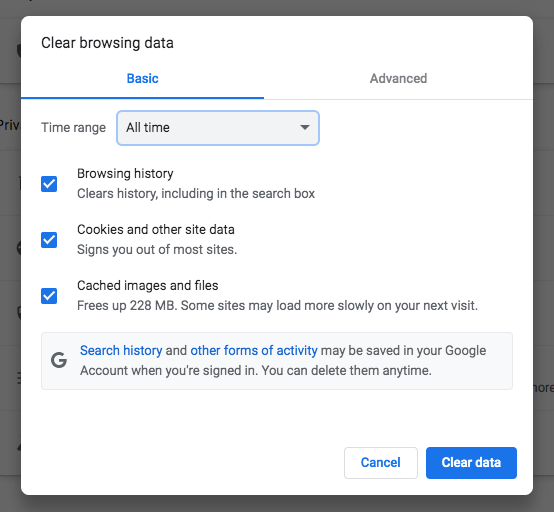
To do this, navigate to your browser settings. In Google Chrome, you’ll need to click on the three dots in the top-right corner and select More Tools → Clear Browsing Data:

This will take you to a page where you can clear your browsing history, cookies, and other site data. You can also choose to delete cached images and files.
If you also have a WordPress caching plugin installed, you might consider clearing its cache as well. Although the steps will vary depending on your plugin, you’ll need to find its settings and “purge” the cache.
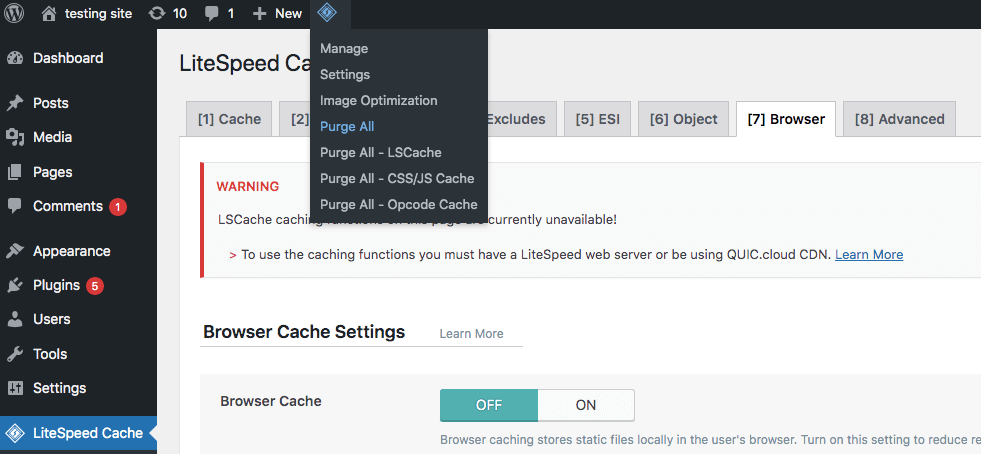
As an example, you can clear the cache in the LiteSpeed Cache plugin by clicking on its icon at the top of the page. Then select Purge All.
If you have a hosting plan that enables caching, you can clear your cache using your control panel. This can be an effective option, especially if you’re unable to access your admin dashboard.
2. Disable all active plugins
The White Screen of Death can be the result of plugin conflicts. To solve this issue, you should disable any active plugins and reactivate them one by one. This process will help you pinpoint the plugin that’s causing the error.
If you can access your dashboard, simply go to the Plugins page and select all active plugins using the Bulk Actions feature. Then select Deactivate, followed by Apply.
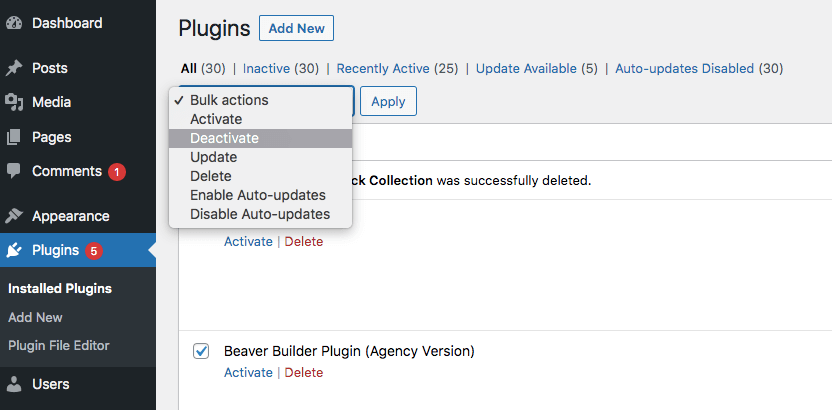
Next, check to see if this resolved the WSOD. If so, reactivate each plugin one at a time. After each activation, check to see if the problem has returned. This will allow you to match the error to a specific plugin.
Once you find the problem plugin, you can delete it and download a different tool with similar functionality. If you want to keep the plugin, consider reverting it to a previous version. Using a tool like WP Rollback, you can return plugins to older iterations.
If the White Screen of Death prevents you from logging in to your dashboard, you’ll have to take a different approach. When this happens, you’ll need to disable plugins using a file manager or File Transfer Protocol (FTP) client.
With cPanel, you can access and edit your site files using the login information from your hosting provider. Then find the wp-content folder within the public_html folder.
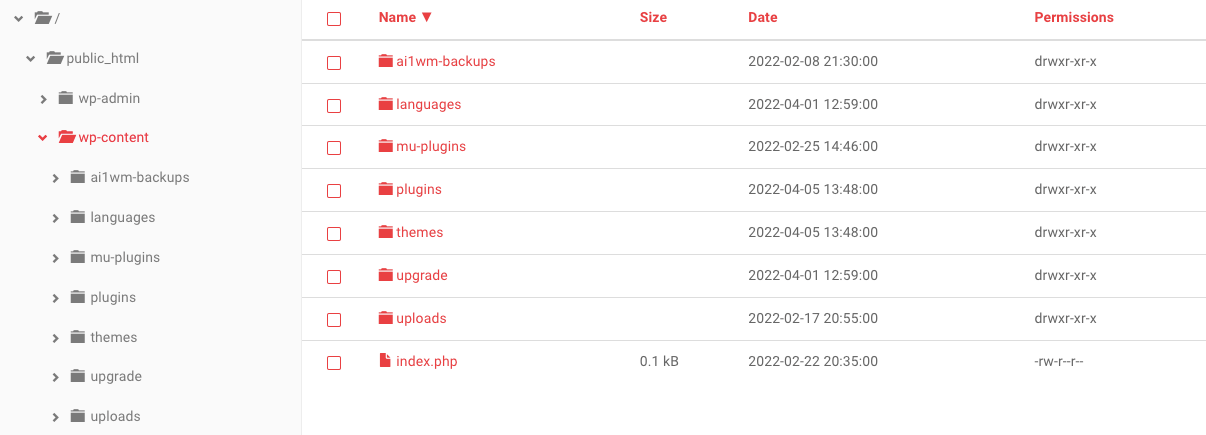
Next, locate the plugins folder. Rename it “plugins-disabled”:

Then try to log in to your WordPress dashboard. If disabling the plugins solves the WSOD, you’ll need to reactivate them one by one to target the source of the problem.
3. Replace your theme
Your active theme could also be incompatible with one or more plugins due to conflicting software. To see if this is causing the WSOD, consider replacing your current theme with a default theme.
To do this, go to your dashboard and select Appearance → Themes. Then search for a default WordPress theme.
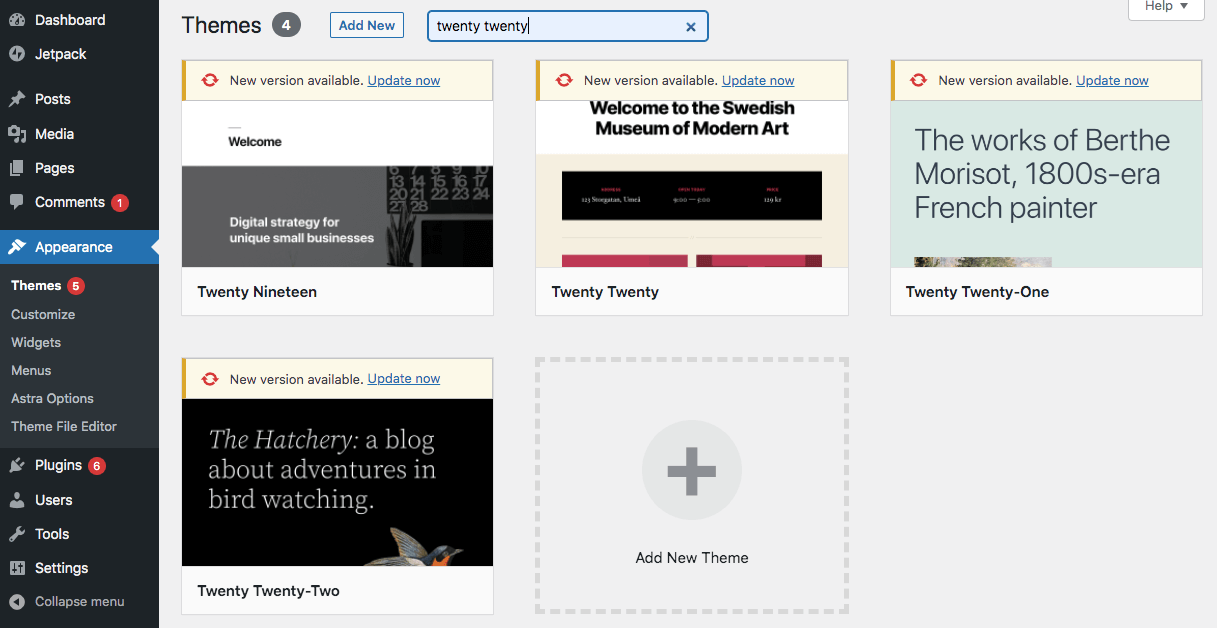
Once you find a default theme, install and activate it. After that, reload your website to see if this resolved the WSOD.
If the White Screen of Death locks you out of the admin area, you won’t be able to go through this process. As an alternative, you can install a default theme using cPanel or an FTP client.
Deactivating your theme is very similar to deactivating plugins. In your wp-content file, find the Themes file. Rename it “themes-disabled”:
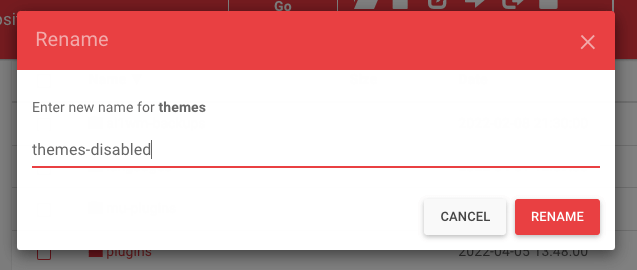
This should automatically revert your theme to the latest default version you have installed on your website.
If you don’t have any default themes installed, you’ll have to manually install one. Start by finding a default theme in the WordPress Theme Directory. Then download it as a .zip file.
In cPanel or an FTP client, upload this .zip file to the Themes folder.
When using cPanel, extract the .zip file in the same folder. For an FTP client, you can skip this step.
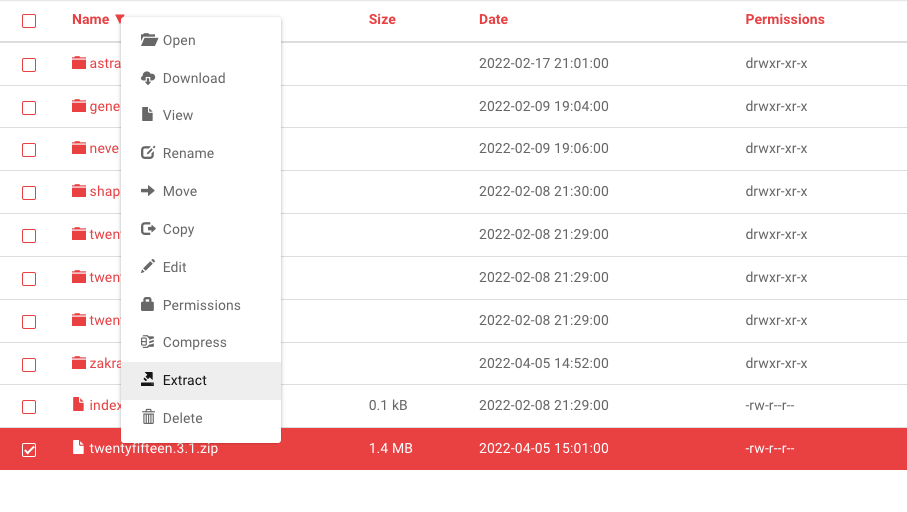
Whether you use cPanel or an FTP client, the last step is to activate the default theme. To do this, log in to your WordPress dashboard and navigate to Themes. Then activate the default option you just installed.
4. Enable debug mode
Even after attempting the previous solutions, you might still see the White Screen of Death on your WordPress site. Since this error won’t display a cause, you may want to switch on debug mode to identify the specific issue.
To activate debug mode, you’ll need to edit your site’s wp-config.php file. Since this handles your site’s base configuration details, it’s important to back up your site content before you get started.
After creating your backup, open a file manager like cPanel or an FTP client. Next, find the wp-config.php file, which will be in the public_html folder.
If you’ve used debug mode before, find this line of code:
define( 'WP_DEBUG', false );Then, simply change “false” to “true.”

If you don’t see this line of text already, copy and paste this code into the wp-config.php file instead:
// Enable WP_DEBUG mode
define( ‘WP_DEBUG’, true );
// Enable Debug logging to the /wp-content/debug.log file
define( ‘WP_DEBUG_LOG’, true );
When you reopen the web page with the WSOD, it should now display new error and warning messages. This will give you further information about why the WSOD happened and what file it originated from.
5. Adjust your server’s memory limit
One of the most common reasons for the White Screen of Death is memory limit exhaustion. This happens when your PHP scripts are draining the maximum memory allocated from your web host. To resolve this problem, you’ll need to increase the memory limit.
Similar to debug mode, memory limits can be adjusted using your website’s wp-config.php file. You can access this file by signing in to cPanel with your hosting provider.
After you access cPanel, go to public_html → wp-config.php. In this file, find the line that says “That’s all, stop editing! Happy publishing.” Add this line of code right before it:
define( 'WP_MEMORY_LIMIT', '64M' );This will increase your WordPress PHP memory limit to 64MB. Once you’re finished, save your changes.
Then go back to your website and see if the WSOD is gone. If not, you can repeat the process to increase the memory limit even more. Keep in mind that most hosting providers will have a maximum memory limit, especially if you’re on a shared plan.
If this doesn’t add enough memory, you may need to hire a developer to look for the plugins that are using too many resources. Alternatively, your hosting provider can give you resource and SQL logs for your site, which you can use to pinpoint the area that is exhausting your memory limit.
6. Restore a backup
One of the most common causes of the WSOD is simply user error. Even experienced developers can make mistakes when editing code. And a simple typo can lead to serious issues.
If you can’t find the flawed line of code, you can restore a previous version of your website. This can be much easier than trying to troubleshoot the cause.
Jetpack Backup is a powerful tool that saves everything you do on your site in real time. So if you encounter a WSOD, you can just revert the site to a previous version.
When you need to restore a backup, log into your WordPress.com account and navigate to Jetpack → Backup.
Simply find the one that you want to restore, then click on Restore to this point. This can undo any recent changes you made while coding.
7. Resolve auto-update failures
Sometimes, WordPress can fail to finish updates, especially if the server times out. Usually, this resolves itself, but it can occasionally cause the White Screen of Death.
When your website uses automatic updates, WordPress will put your site into ‘maintenance mode’ during the update process. Occasionally, your site can get stuck in maintenance mode. If there’s a compatibility issue, you’ll need to manually fix it.
To do this, first, go to your root directory. You can either use your hosting provider’s cPanel account or access your website files through an FTP client.
Open the public_html folder. In the list of options, check to see if there’s a .maintenance file.
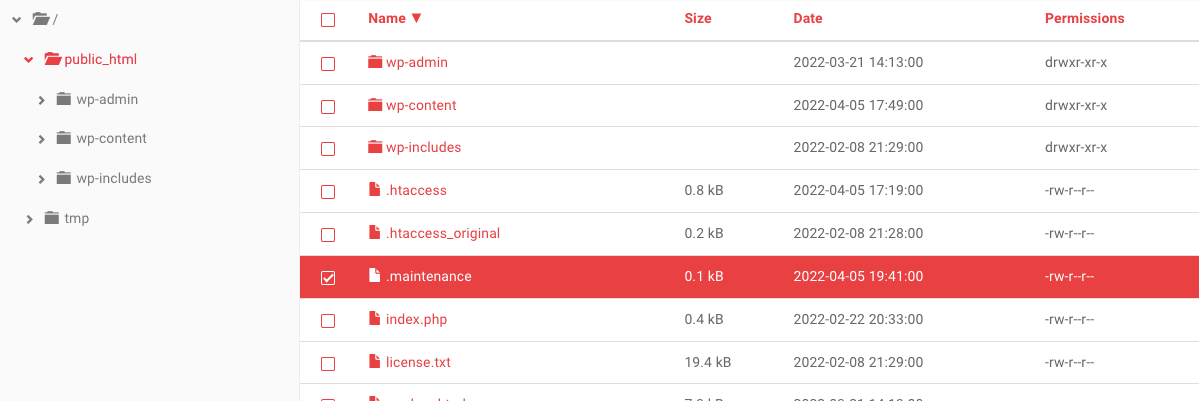
WordPress usually uploads this file during updates, and then deletes it when they’re finished. If you see a .maintenance file, select it and delete it.
Then reload your website. If the upload was successfully completed before the error, your site should be back up and running.
8. Check your WordPress file permissions
Although your file permissions may be causing the WordPress White Screen of Death, it’s best to try this fix as a last resort. Without the right experience, you can accidentally create vulnerabilities that lead to hacks.
Still, changing your file permissions can be useful when all else fails. To get started, go to your File Manager. Then, open the public_html folder and select the wp-admin, wp-content, and wp-includes folders.
Right-click on your selection and find Permissions. This will open the file permissions information for your website.

Here are some basic things to keep in mind when altering file permissions:
- Folders should have a value of 775 or 755.
- Files should have a value of 664 or 644.
- The wp-config.php file should have a value of 660, 600, or 644.
For your selected files, set their numerical value to 755. Then, make sure the Recursive button is checked.
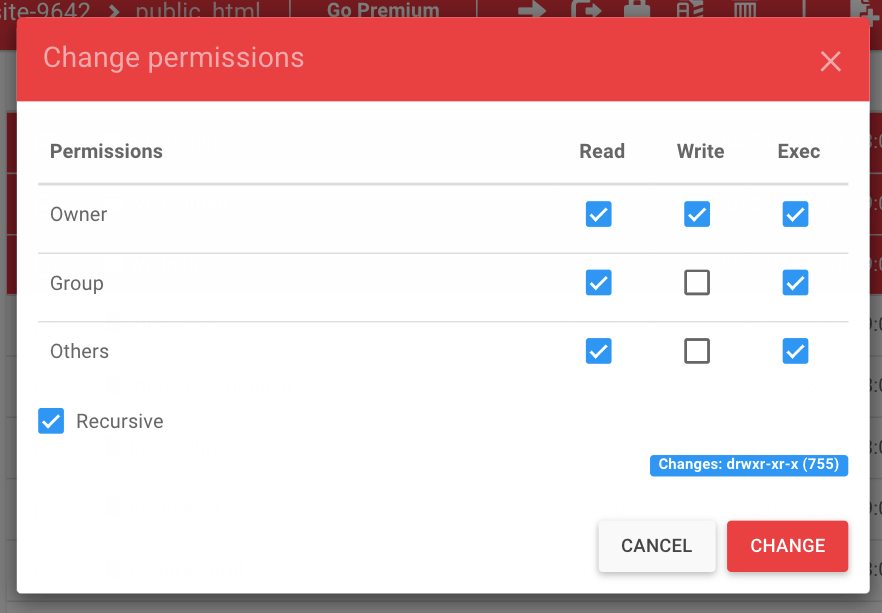
After updating permissions for those files, continue to select every file in your root directory. Then right-click again to view the file permissions.
This time, make sure the numerical value is set to 644. After you update your file permissions, check to see if the WSOD is gone.
Potential causes of the WordPress White Screen of Death
Although you might immediately assume that your server is down or someone has hacked your website, the White Screen of Death usually isn’t related to these issues. When you see a blank white error page, it’s likely due to PHP or database errors.
Unfortunately, there’s no one-size-fits-all solution to the WSOD since so many different things can cause it. But the most common cause is exhausted memory limits. This means that the PHP scripts on your website are overloading your server’s memory.
You might also see the WSOD due to theme or plugin conflicts. So if you just updated your plugins or installed a new one, that’s likely the issue. That’s why it’s important to test new software updates on a staging site before installing them on your live site.

The WSOD can also be the result of strict file permissions. Since file permission settings affect how server-level users handle your files, they may trigger errors like the White Screen of Death.
Additionally, if only the front end of your site is down, it could be because of caching issues. So fixing the WSOD could be as simple as clearing your cache.
How to avoid the White Screen of Death in the future
Fixing the White Screen of Death on WordPress can involve extensive troubleshooting, so it’s important to know how to prevent this error from happening again. Fortunately, there are a few preventative measures you can take.
A few common reasons for the WSOD are theme and plugin conflicts. To avoid creating any issues on your site, be sure to only install reputable software. This involves researching themes and plugins before installation.
To ensure that a specific theme or plugin is safe, you can check its number of active installations. Chances are, the higher the installation number, the better the plugin will be. You can also read user reviews to see what other website owners and developers have to say.
You should also make sure that the plugin or theme has been updated recently. Generally, it’s best not to install software that hasn’t been updated in the past six months.
Once you find the right plugin or theme, you can use a staging site to test it. This involves making a copy of your live site to safely run performance tests on new software. By doing this, you can check for any compatibility issues before launching applications on your live website.
Finally, it’s wise to limit the number of active plugins on your website. When you have too many plugins, you increase the risk of software incompatibility. Therefore, consider activating only the plugins you regularly use.
A solution to common WordPress errors
It’s natural to worry when you’re locked out of your website and can only see a white error page. Luckily, even though the WSOD looks daunting, you can usually remedy it by troubleshooting the most common causes.
If you’ve put a lot of work into your website or it’s an important part of your livelihood, it’s best to invest in WordPress security tools like Jetpack and Jetpack Backup. With Jetpack Backup, you can quickly and easily restore previous versions of your website. Even when you experience the White Screen of Death, your data will be safe and you can get your site back up in a few clicks or less.
Frequently asked questions
What is the White Screen of Death in WordPress?
As its name suggests, the White Screen of Death (WSOD) is a common WordPress error that manifests itself as a blank, white screen. This can be alarming, since it typically doesn’t display an error message explaining what’s wrong.
The WSOD may look different depending on the web browser you’re using. In Google Chrome, for example, you might see an HTTP 500 error message. But most browsers show no information at all.
The White Screen of Death can cause website downtime, preventing visitors from accessing your content. It’s also possible that you’ll only see this error on specific pages, rather than your entire site.
This problem can also happen on the back end, locking you out of your WordPress dashboard. In this case, your content will be live, but you won’t be able to perform any updates or maintenance.
What is the very first thing I should do when I see the white screen?
The first thing to do is check your email. Look for a message from your own WordPress site. If your site detected a major error, it may have sent you a “Recovery Mode” email.
This email contains a special, safe link that lets you log into your admin area. Using this link is the safest first step because it can help you fix the problem without needing to edit any files directly. If you do not have this email, the next step is to clear your browser’s cache.
What is WordPress Recovery Mode?
WordPress Recovery Mode is a built-in safety feature. It starts automatically when a plugin or theme causes a critical error, the kind that can lead to a white screen.
When this happens, WordPress sends an email to the site administrator. This email explains the problem and gives you a secure link to log into your dashboard. This special login pauses the faulty plugin or theme, so you can safely deactivate it or switch to a default theme to fix your site. Always check your email for this message first.
Will I lose my website’s data or content from a white screen error?
No, you will almost certainly not lose your data. The White Screen of Death does not delete your pages, posts, or images. This error simply stops the code that displays your website from working correctly.
All your content is still safe in the WordPress database. Once you identify and fix the cause, like a bad plugin or a theme issue, your site will reappear with all its content intact. The problem is with the site’s display, not its stored information.
Can a hacked site cause the White Screen of Death?
Yes, a hacked website can cause this error. Malicious code from a hack can corrupt important WordPress files. It can also use up all your website’s server resources, like memory, which causes the site to crash and show a blank page.
If you have tried all the common fixes, such as disabling plugins and themes, and the problem continues, you should run a security scan. A good security plugin like Jetpack Security can find and remove malicious files that might be the cause.
How do I use “debug mode” safely?
You can turn on debug mode to see error messages on the blank screen. To do this safely, you first need to connect to your site’s files using FTP or a file manager in your hosting account. Find the wp-config.php file in your site’s main folder. Before you edit it, make a backup copy of this file.
Then, open the file and find the line that says define( ‘WP_DEBUG’, false );. Change false to true. After you save the file, the white screen should show error codes that tell you what is wrong. Once you have fixed the issue, remember to change true back to false.
What does “increasing the memory limit” actually mean?
Increasing the memory limit gives your website more power to run complex tasks. Your site has a fixed amount of memory, called PHP memory. If a plugin or a large theme needs more memory than is available, your site can crash and show a white screen.
You can increase this limit by editing the wp-config.php file. Adding a line of code tells your server to give WordPress more memory to work with. This is a common fix for a white screen that appears during specific actions, like uploading a large image.
How can my web host help me fix the white screen?
Your web hosting provider can be a great help. They have access to server-level error logs that you might not be able to see. You can contact their support and tell them you are seeing a white screen.
Ask them to check the PHP error logs for your account. These logs can often show the exact file and line of code that caused the fatal error. This information is very valuable and can help you pinpoint the problem much faster than trying to guess which plugin or theme is broken.
What is the safest way to disable plugins if I cannot access my dashboard?
The safest way is to use FTP or your host’s file manager. Connect to your site and navigate to the wp-content folder. Inside, you will see a folder named plugins. To disable all your plugins at once, simply rename this folder to something else, for example, plugins_disabled. This makes the folder invisible to WordPress, and it will deactivate all plugins.
After you do this, check if your site loads. If it does, you know a plugin was the cause. You can then rename the folder back to plugins and reactivate your plugins one by one to find the one causing the trouble.

 Jetpack