

WordPress gives you powerful tools to build, edit, and manage content but, sometimes, things don’t go as planned. Maybe a plugin update breaks your layout or you accidentally delete a post. The good news is that you can often undo those changes and get your site back to normal.
This guide explains how to undo changes in WordPress, including edits to posts, themes, plugins, and the database. You’ll also learn how to restore your site using tools like Jetpack VaultPress Backup. Each section offers clear, practical steps to help you recover quickly.
1. How to undo changes to posts and pages
You don’t need to start over when something goes wrong while editing a post or page. WordPress includes several features to help you undo changes and recover your content.
Using undo and redo in the editor
The block editor includes built-in undo and redo options that apply only while the editor remains open. The following commands revert changes made during the current editing session:
- Click the Undo icon in the editor toolbar or use Ctrl + Z (Windows) or Cmd + Z (Mac).
- Click the Redo icon or use Ctrl + Shift + Z (Windows) or Cmd + Shift + Z (Mac).
These commands let you reverse and reapply changes made during your current session.
Accessing and restoring revisions
Each time you update a post or page, WordPress stores a revision. You can view and restore these previous versions by completing the following steps:
- Open the post or page in the editor.
- In the Post settings sidebar, find the Revisions section.
- Click on the revision count, which is usually displayed like “3 Revisions” or something similar.
- Use the slider or the Next and Previous buttons to view earlier versions.
- Select a version and click Restore This Revision, as shown below.
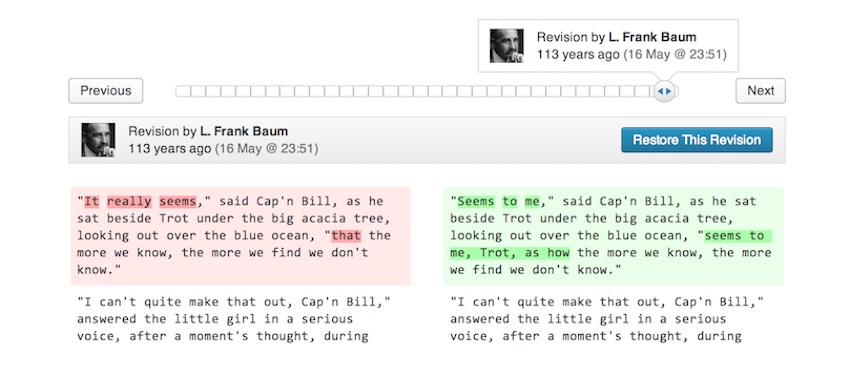
Revisions assist with undoing major changes or restoring lost content.
Recover autosaves
WordPress automatically saves a temporary version of your work at regular intervals. Autosaves occur roughly every ten seconds while you’re actively typing.
If you lose your connection or close the editor unexpectedly, WordPress will display a notice the next time you open the post or page, prompting you to restore the autosaved version.
2. How to undo theme changes
Changing your theme sometimes leads to unexpected layout issues or lost settings. Fortunately, it’s simple to undo those changes and restore your previous design. Here’s how:
Switch to a previous theme
If a newly activated theme causes issues, you can troubleshoot by going to Appearance → Themes in the WordPress dashboard. Hover over your previous theme, then click Activate.
This restores your site’s appearance using the previous theme. Theme-specific settings and customizations from the earlier theme are typically retained, but some may need to be reapplied manually.
Restore missing widgets
When switching themes, widgets may be removed from their original positions. To fix this, perform the following steps:
- Go to Appearance → Widgets.
- Scroll to the Inactive Widgets section.
- Drag and drop widgets back into the desired widget areas.
This step allows you to quickly restore your sidebar, footer, or other widget-based sections.
Restore theme settings with Jetpack VaultPress Backup
Some themes include unique settings managed through the site editor. If you lose custom styles, layouts, or menus during a theme switch, use a backup plugin like Jetpack VaultPress Backup to restore your entire site to a previous point before the change. Then, just choose a backup that includes both your database and theme files.
This is the most reliable way to recover theme-specific customizations, especially if they’re not saved elsewhere.
3. How to roll back plugin updates and changes
Plugin updates don’t always go as planned, but if something breaks, there are a few reliable ways to roll back the changes and get your site working again.
Disable a plugin that breaks your site
If a plugin update causes a site error or prevents access to your dashboard, log in to your hosting file manager or use FTP. Then go to /wp-content/plugins/. Rename the plugin folder to something like plugin-name-disabled to deactivate it.
This deactivates the plugin without deleting it, helping you regain access to the WordPress dashboard and troubleshoot the issue safely.
Restore a plugin using Jetpack VaultPress Backup
To reverse a plugin update or undo recent changes, open your Jetpack dashboard and go to VaultPress Backup. Choose a backup created before the plugin was updated. Restore the full site or limit the restoration to plugin files only.
VaultPress Backup lets you restore quickly and precisely. You can target only the components you need to revert, avoiding a full site reset when not necessary.
The best real‑time WordPress backup plugin
Save every change and get back online quickly with one‑click restores from VaultPress Backup.
Get VaultPress Backup4. How to recover deleted posts, pages, and media
Accidentally deleting content doesn’t always mean it’s gone for good. WordPress offers ways to recover posts, pages, and media, depending on how and when they were removed. Here are a few options:
Retrieve posts and pages from the Trash
When you delete a post or page, WordPress moves it to the Trash for 30 days before it’s permanently removed. To get posts out of the Trash, go to Posts → All Posts or Pages → All Pages.
Then, click on the Trash link at the top of the screen. Hover over the item and select Restore. This immediately returns the item to its original status as a draft or published post.

Restore permanently-deleted content
If you deleted content and emptied the Trash or waited more than 30 days, you’ll need to take a different approach. To do this, open VaultPress Backup from your Jetpack dashboard and select a backup created before the content was deleted. Then, restore the site or selectively restore only the missing post, page, or related files.
This is the most reliable method when content has been fully removed.
Recover deleted media items
WordPress doesn’t move deleted media files to the Trash. Once removed, both the file and its metadata are deleted. You’ll need to use VaultPress Backup to restore your uploads folder and database to a point before the file was deleted. Make sure the backup includes the media file and its attachment data in the database.
Without both the file and its associated metadata, the media item won’t appear correctly in your Media Library.
5. How to undo database and configuration changes
Changes to your database or site settings can cause unexpected issues, but you can often reverse them by restoring a previous version of your database.
Roll back unwanted database changes
If a plugin or manual edit introduces problems through direct database changes, use VaultPress Backup to restore your site’s database to a stable version. Open VaultPress Backup from your Jetpack dashboard. Identify the point when the change occurred, then select a backup created before that time and restore the database only.
This option is helpful when changes were made through SQL queries or database management tools and affect core site behavior.
Fix broken site settings
If changing a setting causes layout issues, broken menus, or missing content, restore your database once again, selecting a version from when your site functioned correctly. This keeps your most recent media files and plugin and theme updates intact while repairing corrupted settings.
Restoring the database without touching your files is a practical way to undo configuration errors without rolling back the entire site.
How to protect your site with smart recovery habits
The best way to avoid major setbacks is to prepare for them. These habits help you recover faster and reduce the risk of data loss.
Enable automatic real-time backups
VaultPress Backup offers automatic, real-time backups on select plans. These backups run continuously, capturing changes to your site as they happen so you always have a recent version to restore when needed.
Use a staging environment for updates
If your hosting provider offers a staging environment, use it to safely test theme and plugin updates, design changes, and custom code edits. After verifying that everything works as expected, push the changes live. This helps you avoid downtime and errors on your production site.
What to do next time something breaks
Mistakes and accidents are unavoidable, but recovery doesn’t have to be hard. WordPress gives you the ability to undo most changes through revisions, settings, and through creating backups (and restoring them).
Next time something goes wrong, stay calm and determine what changed. Then, use revisions and the trash to make quick content fixes. If larger problems persist, restore from backups. And if a core WordPress update introduces issues for your site, you can temporarily roll back to a previous WordPress version until everything’s running smoothly again.
With a solid understanding of WordPress recovery tools and a backup solution like VaultPress Backup in place, you can keep your site running smoothly and recover quickly from unexpected issues.

The best real‑time WordPress backup plugin
Save every change and get back online quickly with one‑click restores from VaultPress Backup.
Get VaultPress Backup Jetpack