

Installing WordPress in a subdirectory is a smart, efficient way to run multiple installations on the same domain without cluttering your root directory. Whether you’re setting up a secondary blog, client site, or staging environment, using a subdirectory keeps your structure clean.
This guide explains exactly how to install WordPress in a subdirectory manually, without relying on auto-installers. You’ll also learn why this method matters, how it affects URLs, and common mistakes to avoid.
What does installing in a subdirectory actually mean?
When you install WordPress in a subdirectory, you’re placing it in a folder beneath your primary domain. For example:
- Root install: example.com
- Subdirectory install: example.com/blog or example.com/staging
This doesn’t isolate it on a separate domain or subdomain. The files live in a separate folder within your web hosting account, but your site remains tied to the primary domain. This approach is frequently used for:
- Hosting multiple WordPress instances on one hosting plan
- Creating development or staging environments
- Running separate sections of a site under different WordPress installations
How to install WordPress in a subdirectory
Prerequisites
Before beginning installation, have the following on hand:
- Access to your hosting control panel (cPanel, Plesk, etc.)
- FTP or File Manager access
This guide assumes that you’re working with Apache or LiteSpeed hosting, which covers most shared and VPS hosting environments. If you’re using NGINX, the basic steps apply, but permalink rewrites will require a different configuration.
Step 1. Download and extract
Download the latest WordPress package from WordPress.org and extract it onto your local machine.
Step 2. Create a database for WordPress
Create a MySQL (or MariaDB) database and a database user with full privileges. You can do this several different ways depending on your host and setup. Let’s walk through steps to create a MySQL database using cPanel:
- In your cPanel, go to MySQL Databases.
- Create a new database (e.g., username_wordpress or subdirectory_db).
- Create a new MySQL user and set a strong password.
- Assign that user to the new database and grant All Privileges.
- Write down these values: DB name, DB user, DB password, and the DB host (often localhost).
Step 3. Upload WordPress files
Rename the WordPress directory to the subdirectory name you want to use. Use FTP to upload the renamed directory to your site’s web root (e.g., /public_html/) so the path becomes /public_html/subdirectory/.
Confirm that files like wp-config.php and folders like wp-admin/, wp-content/, and wp-includes/ are directly inside the subdirectory and not nested another level deep.
Step 4. Run the install script
Now, navigate to the following URL: https://example.com/subdirectory/wp-admin/install.php, making sure to replace “example.com” with your primary URL and “subdirectory” with the name of your subdirectory. This will start the installation script.
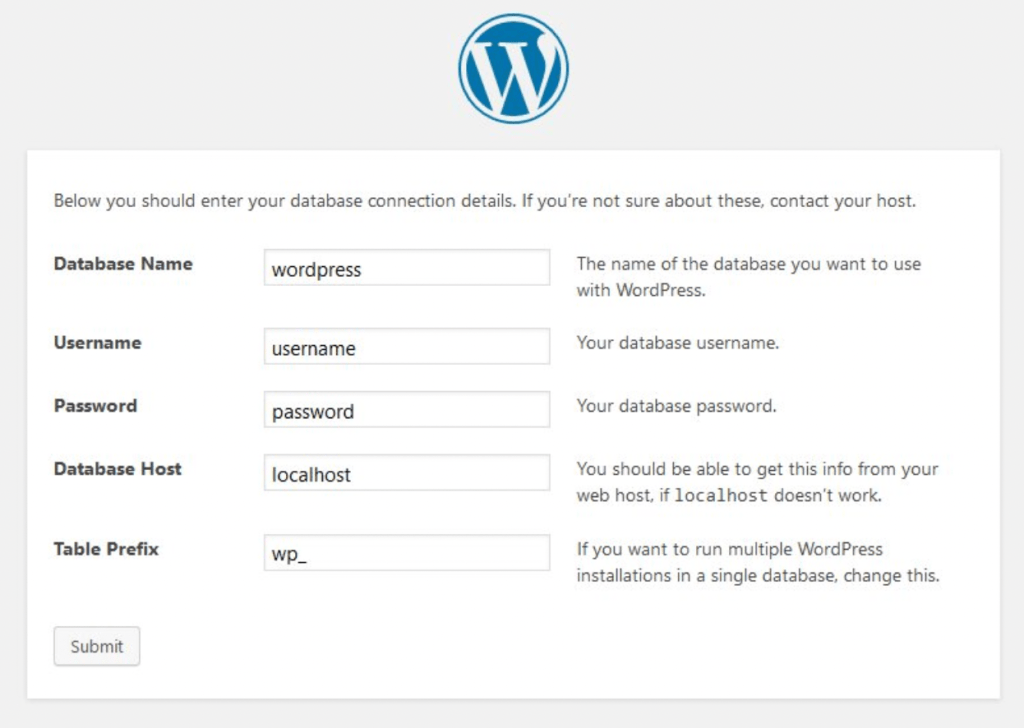
If the wp-config.php is missing, WordPress will ask for database details and attempt to create the file. Otherwise, the installer will proceed.
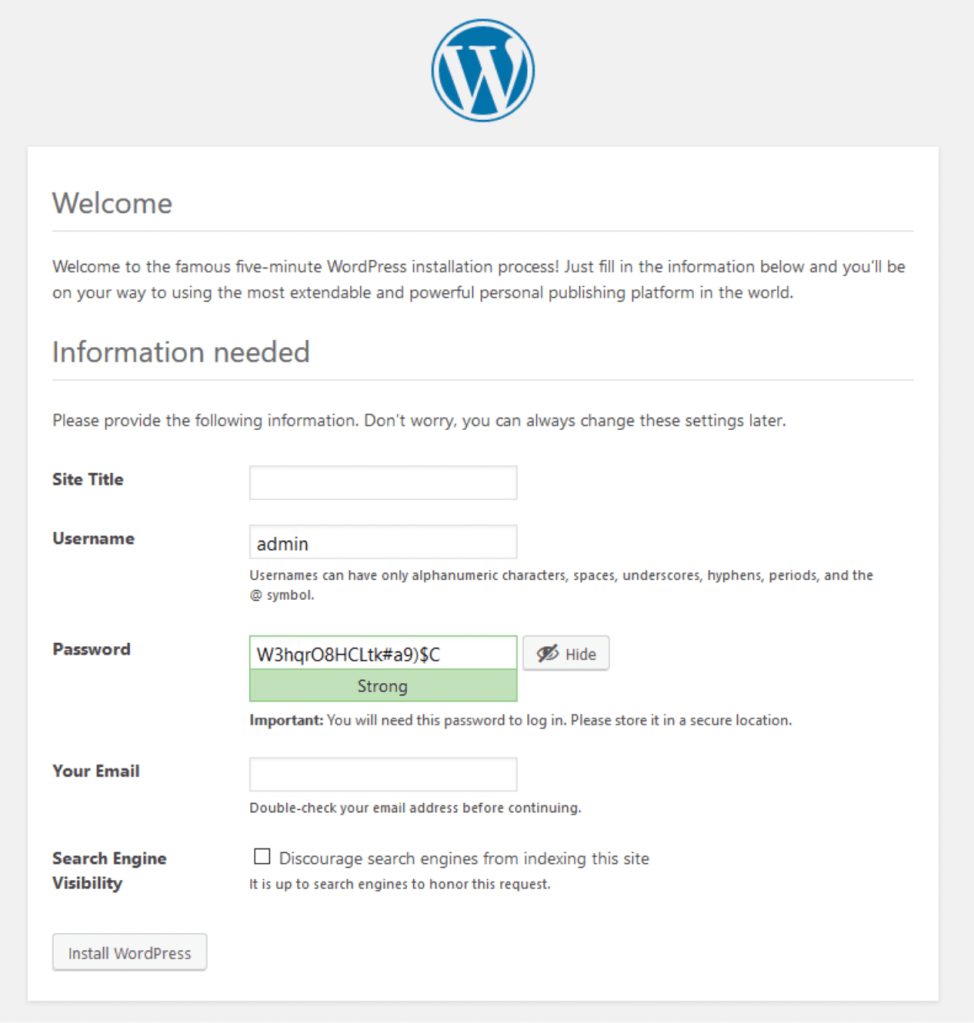
Now, fill out information about your site, like a username, password, site title, etc. and click Install WordPress.
If the process was completed correctly, you’ll see the login screen and can log in to your dashboard.
For full instructions on installing WordPress and navigating a variety of potential scenarios, read the documentation from WordPress.org.
Step 5. Secure and configure your installation
Once WordPress is installed, take a few steps to make your site secure, fast, and ready to use:
- Install a security plugin to protect the new site from common vulnerabilities. Jetpack Security is a powerful option that includes features like malware scanning, brute force attack protection, and real-time backups.
- Install a performance optimization plugin to improve load times and Core Web Vitals. A free plugin like Jetpack Boost offers features such as critical CSS generation, lazy image loading, and site performance auditing. These enhancements maintain speed across your site.
- Enable two-factor authentication (2FA) to harden login security.
- Turn on automatic updates for minor WordPress versions, plugins, and themes.
Common use cases for installing WordPress in a subdirectory
Understanding when to use a subdirectory over a subdomain or root install helps you avoid issues down the road.
Use a subdirectory when:
- You want the SEO benefits of a unified domain.
- You need a development or staging site on the same hosting account.
- You manage multiple WordPress installations with shared SSL and server configurations.
- You want to isolate areas like support portals, microsites, or documentation hubs without setting up a new hosting plan.
Avoid this setup if:
- You’re trying to isolate environments completely (use a subdomain or different domain).
- You’re on a multisite network (better handled with WordPress multisite or domain mapping).
- Your hosting limits MySQL databases or file system paths.
Common issues and how to avoid them
Some small missteps can lead to install issues, broken links, or admin lockouts. Here’s what to watch out for:
- An incorrect directory. Double-check your folder structure before installing WordPress. Files should go directly into public_html/subdirectory/, not nested within another folder.
- Incorrect database credentials. One typo in the database name, username, or password will result in a connection error. If you see “Error establishing a database connection,” recheck credentials in wp-config.php.
- URL mismatch. If your WordPress URL and Site Address don’t match the actual folder structure, you may face redirect loops or blank pages.
- File permission issues. Some hosts auto-assign restrictive permissions. WordPress folders should typically be 755, and files 644.
Frequently asked questions
Can I install multiple WordPress sites in different subdirectories on the same domain?
Yes, you can install multiple WordPress instances in different subdirectories under the same domain. Each installation must be placed in a separate folder within your root directory. For example, example.com/blog, example.com/store, and example.com/support can all run independently.
Each install requires its own database or a unique table prefix if sharing a single database. This setup is ideal for managing separate sites under one domain without using multisite or subdomains.
What is the difference between installing WordPress in a subdirectory vs. a subdomain?
Installing WordPress in a subdirectory (e.g., example.com/blog) keeps the site under the same root domain. This is often preferred for SEO because search engines treat the subdirectory as part of the main site.
A subdomain (e.g., blog.example.com) is treated as a separate site with its own identity and authority. Choose subdirectories when content is closely related and should share SEO value with the main site. Use subdomains when the site needs branding or content separation.
Will installing WordPress in a subdirectory affect my main site?
No, installing WordPress in a subdirectory will not affect your main site if the subdirectory is properly isolated. Each WordPress installation runs independently as long as files are placed in their own folders and don’t overwrite root-level configurations.
However, misconfigured .htaccess rules or incorrect file paths can cause conflicts, especially if you attempt to serve the subdirectory install from the root URL. Always back up your main site before making major changes.
How do I access the WordPress admin dashboard for a subdirectory install?
To access the admin dashboard for a WordPress site installed in a subdirectory, navigate to the login URL based on the folder name. For example, if WordPress is installed in example.com/blog, the admin URL will be example.com/blog/wp-admin.
Once logged in, you can manage the site like any other WordPress installation. All features, themes, and plugins work as expected. There is no functional difference in the dashboard compared to a root install.
Can I move a WordPress site from the root directory to a subdirectory?
Yes, you can move a WordPress site from the root to a subdirectory, but it requires careful handling. You’ll need to:
- Move all core files into the new subdirectory.
- Update the WordPress Address (URL) and Site Address (URL) under Settings → General.
- Update internal links and media paths.
- Adjust the .htaccess file and possibly index.php if you’re serving it from the root.
Always back up your site and database before proceeding, and test thoroughly after the move.
Can I use the same database for multiple WordPress subdirectory installs?
Yes, multiple WordPress installations in subdirectories can share the same database if each uses a unique table prefix. During installation, set a different prefix like wp_blog_, wp_store_, etc. This keeps each site’s data separate within the same database.
While this method reduces the number of databases required, using individual databases for each install offers better isolation and simplifies backup and migration processes.
How does installing WordPress in a subdirectory affect SEO?
Installing WordPress in a subdirectory typically has a positive or neutral impact on SEO, assuming proper configuration. Content in subdirectories is considered part of the main domain by search engines, allowing the site to benefit from shared domain authority.
This is especially useful when adding a blog or knowledge base to an existing site. However, ensure that canonical URLs, sitemap structures, and internal linking are configured correctly to avoid duplicate content or crawl inefficiencies.
Should I install WordPress in a subdirectory for staging or development?
Yes, subdirectories are a practical option for setting up staging or development versions of a WordPress site. You can install WordPress in example.com/staging or example.com/dev to test themes, plugins, or updates without affecting the live site.
Make sure to block search engine indexing by setting the site to “Discourage search engines from indexing this site” under Settings → Reading, or use .htaccess password protection to restrict access.
What permissions should I set for WordPress files in a subdirectory?
WordPress file and folder permissions in a subdirectory should follow the same standards as a root installation:
- Folders: 755
- Files: 644
These settings ensure that files are readable and executable by the server, but not writable by the public. Never set permissions to 777, even in subdirectories, as this creates security risks.
Also, ensure the subdirectory inherits correct ownership from your hosting environment.
Misconfigured permissions can lead to update failures, plugin issues, or security vulnerabilities.

 Jetpack