

Do you find yourself jumping through hoops just to get photos from your phone to your latest blog post?
We have a solution for you. Learn about the exciting new feature in Jetpack when using the Jetpack Mobile app that streamlines how you upload media. All you need to do is scan a QR code and you’ll be able to quickly upload photos and watch them automatically appear in the editor on your laptop or desktop device.
Why is this important?
With smartphones capturing over 90% of all pictures, getting those images from your phone onto your website can be difficult. Do you email the image, or send it to yourself over Slack or your favorite messaging platform?
Then you have to download it to your computer and upload it to your latest blog post. It takes time and effort.
Here’s how to do it faster
- Install the Jetpack app (or update to the latest version) on your mobile device and log into your WordPress.com account.
- While working in the editor on your laptop or desktop device, insert an “Image” or “Gallery” Block on your post/page.
- Click “Select Image”: From the dropdown menu, select “Your Phone.” (this option needs the latest Jetpack plugin installed).
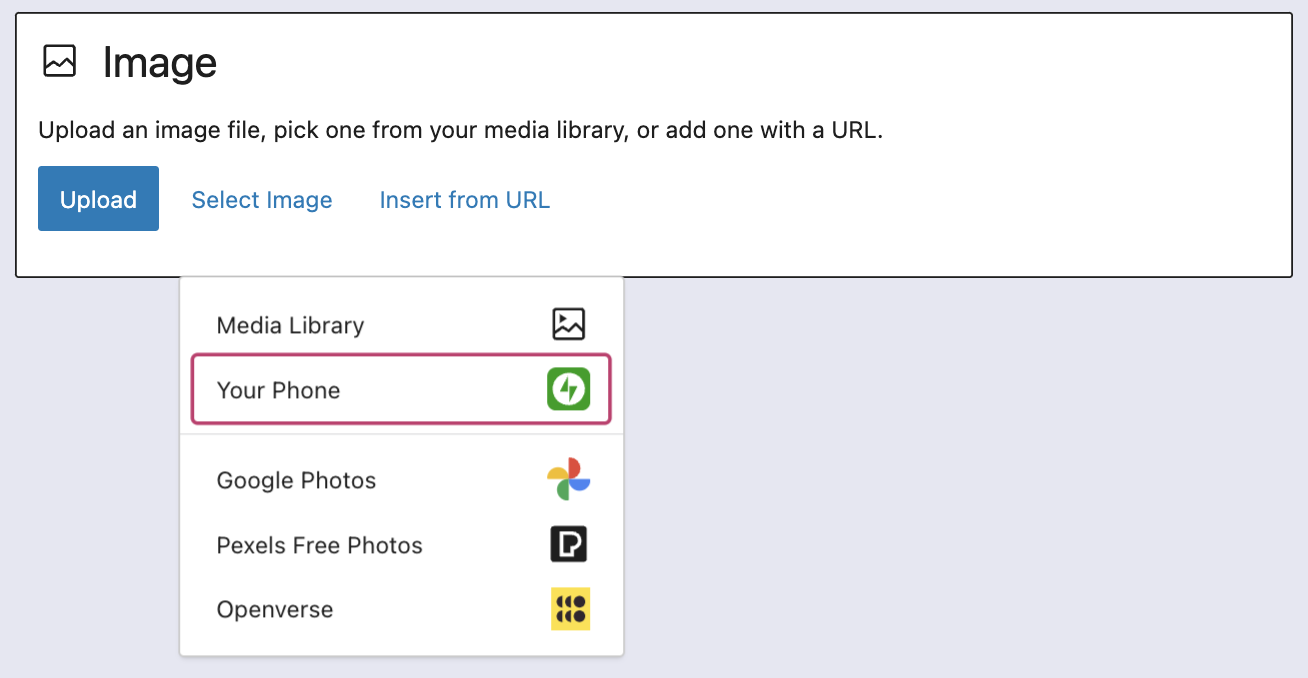
- Use your phone to scan the QR code: This will automatically open the Jetpack app and then your photo library.
- Choose your image(s): From there, simply click the image or images you wish to add to your post/page.
- Click “Add”: Watch your image(s) automatically appear in your desktop editor.
We’d love to know what you think of this new feature, please do leave a comment below and if you’re enjoying Jetpack please do consider leaving us a review and rate the Jetpack app on the App Store or Google Play Store.

 Jetpack
There’s an easier ! Just start a post on your Jetpack app and upload them to the post. Simple! You can finish the post on your computer if you want. I write many of my posts on my phone.
LikeLiked by 1 person
That’s awesome and yep, a great suggestion if you start content on your phone.
Out of interest, why do you choose to write them on your phone?
LikeLiked by 1 person
If I know I will be including photos from my phone in the post, I find this the easiest way. But sometimes I just get an idea when I am not at my desk so I start a post on my phone . Some of my posts only include free photos so it’s not an issue .
LikeLike
Is it possible to use a real photo and then get AI to change it using a set of parameters then upload as a Feature Image?
LikeLike
Hi Edmund
I think you meant to comment on the other post here: https://jetpack.com/blog/whats-new-with-jetpack-ai-featured-images-images-from-your-mobile-and-more/
Right now, the AI featured image is generating images using your content as a prompt. It’s not using a reference image – but I’ll feed the feature request back to the team.
If you want to be notified of new updates and features you can subscribe to the Newsletter in the sidebar and subscribe to the YouTube channel here: https://www.youtube.com/@jetpackofficial
LikeLiked by 1 person