The Nextdoor Block allows you to embed posts from the Nextdoor social platform to your website.
Requirements
Nextdoor post embedding is exclusive to the Block Editor and is not supported by the Classic Editor.
The Nextdoor Block is a part of the Jetpack Blocks suite and is activated by default. It does not require a paid upgrade to use. See our Jetpack Blocks article to learn about the available blocks and how to activate them.
Jetpack Blocks require the Block Editor (also referred to as the Gutenberg editor). If you’ve installed the Classic Editor plugin, you have a few options:
- Deactivate the Classic Editor: Go to Plugins → Installed Plugins in your WP Admin and deactivate the Classic Editor plugin.
- Enable both editors: If you prefer flexibility, navigate to Settings → Writing in your WP Admin (not the menu under Jetpack settings). Set Allow users to switch editors to Yes. You will only see these options if you have the Classic Editor plugin installed and active.
Some custom themes or plugins may prevent you from using the Block Editor. In that case, please contact the support team for the plugin or theme for further assistance.
For more details, see Using Blocks and the Classic Editor.
Add the Nextdoor Block
To embed a Nextdoor post within your site’s page or post, follow these steps:
- Create a new post or page, or edit an existing one.
- Select the “+” icon to search for the Nextdoor Block, and then click to add it to your post:
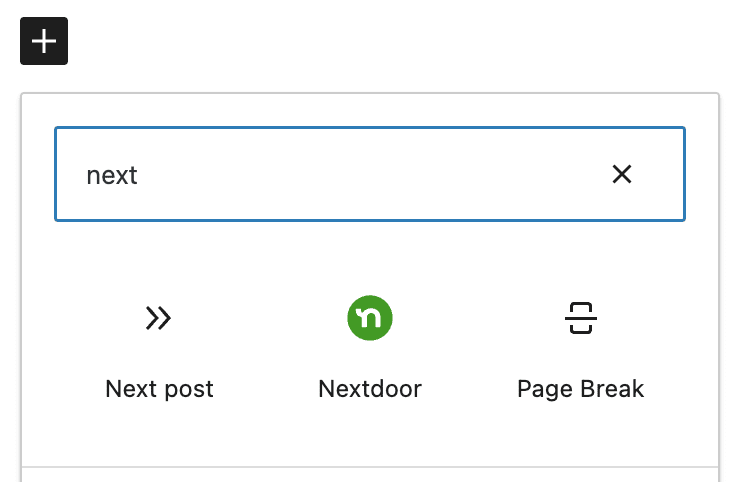
Alternatively, you can initiate the block by typing /nextdoor in the editor, which will make the Nextdoor block appear for you to use.
- Paste the URL of the Nextdoor post you want to embed into the block, then click the Embed button:
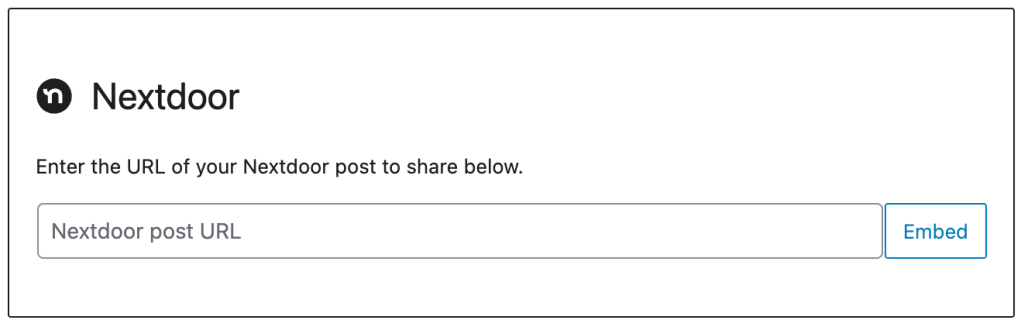
Also, simply adding the Nextdoor post’s link to your post or page will automatically convert it to an embedded format.
See our Jetpack Blocks page for more information about adding Jetpack blocks.
Still need help?
Please contact support. We’re happy to advise.
 Jetpack