

When site visitors want to contact you, sign up for your newsletter, or leave a comment, they’ll likely do so via forms. However, any form you add to your website can become a major security risk if it’s not properly protected.
Luckily, creating a secure form in WordPress doesn’t have to be hard. With the right tools and precautions, you can protect your website and visitors from data breaches and other cyberattacks.
In this guide, we’ll discuss the importance of WordPress form security. We’ll also talk about what to look for in a WordPress form plugin and show you how to get started with Jetpack Forms. Finally, we’ll look at some additional steps you can take to keep your forms secure.
Why WordPress form security is critical
WordPress powers over 40 percent of the internet. This popularity makes it an attractive target among hackers, and forms are one of the easiest ways for them to break into a site, especially if left unprotected.
When someone submits a form, they usually share their email address, name, or even payment information. If your site doesn’t use encryption, hackers can intercept this data in transit (known as a “man-in-the-middle” attack) and use it for malicious activities, like fraudulent transactions.
Unprotected forms are also magnets for bots. These can fill your inbox with junk, overload your server with spammy content, and even exploit vulnerabilities in forms to gain deeper access to your site.
In some cases, cyber criminals use forms to inject malicious scripts. This is known as cross-site scripting, and enables hackers to deface your website, redirect visitors to malicious sites, and install browser-based malware.
It’s important to note that if you collect any data from visitors in the E.U. (and many other jurisdictions), you’re legally obligated to protect it. This means proper encryption, secure storage, and responsible data collection practices.
So, poor form security can not only result in data loss, but it can also land you in legal trouble.
What to look for in a secure WordPress form plugin
Not all form plugins are built with security in mind. So, it’s important to look for a solid tool that will not compromise your site’s safety.
Here are some factors to consider:
A reputable developer
Choose plugins from established developers with a strong track record, as well as tools with clear documentation and regular updates. A well-maintained plugin is less likely to have vulnerabilities and more likely to receive quick patches when needed.
Read reviews by other users, and pay attention to the number of active downloads as well as the most recent update.
Powerful anti-spam integration
Spam isn’t just a nuisance — it’s also a security risk. Spammy submissions sometimes carry malicious code or phishing links that harm both your website and visitors.
Even if you’re using CAPTCHA on your forms, it might not be enough to keep bots at bay. This is because they’re consistently evolving to outsmart this technology.
That’s why your form plugin should have robust, built-in anti-spam protection. Ideally, it will integrate with tools like Akismet, which analyzes millions of data points and detects patterns of abuse in real time to stop spam without forcing people to check a box or solve a puzzle.
Other essential features include honeypots, which add invisible form fields that trick bots into identifying themselves, and IP and behavior-based blocking, which limit suspicious activity before it becomes a problem.
GDPR compliance
Privacy laws like the General Data Protection Regulation (GDPR) have shaped how websites handle user data. If you collect data from users in the E.U., you’re subject to GDPR rules. Failure to comply can result in serious penalties.
A secure, modern form plugin should help you meet these requirements by offering the following features:
- Consent checkboxes to ensure visitors explicitly agree to share their data
- Clear descriptions of how and why their data will be used
- Retention control so you can delete or anonymize user data upon request
- Export tools that allow users to retrieve their submitted information
Of course, there are other things you’ll need to do to stay GDPR-compliant. For instance, you should only collect necessary information. Data like date of birth or location might not be needed for a simple contact form.
How Jetpack Forms embodies these factors
Jetpack Forms includes all the essential elements discussed above. It’s built by Automattic, the same people behind WordPress.com, so you can rest assured it’s secure and reliable.
For instance, it works seamlessly with Akismet so that every form submission is automatically analyzed for spam before it hits your inbox. There’s no manual filtering required, which saves time and helps keep your site safe from abuse.
Jetpack collects data anonymously and stores it in secure servers. The company also minimizes the data it collects and complies with E.U. law regarding how user information is used and stored.
Additionally, Jetpack provides features that make your site GDPR-compliant. These include a customizable cookie notice and a tool that helps you create a custom privacy policy.
How to create a secure WordPress form
With Jetpack, creating a secure WordPress form is a straightforward process that requires no technical expertise. Here’s how to get started.
Step 1: Install Jetpack
Jetpack is a suite of tools designed to enhance and secure your WordPress experience. When you install the free plugin, you’ll get access to a variety of features, including a form builder.
Go to your WordPress dashboard and navigate to Plugins → Add New and search for “Jetpack – WP Security, Backup, Speed, & Growth.” Click on Install Now, then Activate.
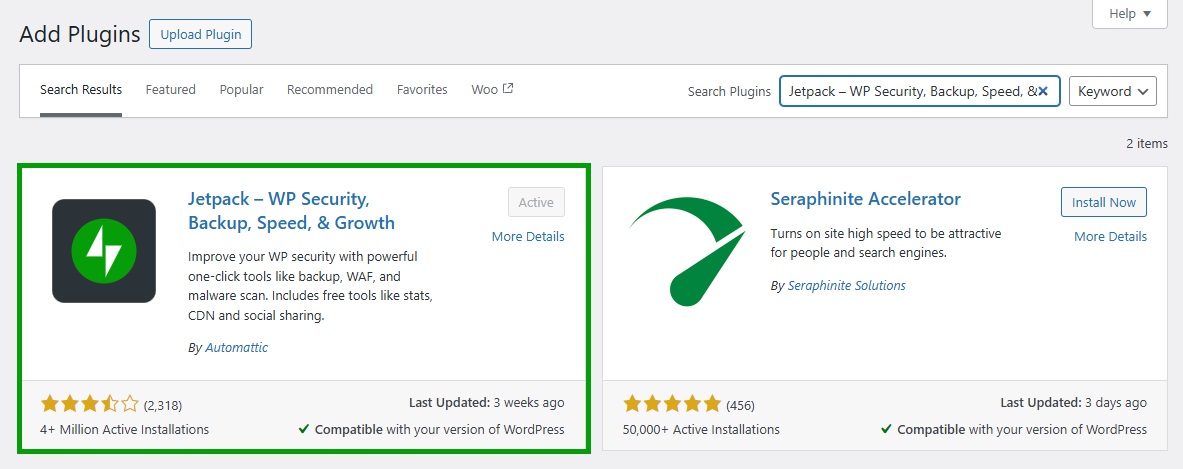
You will now need to connect your site to your WordPress.com account. If you don’t already have an account, you can create one for free.
The Jetpack plugin you’ve just installed also includes security features, performance enhancements, and analytics. So, feel free to explore these different tools and enable them as needed.
Step 2: Activate Akismet for anti-spam protection
Next, install Akismet to protect your form from spam. This plugin is another product supported by Automattic, and it uses advanced machine learning to detect and block spammy content.
Go to Plugins → Add New, search for “Akismet,” and install and activate the plugin.
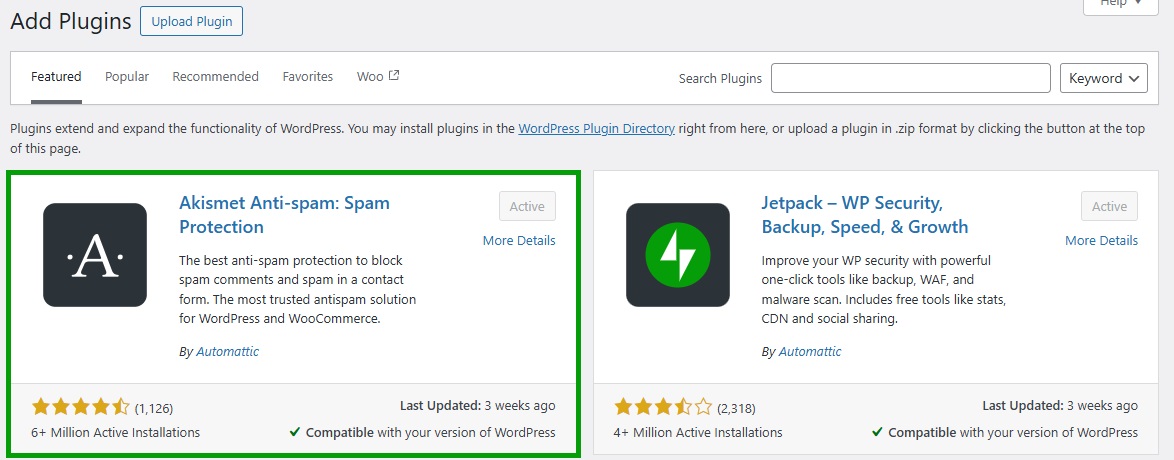
Connect the plugin to your WordPress.com account and choose a plan.
Once activated, Akismet will automatically scan form submissions and block spam before it hits your inbox. It seamlessly integrates into Jetpack-powered forms, so you don’t need to configure anything manually.
Step 3: Easily create secure forms with Jetpack
Now, it’s time to build your form. Jetpack has a built-in AI Assistant that helps you generate different types of content, including lists, tables, and yes, even forms.
Open the page where you want to display your form. Then, click on the + icon to add a new block and look for “Form.”
Select a template based on your needs, like a contact, RSVP, or appointment form.
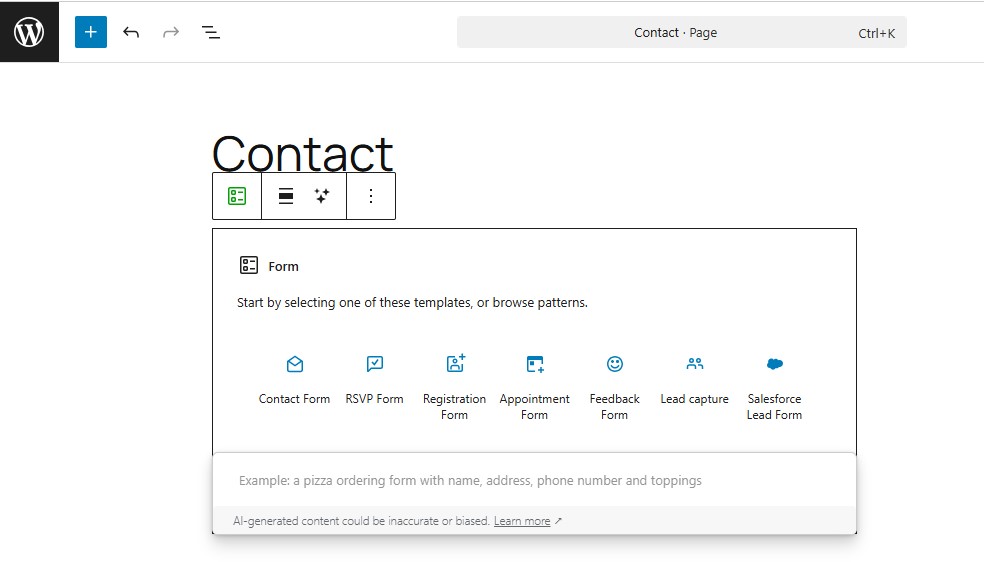
You’ll then get a form that you can customize with the AI Assistant and by using the block settings on the right.
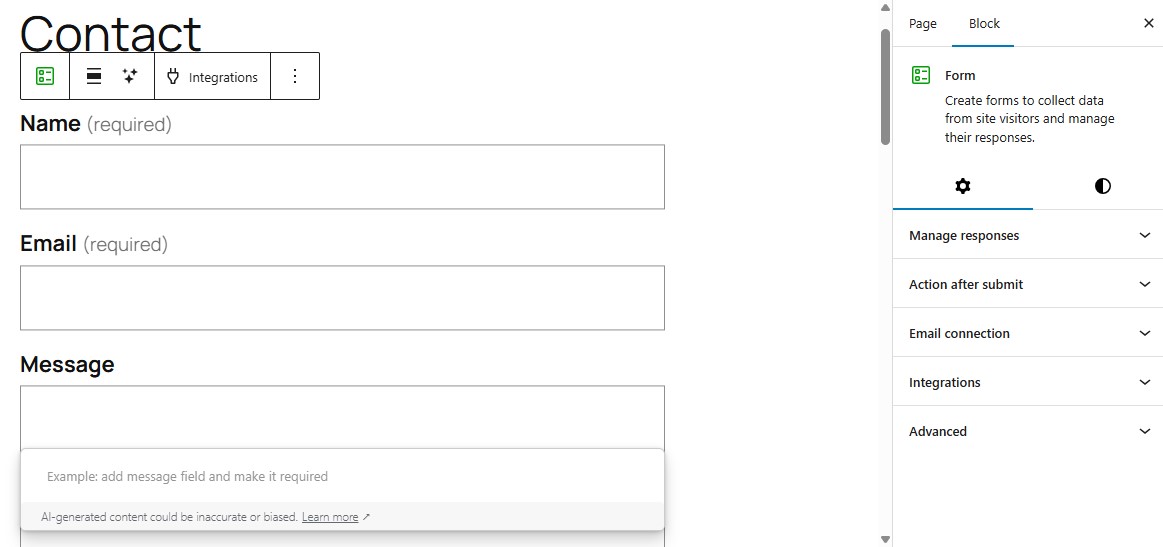
You can use the AI Assistant to add fields or change the existing content. For instance, you might ask it to create a website field and make it required.
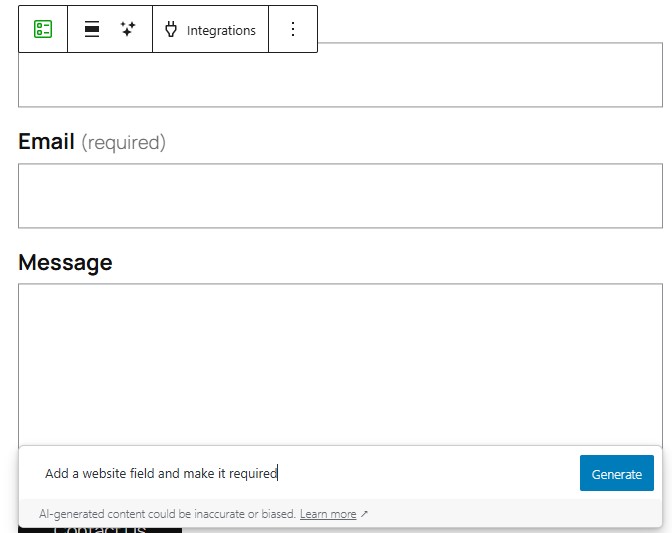
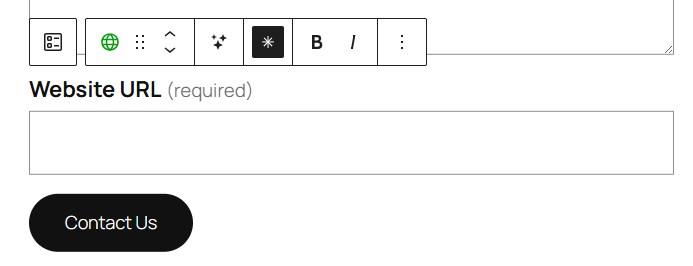
Jetpack will then fulfill your request. If it created a new field, you can simply click on it to edit the label text, or select the asterisk (*) icon to make it required or optional (if you changed your mind).
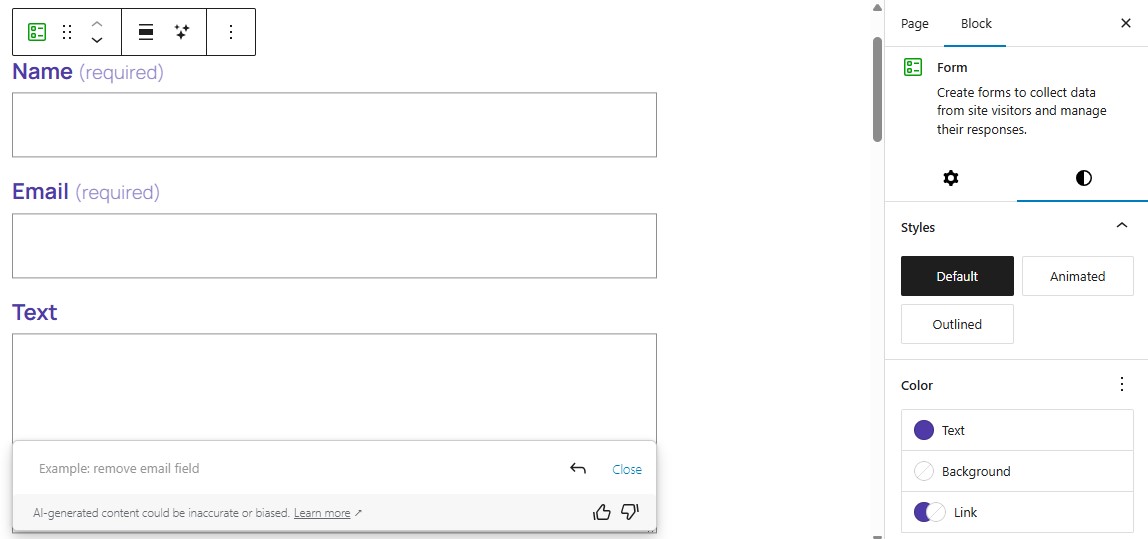
If you navigate to the settings panel on the right and click on the Styles tab, you can customize the appearance of the form. For example, you might change the text color.
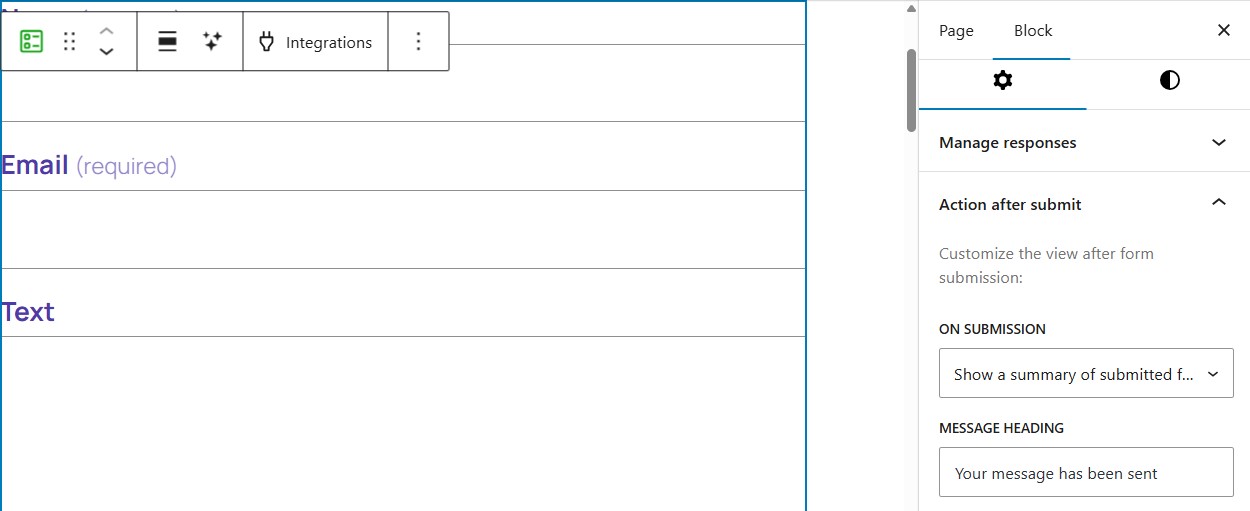
Under the Settings tab, you can choose what visitors will see after they submit a form. For instance, you might show a summary of their entries and a custom message to confirm that their submissions have been received.
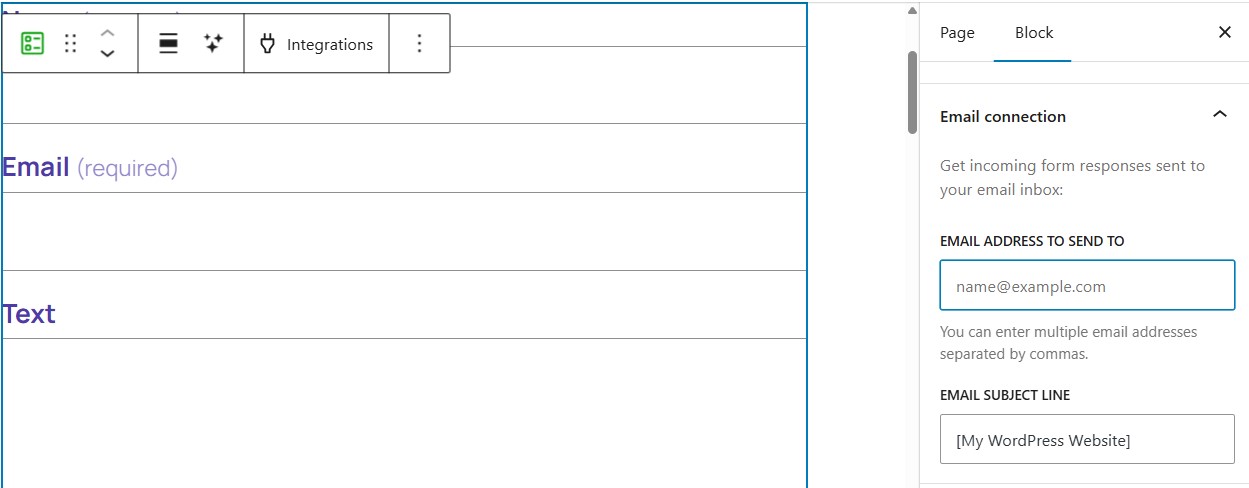
It’s important to specify the email address where your submissions will be sent. You can do this in the Email connection section.
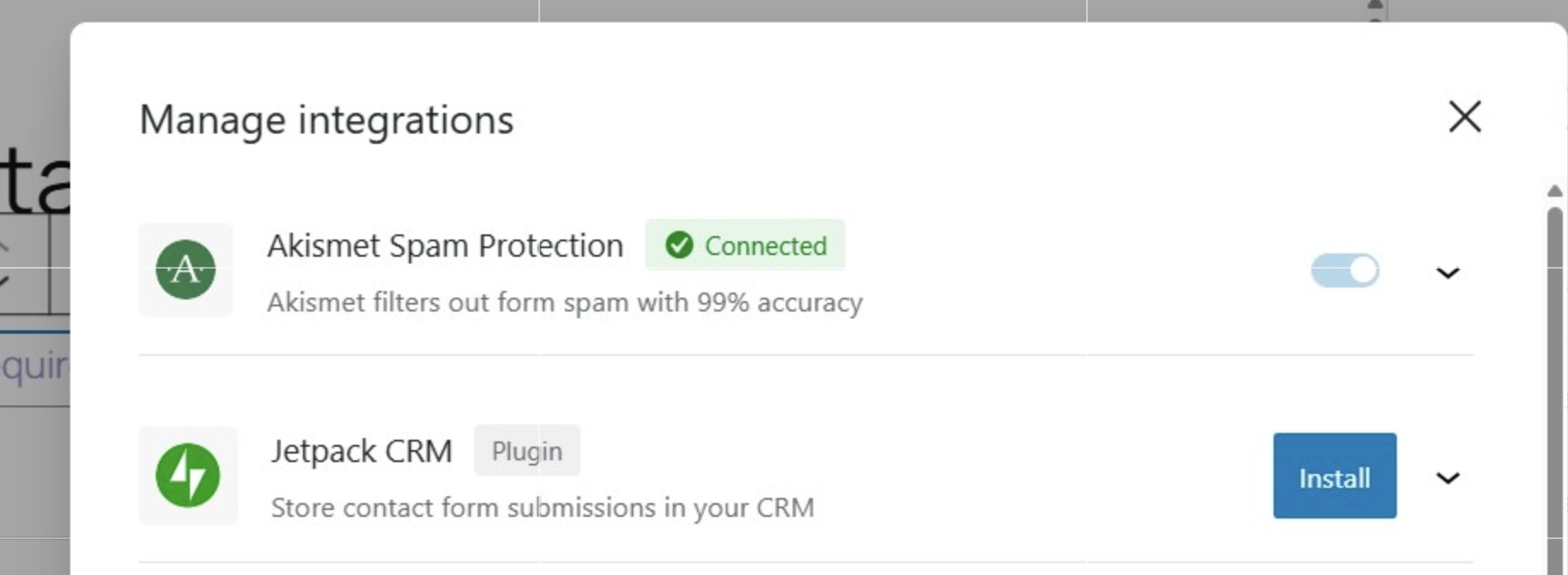
If you click on the Integrations tab, you’ll see that the form is connected to Akismet.
There’s minimal work involved in creating forms with Jetpack. You can simply select a template, then use the AI Assistant to adjust as needed.
Additional steps to further secure your WordPress forms
Once your secure Jetpack form is live, there are a few additional measures you can take to protect it. Let’s discuss them.
Make sure your website has an SSL certificate (HTTPS)
A secure sockets layer (SSL) certificate encrypts the data transferred between your website and a visitor’s device. This makes it even more difficult for hackers to intercept the connection and steal sensitive data.
With an SSL certificate, your website is served over HTTPS, which is the secure version of HTTP. So, your site’s full URL will be:
https://www.mywebsite.comMost WordPress hosting providers offer free SSL certificates. If you don’t have a certificate, you can get one from Let’s Encrypt.
Ensure that the email connected to your form is secure
You’ll also want to make sure that you’re using a secure email account for your forms. If that inbox is compromised, so is all the data it receives.
So, use a strong and unique password for your email address, and if possible, enable two-factor authentication (2FA).
Also, avoid using personal addresses or free accounts, and opt for domain-based emails instead. Many reputable hosting providers offer professional email accounts with business-grade protection.
Only collect the necessary data
Another good practice is to stick to the principle of data minimization. If you don’t need a phone number or physical address, don’t ask for it.
Fewer fields mean less exposure if a breach ever occurs. Plus, it will help you comply with GDPR by only collecting the information you need.
Use a WordPress security plugin
Besides protecting forms, you’ll want to implement measures to keep your entire website secure. For example, a vulnerability in a plugin or theme can open the door to hackers.
Fortunately, Jetpack Security offers an all-in-one solution for safeguarding your site against common attacks. It comes with features like real-time malware scanning and a web application firewall.
Plus, you’ll get automated backups in real-time, which means every change you make to your site is instantly saved to Jetpack’s secure cloud storage. If something goes wrong, you’ll be able to easily restore your website from these backups.
Jetpack Security also offers a 30-day activity log. This helps you identify which action and user on your website may have triggered a security incident, and take the necessary steps to prevent it from happening again.
Ongoing maintenance to keep your forms secure over time
Your forms require regular care. For instance, regularly review them to make sure that they’re still relevant. You might also notice that you’re collecting data that you needed in the past, but is no longer necessary.
If you don’t need a form anymore, go ahead and delete it. Outdated forms are often forgotten, which can create risk.
Many WordPress security breaches stem from outdated components. So, you’ll want to make sure to update plugins and themes on your website when new versions are released. Set up automatic updates when possible, so you won’t need to check your website for updates all the time.
Start building your secure WordPress form today
Form security is essential for your website. If hackers steal data or inject malicious code, it will compromise your operations and damage your reputation.
By using trusted plugins like Jetpack and Akismet, you can create secure forms that are tailored to your needs. Jetpack even comes with an AI Assistant that simplifies the process. Plus, you can follow best practices like using an SSL certificate and regularly updating plugins and themes to further protect your site and visitors.
Whether you’re starting your first blog or running a thriving business, now is the perfect time to secure your forms. Get started with Jetpack Forms today!