Top 5 Best Practices when using Jetpack on client websites

If you’re creating WordPress websites for clients, Jetpack is for you. Jetpack easily adds a great number of features to your client’s websites without the need for a dozen different plugins, reducing the technical debt that you or your client will need to maintain over time.

We recommend these best practices when using Jetpack for a client site that will keep things running smoothly and help you provide a great service to your clients.

This article covers:

  1. Use Jetpack’s Development Mode
  2. Invite your client to connect a WordPress.com account
  3. Activate Jetpack only on the live domain
  4. Use your account when a connection is required
  5. Work with staging sites
  6. How to install Jetpack

1. Use Development Mode

Jetpack offers a Development Mode that is enabled when using Jetpack on a localhost. If you’re developing on a development server, you can manually enable development mode.

You can enable this as constant in wp-config.php by adding:

define( 'JETPACK_DEV_DEBUG', true);

or you can add this as a filter in your theme’s functions.php or a development plugin via:

add_filter( 'jetpack_development_mode', '__return_true' );

Use a development plugin
We suggest using a “Development Plugin” that you can use for all of your in-development needs. With a custom development plugin, you can include the Jetpack Development Mode filter and include other necessary tools like the Debug Bar. The added benefit is that it reduces the number of items on your launch checklist and consequently less things to slip through the cracks when launching. The code might look something like this:

Screenshot of the code for a sample development plugin

No matter how you enable Development Mode, ensuring that it is disabled before handing the site over the client is important to ensure your clients aren’t asking you or us why Jetpack isn’t working!

2. Invite your client to connect the site to a WordPress.com account

Many site developers will connect Jetpack to WordPress.com with their WordPress.com account for convenience. This becomes problematic however when you end up with hundreds of sites listed on your http://wordpress.com/my-blogs/ page. After your work is done its very likely that for many (if not most) of them you do not need or want access to any longer unless you have a continued relationship with the client. (Even if you do, its a good idea to teach your clients to self-serve so that you’re not a bottle-neck.)

From your client’s perspective, if Jetpack is connected to your account, they aren’t able to manage their Jetpack connection via http://wordpress.com/my-blogs/ or access their enhanced stats via WordPress.com.

Your client may already have a WordPress.com account if they’ve used Gravatar or Akismet in the past so very often its easy to connect Jetpack with their existing account.

3. Activate Jetpack only on the live domain

Jetpack connections are based on the URL of the site. Often, we’ll see a Jetpack user write in asking why all of their stats suddenly disappeared or why do their wp.me shortlinks don’t work. Typically, their site was originally connected when it was on a development address and the migration to the live URL didn’t pass back to us.

To avoid this, connect Jetpack to WordPress.com only on the live domain.

4. Use your account when a connection is required

With the above practices stated, we realize that development processes can’t always follow the practices outlined above. What if you’re developing off of a feature that requires a WordPress.com-connected feature, like styling our Subscription widget?

While on a development server, you can connect your client’s site to WordPress.com with your own WordPress.com account. The key is to disconnect Jetpack from WordPress.com using the link in the footer of the Jetpack dashboard page at the beginning of the migration to your production server and reconnecting after the site is on the production URL with the client using their WordPress.com account.

By doing this, you’ll disassociate your account from the client site and your client’s site will be connected using the production URL, avoiding the most common pitfalls of client sites.

5. Work with staging sites

An increasing number of hosting providers include a staging site, where you can have an exact copy of the client’s site on a separate server. This is great for testing out updates, new features, and more.

Jetpack communicates with WordPress.com through a shared token and blog ID that is stored in the database. When the staging site is copied from the live site, these database values are included. Whenever you deactivate Jetpack, Jetpack communicates with WordPress.com to invalidate the token as a solid security practice.

For you, this means if you deactivate/disconnect Jetpack on the staging site, the same token used on the live site is now invalid. If this happens, simply have the client disconnect and reconnect Jetpack on the live site.

6. How to install Jetpack

If you’ve never used Jetpack before and you’re looking for some guidance on how to install it for the first time, you’re in the right place!

There are two ways of installing the Jetpack plugin:

  1. The simplest way is install it directly from your Dashboard. You can find step-by-step instructions here.
  2. Alternatively, if you’re an advanced user, you can download the plugin files (.ZIP) and install it manually.

Finally, if you discover a bug in Jetpack during your development work, please submit an issue or a patch via GitHub. If you have questions or run into problems, drop us a line or leave a comment to share your tips on using Jetpack with clients.

Posted in Tips & Tricks | Tagged , , , , , | 13 Comments

How to install Stats and Analytics on your WordPress site with Jetpack

If you run a website, you probably want to know how many visitors you’re getting. So, unsurprisingly, Jetpack Stats is one of the most popular features we offer! This feature gives you the ability to quickly see how many visits your site gets, what posts and pages are most popular and where your visitors are coming from.

There are many plugins and services that provide statistics, but data can be overwhelming. Jetpack Stats makes the most popular metrics easy to understand through a clear and attractive interface. Plus, you can use them in conjunction with other analytics plugins and services.

This article covers:

  1. How to enable your stats
  2. View and understand your stats
  3. Configure and customize your settings
  4. What about Google Analytics?
  5. Installing Jetpack

1. Enabling your Stats

Jetpack Stats are automatically enabled when you activate and connect Jetpack to WordPress.com: no additional setup required! (See the last section for help installing Jetpack.)

smiley

How do you know it’s working? We add a little smiley face at the bottom of your webpage like the one on the right. (Note: From Jetpack version 3.1 onwards the smiley won’t be on by default. You can turn it on and off yourself as described in the Configure and Customize your Settings section below.)

If you’re saying to yourself “Whoa! That’s big!”, don’t panic: in fact it’s quite tiny. Here the smiley in its actual size: actualsize

It’s pretty small. However, we do give you the choice of turning the smiley display off: see the Configure and Customize your Stats section below to find out how.

2. View and Understand your Stats

Now that your stats are enabled and running, you can view them in a number of different ways with Jetpack.

  1. Add to Main Dashboard
    You can add the stats module to your main Dashboard screen to give you at-a-glance site views as soon as you log in. On your main Dashboard screen, you can enable the Site Stats widget by opening your Screen Options tab and check the Site Stats box.

    jp-stats2-edit

    Then you can see your site visits, most viewed pages, and search terms people used to find your site at a glance. Handy, right?

    Jetpack Dashboard Stats

    The Site Stats widget on your Dashboard.

  2. In-Depth Stats
    Get more in-depth stats from your Dashboard by visiting Jetpack –> Stats from the menu bar on the left hand side. Here you can see information about Referrers, Top Posts & Pages, Search Engine Terms, Subscriptions, and Clicks.

    This is a great way to see what content is popular on your site so that you can write more about the topics that your visitors really like.

  3. Enhanced Stats
    WordPress.com Stats

    Country view stats on WordPress.com

    To get even more information on Stats, you can click the “Show Me” button next to the “Did you know you can view enhanced stats on WordPress.com?” text at the top of your Dashboard stats page to view your stats on WordPress.com.

    By visiting your stats page, we bring you even more information about your site including your best total views per day, your all-time views and comments totals, and features like Views By Country which shows you where in the world your posts are being seen!

    You can also look at stats per day, week, and month. Find out even more about the Jetpack Site Stats – including on what we don’t track through Jetpack – on the WordPress.com documentation page.

3. Configure and Customize your Settings

Everything we’ve covered up to this point is turned on by default when you activate and connect Jetpack to WordPress.com.

But did you know that you can also do some custom configuration of stats? Go to Jetpack –> Settings in your dashboard, find the WordPress.com Stats feature in the alphabetized list, and click the “Configure” link that appears when you hover your mouse over it:

configure_stats

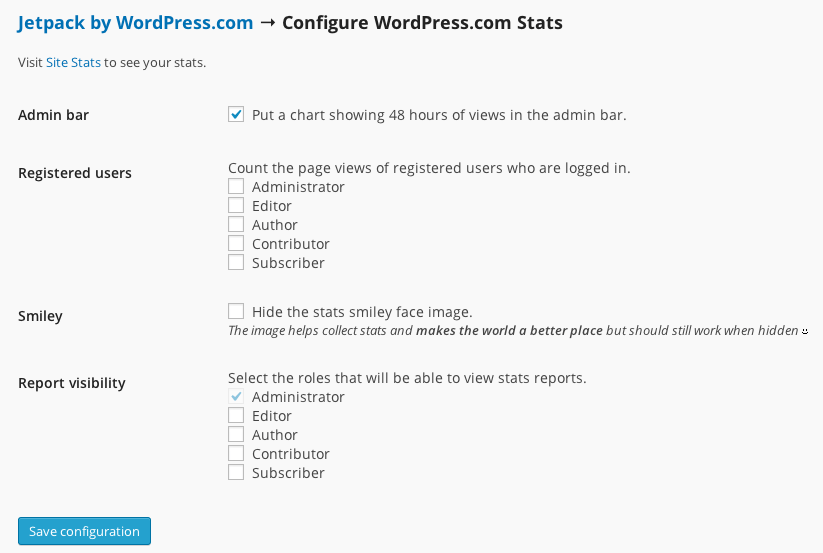
In the next screen, you’ll see a number of options for configuring your stats. I’ll cover each one more in depth below.

configure_jetpack_options

  1. Admin Bar
    Checking this box will add the stats “Sparkline” to your admin bar when you’re viewing the front end of your site. If you’re in the wp-admin part of your site, this will not display.

    It looks like this (highlighted in green):

    stats_chart

    These lines represent the last 48 hours of page views for the current blog, with darker lines indicating nighttime page views. Each line spans a time period of two hours. The number that appears when you hover over the Sparkline is the overall highest amount of views per hour during the most recent 48 hour period.

    You might ask why you would need this. It’s a great way of seeing you site’s activity at a glance so that you can quickly note any unusual traffic activity when you’re not in your Dashboard.

  2. Registered Users
    You can choose whether or not to track site visits or site page views from logged in users. You can even specify different user groups that you want to track – or not to track – stats for.

    If you want to know how often your Editors are on your website, you can track it by checking the box next to Editor. It’s that simple!

  3. Smiley
    Remember how I mentioned earlier about how you could hide the stats smiley? (Although I’m not sure why you would, it makes the world a better place!) But, if you want to hide the smiley from displaying on your website, then you can check the box here.
  4. Report Visibility
    By default, Stats can only be viewed by logged in, Administrator users. This hides stats from other registered users who are not Administrators.

    If you want other user groups (Editor, Author, Contributor, or Subscriber) to have the ability to view stats, you would have to opt-in those user groups by checking the box next to the user group you want to add. (Note: you cannot uncheck stats visibility for Administrator users.)

4. What about Google Analytics?

One of the more common questions we get about Jetpack is: “I want to use Google Analytics! Do I have to disable WordPress.com Stats in Jetpack?”

No!

You can use both on your WordPress installation. The benefit of using Jetpack Stats is that you can see a snapshot of your blog’s activity right from your Dashboard. If you want to use another analytics service you can certainly do so. Jetpack Stats works great alongside Google Analytics and other stats tracking services.

5. Installing Jetpack

To see Jetpack Stats working on your site you will need to install the Jetpack plugin. (Note: Jetpack works with self-hosted WordPress sites. If your site or blog is hosted at WordPress.com you already have access to all Jetpack features!)

There are two ways of installing the Jetpack plugin:

  1. The simplest way is install it directly from your Dashboard. You can find step-by-step instructions here.
  2. Alternatively, if you’re an advanced user, you can download the plugin files (.ZIP) and install it manually.

I hope this has helped you learn more about the Jetpack Stats feature. If you have any questions please feel free to leave a comment below.

Posted in Features | Tagged , , , , | 3 Comments
  • Enter your email address to follow this blog and receive news and updates from Jetpack!

    Join 112.5K other subscribers
  • Browse by Topic