

Organizing content effectively is essential for a well-structured WordPress site. Categories and tags enhance navigation, improve the user experience, and help search engines better understand your content.
But is it a good idea to assign more than one category or tag to a post?
This guide explores WordPress taxonomy, including their purpose, best practices, and how to avoid common pitfalls so you can organize your content efficiently.
Understanding WordPress taxonomy: categories and tags
WordPress provides a structured way to organize content using taxonomies. The two primary built-in taxonomies are categories and tags. These help visitors and search engines navigate a website efficiently.
What are categories in WordPress?
Categories are hierarchical taxonomies used to group related posts. Here are some “fast facts” about WordPress categories:
- Each post must belong to at least one category, even if that category is the default “Uncategorized.”
- Categories can have parent and child relationships. This means that you can create subcategories for further segmentation.
- They create a structured site layout and improve navigation.
What are tags in WordPress?
Tags are non-hierarchical and provide a way to group posts by specific keywords or topics. Here are some “fast facts” about WordPress tags:
- Tags are optional, but can enhance content discovery.
- They do not have parent-child relationships.
- Posts can have multiple tags, helping visitors find related content easily.
Assigning multiple categories to a WordPress post
Can a post belong to multiple categories?
Yes, WordPress allows you to assign posts to multiple categories. This flexibility helps in cases where a post covers multiple topics.
Considerations when assigning multiple categories
- The user experience: Be thoughtful when assigning posts to multiple categories. Remember that their purpose is to help with content organization.
- SEO impact: Search engines might consider multiple categories as duplicate content if URLs are indexed incorrectly.
How to assign multiple categories to a post
- Navigate to Posts → Add New or edit an existing post.
- In the Settings panel of the block editor, open the Categories toggle and choose the categories you want to assign to the post.
- Update or publish the post.

If your permalinks include categories, here’s what changes
If your permalink structure uses /%category%/%postname%/, only one category can appear in the URL even if the post is assigned to multiple categories. WordPress will pick one category for the permalink, and the “chosen” category can be different than what you expect—so decide on a primary category and keep it consistent.
Best practice: use “Post name” permalinks unless you have a strong reason to bake categories into URLs. If you must include categories, choose a primary category in your SEO plugin and avoid frequent category changes to reduce redirect/URL churn.
Assigning multiple tags to a WordPress post
How many tags can a post have?
WordPress does not limit the number of tags a post can have. However, excessive tags can lead to cluttered navigation and diluted keyword relevance.
How to add multiple tags to a post
- Navigate to Posts → Add New or edit an existing post.
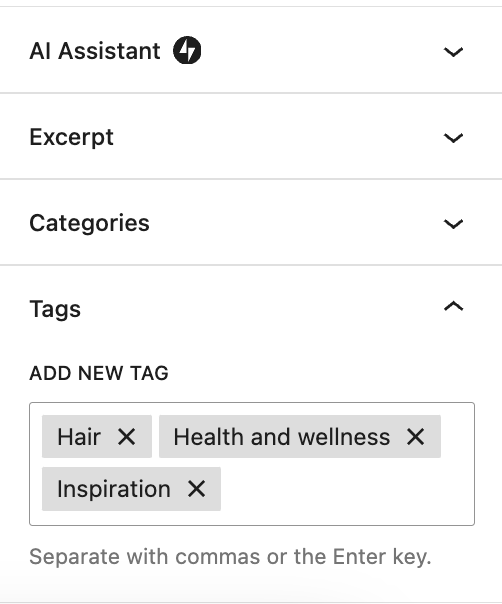
- In the Settings panel of the block editor, open the Tags toggle.
- In the empty field, type in any tags you’d like, adding a comma between each one.
- Update or publish the post.
Best practices for using multiple categories and tags
1. Avoid category redundancy
Assigning multiple categories should serve a purpose. Do not assign a post to both a category and its subcategory unless necessary.
2. Keep tags relevant
Use tags that genuinely describe your content. Avoid generic tags that don’t add value.
3. Monitor category and tag counts
- Limit categories per post to 2-3 to maintain structure.
- Use, at the most, 5-10 meaningful tags to balance usability and SEO.
4. Optimize permalinks for SEO
If you include categories in your permalink structure, WordPress will select one to use in the URL. This is based on hierarchy or the order in which they were assigned. You can use tools like Yoast SEO to set a primary category yourself.
5. Be intentional with your tags
When creating and assigning tags, remember that they’re a valuable organizational tool. Don’t create a tag for every single keyword or situation. Instead, think of how they can help organize content.
How WordPress handles category and tag archives
Category archive pages
Each category has an archive page listing all posts within that category. The archive URL typically follows this structure:
example.com/category/category-name/Tag archive pages
Similar to categories, each tag has an archive page, typically with this URL structure:
example.com/tag/tag-name/These pages help visitors find related content, but can create SEO challenges if search engines consider it duplicate content.
SEO considerations when using multiple categories and tags
Duplicate content risks
When a post belongs to multiple categories, it may appear under more than one URL. To prevent duplicate content issues:
- Use canonical URLs to indicate the preferred version of a page.
- Set a primary category using an SEO plugin.
Indexing strategy
Decide whether to allow search engines to index category and tag pages. If category and tag pages are thin on content, consider setting them to noindex to help with SEO.
The most powerful AI tool for WordPress
Turn your ideas into ready-to-publish content at lightspeed.
Elevate your contentInternal linking benefits
Categories and tags improve internal linking by connecting related content. This distributes page authority and enhances user navigation.
Managing categories and tags efficiently
1. Use plugins to improve category and tag management
Several plugins streamline taxonomy management:
2. Remove unnecessary tags
Over time, sites can accumulate excessive tags. Clean up unused or duplicate tags by going to Posts → Tags in your WordPress dashboard.
3. Merge similar categories and tags
Use a taxonomy manager plugin to merge redundant categories or tags to simplify visitor navigation.
4. Enhance usability with proper category and tag structures
- Keep category names concise and meaningful.
- Ensure that categories represent broad topics, while tags handle specifics.
- Audit tags regularly to remove or merge duplicates.
Final thoughts: balancing categories and tags effectively
Assigning multiple categories and tags in WordPress is beneficial when done strategically. Keep your site structure logical, avoid redundancy, and optimize for SEO. Regularly audit categories and tags for an organized content strategy that enhances the user experience and search visibility.
Streamline content management with Jetpack AI Assistant
Jetpack AI Assistant is a powerful tool designed to simplify content creation and management within WordPress. By integrating seamlessly into the WordPress editor, it offers a range of features that can significantly boost your efficiency.
AI-powered content generation
Categorization and tagging isn’t helpful if you don’t have effective content. Jetpack AI Assistant can generate high-quality blog posts and pages, structured lists, and comprehensive tables based on your prompts. This reduces the time spent drafting content, allowing you to focus on running your website or business.
Adaptive tone adjustment
With Jetpack AI Assistant, you can tailor the tone of your content to match your brand’s voice, whether it’s formal, conversational, or somewhere in between. This ensures that all posts align with your desired style.
Title and summary generation
Effective titles and summaries are essential for SEO and user engagement. Jetpack AI Assistant analyzes your content to suggest compelling titles and concise summaries, optimizing each post for better visibility and click-through rates.
Grammar and spelling correction
Jetpack AI Assistant offers advanced grammar and spelling correction features, helping you avoid errors before publication.
Seamless integration and ease of use
Jetpack AI Assistant integrates directly into the WordPress editor, providing an intuitive interface that requires no additional setup. This seamless integration means you can access AI-powered features without disrupting your existing workflow.
By incorporating Jetpack AI Assistant into your content creation process, you can enhance efficiency, maintain consistency, and ensure high-quality output across your WordPress site. This allows you to devote more time to other tasks.
Frequently asked questions
Can you assign a WordPress post to multiple categories?
Yes, you can assign a WordPress post to more than one category. The CMS allows this. However, it is usually best to choose only one or two categories for each post. Using too many categories can create problems for your website’s search ranking.
It creates multiple web addresses for the same post, which confuses search engines like Google. If you must use more than one category, you should always select a “primary category” using an SEO plugin. This tells search engines which web address is the correct one to show in search results, and helps protect your site’s ranking.
Can multiple categories hurt SEO?
Using multiple categories can hurt your SEO if you are not careful. When a post is in two categories, WordPress can create two different URLs for that single post. This is a duplicate content issue. It splits your ranking signals, like backlinks, between two different addresses.
This makes it harder for the post to rank well. To stop this from happening, you must use an SEO plugin to set a primary category. This action creates a canonical tag, which tells Google the correct URL to index. This way, all your ranking power goes to one URL.
What is the difference between a category and a tag in WordPress?
You should use categories for the main topics of your blog. They are for broad subjects. For example, on a food website, your categories might be “Breakfast” and “Dinner.” You should only have a small number of main categories, maybe five to ten.
Tags are different. You use tags to describe specific details in your posts. They are not for broad subjects. A post in the “Dinner” category could have tags like “chicken,” “quick meal,” and “low-carb.” Use categories for your website’s main structure and use tags to connect posts with similar small details.
How many tags should a WordPress post have?
For the best results, you should use between three and five tags for each post. Using too many tags, such as 10 or more, does not help your ranking. It can actually create a problem. When you create a tag, WordPress makes a new archive page for it.
If you have too many tags with only one post in them, you create many low-quality pages on your site. This is called “thin content,” and it can waste Google’s crawl budget and lower your site’s quality score. Focus on using a few highly relevant tags for each post.
Should I noindex WordPress category and tag pages?
You should only noindex category or tag pages if they are thin. A thin page is one that has very little content, like an archive with only one or two posts. A well-built category page with ten or more posts and a unique description can rank in Google and bring traffic. You should not noindex these valuable pages.
Tag pages are more often thin and can be good candidates for noindexing. Before you decide, check Google Search Console to see if any of your category or tag pages are already getting traffic from searches.
How do I change my WordPress category structure without losing SEO rankings?
You can change your category structure safely by using 301 redirects. A 301 redirect permanently sends users and search engines from an old URL to a new one. First, plan your new category structure. Then, when you rename or delete an old category, you must redirect its old URL to the new, correct category URL.
You can do this with a WordPress plugin like Redirection. This action passes the ranking power from the old URL to the new one. After making changes, watch Google Search Console for any “404 Not Found” errors to make sure all your redirects are working correctly.
What happens if I use too many tags on a WordPress post?
Using too many tags on a post creates a poor experience for users and can cause SEO issues. When you have dozens of tags, it makes it hard for a person to find relevant information.
For search engines, the main problem is creating hundreds of low-value tag archive pages. Each tag gets its own page. If a tag is only used once, that page will only have one post on it. This signals to Google that your site has a lot of thin, unhelpful content. It is much better to use a small number of focused tags that truly describe the post’s main points.
Can I assign a post to a parent category and a sub-category at the same time?
You should not assign a post to both a parent category and its child sub-category. For example, if you have a “Desserts” category and a “Cakes” sub-category, a post about a chocolate cake should only be in the “Cakes” sub-category. WordPress is smart enough to know that “Cakes” is part of “Desserts.”
Assigning it to both can create confusing URL structures and potential duplicate content issues. Always choose the most specific and deepest level category for your post. This keeps your site structure clean and easy for search engines to understand.
Can I use the same keyword for a category name and a tag?
It is generally a bad idea to use the exact same keyword for a category name and a tag name. Doing so creates two different archive pages on your site that compete against each other in search results.
For example, if you have a category named “SEO Tips” and a tag named “SEO Tips,” both will generate a unique URL. Search engines like Google will not know which page is more important for that keyword. This is called keyword cannibalization. It splits your ranking potential. Always use unique and distinct names for your categories and tags to avoid this conflict.

The most powerful AI tool for WordPress
Turn your ideas into ready-to-publish content at lightspeed.
Elevate your content Jetpack