

Since WordPress is a very user-friendly CMS, managing a single site is usually pretty straightforward. But if you’re in charge of several (or several hundred), you’re probably always looking for ways to streamline common workflows. At a minimum, you’re likely tasked each month with keeping software up-to-date, ensuring that backups happen regularly, running security checks, and optimizing content.
Thankfully, you can use WordPress multi-site management software to do all of that and more, by running your websites from a centralized dashboard. With this technology, you’ll be able to simplify your day-to-day management tasks, save time, and reduce the potential for human error.
And now, with the right tool under your belt, you can take on more clients and focus on building revenue (or taking a vacation).
In this guide, we’ll consider some key features to look for in a WordPress multi-site management tool. Then we’ll discuss eight of the best options.
Features to look for in a WordPress multi-site management tool
If you oversee multiple WordPress sites, you know that each one has a unique set of needs. Still, there are some general website management tasks required for all WordPress sites.
These range from WordPress maintenance and security to optimization and analytics. You can perform most of the related tasks manually, but that’s often time-consuming and has to be done by yourself or someone else with enough technical knowledge.
You can also opt for dedicated tools designed to simplify and even automate each necessary task. This is a better approach, but can still become overwhelming when you’re dealing with multiple sites. Plus, the more software you have installed on each site (or third-party tools you connect), the more chances there are for something to go wrong.
A WordPress multi-site management tool can make your life a lot easier. For instance, many of these solutions enable you to execute quick updates and create backups in one centralized control panel. You don’t have to navigate to each site individually to get everything done.
Of course, not all of these solutions carry the same benefits. Here are some key features to look out for in a multi-site management tool:
- A dedicated dashboard or control panel. Ideally, you should be able to oversee all of your WordPress sites from a single hub. This eliminates the need to log in to your websites separately.
- Automated backups. Redundant, up-to-the-second copies of your WordPress sites are essential for security purposes. You can use these backups to restore sites to a previous state in case of emergency. With this in mind, the best tools let you configure automated backups within the dashboard.
- Bulk updates. Multi-site management tools allow you to initiate updates for all your themes, plugins, and WordPress core files — all at once.
- Security monitoring. Many of these management solutions make it easy to monitor your websites with features like malware scans and vulnerability detection.
- Performance optimization. Some tools also make it possible to enhance your websites’ speed and performance with features like caching, image optimization, and minification. These optimization features are crucial if you want to provide a positive user experience and rank well in search engines.
- Analytics reporting. From your centralized dashboard, you should be able to view important website analytics like monthly traffic numbers, views, and uptime.
Naturally, you may have some additional requirements. For example, agencies might prefer a solution that allows for white labeling. Regardless of your specific needs, the features above are a good starting point for obtaining a high-quality multi-site management tool.
Eight of the best tools for managing multiple WordPress sites
Now that you know what to look for in a multi-site management tool, let’s take a look at eight of the best options. Each of these solutions can help you administrate multiple WordPress sites more easily and effectively.
1. Automattic for Agencies
Automattic for Agencies is a comprehensive program created with agencies and professionals in mind. It integrates a suite of Automattic products — including WordPress.com, WooCommerce, Pressable, and Jetpack.
With Automattic for Agencies, you gain access to a centralized dashboard that simplifies tasks like performance monitoring, security management, and traffic analysis across all your client sites. The platform offers instant notifications for critical events, like malware detection or site downtime, allowing you to promptly address issues.
The dashboard also provides a comprehensive overview of each site’s performance metrics, uptime statistics, and backup status. Run malware scans and update plugins across all sites at once and enjoy a significant workload reduction.
Key features:
- A display of performance metrics, security scans, updates, and backups for all client sites from a single dashboard
- Bulk updates to plugins, themes, and WordPress core across all sites
- Customizable product bundles for clients with build-a-cart referrals, which streamlines the client billing process and provides an extra agency revenue stream through sales commissions
- Simplified plugin management with a single billing system and status dashboard for all client subscriptions
Pros:
- It offers true, unified management.
- It reduces manual tasks thanks to bulk actions and automated processes.
- You can access a suite of tools adaptable to agencies of varying sizes and specializations.
- You can earn commissions on the Automattic products you already recommend to clients.
- You’ll have access to exclusive premium support for Automattic products.
Cons:
- Familiarizing yourself with all the Automattic tools on offer could take some extra time if you’re unfamiliar with them.
- The program is optimized for Automattic services, so if that’s not what your clients want to use, it may not be the right fit.
Ease of use:
Automattic for Agencies is user-friendly at its core. With an intuitive dashboard, managing multiple WordPress sites is about as simple as it can be. While there may be a brief learning period to familiarize yourself with all these features, the time invested is offset by the substantial efficiency gains in daily operations.
Price:
Joining Automattic for Agencies is free, and you gain access to a range of tools and resources. As you use different Automattic products (or recommend them to your clients) your agency unlocks additional benefits and support. That means you can derive an even greater value from the partnership.
2. InfiniteWP
InfiniteWP is a powerful site management tool that functions as a WordPress plugin. Once you install it on all of your websites, you can manage them from one central InfiniteWP admin panel.
With the free version, you’ll get access to one-click logins, easy backups and restores, and bulk updates. With a premium account, you can also run security scans, set up staging websites, monitor uptime, manage comments, and view site analytics.
Additionally, you can secure your InfiniteWP admin panel with multiple layers including IP address restriction, two-factor authentication, and an HTTPS support layer. With the premium version, you can white label the plugin, so that clients see your own branding.
Key features:
- WordPress staging sites for testing and updates
- Automatic site migrations with redirects
- One-click updates and translations
- Scheduled backups
- Immediate security notifications via email
- Client report templates
- Integrations to detect broken links and manage spam comments
- Two-factor authentication
- White labeling (with premium)
Pros:
- You can lock down your centralized control panel with advanced security protocols.
- Speed up maintenance tasks with bulk updates, one-click translations, and scheduled backups.
- Manage client websites easily with client reports and white labeling.
- Access support through forums, tutorials, and a knowledge base.
Cons:
- The interface is outdated.
- The initial setup procedure can be tricky for non-technical users.
- Alerts are only sent through email.
Ease of use:
InfiniteWP is a WordPress plugin, so once you have it set up, it’s fairly intuitive to use. Having said that, the initial installation can be difficult.
You can install it using an installer tool or cPanel, or manually upload it to your server. Then you’ll need to add the websites you want to manage, and install the plugin on each of those sites separately.
Price:
You can use InfiniteWP for free if you just want one-click access, updates, and backup and restore features. Or you can upgrade to one of the paid plans, which start at $147 per year.
3. CMS Commander
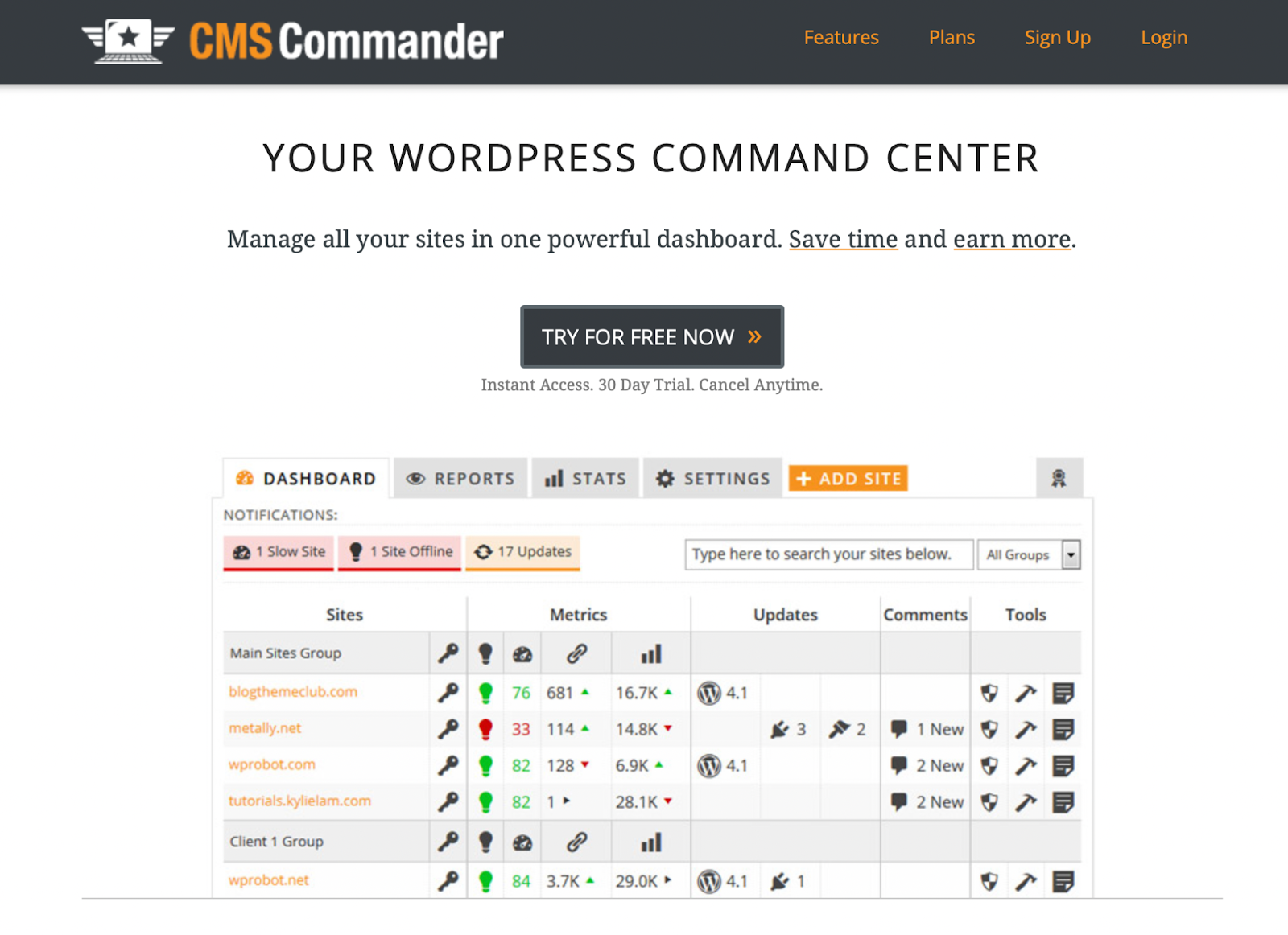
If you need to manage multiple WordPress blogs, CMS Commander is a solid option. It’s a premium tool that gives you complete control over your drafts, posts, comments, plugins, users, and more.
For example, you can approve or delete comments from the dashboard, copy all WordPress options or plugin settings from one blog to another, and create new posts or pages for any number of blogs at the same time.
Like other WordPress multi-site tools, you can also conduct automatic backups (with multiple storage locations), monitor uptime and page speed, and run malware scans. Plus, it works well for affiliate websites, since it integrates with several affiliate networks and supports targeted ad and link insertion.
Key features:
- Content creation tools like auto-posting, bulk posting, and bulk editing
- Automatic backups
- Website cloning
- One-click logins
- One-click updates
- Affiliate network integrations
- Uptime monitoring
- Backlink tracking
- Malware scans
- Two-factor authentication
- White labeling
Pros:
- Simplify content creation, scheduling, and optimization.
- Get quick insights into website performance metrics like page speed and uptime.
- Integrate your websites with Google Analytics and affiliate networks.
- Log in to the WordPress admin area with a single click.
Cons:
- There’s no free plan.
Ease of use:
It’s relatively easy to set up the CMS Commander plugin and connect to your WordPress sites. You can also quickly switch between your website dashboard, reports, and settings. Additionally, if you need to add more users to your plan, you can order more sub user accounts at any time as an add-on.
Price
CMS Commander is a paid plugin with prices starting at $8 per month to manage five websites. If you’re a large business or agency that manages more than 50 websites, prices fall between $30 and $75 per month.
4. MainWP

Next up, MainWP is a free solution that offers a range of paid add-ons. With the basic offering, you’ll get features for updates, backups, security, and content management.
Like all the best multi-website management tools, with MainWP you can log in to all your connected websites with just one click. Meanwhile, you can run security checks, monitor uptime, manage WordPress users, and more.
Plus, you can extend the MainWP dashboard with paid add-ons for things like backups, marketing, SEO, and client reports. It’s also highly customizable with API hooks, which makes it an ideal tool for developers looking for more control over plugins.
Key features:
- A custom dashboard with one-click access
- Bulk content management features (write, publish, edit, and delete posts)
- Client management tools (with tags and filters for organization)
- Automatic or bulk updates
- Security scans
- Built-in themes
- Uptime monitoring
- White labeling (with Pro)
Pros:
- Simplify website management with one-click actions for plugins, themes, and more.
- Publish, schedule, and manage content more efficiently.
- Manage client sites with tags, filters, and reports.
- Access tons of documentation, a knowledge base, and a supportive community for quick troubleshooting.
Cons:
- There’s a slightly complex set up procedure.
Ease of use:
Although MainWP is easy to use once it’s configured, you’ll need to install two plugins to set it up. First, you’ll need the MainWP Dashboard plugin, which you’ll install on a new WordPress admin site. Then you’ll need to activate the MainWP Child plugin on each of the sites that you want to manage.
Price:
You can use the MainWP plugin for free, and then extend the platform with a range of free and paid add-ons. Or simply upgrade to MainWP Pro (which comes with all premium extensions) for $29 per month.
5. ManageWP
ManageWP offers a simple way to manage multiple WordPress sites from one main dashboard. Here, you’re able to perform essential site maintenance tasks like run updates and security checks. It also lets you automate monthly backups and moderate comments across all your sites.
Like MainWP, you’ll need to use paid add-ons to extend the platform. For instance, you can find tools to back up your websites on-demand and schedule security scans.
One of ManageWP’s standout features is that you can manage unlimited websites with a free plan (which is useful for agencies). Plus, you can check performance analytics, SEO rankings, and uptime statistics, and compile this information into customized reports for your clients.
Key features:
- One-click admin access
- Automated backups (with off-site storage locations)
- Automatic updates
- Sucuri security checks
- Client reports
- Two-factor authentication
- Vulnerability updates
- Website cloning (premium)
- Uptime monitoring (premium)
- White labeling (premium)
- SEO rankings (premium)
- A broken link checker (premium)
Pros:
- Track key performance indicators and SEO rankings to get a quick understanding of how your websites perform.
- Manage and collaborate with clients more productively.
- Access free guidance and troubleshooting tips via user guides, forums, and ticket support.
Cons:
- Some paid add-ons are included for free with other multi-site tools.
Ease of use:
It’s really simple to start using ManageWP. All you have to do is sign up for a free account on the official website. Then you’ll have to install the ManageWP Worker plugin on the sites that you want to manage and connect them to your dashboard by entering your WordPress login credentials.
Price:
You can use ManageWP for free and extend your dashboard using free or premium add-ons. Alternatively, you can opt for bundles for specific purposes, like uptime monitoring, SEO, or white labeling. These ManageWP bundles range from $25 – $75 per month.
6. WP Remote

If you’re wondering how to manage multiple WordPress sites, and you’re not the most tech-savvy user, WP Remote may be the option for you. It gives you access to a clean, user-friendly interface where you can update, back up, and scan different websites without needing to log into each one separately.
Better yet, you can install new plugins and themes across your websites directly from the WP Remote dashboard. And with an active forum, a knowledge base, and email support, it’s easy to get help or advice when you need it.
All scanning and backups take place on WP Remote’s own servers, which minimizes the impact on website performance. You can create staging sites to run updates safely, generate client reports, and monitor uptime (and receive instant emails when sites are down).
Key features:
- One-click login
- Daily automatic backups
- Automatic updates
- Security checks (with instant malware removal)
- Uptime monitoring
- Staging environments
- Customizable client reports
- Visual regression testing (with Plus plan)
- White labeling (with Plus plan)
- A real-time firewall (with Plus plan)
Pros:
- Maintain websites easily with one-click logins and automatic updates and backups.
- Access tons of free support in user guides and forums.
- Secure your websites with firewalls, bot protection, and vulnerability detection (higher-tier plans).
- Customize client reports to reflect your own branding.
Cons:
- There’s a slightly lengthy setup procedure.
Ease of use:
With WP Remote, you can manage all your websites from one centralized location where you’ll also see a birds’ eye view of important website statistics. To set up the plugin, you’ll need to create an account and install it on each site separately.
If you do this manually, it can be time-consuming. As an alternative, you can connect to websites automatically from the WP Remote dashboard by entering your website URL and login credentials.
Price:
The free version of WP Remote mainly facilitates bulk updates and plugin installations. For additional features, you can upgrade to a paid plan starting at $29 per month. Agencies may prefer the Plus plan, which costs $49 per month and includes white labeling.
7. Solid Central
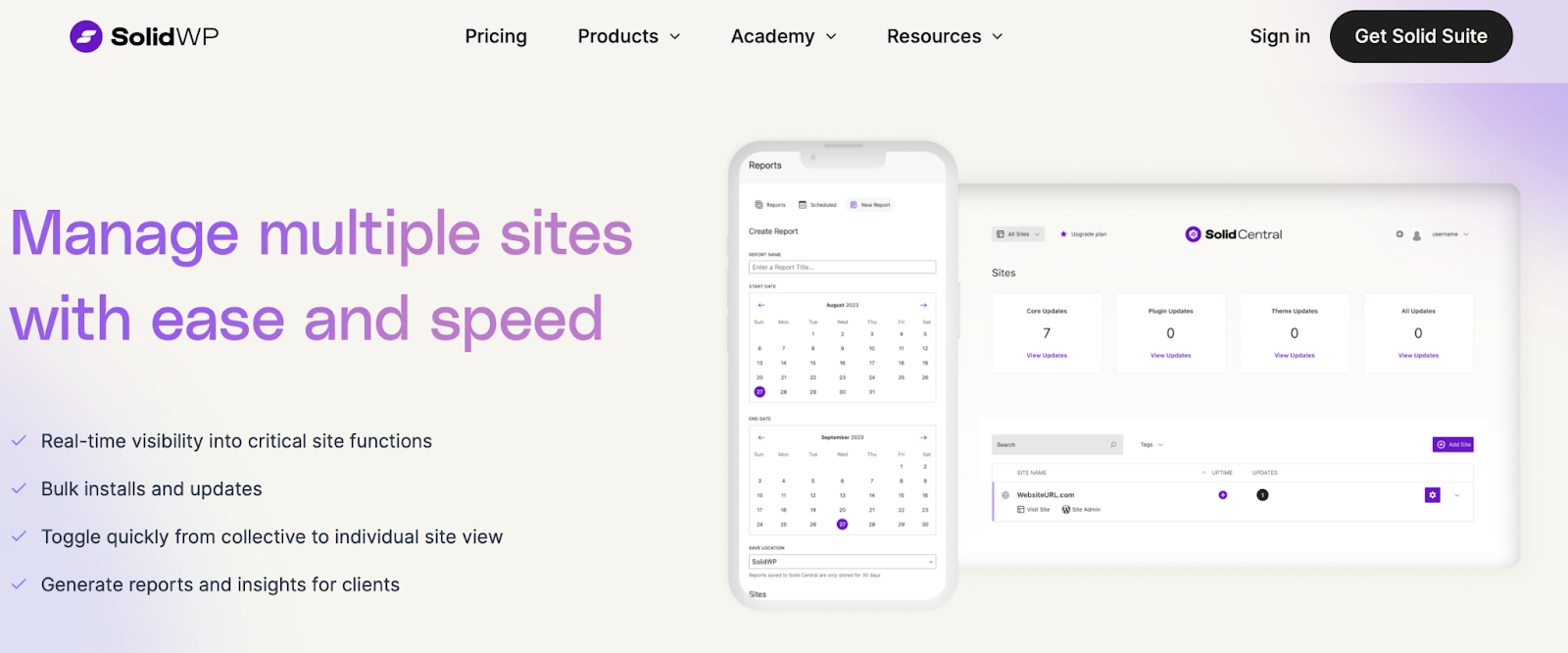
Solid Central is a premium tool that enables you to manage up to one hundred WordPress sites. With it, you can execute any admin function across all your sites — including updates, installs, and more. You’ll also be able to monitor uptime and response times, as well as generate reports for clients.
What’s more, you can quickly toggle from collective to individual site view if you want to access more detailed information about specific websites. Plus, you can integrate your Solid Central dashboard with helpful tools like Google Analytics and Yoast SEO.
Key features:
- Real-time visibility into critical site functions
- Bulk plugin and theme installations
- Automatic updates
- Remote backups (with Solid Backups)
- Integrated security functions (with Solid Security Pro)
- Uptime monitoring
- An SEO checker
- Instant email notifications when websites go down
- Two-factor authentication
Pros:
- Manage all websites securely using available integrations with other Solid tools for backups and security functions.
- Get up-to-date information about websites with instant emails and real-time visibility.
- Streamline your workflow with useful integrations, so you can monitor everything from one dashboard.
Cons:
- It’s limited to 100 websites.
- For best results, you’ll need to use the whole suite of Solid plugins.
Ease of use:
Once you install the Solid plugin on your website, you can log in to your Solid dashboard, where you can easily add more sites and view important website statistics. Plus, it offers a more comprehensive solution through integrations. In particular, Google Analytics and Search Console reports are attractive features for agencies.
Price:
There’s a limited free plugin, or you can upgrade to a paid plan. You can purchase the Solid Suite (security, backups, and maintenance) starting at $199 a year. If you’re only looking for a way to manage multiple WordPress sites, prices start at $69 a year for five websites.
8. WP Umbrella
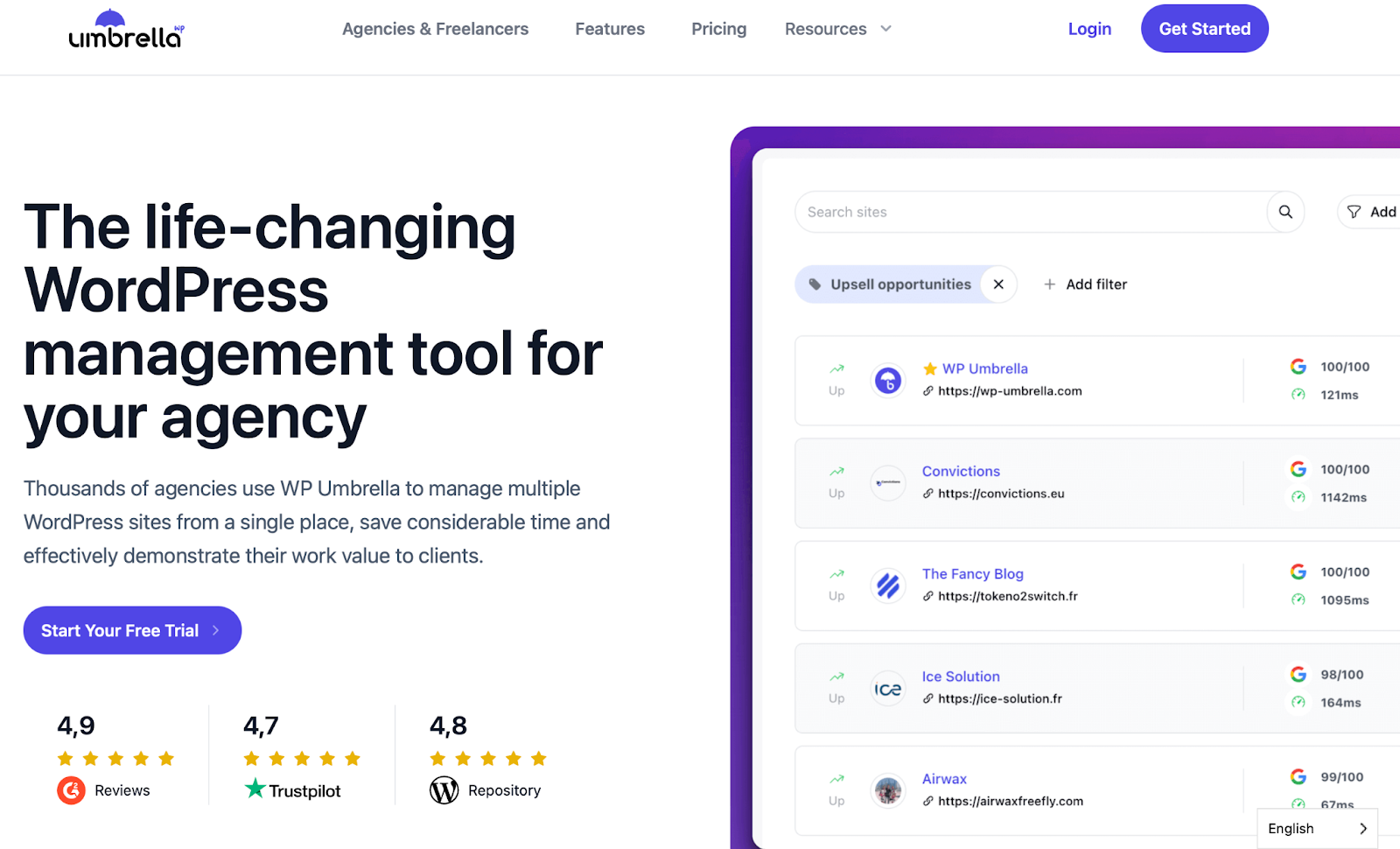
WP Umbrella enables you to save time and demonstrate your value to clients through multi-management functionality and client reports. Using an intuitive dashboard, you can run bulk updates, automate backups, and customize client reports.
That said, a stand-out feature of WP Umbrella is its notification system. You’ll receive instant alerts for any front-end issues using metrics from Google PageSpeed Insights. Plus, you’ll get timely notifications for plugin security risks, PHP issues, mixed URLs, and more.
Key features:
- A single dashboard with one-click logins
- Bulk updates
- Automatic backups
- Automated maintenance reports
- Uptime monitoring
- White labeling
- Instant notifications
- Security and vulnerability monitoring
- Google PageSpeed monitoring
Pros:
- Keep an eye on all performance and security issues for your websites with comprehensive monitoring.
- Improve website performance with Google PageSpeed Insights (plus cloud storage for backups, so your server isn’t impacted).
- Scalable plans (when you need to add more websites, your subscription updates automatically).
Cons:
- The pay-as-you-go pricing model may be less familiar for some users.
Ease of use:
You can install the plugin for free via the WordPress dashboard. Then you’ll need to obtain your API key and paste it into the plugin’s settings to connect it. You’ll need to repeat this process for every website you want to manage, which can take some time.
Price:
You can use WP Umbrella for free. To access all features, you’ll pay $1.99 per month per website on a pay-as-you-go basis.
Comparing the top tools for managing multiple WordPress sites
| One-click login | Bulk updates | Automatic backups | Security scans | Core Web Vitals tools | Uptime monitoring | Starting Price | |
| Automattic for Agencies | Yes | Yes | Yes | Yes | Yes | Yes | Free to join |
| InfiniteWP | Yes | Yes | Yes | Yes | Yes | No | $147/year |
| CMS Commander | Yes | Yes | Yes | Yes | Yes | No | $8/month (for 5 websites) |
| MainWP | Yes | Yes | Yes | Yes | Yes | No | $29/month (plus premium add-ons) |
| ManageWP | Yes | Yes | Yes | Yes | Yes | No | Premium add-ons or bundles for $25 – $75/month |
| WP Remote | Yes | Yes | Yes | Yes | Yes | No | $29/month |
| Solid Central | Yes | Yes | Yes | Yes (with integration) | Yes | No | $69/year (for 5 websites) |
| WP Umbrella | Yes | Yes | Yes | Yes | Yes | No | Pay-as-you-go pricing ($1.99/month/site) |
Factors to consider when choosing a multi-site management tool
As you’ve seen, there are a lot of options out there. It can be difficult to select the right multi-site management platform for your specific needs.
If you’re still on the fence about what to try, here’s a recap of the key factors to keep in mind:
- Efficiency. WordPress site management can be time-consuming. So it’s best to look for features like one-click logins, bulk updates, and automatic backups to save time and effort.
- Security. The best multi-site management tools help you run regular security or vulnerability scans. Plus, there should be a way to facilitate quick responses to security threats via instant alerts. You’ll also find that some tools offer two-factor authentication to secure the login procedure.
- Performance. Not all plugins provide performance features, but you can find solutions that monitor uptime and page speed. Meanwhile, to keep your website running light and fast, check that backups are stored away from your server.
- Scalability. If you manage multiple websites, you may acquire new clients regularly. With this in mind, it’s important to look for tools that make it easy to add more websites to your plan.
- Client reporting. Most quality multi-site management tools can generate reports that compile useful statistics like traffic, uptime, views, and more.
Once you’ve considered all of these important factors, you’ll be ready to choose a comprehensive tool that helps you effectively maintain and monitor all your websites.
Automattic for Agencies: The ultimate solution for managing multiple WordPress sites
There’s a lot of work involved in running multiple websites, either for your own business or for clients. Ideally, you’ll want a solution that provides one-click logins and bulk updates to increase efficiency. It should also offer security features, scalable plans, and more.
With that in mind, Automattic for Agencies is one of the best all-around options. With its unified dashboard and advanced features like bulk updates and security monitoring, it allows you to manage dozens — or even hundreds — of sites with ease. The program also offers added benefits like build-a-cart referrals for customized client setups and consolidated billing to reduce administrative hassles.
Whether you’re looking to save time, enhance productivity, or scale your business, Automattic for Agencies is a reliable, scalable solution that empowers agencies to deliver exceptional service without sacrificing quality.
For those ready to take the next step in site management, Automattic for Agencies offers a clear path to greater success.
Frequently asked questions
At this point, you should be familiar with the important factors to consider when choosing the best multi-website management tool. To wrap up, it’s time to look at a few common questions.
What are the benefits of using a tool to manage multiple sites?
If you are the administrator for multiple websites, you can use multi-site management tools to streamline daily tasks. This type of tool can give you access to a centralized dashboard that supports one-click logins, bulk updates, automatic backups, security scans, and more. It saves you valuable time and effort, increases productivity, and maintains your sites’ security and performance.
What makes for a good WordPress multi-site management solution?
A good WordPress site management tool enables you to maintain multiple websites from a single dashboard. Additionally, the best solutions include security features (like malware scans), performance monitoring, safe updates, and timely alerts when issues are discovered.
How much does a WordPress site management tool cost?
You can find free WordPress site management tools, like Automattic for Agencies, giving you access to core features like centralized site management. You’ll gain access to even more features based on the revenue you generate through client referrals.
Is it easy to set up a multi-website management tool on WordPress?
The best multi-website management tools are simple to set up, but you’ll find that some options include a lengthy or complex procedure. With Automattic for Agencies, setup is straightforward. The program integrates with Automattic products, connecting and managing all your sites from one dashboard in just a few steps.

 Jetpack