

Let’s say you add a shiny new contact form to your WordPress site. It works perfectly when you test it, and it gives visitors an easy way to reach you. But where do those contact form submissions actually go?
There’s no point in having contact forms on your site if you’re unable to access the submissions and reply to queries.
In this guide, we’ll break down exactly what happens when someone hits “submit.” We’ll also go through some troubleshooting steps and tips for effective form management.
What happens after a user hits “submit?”
When a visitor fills out your contact form and submits it, WordPress runs a series of quick background processes. The form plugin you’re using takes the user’s data, like name, email, and message, and decides what to do with it.
In most cases, the plugin will:
- Send the form data to a specified email address (usually the site admin’s).
- Store the submission in your WordPress database (depending on the plugin’s settings).
This means that messages have two possible destinations: your email inbox and your WordPress dashboard. Let’s take a closer look at each one.
Primary destination: your email inbox
By default, most WordPress contact forms send the submission as an email. This is the simplest and most accessible setup. When someone submits a form, you get an email notification with all the details.
For example, if you create a contact form with Jetpack, the plugin will automatically email the address you specify in its settings (often your site admin email).
The email usually includes the visitor’s name and email address, their message, and any responses to any other custom fields you’ve added.
This method is easy and convenient, but there are a few downsides:
- Emails can get lost or land in spam: If your web host has delivery issues, your form messages might not arrive.
- You have no backup of submissions: If you accidentally delete the email or it never arrives, you lose the message.
That’s why you might prefer to also store form submissions in your WordPress database.
Secondary destination: your WordPress database
Some plugins will also store form submissions in your WordPress database. This is ideal if you want to keep a record of all messages, export user data, or view form entries directly in your dashboard.
Each submission is saved as a custom post type or entry in the database. You don’t need to dig into your website’s database to find these entries. Instead, you can just view them in your WordPress admin area.
Note that not all form plugins offer this feature, so you’ll need to choose the right tool. Besides emailing submissions to your inbox, Jetpack Forms also lets you view and manage messages from your WordPress dashboard.
Example: what happens when you use Jetpack Forms
With Jetpack Forms, you instantly receive form submissions in your inbox. The plugin also stores entries in your WordPress dashboard. Let’s take a closer look at how it works.
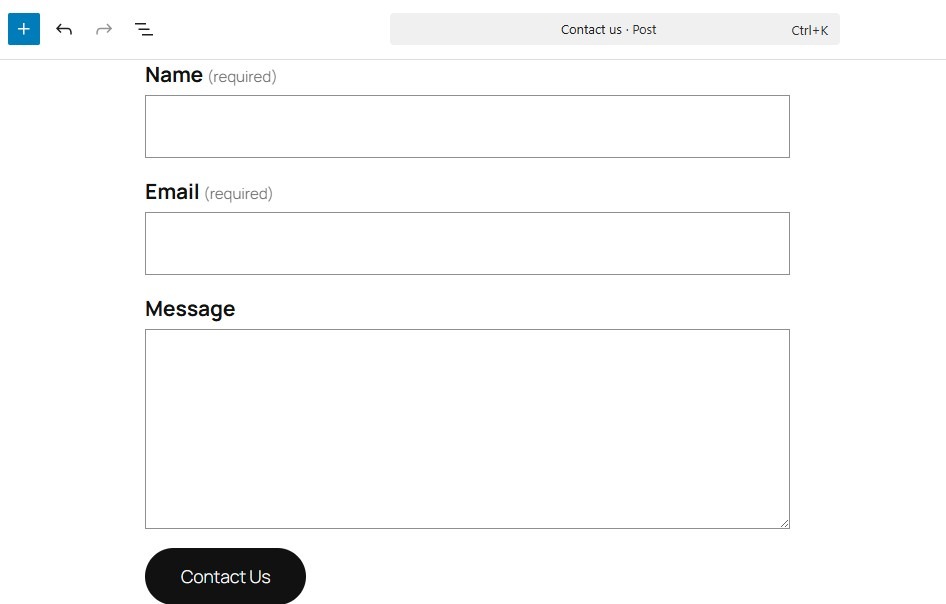
Here’s an example of a contact form created with Jetpack Forms:
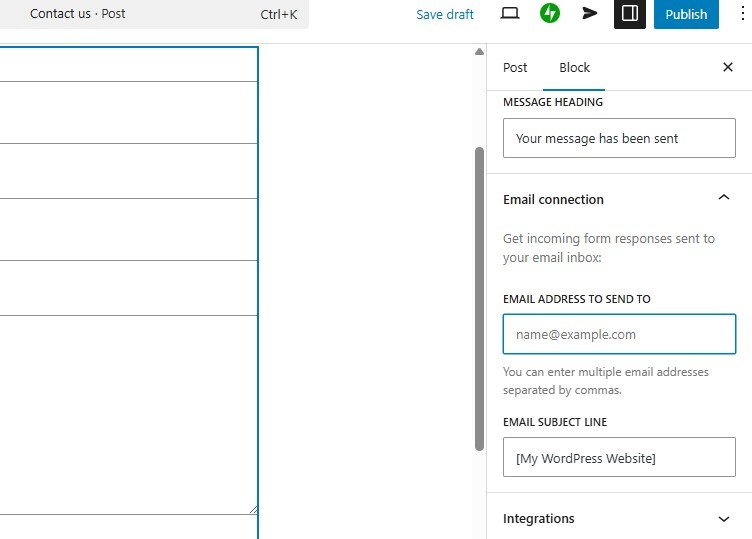
From the settings panel on the right of the block editor, you can enter the email address where the submission will go. Just click on the Email connection tab.
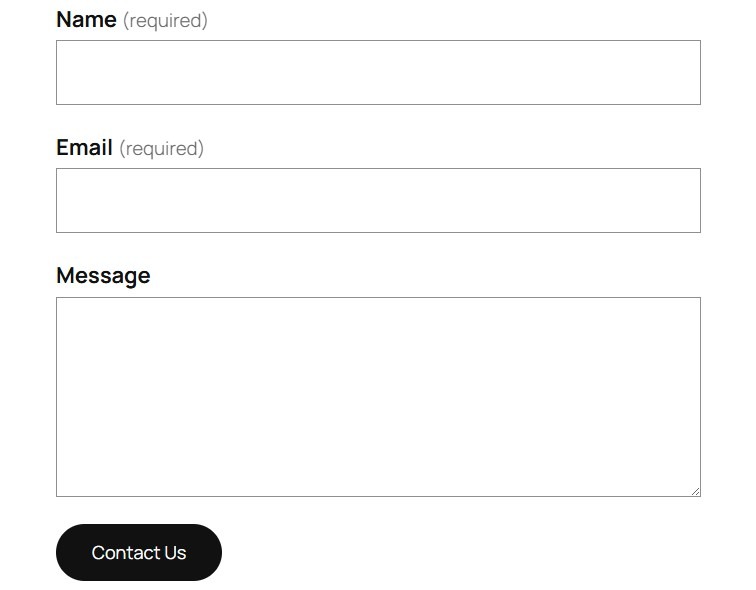
Once you publish the form, view it on the front end and make a test submission.
You should instantly receive an email that contains the name, email, message, and other data that was entered in the form.
This entry will also appear in your WordPress dashboard. Go to Jetpack → Forms and you’ll find a list of all responses.
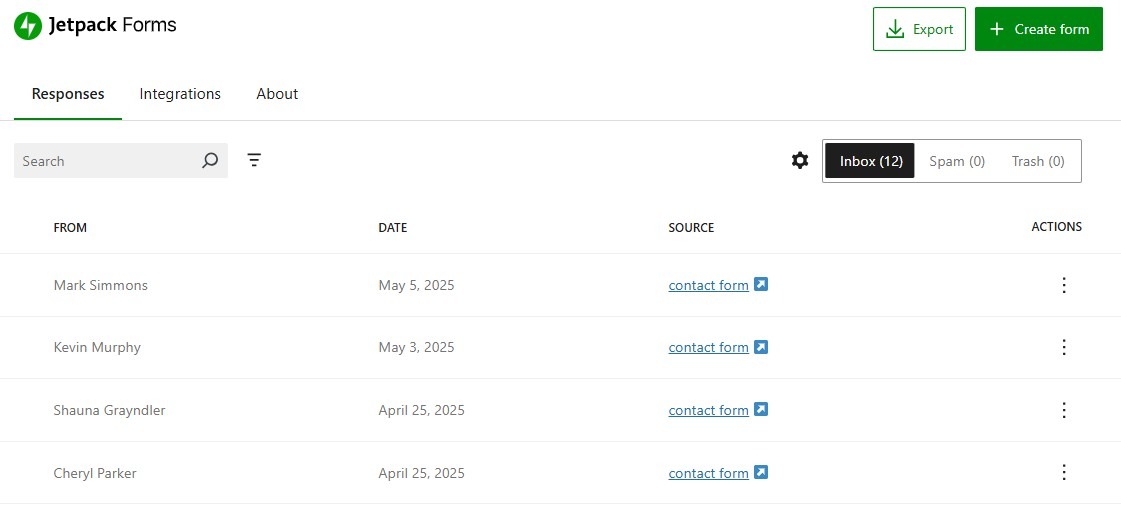
If you move to the Actions column and click on the three dots next to a submission, you’ll see an option to view the response.
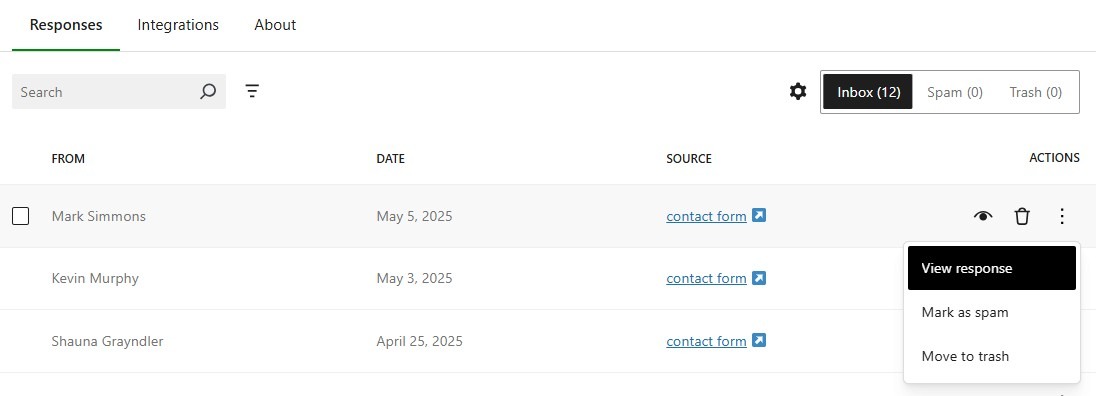
This will show the message on the same page for convenience. To make a copy of all submissions, just click on the Export button. This gives you the option to export to Google Sheets or as a CSV file.
Why your form submissions are not arriving (SMTP issues)
If you cannot find submissions in your email or your dashboard, your server might be blocking PHP mail. WordPress uses the wp_mail() function by default, which hosting providers often flag as spam.
The Fix: Use an SMTP plugin (like MailPoet) which routes emails through verified servers to ensure delivery.
Frequently asked questions
Let’s wrap up by answering some common questions about contact form submissions.
Where do WordPress contact form submissions go by default?
Most WordPress contact forms send submissions to the email address you specified in the form settings. Some plugins will also keep a copy in your WordPress database.
Do WordPress contact forms store submissions automatically?
Not always. Plugins like Jetpack Forms can store submissions automatically, while others require an add-on or a premium plan for this feature. If you’re unsure, check your plugin’s documentation to confirm.
What happens to stored submissions if I uninstall the contact form plugin?
Typically, stored submissions are reliant on the form plugin that you use. If you uninstall that plugin, the entries might be deleted or become inaccessible. Therefore, it’s a good idea to export or back up form submissions before uninstalling a plugin.
How do I check that the contact form is sending emails?
You can test your form by sending a message and confirming that it arrives in your inbox. If it doesn’t, there might be an issue with your site’s mail settings.
Make sure that the recipient email address in your form settings is correct and check your spam folder in case the message is there.
Do I need an SMTP plugin for WordPress contact forms?
If your hosting server doesn’t have a reliable sending service, then you’ll benefit from an SMTP plugin like MailPoet.
SMTP ensures that your WordPress site sends emails through a verified mail server. This improves deliverability and keeps your contact form messages out of spam folders.
MailPoet is a straightforward solution. Once you install the plugin and connect it to your MailPoet account, all messages from your website will be automatically delivered through SMTP.
What should I do if my WordPress contact form emails go to spam?
If your form submissions keep landing in spam, you can use an SMTP plugin to authenticate emails. You’ll also want to make sure that your domain’s DNS settings include SPF, DKIM, and DMARC records.
Can I export WordPress contact form submissions to a CSV file or Google Sheets?
Yes. Plugins like Jetpack Forms let you export submissions to CSV files for backup, reporting, or integration with other tools. You can even connect directly to Google Sheets to automatically sync new submissions in real time.

 Jetpack