

To your visitors, your contact form seems to work just fine. The page refreshes and there’s no error message. But then, nothing shows up in your inbox.
If your WordPress contact form isn’t sending you notifications, it can quietly block leads, customer questions, or support requests without any obvious sign that something’s wrong — a pretty major issue.
This guide breaks down what’s actually happening when a form fails, why email delivery issues are so common, and how you can fix them.
From misconfigured settings to spam filters and plugin conflicts, we’ll walk through each scenario and show you how to build a contact form that works every time.
What happens when a contact form doesn’t work?
When a contact form fails, it’s not always obvious. It might still display a confirmation message or the page might refresh. Either way, everything appears fine to a vvisitor.
On your end, though, no email ever arrives, and that puts you in a tricky position. Unless you’re checking form entries from your WordPress dashboard, inquiries could go ignored for weeks, and you could be sending customers to your competitors. Let’s look at each potential issue in more detail:
The form appears to submit, but no email is received
This is the most difficult failure to catch. There’s no error, no warning — just silence. It’s logical to assume you’re not getting messages because no one’s reaching out, but in reality, your contact form is broken and you’re out of the loop.
The form shows an error message
If the form displays an error after submission, the issue might be related to how your site is configured to send email. Or a plugin conflict may be to blame. This kind of failure is easier to catch but still needs investigation.
Emails are delivered, but go to spam
Sometimes your form works, but your email provider flags the messages as suspicious. Without proper email authentication, messages from WordPress get marked as spam or junk. In fact, a 2024 study by EmailTooltester found that the average email deliverability rate across 15 email service providers was 83.1%, meaning that nearly 17% of emails never reach the intended recipient’s inbox.
On average, 10.5% of emails end up in the intended recipient’s spam folder, and 6.4% go missing altogether and are considered “undelivered.” This underscores the importance of studying your site’s email deliverability and ensuring messages land where intended.
Why contact forms fail in WordPress
WordPress doesn’t include a built-in mail server. Instead, it relies on your hosting provider or external email services to handle delivery. Even a small misconfiguration in that setup can silently block your messages. So, when a contact form fails to send emails, one of three reasons is typically to blame:
Misconfigured mail settings
By default, WordPress uses the PHP mail() function to send emails. If your contact form or site settings aren’t properly configured, many mail servers will reject or block the message entirely. Your “From” address not matching your domain or containing a typo could be reason enough.
Also, some form plugins require specific settings to define sender and reply-to fields. If these fields are missing or incorrectly formatted, emails may not arrive in your inbox.
Server configuration issues or restrictions
Some web hosts disable or restrict the use of the mail() function for security or performance reasons. Others may limit the number of emails sent each hour or day.
In shared hosting environments, if another site on your server is flagged for spam, your messages could be blocked or deprioritized. These server-level rules often operate silently. In such cases, email failures don’t always trigger visible errors.
Plugin issues or conflicts
Conflicts between plugins, or even bugs within your contact form plugin, can prevent messages from sending. Outdated plugins, overlapping functionalities (like multiple plugins attempting to send emails), or issues introduced during updates may interfere with proper email delivery.
Sometimes, the form appears to work correctly, but no email is sent behind the scenes.
How to troubleshoot a WordPress contact form not working
If your form isn’t working, it’s time to dig into the root cause. The following steps help to identify where the failure is happening and how to fix it.
1. Check spam or junk folders
Before adjusting settings or installing plugins, check your spam or junk folder. It’s one of the most common places contact form messages end up, especially if your domain lacks proper authentication or if the email includes generic sender info.
Look for messages from your site’s domain or labeled “WordPress.” If you find them, mark them as “Not spam” and add the sender to your safe list.
2. Install and test a reliable form plugin
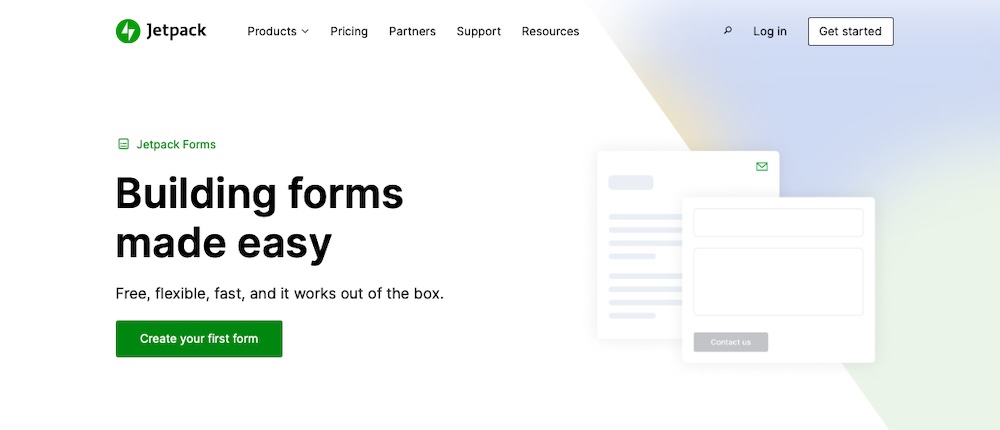
If you’re unsure whether your current plugin is the issue, try testing a known, reliable form builder like Jetpack Forms. With Jetpack installed, you can create a test form in seconds using the built-in AI Assistant, which automatically generates the fields you need based on a short prompt.
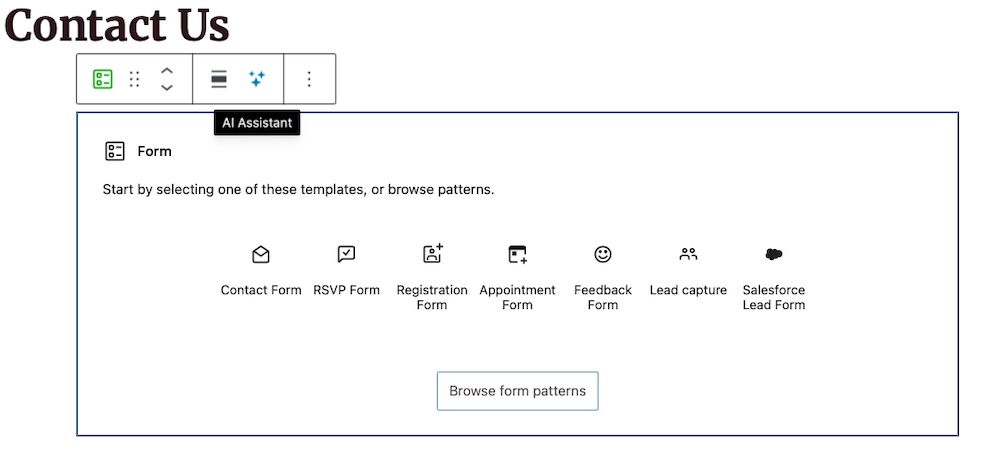
To create a test form, first go to Pages → Add New or open an existing page. Then, add a new Form block and click the ✨ icon in the block toolbar to access the AI Assistant.
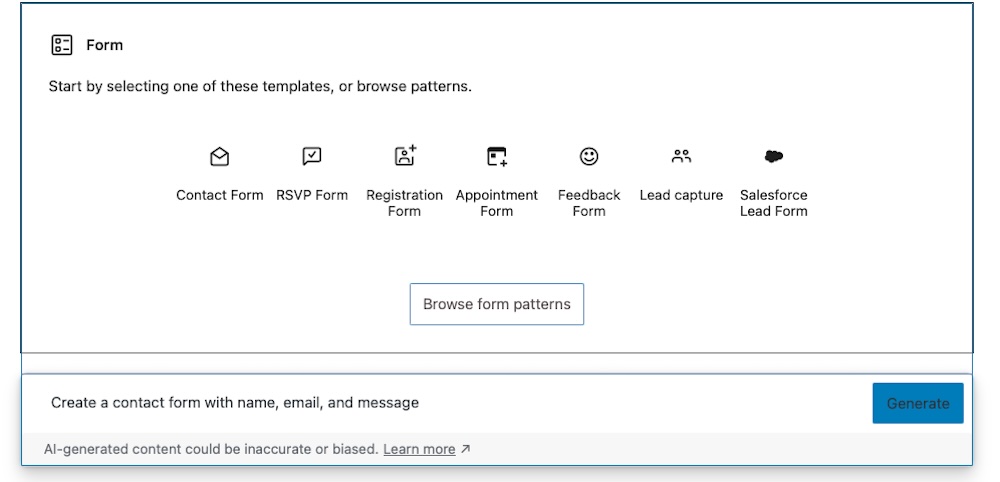
Next, enter your prompt. Something like the following will work: “Create a contact form with name, email, and message.” Click Generate.
Finally, publish or update the page and submit a test entry.
Jetpack handles form processing within the plugin, reducing reliance on external configurations. This setup can help determine if issues stem from your original plugin or site configuration.
3. Confirm if your WordPress site can send emails
Before adjusting settings or installing additional plugins, verify that your WordPress site can send emails. The free Check & Log Email plugin simplifies this process.
To test email functionality, install and activate the plugin. Then, in the WordPress dashboard, go to Check & Log Email → Dashboard.
Under the Email Testing heading, click Go to Email Testing Module.

On the next page, enter your email address in the provided field, then click Send test email.
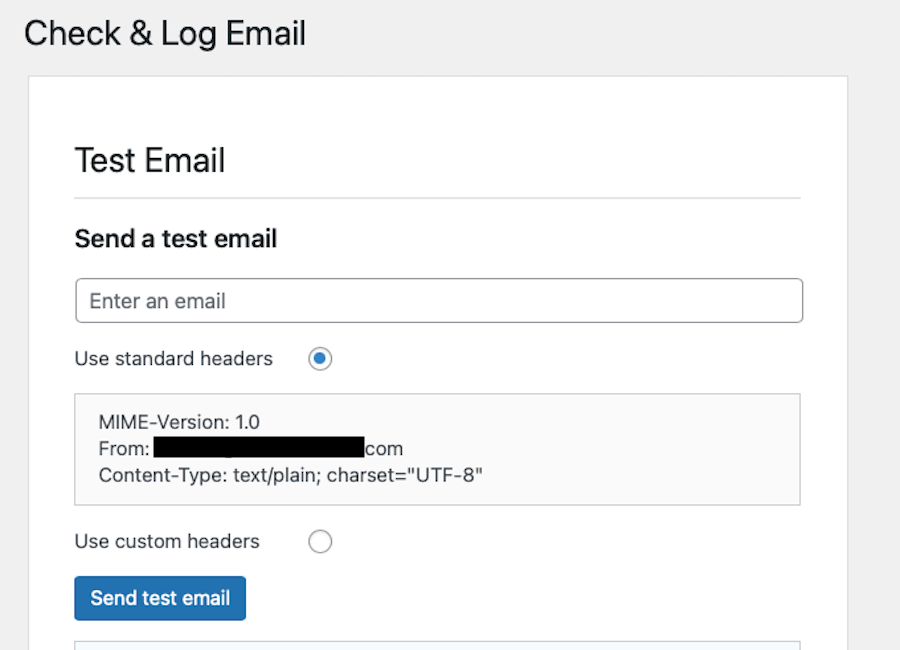
If you receive the test email, your site is sending emails correctly. If not, the issue likely lies with your site’s email configuration rather than your contact form plugin.
4. Set up SMTP for reliable email delivery
Switching to SMTP (Simple Mail Transfer Protocol) instead of the default PHP mail () function solves many common deliverability issues. It also enhances reliability by authenticating emails through a trusted provider.
| Feature | PHP Mail() (Default) | SMTP (Recommended) |
|---|---|---|
| Reliability | Low (Often blocked by hosts) | High (Authenticated delivery) |
| Authentication | None (Looks like spam) | Uses SPF/DKIM validation |
| Debugging | Difficult (Silent failures) | Easy (Full error logs) |
| Speed | Variable | Instant |
The WP Mail SMTP plugin simplifies this setup process.

To configure SMTP, install and activate the WP Mail SMTP plugin as you would any other plugin through the WordPress dashboard.
You’ll be taken to a setup wizard for the plugin. Click the Let’s Get Started button.
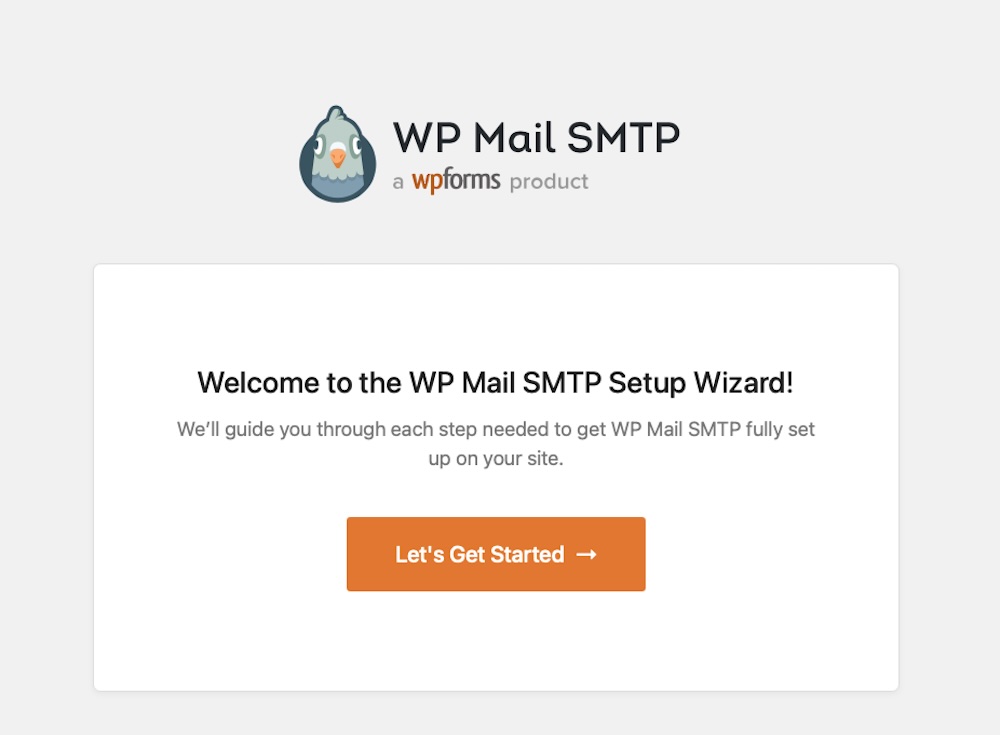
Then choose your preferred SMTP mailer, like Gmail, Outlook, or SendLayer. Click Save and Continue.

Continue following the on-screen instructions to authenticate your account. Once completed, send a test email from the same settings page to confirm functionality.
Routing emails through a reputable SMTP provider in this way reduces the likelihood that messages are marked as spam or fail to deliver.
5. Configure email authentication records
Even with SMTP configured, your emails might still be flagged as suspicious if your domain lacks proper authentication. Implementing SPF, DKIM, and DMARC records in your DNS settings helps verify your identity as a sender and protects against spoofing.
To add or check these records, log into your domain registrar or DNS provider account. Locate your domain’s DNS settings, then add or verify the following records based on your SMTP provider’s instructions:
- SPF: Specifies which servers are allowed to send email for your domain
- DKIM: Adds a digital signature to your emails to prove they weren’t altered
- DMARC: Instructs receiving servers on how to handle suspicious messages
If you’re not sure where to start, your SMTP provider or web host may offer setup guides or support.
Use Jetpack Forms for reliable, AI-powered contact forms
If your WordPress contact form isn’t sending email, the solution is usually pretty straightforward. However, that only applies if you know where to look. From checking your spam folder to configuring SMTP and DNS settings, each step brings you closer to restoring reliable communication with your visitors.
Jetpack Forms simplifies this process by removing much of the guesswork. Once the Jetpack plugin is installed, the Forms module is automatically integrated into the block editor. Powered by the AI Assistant, Jetpack helps you create, customize, and test contact forms quickly with no third-party setup required.
Pair this with Jetpack’s powerful infrastructure and optimized delivery systems, and it’s a reliable way to ensure form submissions land in your inbox every time.
Get started with Jetpack Forms to build dependable, secure contact forms without the hassle.
Frequently asked questions
Why is my WordPress contact form not sending emails?
Often, your hosting company is the problem. WordPress tries to send emails using a tool called PHP mail. This tool is not the best way to send emails. It does not use a password or a secure connection.
Because of this, many email services like Gmail or Outlook block these messages. They think the messages are fake or unsafe. You can fix this by using a proper email system called SMTP.
What is SMTP and why do I need it for my website?
SMTP stands for Simple Mail Transfer Protocol. It is the standard way that computers send email across the internet. Think of it as a secure shipping service for your messages.
When you use SMTP, your website logs in with a username and password before sending a message. This proves that your website is allowed to send the email. This proof helps your messages get to the inbox instead of getting lost.
Why do my contact form emails go to the spam folder?
Your emails go to spam because they lack proper identification. Big email companies protect their users from junk mail. They look for specific digital signatures called SPF and DKIM.
If your website sends an email without these signatures, the email provider gets suspicious. They assume the email is spam and hide it. You must add these records to your domain settings to prove your identity.
Can I fix the email issue without installing a new plugin?
It is possible but it is very difficult. You would need to edit the code files of your WordPress site. You would also need to change how your server is set up. This is risky because a small mistake can break your whole site.
Most experts recommend using a plugin because it is safer. A plugin like WP Mail SMTP handles the complex setup for you. This saves you time and prevents errors.
Is my hosting provider blocking my emails on purpose?
Yes, they might be. Shared hosting companies host thousands of websites on one server. If one website sends spam, it hurts everyone else. To prevent this, some hosts block the default PHP mail function. They limit how many emails you can send. This keeps their servers safe from spammers. They expect you to use an external SMTP service for important emails.
What rules should I follow for the “From” address in my form?
You must set the “From” address to an email that matches your website domain. For example, if your site is example.com, your “From” address should be info@example.com. Do not use the visitor’s email address in the “From” field. This is called spoofing. Email providers will block it immediately. Use the visitor’s email in the “Reply-To” field instead.

 Jetpack