

When a WordPress site starts redirecting visitors to spam or malicious URLs, it’s not a minor glitch. It’s a serious security breach that directly affects user trust, search visibility, and your reputation.
These redirects usually stem from malware injections or compromised files that quietly hijack traffic for fraudulent or monetized schemes. If your site suddenly sends visitors to gambling, adult, pharmaceutical, or fake software domains, that behavior almost always points to an active infection.
In this guide, you’ll learn how these spam redirects happen, how to spot them early, and the exact steps to clean up your site and lock it down going forward.
TL;DR
- Put the site in maintenance mode if visitors are being redirected, then create a full backup before changing files or the database.
- Scan the site with a trusted malware scanner (like Jetpack Security) and review recently changed files, especially theme files, plugin files,
index.php,wp-config.php, and.htaccess. - Remove injected scripts, suspicious redirects, unknown admin users, and unauthorized cron jobs only after you have a backup.
- Check
.htaccess, redirects, plugin settings, and the database for spam domains, encoded code, and unexpected URL replacements. - Replace compromised WordPress core files, themes, and plugins with clean copies from official sources.
- Reset passwords for WordPress users, hosting, FTP, SFTP, SSH, database, and connected services.
- Update WordPress core, plugins, themes, PHP, and server software before reopening the site.
- Add 2FA, malware scanning, automated backups, login protection, and a web application firewall so the same entry point is not reused.
- Use Google Search Console to request a review if the site was flagged for malware, spam, or deceptive redirects.
What causes WordPress redirects to spam URLs?
Spam redirects almost always trace back to malicious code injected into your WordPress site. Malicious actors insert this code to intercept traffic and silently route visitors to external domains that generate revenue, distribute malware, or support phishing campaigns.
Common sources of infection
These infections typically enter through a small set of well-known attack paths:
- Outdated plugins or themes: Older software versions often contain publicly documented vulnerabilities. Attackers actively scan for these weaknesses and exploit them to inject redirect malware.
- Null or pirated themes and plugins: Unlicensed downloads frequently ship with preloaded backdoors or hidden payloads. Even if the site appears to function normally, malicious code can run in the background.
- Weak login credentials: Brute force attacks and credential stuffing can grant attackers admin-level access, allowing them to modify files, inject scripts, or alter database entries.
- Cross-site scripting (XSS) and SQL injection flaws: Poor input validation in plugins or themes can let attackers inject scripts or manipulate database queries, leading to redirects that only trigger under specific conditions.
- Compromised hosting environments: On shared or poorly isolated hosting setups, an infection on one site can spread laterally to others within the same account.
Redirect malware rarely appears in plain text. Attackers typically obfuscate their code using base64 encoding, hexadecimal functions, or heavily minified JavaScript to evade detection during casual reviews or basic scans.
Real-world example: The Balada Injector campaign (active since 2017, still ongoing) compromised an estimated 1 million WordPress sites by exploiting known vulnerabilities in popular plugins. It injected redirect scripts into header.php and .htaccess files. Sites running unpatched versions of tagDiv Composer and Newspaper theme were primary targets.
How to detect spam redirects on your WordPress site
If visitors report unexpected redirects or you see a sudden drop in traffic, treat it as urgent. Redirect malware often hides from casual testing and won’t always trigger during a quick visit from your own browser. Many infections activate only for mobile visitors, search engine crawlers, or those arriving from specific referrers, which makes them easy to miss without deliberate checks.
Red flags to watch for
Here are a few key things that indicate something is amiss:
- Inconsistent behavior across browsers or devices: Pages that load normally on desktop but redirect on mobile, or behave differently depending on how a visitor arrives, often indicate cloaking or condition-based malware.
- Warnings in Google Search Console: Alerts for cloaking, deceptive content, or malware can appear before you notice anything wrong on the front end, especially when redirects only affect search traffic.
- Spam pages indexed under your domain: Running a site:yoursite.com search and seeing unfamiliar URLs usually means attackers created hidden pages or injected content directly into the database.
- Unexpected JavaScript or hidden iframes: Obfuscated scripts tucked into theme files, headers, or footers often handle redirect logic behind the scenes.
- Unfamiliar PHP files in core directories: Randomly named files appearing in wp-content/uploads or wp-includes rarely belong there and frequently act as loaders or backdoors.
- Unauthorized redirects in configuration files: Injected 301 or 302 rules in .htaccess or header files can trigger redirects before WordPress fully initializes, making them harder to trace.
Tools and techniques for scanning
Effective detection usually combines automated scans with manual inspection. Security tools like Jetpack Security can scan for known malware signatures and flag changes to WordPress core files, which helps surface issues that aren’t visible in the admin dashboard.
For individual files or URLs, VirusTotal provides an external check against multiple security engines. Browser tools like Chrome DevTools let you trace redirect chains and unexpected script calls in real time.
If you’re comfortable using the command line, WP-CLI adds another layer of confidence. Comparing your core files against clean WordPress defaults can quickly expose unauthorized changes that basic scans sometimes miss.
Steps to remove malware and fix spam redirects
Cleaning a compromised WordPress site takes more than just deleting suspicious files. To stop spam redirects for good, you need to remove the root cause, verify that nothing was missed, and close the door that attackers used to get in.
Here’s how to approach the process:
1. Put the site in maintenance mode
Start by limiting exposure. Redirect malware can continue harming visitors and search rankings while you work, so temporarily take the site offline. A maintenance plugin works well, or you can place a static index.html file in the root directory to block access during cleanup.
2. Back up your site (yes, even now)
Before you touch anything, create a full backup of files and the database. If something breaks or you delete the wrong file mid-cleanup, this backup gives you a safety net. Store it off-server whenever possible so it remains available even if the hosting account itself is compromised. Jetpack VaultPress Backup is a good option for this.
3. Scan and remove malicious code
Effective cleanup combines automated scanning with manual inspection. Start by running a full scan using a trusted security tool like Jetpack Security to surface known malware signatures and altered core files.
Any infected files should be cleaned or replaced entirely using fresh copies from official WordPress, theme, or plugin sources.
4. Clean the .htaccess file
Spam redirects often rely on server-level rules that fire before WordPress loads. Open your .htaccess file and look for unfamiliar 301 or 302 redirects, rewrite conditions, or encoded strings.
If you’re unsure what belongs there, restoring the default WordPress configuration is usually the safest move:
# BEGIN WordPressRewriteEngine OnRewriteRule .* - [E=HTTP_AUTHORIZATION:%{HTTP:Authorization}]RewriteBase /RewriteRule ^index\.php$ - [L]RewriteCond %{REQUEST_FILENAME} !-fRewriteCond %{REQUEST_FILENAME} !-dRewriteRule . /index.php [L]# END WordPress
After restoring it, remove anything that doesn’t clearly belong.
5. Change all credentials
Once malicious code is gone, assume that all credentials are compromised. Reset passwords for all WordPress users, especially administrators, along with FTP or SFTP accounts, database users, hosting control panels, and any email accounts tied to the hosting environment.
Use a password manager and generate unique, complex credentials across the board. Reusing passwords is one of the fastest ways to get reinfected.
6. Reinstall core, theme, and plugins
Reinstalling ensures that no compromised code survives the cleanup. Replace WordPress core files while leaving wp-content, .htaccess, and wp-config.php intact, then reinstall all themes and plugins directly from trusted sources.
This is also the moment to prune. Remove anything you’re not actively using, and avoid reinstalling plugins that haven’t been updated in a long time, since abandoned software is a common reinfection opportunity.
7. Check your database for malware
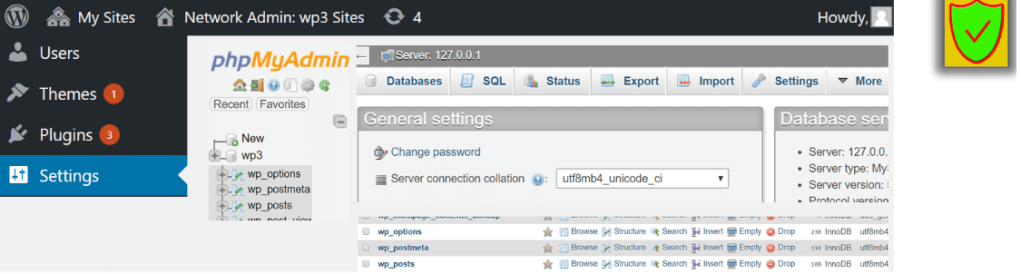
Not all redirect malware lives in files. Attackers often inject code directly into the database, especially in the wp_options, wp_posts, or wp_users tables.
Look for altered siteurl or home values, <script> tags embedded in post or widget content, and unfamiliar admin users that weren’t created intentionally. Tools like WP phpMyAdmin can help here, but proceed carefully. One incorrect SQL edit can break your site, so move slowly and double-check changes before saving.
Final checklist
Confirm the following:
- The redirect no longer appears on desktop, mobile, incognito sessions, and search result clicks.
- Malware scans are clean and no recently modified file contains unknown code.
.htaccess, plugin redirect rules, and database URLs contain only expected destinations.- Every admin account is legitimate and protected with a new password and 2FA.
- Clean versions of WordPress core, plugins, and themes are installed.
- Backups run on schedule and can be restored.
- Security monitoring, brute force protection, and firewall rules are active.
- Google Search Console warnings are resolved or a review request has been submitted.
Post-cleanup: How to secure your site
Once your site is clean, the real work begins. Most spam redirect infections return because attackers left a backdoor behind or because the original weakness was never addressed. Locking things down now reduces the risk of reinfection and limits the blast radius if something slips through later.
Here are a few best practices to follow going forward:
- Keep everything updated: Always run the latest versions of WordPress core, themes, and plugins. Delaying updates, even briefly, leaves known entry points exposed.
- Delete unused plugins and themes: Inactive software still lives on your server and can still be exploited. Removing anything you’re not actively using reduces the amount of code attackers can probe and limits your overall risk surface.
- Limit administrator access: Apply the principle of least privilege. Only grant admin access to users who genuinely need it and use lower-level roles for day-to-day publishing or editing. This reduces the impact if an account is compromised.
- Disable file editing from the dashboard: Prevent attackers from injecting code through the WordPress editor by disabling file edits entirely. Add the following line to wp-config.php:
define('DISALLOW_FILE_EDIT', true);
- Keep a security plugin installed: Ongoing monitoring helps catch issues early instead of after the damage is done. Jetpack Security, built by the team behind WordPress.com, provides malware scanning, a firewall, an activity log, real-time backups, and more in a single tool, which simplifies long-term site protection.
- Enable two-factor authentication (2FA): Two-factor authentication adds a second verification step during login, blocking most brute force and credential-stuffing attacks, even when passwords are leaked elsewhere.
- Set up real-time backups with external storage: Backups should run automatically and live off-server so they’re available during hosting-level incidents. Jetpack VaultPress Backup, included with Jetpack Security, provides real-time backups and quick restores when you need to recover quickly.
Tips to prevent future malware infections
Long-term protection isn’t about a single plugin or setting. Your hosting environment, development workflows, and day-to-day maintenance habits all play a role in keeping malware out. Treat security as part of how you do business, daily.
Here are a few ways to be proactive about site defense:
Use a reputable managed WordPress host
Hosting quality matters more than many site owners realize. A managed WordPress host provides isolated environments, server-level security controls, proactive monitoring, and experienced support when something goes wrong. These safeguards reduce the chances of lateral infections and shorten response time if an issue appears.
Enforce minimum security standards for all collaborators
Anyone with access to your site should follow basic security rules. Require strong passwords, enable two-factor authentication, and avoid sharing credentials. For agencies or distributed teams, define access expectations upfront so security doesn’t depend on individual habits.
Automate core and plugin updates
Automating core and plugin updates helps close vulnerabilities quickly, but updates should be tested in a staging environment before going live. This approach balances security with stability and reduces the temptation to delay updates indefinitely.
Review user accounts and access logs monthly
Set a monthly reminder to audit user roles, remove inactive accounts, and review login activity. Unused admin accounts are common weak points that attackers exploit over time.
Frequently asked questions
Why does my WordPress site redirect to random or spammy websites?
Random or spammy redirects almost always mean that your site has been compromised. Malware is typically injected through outdated plugins, vulnerable themes, weak credentials, or direct modifications to core files.
Attackers use these redirects to monetize traffic, distribute additional malware, or support phishing campaigns. In many cases, the redirects only trigger for specific visitors, such as mobile users, logged-out users, or visitors from certain locations, which makes the issue harder to spot during routine checks.
Stopping the redirects requires a full cleanup. This includes locating and removing injected code, eliminating backdoors, restoring clean files, resetting credentials, and addressing the original vulnerability to prevent reinfection.
How do I find out which file or plugin is causing the redirect malware?
Start with a deep malware scan using a trusted security tool like Jetpack Security. These scans identify altered core files, obfuscated scripts, and suspicious plugins or themes.
From there, focus your investigation on common injection points. Modified theme files such as functions.php or header.php, unexpected PHP files inside wp-content/uploads or wp-includes, unfamiliar JavaScript loading external domains, and recent changes to .htaccess or wp-config.php all deserve close inspection.
Compare flagged files against clean versions from official repositories. If the redirects return after cleanup, check the database for hidden payloads or malicious scheduled tasks.
Can a hacked plugin or theme cause my WordPress site to redirect to other websites?
Yes, compromised plugins and themes are one of the most common causes of redirect malware. Attackers often exploit known vulnerabilities in outdated code or distribute pirated (“nulled”) versions that include hidden redirect scripts.
Once installed, these components can inject JavaScript into your pages, modify server configuration files, or alter database values to hijack traffic. Always install plugins and themes from reputable sources, remove anything you’re not using, and avoid third-party sites offering “free” premium software.
Why does the redirect only happen on mobile devices or when I’m not logged in?
Many redirect infections use conditional logic. The malware may check whether a visitor is logged in, what device they’re using, or where they’re coming from before triggering a redirect. This helps attackers avoid detection by site owners and administrators.
To test properly, view your site in an incognito browser window, use a mobile device, or simulate different devices using browser developer tools. Always check from multiple environments before assuming the issue is resolved.
What should I do if my site is redirecting visitors and Google flags it as malicious?
If Google displays a warning like “This site may harm your computer,” your site has been blocklisted. At that point, cleanup needs to happen immediately.
After fully removing the malware and fixing vulnerabilities, verify your site in Google Search Console, review the Security Issues report, and request a review. Reviews typically take 24 to 72 hours. Until the warning is removed, search visibility and visitor trust may suffer, so make sure cleanup is complete before requesting reindexing.
Can redirect malware hide in the WordPress database?
Yes, redirect malware can live entirely in the database, especially in the wp_options, wp_posts, or wp_users tables. Common signs include modified siteurl or home values, injected scripts inside post or widget content, or unfamiliar admin users added without notice.
Attackers often hide payloads using base64 encoding or obfuscation. You can inspect the database using phpMyAdmin or SQL queries, but always create a backup first. One incorrect change can break the site.
Is it safe to use a backup to restore my hacked WordPress site?
Restoring from a backup is only safe if the backup clearly predates the infection. Restoring an infected backup simply reintroduces the malware.
Before using a backup, confirm when the infection began, scan backup files locally, and be cautious with database restores. When in doubt, use backups to recover content while reinstalling WordPress core, themes, and plugins from clean sources.
Should I hire a professional to remove redirect malware from my WordPress site?
Hiring a professional makes sense if your site is business-critical, handles sensitive data, keeps getting reinfected, or has been flagged by Google or security vendors. It’s also a good option if you’re not comfortable working with server files or databases.
Tools like Jetpack Security can help with malware detection, cleanup, and reinfection prevention. While there’s a cost involved, it’s often far less than the long-term impact of lingering infections, lost traffic, or search penalties.

We guard your site. You run your business.
Jetpack Security provides easy‑to‑use, comprehensive WordPress site security, including real‑time backups, a web application firewall, malware scanning, and spam protection.
Secure your site Jetpack