

Managing a WordPress site with multiple contributors can quickly become chaotic without a clear system for permissions. WordPress user roles are the solution, providing a framework to control who can do what on your site.
This guide will not only explain the default roles but also show you how to leverage them strategically to improve security and streamline your workflow.
Quick recommendations (pick the safest role):
- Solo site owner: Administrator (only for you)
- Blog writer who publishes their own posts: Author
- Writer who submits drafts for review: Contributor
- Editor who manages all content + comments: Editor
What are the default WordPress user roles?
Anyone with an account on your WordPress site is assigned a user role. A role is a group of permissions that allow access to some features, while hiding other, more advanced functionality.
WordPress has six default user roles that are available when setting up your site:
- Subscriber. If you allow visitors to create their own account, they’ll be assigned this role by default. Subscribers can only make changes to their own profile. You’ll typically use this role if you require visitors to have an account to leave a comment or access special content.
- Contributor. A contributor can create new posts, but are unable to actually publish them. Their posts must be reviewed and published by someone with greater permissions. They also have no access to the Media Library and can’t add pictures or files to their posts. This role is most useful for working with first-time contributors to your site, or authors who add content infrequently.
- Author. An author can create, edit, and publish their own posts, as well as edit them or even delete them after publication. They can add media to their posts, and edit comments on their own content. However, they cannot approve or work with content submitted by other users. It’s a great way to give your team of regular contributors access to publish their own content, and not have to wait for an admin to do it for them.
- Editor. Editors have even more control over the site’s content. They can create their own posts, but also publish, edit, or delete posts created by other users. They can moderate, edit, or delete all comments, and they can create new categories and tags as needed. This role is ideal for a senior member of your team who supervises your messaging and public-facing information.
- Admin. On a standalone website, this is the most powerful role. An admin can control all content, but also has access to theme installations, plugin customizations, and all settings. The admin can create or change user roles, add new functionality to the site, and make any number of code changes. This is a technical role meant for the website’s owner and developer.
- Super admin. In a multi-site configuration, the super admin has additional powers, including changing settings that apply to all sites in the network.
WordPress requires every site to have at least one admin (or super admin) configured at all times. All other roles are optional, and can be assigned to members of your team if they apply.
WordPress roles and permissions
| Capability | Subscriber | Contributor | Author | Editor | Administrator | Super Admin* |
| read | ✓ | ✓ | ✓ | ✓ | ✓ | ✓ |
| edit_posts | ✓ (own) | ✓ (own) | ✓ (all) | ✓ (all) | ✓ | |
| publish_posts | ✓ (own) | ✓ (all) | ✓ (all) | ✓ | ||
| delete_posts | ✓ (own) | ✓ (own) | ✓ (all) | ✓ (all) | ✓ | |
| moderate_comments | ✓ | ✓ | ✓ | |||
| manage_categories | ✓ | ✓ | ✓ | |||
| upload_files | ✓ | ✓ | ✓ | ✓ | ||
| manage_options | ✓ | ✓ | ||||
| install_plugins/themes | ✓ | ✓ | ||||
| create_users / edit_users | ✓ | ✓ | ||||
| manage_network (multisite) | ✓ |
*The Super Admin role is only available on WordPress Multisite installations.
How to create custom WordPress user roles
Your team’s needs may not perfectly fit one of the standard roles. Additional user roles can be added with custom sets of permissions based on your unique workflow. There are a few different ways to make this happen:
Option 1: Use plugins that include specific user roles
Some well-established plugins come with additional user roles included, to support the features they offer.
For example, WooCommerce, the go-to eCommerce platform for WordPress, adds two new user roles to your site. A Customer has similar access to the default subscriber role, but can view their past purchases, check the status of current orders, and make changes to their saved information. A Shop Manager has similar permissions to the default editor role, but can also create and edit products, update inventory, and view reports.
Membership plugins often include new user roles as well. For example, bbPress, a user forum plugin, adds roles like Moderator, Participant, and Spectator, and even allows you to assign users a Blocked role to effectively remove them from the forum.
To make use of these roles, you don’t have to do anything other than install the plugin.
Option 2: Use plugins to create your own roles
If you’re working on a custom feature for your site, you may need to set up your own fully custom user roles. A plugin is the easiest way to do this.
The User Role Editor plugin is a powerful, versatile option. With it, an administrator can:
- Change the permissions for any of the default WordPress user roles. For example, you could allow contributors to add media to their posts, or allow authors to create pages as well as posts.
- Add a new user role and assign permissions to it. A new role can begin as a copy of any existing role, or you can start from scratch.
- Delete user roles you’ve created.
- Restore the WordPress default user roles to their factory install state. You can restore one particular user role, or all of them at once.
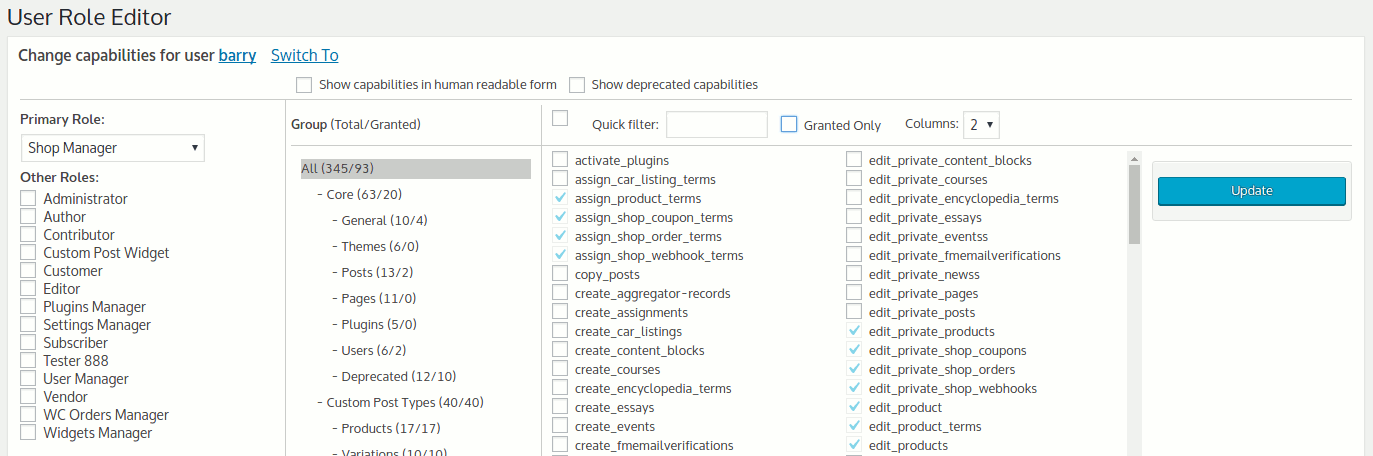
The plugin gives you control over a wide range of permissions with a simple set of checkboxes. All you need to do is select the specific tasks you want the new role to access, and you’re good to go.
If you want to get more advanced, you can allow default or new user roles to only view certain widgets or menu items, access forms, or work with custom post types.
Option 3: Add custom PHP code
If you’re a developer, you can create new custom user roles by modifying your theme’s functions.php file. It’s fairly simple to add a new role using the WordPress add_role function, or add new capabilities to an existing user role with the add_cap parameter. Find a sample code snippet to get you started over on the SpeckyBoy blog.
How to add a new user with a specific role
Do you have your roles set up and ready to go? Now it’s time to add new users and assign them roles so they can log in with the right permissions.
Plugins that add new user roles, like WooCommerce, usually allow visitors to create their own accounts at the most basic access level. But if you need to assign different roles, you can do this by going to Users → Add New in the WordPress dashboard. Note that only an admin or super admin can assign roles.
You’ll be required to set:
- A username
- An email address
- A strong password
- A user role from a dropdown of options
Check the box to send the user a notification about their new account and click Add New User.
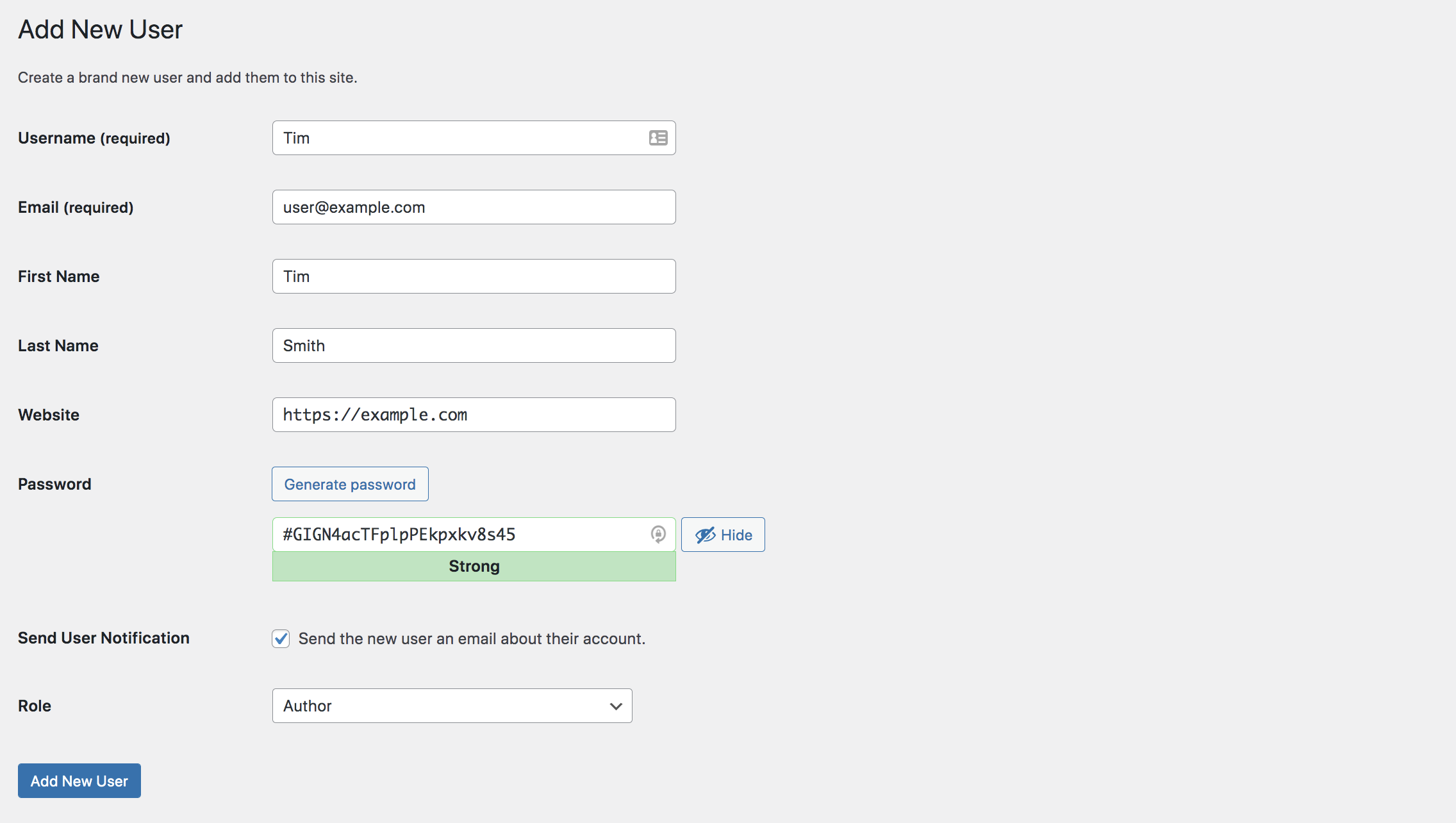
To change the role of an existing user, go to Users in the WordPress dashboard and select the one you want to edit. Choose a new role from the dropdown of options under Role. Then, click Save.

When the new or existing user logs in to your website, they’ll now be able to see the new options assigned to their role, and nothing else.
How to remove a user or user role
If you no longer wish to support a custom user role that you’ve created, you can remove it from your site by:
- Deactivating a plugin with its own user roles. WooCommerce, for example, will keep the accounts of customers, but remove the “customer” role. These accounts will be reassigned to the lowest level of permissions (e.g. the subscriber role.)
- Manually deleting roles created with the User Role Editor plugin. Note, however, that you can’t remove a role if any users are assigned to it. Manually reassign all existing users to new roles, first.
- Removing PHP code that has been added to create a new role. Existing users assigned to that role will be reassigned to the lowest access level (e.g. the subscriber role.)
You can delete individual users that no longer require any kind of access, too. But it’s important to understand that when an individual user is deleted, their content — posts, pages, and other custom post types — is also deleted, unless you reassign their content to a new user first.
To safely delete a user:
- Find the user by going to Users in the WordPress dashboard.
- Hover over the username and click the Delete option that appears.
- Select a new user underneath Attribute All Content To. This will keep existing content on your site.
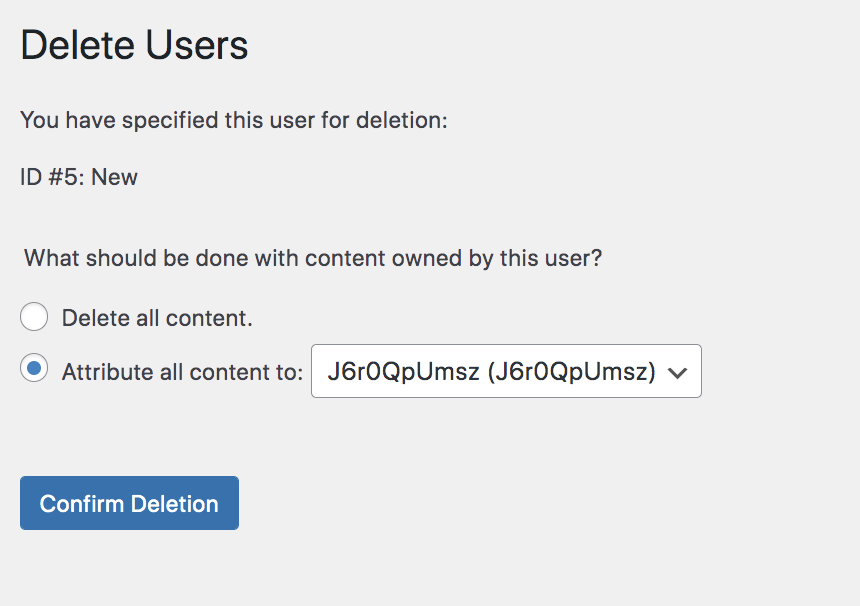
You can now use the Confirm Deletion button to safely remove the user without removing their content.
Best practices for assigning user roles
- Principle of Least Privilege: Always assign the minimum level of access required for a user to do their job.
- Regular Audits: Review user accounts and their roles quarterly. Remove any that are no longer needed.
- Limit Administrator Access: Reserve the Administrator role for site owners and lead developers only.
We guard your site. You run your business.
Jetpack Security provides easy‑to‑use, comprehensive WordPress site security, including real‑time backups, a web application firewall, malware scanning, and spam protection.
Secure your siteSecurity best practices for user role management
Securing your WordPress site starts with assigning the correct user roles to the correct people. Follow these best practices:
- Only give each user the permissions required to do their job. Every new account introduces a potential weak point in your security. It’s always better to provide too few permissions than too many.
- Only give admin access to one or two people who really need it. Full admin access is rarely required by anyone other than a site’s developer and owner.
- Remove outdated users and user roles. Review the site’s roles from time to time to make sure they’re all still relevant, accurate, and in use. If contractors or other team members have moved on, be sure to delete their accounts — but don’t forget to preserve their past content by reassigning it to another user first.
- Track actions on your site. Consider using a WordPress activity log to record who logged in, when, and what actions they took.
- Always take regular backups of your site. If you have a security breach or something goes wrong, you can quickly undo the damage. Real-time backups that save your site after every single change — like Jetpack Backup — mean you’ll never lose any kind of data. No matter who makes a mistake, the impact to your site will be minimal.
Whether your site is brand new or has been running for a while, make sure it’s working well for your whole team by creating the right user roles and assigning them to the right people. With the correct permissions in place, you can rest easy that your site is both secure and ready to serve your audience.
Frequently asked questions
Here are frequently asked questions about WordPress user roles to provide additional clarity and guidance.
What is the difference between a role and a capability in WordPress?
A role is a name for a set of permissions, such as “Author” or “Editor.” A capability is a single permission to perform a specific action, for example, “publish_posts” or “edit_users.”
WordPress groups a list of capabilities together and assigns them to a user role. When you give a person the “Editor” role, you are giving them all the capabilities associated with that role, which includes the ability to publish and edit all posts on the site.
How do I create a custom user role in WordPress without a plugin?
You can create a custom user role without a plugin by adding code to your theme’s functions.php file. This method is for users who are comfortable editing theme files. You would use the add_role() function to define the new role and its capabilities.
For example, you could create a “Proofreader” role that can read and edit posts but not publish them. It is important to back up your functions.php file before making any changes to avoid breaking your site.
What are the security risks of giving too many users the Administrator role?
Giving too many users the Administrator role is a significant security risk. An Administrator has complete control over a WordPress site, including the ability to change settings, install plugins, and delete content.
If an account with Administrator access is compromised, an attacker could take over your entire website. It is best to follow the principle of least privilege, which means giving each user only the permissions they absolutely need to do their work.
What happens to a user’s content when their account is deleted?
When you delete a user’s account in WordPress, you are given a choice about what to do with their content. You can either delete all of the content created by that user, or you can attribute the content to another user.
For example, if you delete an “Author” account, you can reassign all of their posts to an “Editor” or “Administrator” account. This ensures that the content remains on your site even after the original author is gone.
Can a user’s role be changed automatically based on their actions?
A user’s role can be changed automatically based on their actions, but this requires a plugin. For example, you could use a membership plugin to automatically upgrade a user from a “Subscriber” to a “Member” role after they purchase a subscription.
This type of automation can be useful for managing membership sites or online courses where user access levels need to change based on their status.
How do user roles affect a WooCommerce store?
WooCommerce adds its own user roles to a WordPress site to help manage an online store. These roles are “Customer” and “Shop Manager.”
The “Customer” role is automatically assigned to anyone who creates an account during checkout. The “Shop Manager” role has the ability to manage products, orders, and reports without having full administrator access to the website. This helps to separate store management from website administration.
What’s the safest role to give a contractor?
Usually Contributor (drafts only) or Author (publish their own posts) depending on your editorial workflow. Avoid Administrator unless you fully trust them and have 2FA + audit logging enabled.
Why you should almost never grant manage_options or plugin install access
Any account that can install plugins or change options can effectively take over the site (redirect traffic, inject code, create hidden admin users). Reserve these capabilities for site owners/lead developers.
How do I audit users and roles quickly?
Conduct a quarterly audit where you review the list of users, remove stale accounts, confirm admins, review custom roles, and check logs for privileged actions.

We guard your site. You run your business.
Jetpack Security provides easy‑to‑use, comprehensive WordPress site security, including real‑time backups, a web application firewall, malware scanning, and spam protection.
Secure your site Jetpack