

Managing a WordPress site looks simple from the outside, but once you’re handling updates, security, performance, backups, and content every week, the workload adds up. Miss a task, and you risk slow load times, broken features, or security threats that reach your visitors before you notice something’s wrong.
That’s why you need a strong website management workflow. It keeps your site stable, protects your brand, and frees you up to focus on publishing, marketing, and growth.
In this guide, you’ll learn what WordPress website management includes, the tasks worth prioritizing, and the automation tools — like Jetpack and Automattic for Agencies — that help you maintain a fast, secure, reliable website with far less manual work.
What is WordPress website management?
WordPress website management is the ongoing work that keeps your site secure, fast, and running the way visitors expect. It includes updates, backups, performance checks, security scans, form testing, and content reviews. Even a small site needs regular attention because plugins change, new threats appear, and audience expectations keep rising.
Good WordPress maintenance protects the work you’ve already put in and gives you room to grow. When you keep an eye on performance, search visibility, and user behavior, you’re in a better position to refine content, publish with confidence, and catch issues before they cause serious harm.
Most modern workflows lean on automation to lighten the load. Jetpack handles tasks like backups, malware scanning, spam filtering, speed optimization, and social posting in the background. That support gives you a more reliable site, fewer late-night fixes, and more space to focus on bigger goals.
Essential WordPress site management checklist
A healthy WordPress site depends on steady, predictable upkeep. This checklist outlines the recurring tasks that keep everything secure, stable, and performing the way it should. Each item plays a different part, and together they create a solid plan to ensure long-term site health.
1. Site and database backups
Regular backups protect your work from accidents, server issues, plugin conflicts, and security threats. A complete backup includes your site files and your database so you can restore the entire site with minimal downtime. Cloud backups store files in a secure location separate from your site servers, giving you more options in an emergency and greater peace of mind.
2. Software updates for WordPress core, themes, and plugins
WordPress is always improving, and updates bring the latest innovations to your site. Applying updates for WordPress core, your active theme, and installed plugins reduces vulnerabilities and prevents compatibility issues. Scheduling time each week for updates — or automating them when appropriate — avoids long-term problems.
3. Security and malware scanning
Every site faces threats, whether from bots, vulnerabilities, or outdated code. Security scanning identifies suspicious activity, corrupted files, or signs of tampering and alerts you before bigger issues arise.
4. Activity and uptime monitoring
When your site goes offline, even briefly, you risk losing visitors, sales, and trust. According to a Calyptix/ITIC study, 37% of small-to-medium-sized businesses reported that just one hour of downtime costs between $1,000 and $5,000.
Uptime monitoring alerts you the moment your site becomes unavailable, while activity logs show who did what inside your dashboard. Together, they help you troubleshoot problems quickly and maintain a reliable online presence.
5. Form testing and optimization
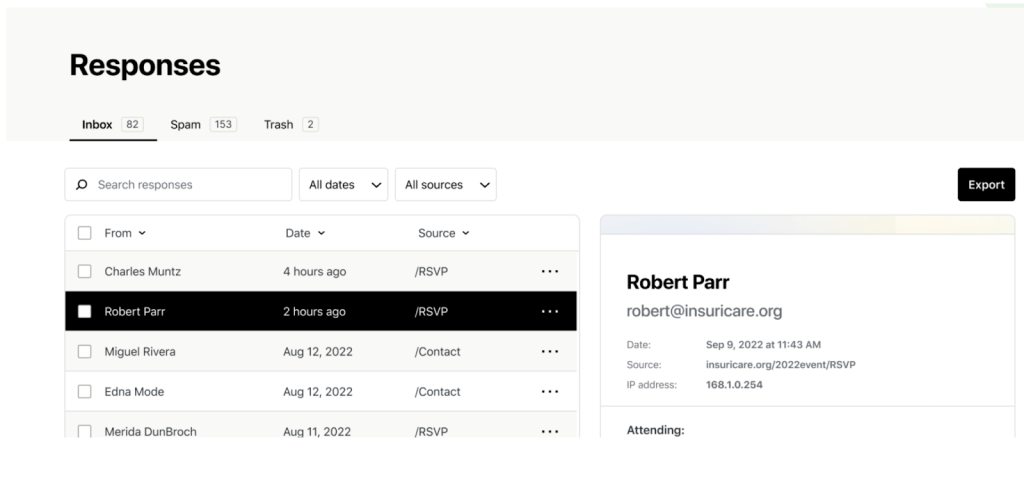
Forms play a big role in conversions and lead generation, so they deserve regular check-ins. Test form submissions, make sure notifications arrive where they should, and confirm that integrations still work. With tools like Jetpack Forms, you can build and manage forms directly inside WordPress and monitor how well they perform over time.
6. Spam control
Spam comments, form submissions, and fake accounts waste your time and distort your site data. Automated spam filtering keeps junk out of your inbox and prevents bots from filling your database with useless noise.
7. Performance and speed tuning
Fast sites earn better search visibility, higher engagement, and stronger conversion rates. Performance tuning includes optimizing images, using caching tools, reducing unused scripts, and other optimizations targeting Core Web Vitals.
8. SEO health check and optimization
Search visibility relies on good structure, updated metadata, working links, clean sitemaps, and readable content. A periodic SEO review helps you identify what needs improvement. Small updates, like fixing broken links or adding structured data, add up to steady gains over time.
9. Content and social automation
A strong content workflow drives growth and cuts down on repetitive work. Automation lets you schedule posts, push updates to your social channels, and handle tasks like drafting or translation without bouncing between tools. When these pieces run in the background, you stay focused on strategy and publishing instead of micromanaging every step.
10. Analytics and visitor insights
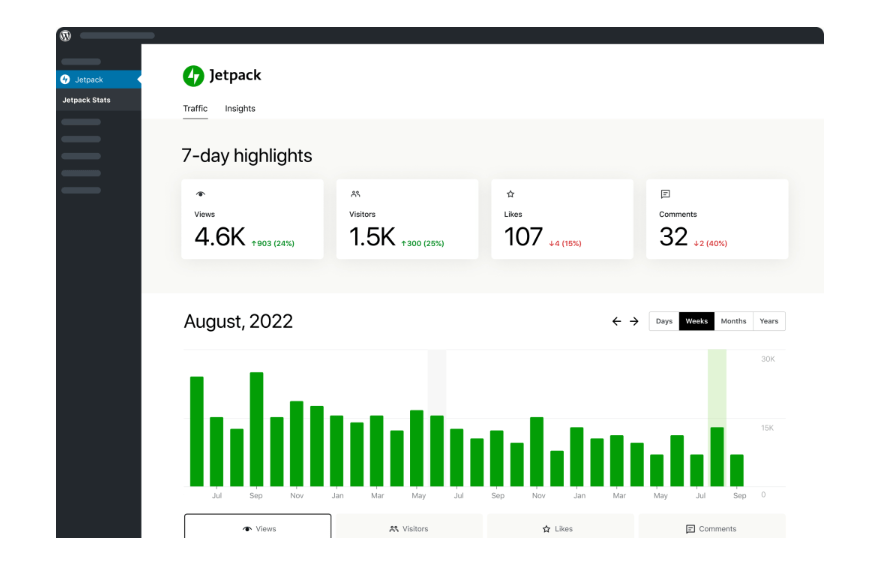
Traffic, engagement, and user behavior tell you what’s working and what needs to change. Jetpack Stats offers quick, at-a-glance analytics right in your dashboard so you can track trends without navigating another tool.
11. Site search and discoverability
On-site search shapes how visitors explore your content. A tool like Jetpack Search upgrades the default WordPress search with faster results, filters, and relevancy sorting. Better search helps visitors find what they want, reduces bounce rates, and keeps people engaged longer.
Together, these tasks give you a complete picture of your site’s health.
How to automate WordPress management with the right tools
Automation takes a big chunk of the ongoing work out of running a WordPress site. Instead of checking backups, removing spam, running scans, or sharing posts one by one, tools monitor, update, and protect your site around the clock.
This results in fewer surprises, stronger performance, and more time to focus on content, marketing, or client work.
A strong automation setup handles the behind-the-scenes tasks that keep your site healthy while giving you a predictable, low-maintenance workflow. Jetpack brings many of these automations together in one tool, so you’re not stitching together a dozen unrelated plugins.
Here are a few ways to automate quickly and effectively:
Agency or freelancer? Explore Automattic for Agencies
If you manage multiple WordPress sites, automation becomes even more valuable. Automattic for Agencies gives you partner-level access to Jetpack tools, discounts on products you use across client sites, and a centralized way to manage and monitor your work.
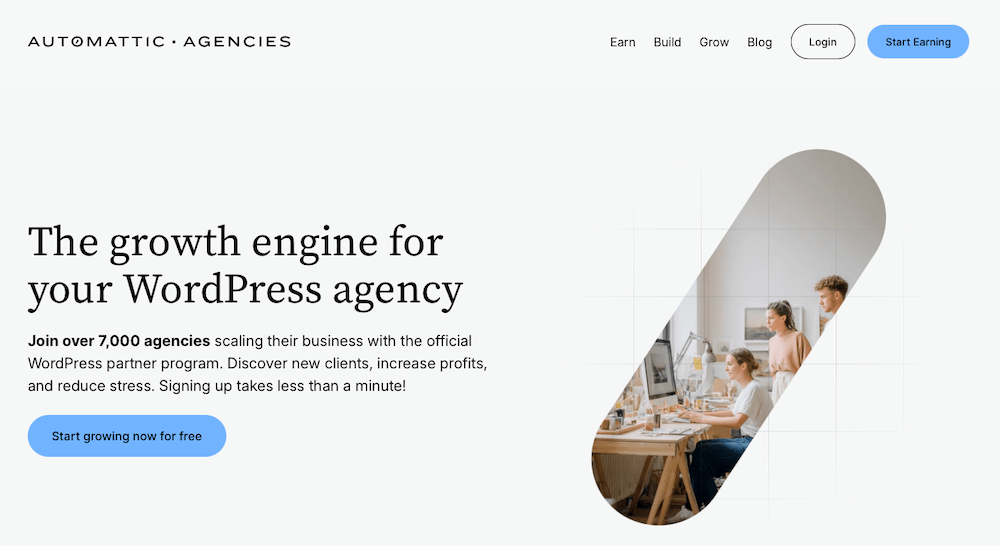
You get a consistent stack for backups, security, performance, and publishing, which helps reduce manual upkeep and strengthen your services. You can even earn recurring commissions when you refer clients to key WordPress tools, hosting providers, and payment processors.
It’s how today’s leading agencies are getting ahead and creating more value from every client relationship.
Security: Auto-scan and auto-fix threats
Jetpack Scan monitors your site continuously, checking for malware, suspicious file changes, injected scripts, or anything that looks out of place. It checks both your core files and plugin directories, so you’re covered even when third-party tools introduce risks.
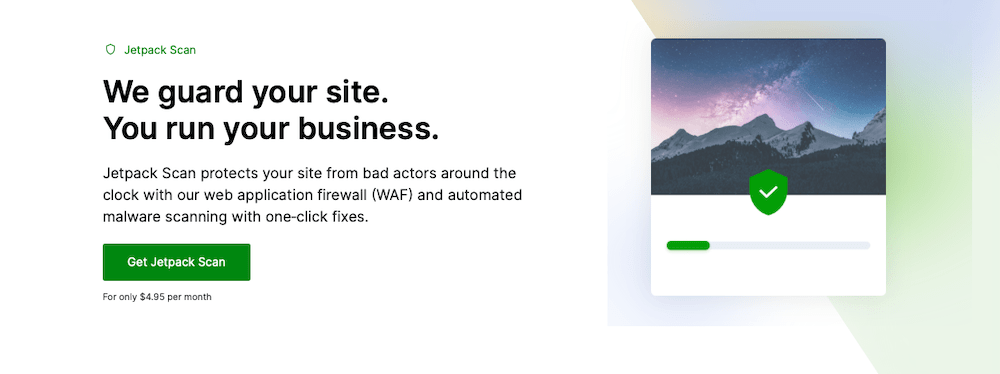
When it detects a known issue, it gives you a one-click fix that restores the affected files to a safe state. You can resolve the issue quickly, avoid downtime, and move on without sorting through code or running manual repairs.
Backups: Real-time, automated cloud backups
Jetpack Backup records every change the moment it happens, including new posts, theme edits, plugin updates, user actions, and more. Then, it stores those snapshots securely in the cloud. You get a complete, moment-by-moment history of your site instead of a single nightly backup that might miss important changes.
If something breaks after an update, a plugin conflict, or an accidental deletion, you can roll your site back to a precise point in time. This approach removes the stress of manual exports, outdated backup files, and recovery guesswork.
Performance: Automated speed and image optimization
Keeping a site fast takes ongoing work, especially as you add new content, plugins, or design elements. Jetpack Boost automates many of the tasks that normally require technical tuning. It generates Critical CSS so above-the-fold content appears sooner, defers nonessential JavaScript to speed up initial rendering, and optimizes how images load across your pages.
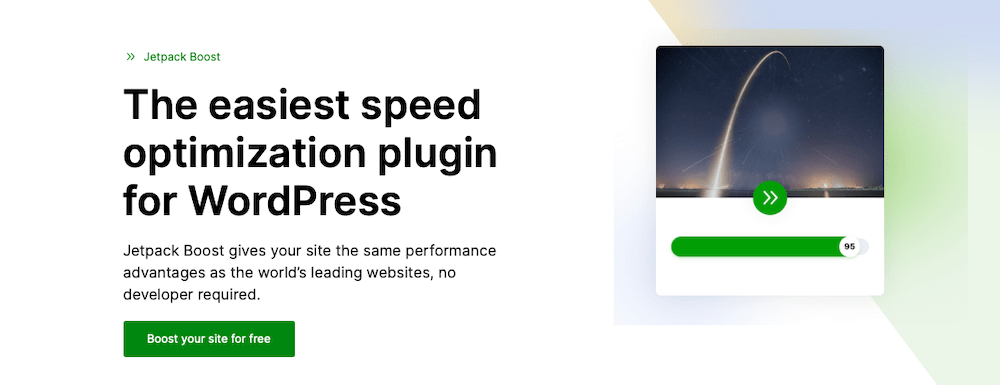
Together, these improvements create a smoother experience for visitors without requiring you to adjust code or manage multiple performance plugins.
Spam prevention: Intelligent spam filtering
Spam comments and bot-driven form submissions pile up quickly and drag down your workflow. They also skew analytics, clog your database, and make it harder to spot legitimate messages.
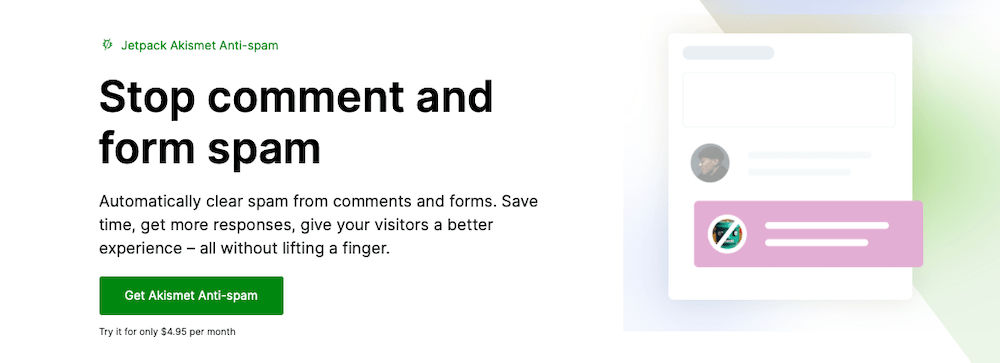
Jetpack Akismet Anti-Spam screens out junk automatically, blocking bots and low-quality submissions before they reach your dashboard. You spend less time moderating noise and more time reviewing the interactions that actually matter.
Content: Creation and translation
Jetpack AI Assistant helps you handle the heavy lifting of content creation right inside the WordPress editor. It can draft sections, rewrite paragraphs for clarity, expand ideas, or translate content when you need to reach a broader audience.
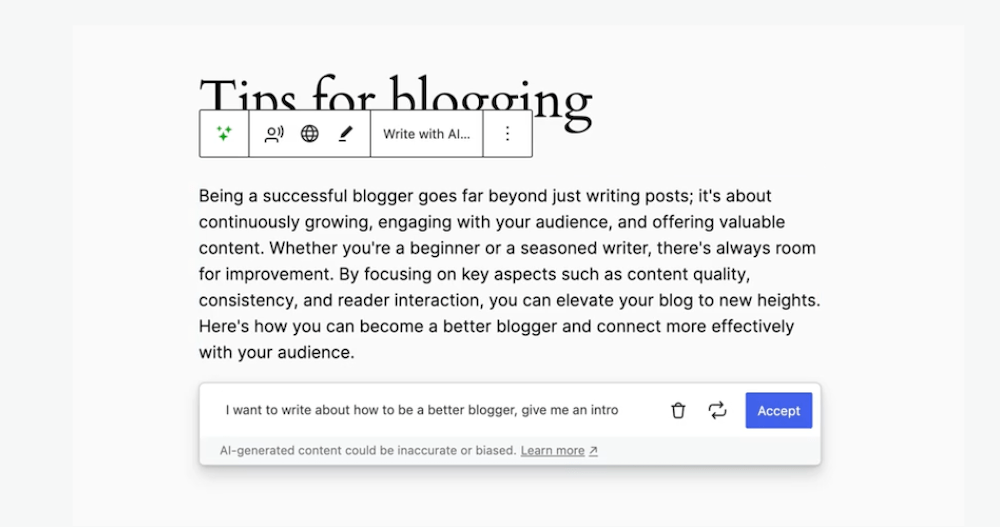
These tools help you move from outline to polished post much faster while still keeping full control over your tone, direction, and final message.
Social media: Auto-posting and scheduling
Jetpack Social pushes your new posts to your connected social channels automatically and gives you tools to schedule updates ahead of time.

You maintain a steady presence across multiple platforms without logging into each one or repeating the same steps every time you publish.
Frequently asked questions
How much does WordPress website management cost per month?
Costs vary depending on your site’s size, traffic, complexity, and whether you handle maintenance yourself or outsource it. For a basic DIY setup, you’re likely looking at around $30-$75 per month, covering backups, updates, and security.
As you add more automation tools, premium features or outsourcing, costs begin to climb. Many WordPress management services offer hands-off plans in the $150-$500/month range for small-to-medium business sites. For large or high-traffic sites, those numbers climb much higher.
What are the most common WordPress management mistakes to avoid?
Site owners often skip updates, don’t keep current backups, ignore security warnings, install too many plugins, or rely on inexpensive hosting that slows everything down. Another common issue is not testing contact forms or checkout flows, which can cause missed leads or lost revenue. Setting up a recurring checklist and using automation tools helps you avoid these gaps.
Do I need coding skills to manage a WordPress site?
No, most management tasks like updates, backups, spam filtering, or performance checks don’t require coding at all. Modern tools like Jetpack handle the technical tasks. Coding becomes helpful only if you want custom features, advanced design changes, or troubleshooting complex errors.
How do I back up my WordPress site automatically?
You can automate backups with tools like Jetpack VaultPress Backup, which captures changes in real time and stores them in the cloud. Once activated, backups run continuously in the background. If you ever need to restore your site, you can roll back to a specific moment without manual file handling.
What is WordPress malware scanning and why is it important to automate?
Malware scanning checks your files and database for suspicious changes, injected code, or harmful activity. Automated scanning ensures threats are caught as soon as they appear instead of waiting for you to run a manual check. A tool like Jetpack Scan also offers one-click fixes for known issues, which helps you recover quickly and reduce downtime.
What is the easiest way to prevent spam comments on WordPress?
The fastest and most reliable approach is automated spam filtering. Jetpack Anti-Spam blocks bot submissions, fake comments, and junk form entries before they reach your dashboard. It protects your site’s performance, keeps your database clean, and saves you from sorting through piles of useless notifications.
How can I easily speed up my WordPress website without coding?
You can improve performance with automated image optimization, page caching, script deferral, and Critical CSS generation. Jetpack Boost handles these tasks for you so your site loads faster without requiring code edits or plugin stacking.
Can AI help with WordPress content management?
Yes, tools like Jetpack AI Assistant help with planning, drafting, rewriting, and translating content inside the editor. They speed up your workflow while keeping you in control of the final tone and message. AI also assists with automating alt text, simplifying content updates, and supporting multi-language publishing.
Can I manage multiple WordPress sites easily?
Yes, you can manage multiple WordPress sites easily, especially with the right tools and structure. Using Jetpack across your sites gives you consistent backups, security tools, performance optimization, and analytics. Agencies can simplify this even further by joining Automattic for Agencies, which provides partner pricing, centralized project management for multiple sites, and access to scalable workflows.
What plugins should beginners install first for site management?
Most beginners start with a small but reliable toolkit: a backup plugin, a security scanner, a performance optimizer, an anti-spam tool, and a simple analytics solution. Jetpack bundles all of these into separate modules, making it straightforward to activate exactly what you need as your site grows.

The best real‑time WordPress backup plugin
Save every change and get back online quickly with one‑click restores from VaultPress Backup.
Get VaultPress Backup Jetpack