Jetpack AI enhances the List Block with AI-powered tools. You can now generate tabular structures from bullet lists.
Requirements
AI assistance requires a website connected to Jetpack, using the block editor with Jetpack Blocks activated. For more details, check the Requirements.
Usage limitations
Jetpack AI offers you 20 free requests to get started. For more information about upgrading, please refer to our detailed Usage limitations and upgrades guide.
Access Jetpack AI tools in the List block
Jetpack AI enhancements are available for each top-level List block in your post or page editor.
To access the available options, click the Sparkles ✨ icon in the List block toolbar. You will only see the AI icon from the top-level List block, not in individual List Item blocks.
To easily select the List level, utilize the Document Overview button to access your blocks’ List View from the sidebar.
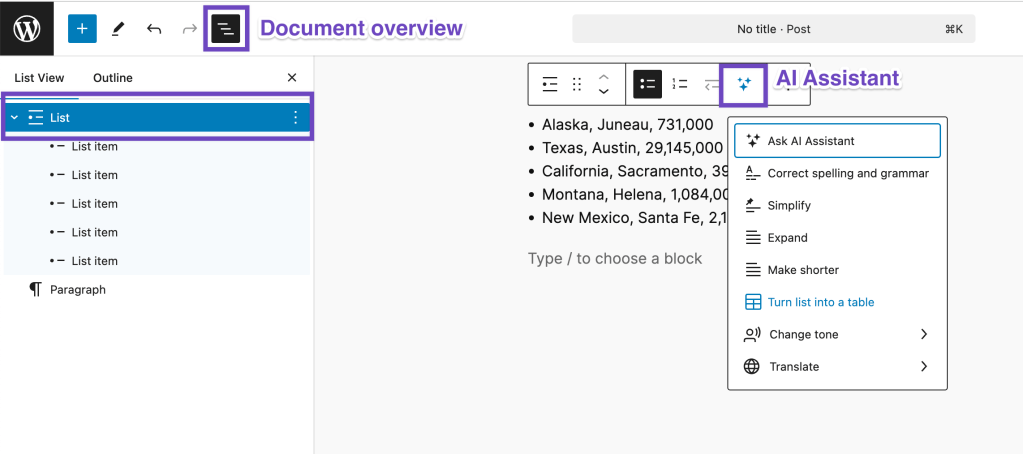
Clicking the AI Sparkles ✨ icon provides access to:
- Ask AI Assistant
- Correct spelling and grammar
- Simplify
- Expand
- Make shorter
- Turn list into a table
- Change tone
- Translate
Note that Turn list into a table only works from the top-level List block. It does not work from the nested-level List blocks.
Modify your List with Jetpack AI
AI tools enable spelling and grammar corrections, tone adjustments, or translations into one of 12 languages.
The available languages are English, Spanish, French, German, Italian, Portuguese, Russian, Chinese, Japanese, Arabic, Hindi, and Korean.
You can choose from 10 tones: Formal, Informal, Optimistic, Humorous, Serious, Skeptical, Empathetic, Confident, Passionate, Provocative.
You can also opt for simplifying, extending or making your list items shorter.
If you want to go beyond these presets, send your own prompt by choosing the Ask AI Assistant option.
Use Jetpack AI to convert your lists into tables
Jetpack AI Assistant can help you with adding tabular data. You can now use a List Block as a starting point. Here is how:
- Add your data as a list. You can use nested lists.
- Select the top-level List Block to get access to its toolbar.
- Click the AI Sparkles ✨ icon.
- Choose Turn list into a table.
AI will try to automatically detect the number of columns and rows. It will also automatically generate the column headings.
Still need help?
Please contact support. We’re happy to advise.
 Jetpack