Speed up website performance by storing frequently accessed content locally, reducing load times for visitors.
To access the caching feature, ensure the Jetpack Boost plugin is installed and active. For installation instructions, visit our installation guide.
Enabling the cache feature
When the Jetpack Boost plugin is active, you can enable the cache feature by following the steps below:
- Start from your site’s WP Admin.
- Navigate to Jetpack → Boost.
- Locate the “Cache Site Pages” and use the toggle to enable the feature
Verifying if the caching works
You can verify that the cache is working by looking in wp-content/boost-cache/cache/ on your server for cached files. You can also open your site in a private or incognito browser (the plugin only caches page requests by logged-out visitors) and do the following:
- Open the Web Developer console and navigate to the Network tab.
- Clear the list, then reload the page.
- Click on the entry for your page and examine the Response Headers. You will find one called “X-Jetpack-Boost-Cache” with a value “hit” if it was served from the cache. If the page wasn’t cached, the value will be “miss”.
If a page is missing the “X-Jetpack-Boost-Cache” header, its URL probably excluded from caching.
Checking whether you’re seeing a cached or uncached page
If your site behaves differently when you are logged in versus logged out, you may be seeing a cached HTML page served by an external caching layer (such as your hosting provider, a CDN, or another caching plugin).
To check this:
- Open the affected page in a private or incognito browser window.
- Add a query parameter (
?nocache=1) to the URL. This will look like:https://yourjetpack.blog/?nocache=1 - Compare how the page loads with and without the parameter.
If the page loads correctly with the parameter but not without it, the site’s current code is correct and the issue is cache-related.
In this case, contact your hosting provider or review any other caching layers on your site and ask for a full cache purge.
Adding a query parameter does not fix the issue, it only bypasses the cache so you can confirm whether caching is the cause and continue troubleshooting.
Disabling any other caching system present on the site
While Jetpack Boost can work alongside other performance optimization plugins, it’s essential to ensure no overlapping features could conflict, particularly other caching mechanisms. It’s recommended to use one caching solution at a time for optimal performance.
If your site uses a caching plugin or if your hosting provider includes a caching system, you might see a little warning pop-up after you turn on the Cache Site Pages feature in Boost. This is just to let you know that Jetpack Boost couldn’t activate the feature due to the existing cache setup.
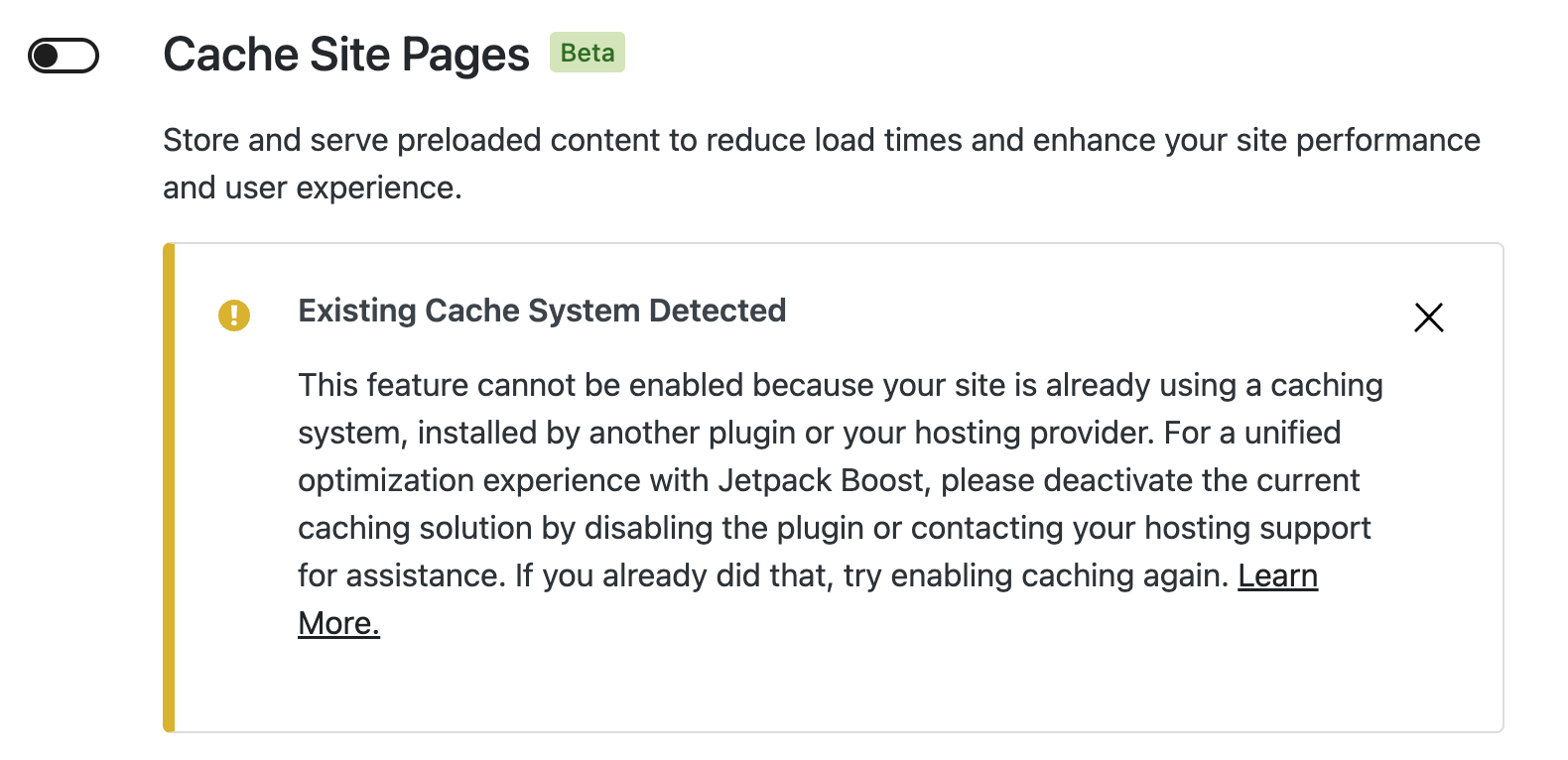
To benefit from Jetpack Boost’s integrated functionalities, including its caching feature and all the other features, you must disable the other caching system. If it’s a plugin, please deactivate it, and if it’s from your host, please contact the hosting provider for assistance.
Please note that some hosting providers will not allow you to choose your own page caching solution. In such cases, Boost’s page cache cannot be enabled on your site.
The technical side of caching
All page caches used by WordPress must use a special file in your wp-content directory called advanced-cache.php to drive their caching features. Jetpack Boost will show an “Existing Cache System Detected” message if we detect an advanced-cache.php file in your wp-content directory.
If you have access to the files in your WordPress installation, check this file to see if it contains information about what caching solution you currently have configured.
If you have an empty advanced-cache.php file installed, your hosting provider may have placed that file there to prevent you from using your own page caching solution. In such cases, your hosting provider likely has a cache built-in. We recommend that you contact your hosting provider for information.
Jetpack Boost provides several filters for developers looking to customize caching behavior. These include jetpack_boost_cache_bypass_patterns for changing bypass patterns, jetpack_boost_cache_request_cacheable to specify cacheable requests, and jetpack_boost_cache_accept_headers to modify caching based on content types.
Further details can be found in the Cache API documentation.
Excluding Specific Parts of the site from Caching
You may have certain pages on your site, such as the cart page or those with frequently updated content, that you prefer not to cache to ensure they always display the most current version. Jetpack Boost offers a straightforward way to designate which areas of your site should remain uncached.
To exclude different parts of the site from caching, you can follow the steps:
- Navigate to Jetpack → Boost in your WP Admin
- Enable the Cache Site Pages module.
- Look for a Show Options button on the right side and click it. This action will reveal a field for input.
- In this new field, enter the paths for any parts of the site you wish to keep uncached.

Remember, you don’t need to use full URLs here. For instance, to exclude a shop page from being cached, simply input “/shop” (without the quotes). Place each path on its own line. If you need to exclude multiple pages under a single directory, you can use the wildcard symbol (.*) in your path. This might look like /blog/(.*) to exclude all pages under the “blog” section.
Tracking Caching Events (logging)
If you run into trouble while using the cache, it can sometimes be helpful to enable its Logging feature to track events that occur in the caching system.
To track caching events, follow these steps:
- Navigate to Jetpack → Boost in your WP Admin
- Enable the Cache Site Pages module.
- Click the Show Options button on the right side.
- Check the option to activate logging.
- Click See logs to see the logs and caching events.

Typically, the cache logging system will track which pages are being cached, which are being served from your cache, and when your cache is deleted due to either the cache becoming too old, or due to changes on your site.
Please note that this feature is normally disabled by default, as writing extra logs to your disk may have a small performance impact on your server. Remember to deactivate the logging system once you have finished troubleshooting any problem you may need to investigate.
Clearing cache
Jetpack Boost automatically clears cached content when posts are updated, published, or deleted, and when comments are modified or removed. Manual cache clearing should only be necessary if you notice outdated content that hasn’t been automatically refreshed.
To clear the cache manually, click Clear Cache button from the Cache Site Pages feature section:

Jetpack Boost’s page cache automatically clears cached content when you update, publish, or delete a post; when a comment is modified, added, or removed; or when you switch themes. This ensures your site’s content remains current without any extra effort on your part.
Improving your site’s loading speed by caching content can positively impact your SEO. Faster sites provide a better user experience, which is a factor search engines consider when ranking sites.
Adjusting the cache duration
Content stays cached for 1 hour. This can be changed by adding a line to your site’s wp-config.php file.
define( 'JETPACK_BOOST_CACHE_DURATION', 3600 );Where 3600 is the duration of the cache in seconds. You can adjust this value according to your needs to control the freshness of your cached content.
However, WordPress comes with a wide variety of plugins and settings, so it can miss some updates. If you notice that some content on your site appears to be out-of-date after making a change, you can clear your page cache at any time.
Changing the cache parameters with filters
Jetpack Boost provides several WordPress filters that enable developers to customize how visitors are identified for serving cached content. These powerful features require some technical expertise to implement effectively. For detailed explanations of each filter and helpful example code to get you started, check out the Jetpack Boost Filters Documentation.
Troubleshooting caching issues
For troubleshooting Jetpack Boost caching issues, please refer to our Troubleshooting Guide for detailed solutions.
Get help
Need more help? Feel free to contact us! For free Jetpack Boost users, you can post a support request on the Jetpack Boost Plugin Support page. If you upgraded, you can contact support for more personalized assistance.
 Jetpack