Be in control of your videos’ preview image, also known as a thumbnail or poster image.
Update the poster/thumbnail image
To adjust what appears as the poster image for your video, follow these steps:
- Add your video via the VideoPress block, if you haven’t already.
- Update the post to make sure the video is saved.
- Select the VideoPress block and go to Block Settings.
- Select Poster.
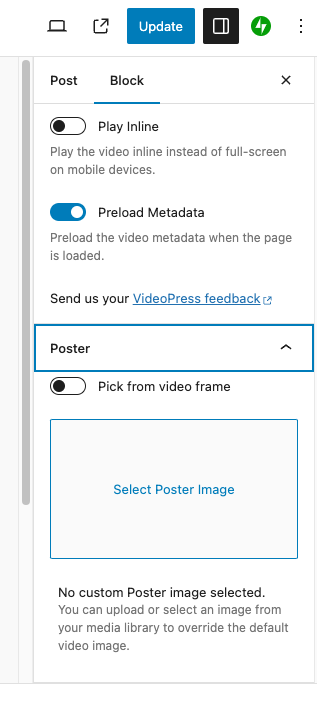
- To choose an image from the video itself, select
Pick from video framethen scroll through the video find the image you want. - To upload your own image, click
Select poster image. Then open your Media Library and either choose an image or upload a new one. We recommend that the poster image be at least the size of your video. For example, if your video is a 1080p video, you should use an image that is 1920 by 1080 pixels. - Click
Update.
Still need help?
Please contact support. We’re happy to advise.
 Jetpack