Newsletter categories provide a powerful tool for organizing and customizing your newsletter content to suit the interests of your subscribers. This documentation outlines how to enable and utilize newsletter categories effectively.
Key features of Newsletter categories
Newsletter categories offer several key features:
- Transformation of post categories: post categories are seamlessly transformed into newsletter categories.
- Subscriber preferences: subscribers can choose to receive subscription emails from only the categories they are interested in.
- Emails sent for non-selected categories: posts published in categories not explicitly excluded in the site’s Newsletter settings will still be emailed to all subscribers.
- Targeted emails: emails are sent only for posts published under the categories chosen by subscribers.
- Automatic subscription: when a new category is added, existing subscribers are automatically subscribed to it.
Note: If you want to ensure a specific post is not sent as a newsletter, you’ll need to disable email notifications for that post manually during the publishing process.
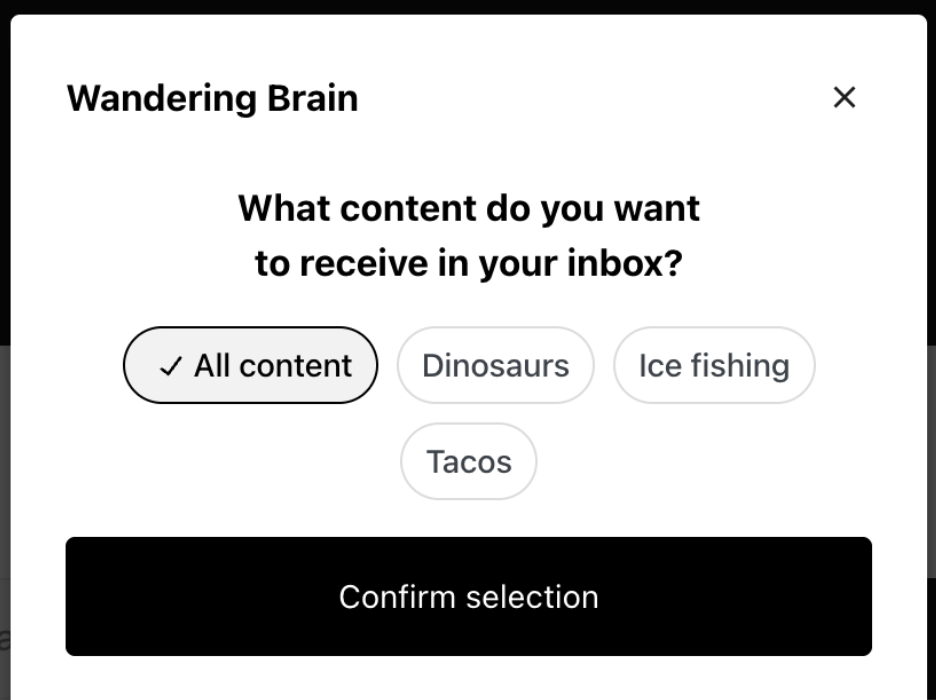
Here’s an example of what your subscribers will see when subscribing to your site with newsletter categories enabled:
Paid Newsletter upgrade offers additional features
If you’re using Paid Newsletters, visitors will select a subscription from your configured paid offerings. Then, they can also select the categories to which they wish to subscribe.
Enable Newsletter categories
Newsletter categories are not enabled by default. To enable Newsletter categories, follow these steps:
- In your WP Admin, navigate to Jetpack → Settings → Newsletter
- Toggle on “Enable newsletter categories” under the Newsletter Categories heading
- Use the search bar within the Newsletter categories section to select the categories you want to include or exclude.
- Click the Save settings button after you’ve chosen categories.
For site owners: how to view your subscribers’ subscribed categories
Site owners can view which categories their subscribers have subscribed to.
- In your WP Admin, navigate to Jetpack → Subscribers. This will open your Subscribers page on WordPress.com.
- To view the categories a subscriber has chosen to follow, click the three dots next to the subscriber’s listing on the page.
- Click View. This will give you Newsletter subscription details for the subscriber, including their subscription date, the categories they’re subscribed to, the plan they’ve chosen for your site, and any paid upgrades they have.
For blog subscribers: how to manage your subscribed categories
Upon subscribing to a site, you will be prompted to choose the categories you will receive emails about. Select them by clicking the ones you’re interested in, then click Confirm selection.
To manage your subscribed categories, navigate to your Subscription Management page on WordPress.com.
You can also unsubscribe from receiving email updates using the “Unsubscribe” link in a subscription email’s footer. You will find a “Manage Subscription” link in email footers as well.
Still need help?
Please contact support. We’re happy to advise.
 Jetpack