The Tock Block allows you to embed a button on your website for restaurant bookings via Tock, providing a convenient reservation method for your visitors.
If you use Tock for your restaurant reservation needs, you can utilize our Tock Block to provide a seamless reservation experience for your visitors. This block can be an essential tool for restaurant owners looking to streamline their reservation process and increase customer engagement on their website.
The Tock Block is a part of the Jetpack Blocks suite and is activated by default. It does not require a paid upgrade to use. See our Jetpack Blocks article to learn about the available blocks and how to activate them.
Jetpack Blocks require the Block Editor (also referred to as the Gutenberg editor). If you’ve installed the Classic Editor plugin, you have a few options:
- Deactivate the Classic Editor: Go to Plugins → Installed Plugins in your WP Admin and deactivate the Classic Editor plugin.
- Enable both editors: If you prefer flexibility, navigate to Settings → Writing in your WP Admin (not the menu under Jetpack settings). Set Allow users to switch editors to Yes. You will only see these options if you have the Classic Editor plugin installed and active.
Some custom themes or plugins may prevent you from using the Block Editor. In that case, please contact the support team for the plugin or theme for further assistance.
For more details, see Using Blocks and the Classic Editor.
Adding the Tock Block
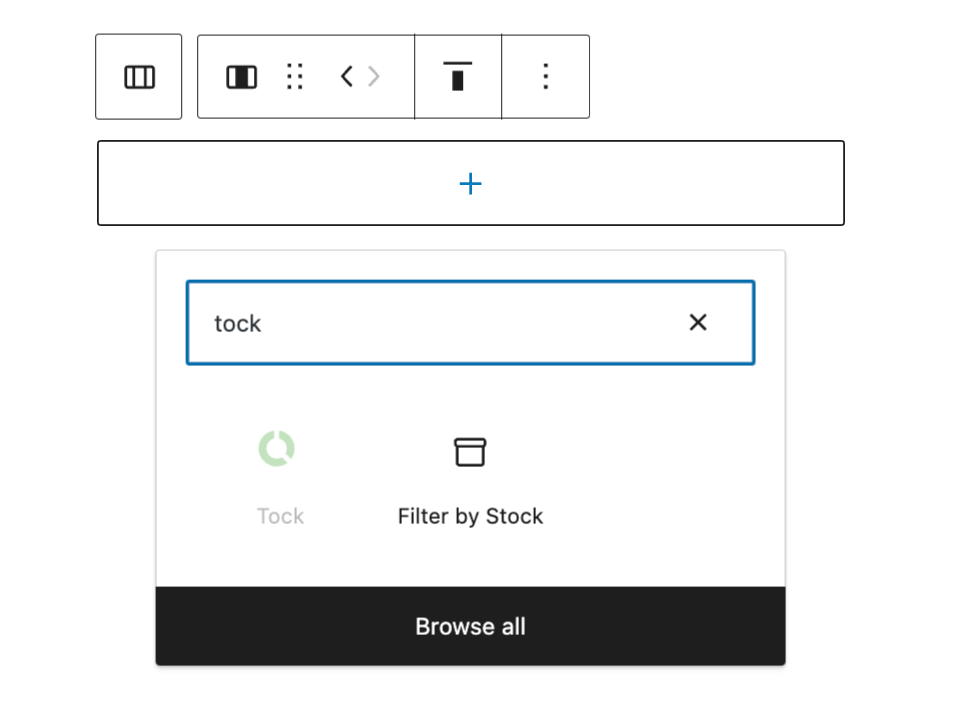
You can add the Tock Block by clicking on the + Block Inserter icon and searching for “Tock”. Using your keyboard, you can also type /tock on a new line and press enter to add the block.
The Tock block can only be added once to a page or post. If you attempt to add it a second time to the same post or page, it will appear disabled and greyed out in the block menu. See Jetpack Blocks for detailed instructions on adding blocks.

Configuring the Tock Block
After inserting the Tock Block, you’ll need to enter your Tock business name in the toolbar settings, under Edit.
Currently, we are unable to validate business names, so it is important that you add your business name the same way you’ve entered it on the Tock platform.
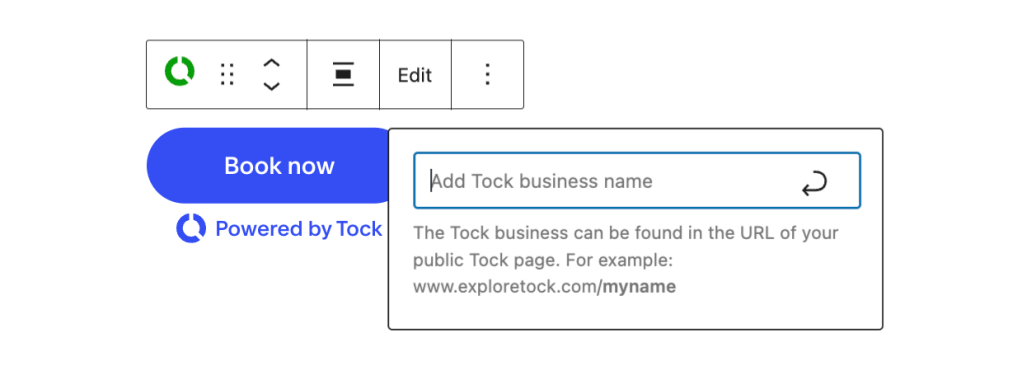
Note that if the Tock business name is left blank, the block will not be rendered to site visitors, but nothing will display. Logged-in users with the edit_posts capability (usually administrators, editors, and authors) will see a preview of the block with the notice: The block will not be shown to your site visitors until a Tock business name is set.
Once the post or page is published and if the conditions above are met, the “Book now” button will be displayed on the page. When a user clicks the button, they will be able to make a reservation using the Tock booking widget.

If you have any questions about how Tock reservations are managed, see the Tock help center.
Still need help?
Please contact support. We’re happy to advise.
 Jetpack